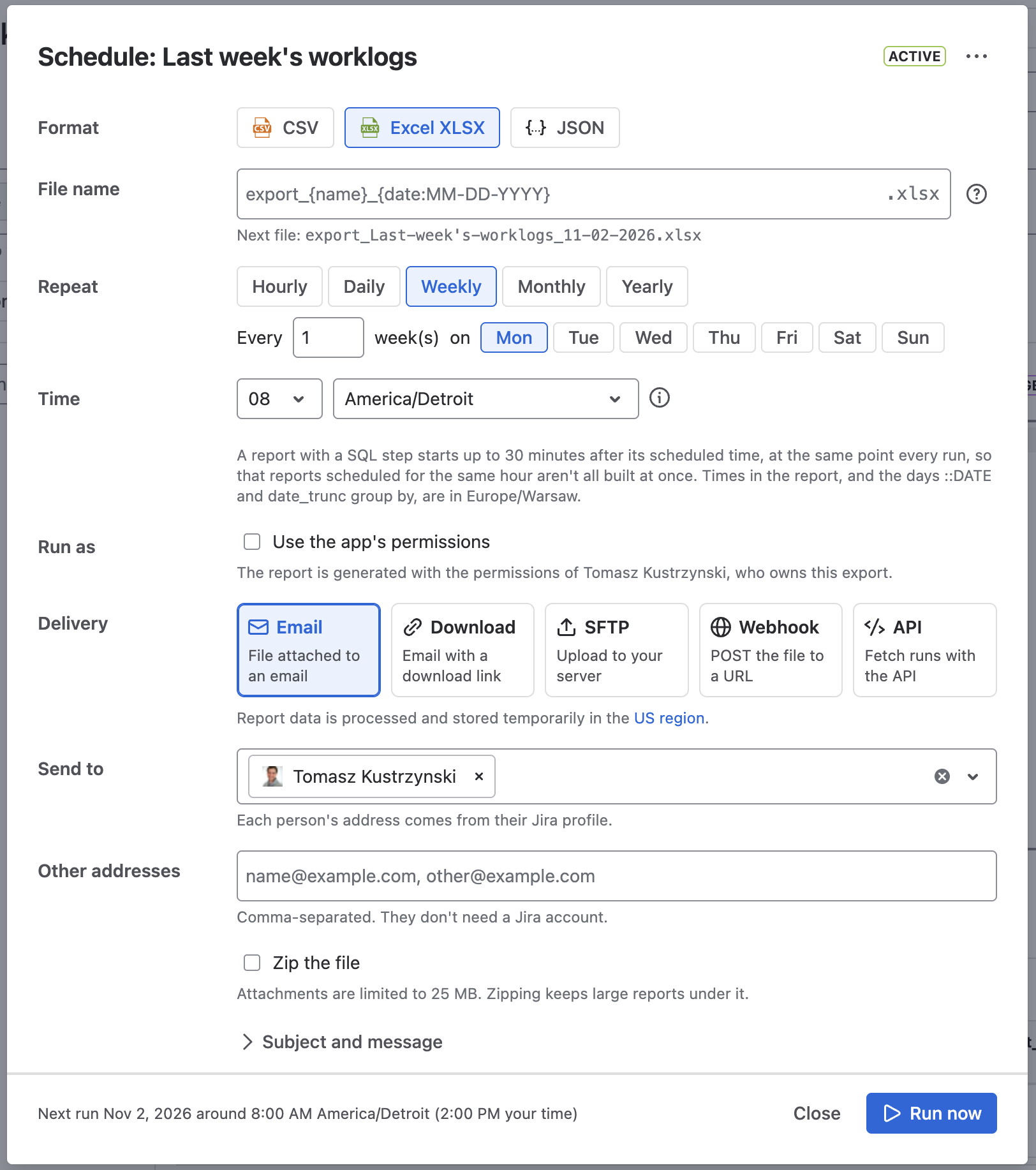
Use case: Last week's worklogs
A flat export puts all of a work item’s worklogs in one cell. This SQL export lists them one row per worklog entry instead, for the last seven days. Each row gives the work item, who logged the time, when, how long, and the comment.
It suits a weekly timesheet: schedule it for Monday morning and it delivers last week’s time as Excel or CSV, ready to filter, sum or import into a billing tool.
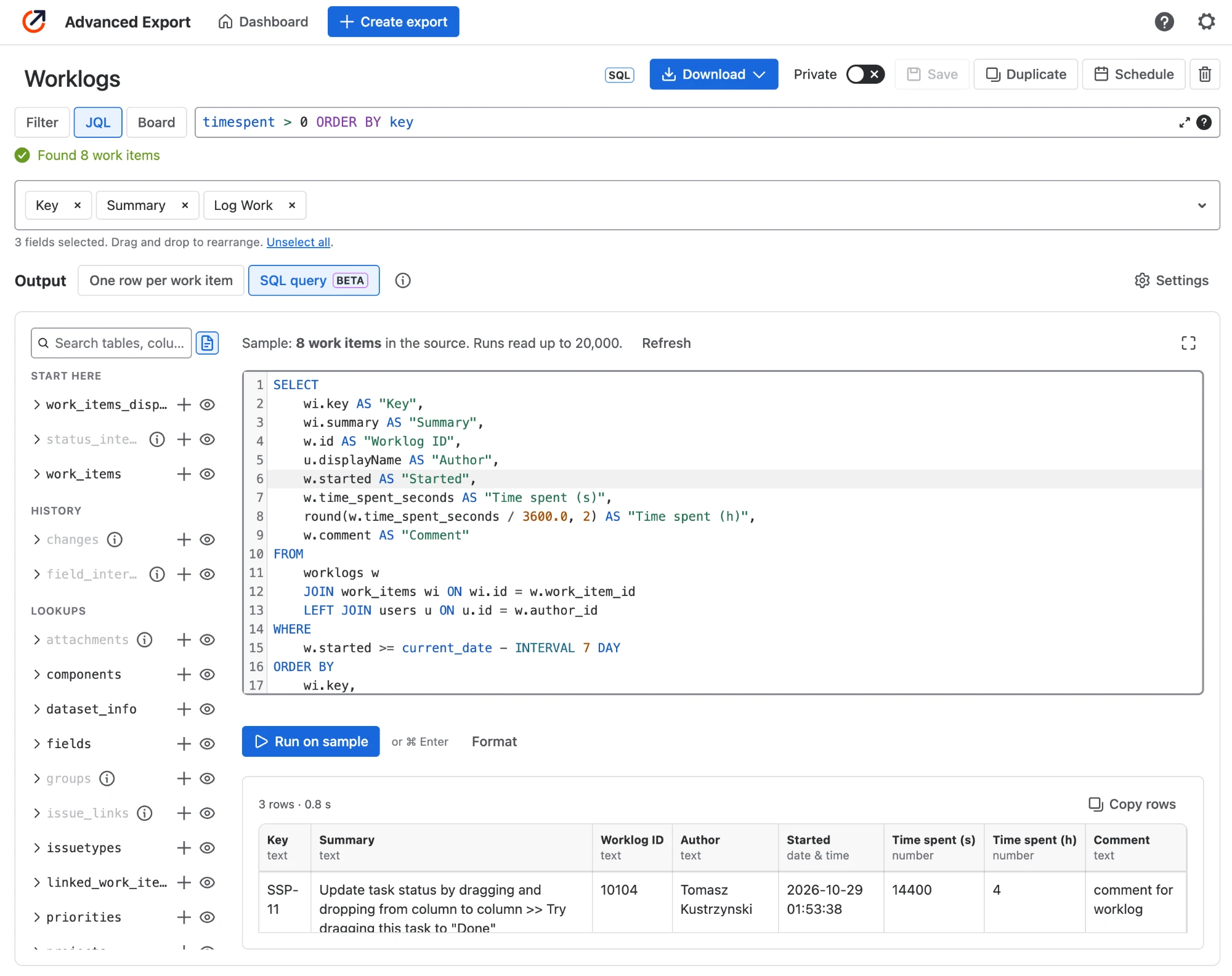
Set up the export
Section titled “Set up the export”-
Create an export and choose its work items. To read only work items with time logged recently, use JQL such as:
worklogDate >= -7d ORDER BY keyAdd a project, for example
project = PLAT AND worklogDate >= -7d, to report on one team. -
Add the Key, Summary and Log Work fields. Log Work fills the
worklogstable: without it the table is empty and the report has no rows. -
Under Output, choose SQL query and paste the query below.
-
Choose Run on sample to check the result, then Save.
You do not need Export historical changes for this report.
The query
Section titled “The query”SELECT wi.key AS "Key", wi.summary AS "Summary", w.id AS "Worklog ID", u.displayName AS "Author", w.started AS "Started", w.time_spent_seconds AS "Time spent (s)", round(w.time_spent_seconds / 3600.0, 2) AS "Time spent (h)", w.comment AS "Comment"FROM worklogs w JOIN work_items wi ON wi.id = w.work_item_id LEFT JOIN users u ON u.id = w.author_idWHERE w.started >= current_date - INTERVAL 7 DAYORDER BY wi.key, w.startedHow it works:
worklogshas one row per worklog entry: when the work was started, the time spent in seconds, and the comment as plain text.work_itemsadds each entry’s key and summary. They are the columns of the Key and Summary fields, which is why the export needs them.usersturns the author’s account id into a name. It is aLEFT JOINso that an entry whose author cannot be found still appears, with an empty Author.WHEREkeeps entries started in the last seven days. The JQL picks which work items are read; this condition picks which of their worklogs are reported, since a work item with time logged this week can also have entries from months ago.
Example result
Section titled “Example result”The names and numbers below are made up, to show the shape of the result.
| Key | Summary | Worklog ID | Author | Started | Time spent (s) | Time spent (h) | Comment |
|---|---|---|---|---|---|---|---|
| PLAT-112 | Export endpoint times out | 10231 | Alex Morgan | 2026-10-22 09:15:00 | 14400 | 4 | Reproduced and profiled the query |
| PLAT-112 | Export endpoint times out | 10245 | Alex Morgan | 2026-10-23 13:30:00 | 7200 | 2 | Added an index, retested |
| PLAT-118 | Update onboarding emails | 10238 | Sam Lee | 2026-10-22 10:00:00 | 1800 | 0.5 | |
| PLAT-121 | Quarterly access review | 10250 | Jordan Kim | 2026-10-24 15:00:00 | 5400 | 1.5 | Reviewed admin group |
An entry logged without a comment has an empty Comment.
Adjusting the query
Section titled “Adjusting the query”-
A different period. Change
INTERVAL 7 DAY, for example toINTERVAL 1 MONTH, and widen the JQL to match (worklogDate >= -30d). For the previous calendar week, Monday to Sunday, useWHERE w.started >= date_trunc('week', current_date) - INTERVAL 7 DAYAND w.started < date_trunc('week', current_date) -
Hours and minutes as Jira shows them. Replace the two time columns with
format('{}h {}m', w.time_spent_seconds // 3600, (w.time_spent_seconds % 3600) // 60) AS "Time spent". -
Totals per person. To report hours per author instead of individual entries:
SELECT u.displayName AS "Author",count(*) AS "Entries",round(sum(w.time_spent_seconds) / 3600.0, 2) AS "Time spent (h)"FROM worklogs wLEFT JOIN users u ON u.id = w.author_idWHERE w.started >= current_date - INTERVAL 7 DAYGROUP BY ALLORDER BY "Time spent (h)" DESC -
More fields. Any field you add to the export is a column of
work_items, named by its field id, such aswi.priorityorwi.customfield_10010. Add it to theSELECTlist.
Times are in the export owner’s time zone; see Dates and times.
Or ask an AI agent
Section titled “Or ask an AI agent”You can skip the steps above and ask an agent instead: the Rovo agent, or an AI assistant such as Claude connected through MCP. It uses the app’s tools to create the export, write and run the query, and schedule it. You see the result before anything is saved.
Copy this prompt, and change the project key PLAT to yours:
Create a report called "Last week's worklogs" for project PLAT, with one row perworklog entry from the last 7 days. Read work items matching the JQL"project = PLAT AND worklogDate >= -7d ORDER BY key", with the Key, Summary andLog Work fields. For each worklog entry show the work item key, summary, worklog ID,author name, when it was started, time spent in seconds, time spent in hoursrounded to 2 decimals, and the comment, ordered by key and then start time.
Show me the result on my data first.
Once I confirm, save it as a SQL export and schedule it to run every Monday at 8:00,emailing it to me as an Excel (XLSX) file.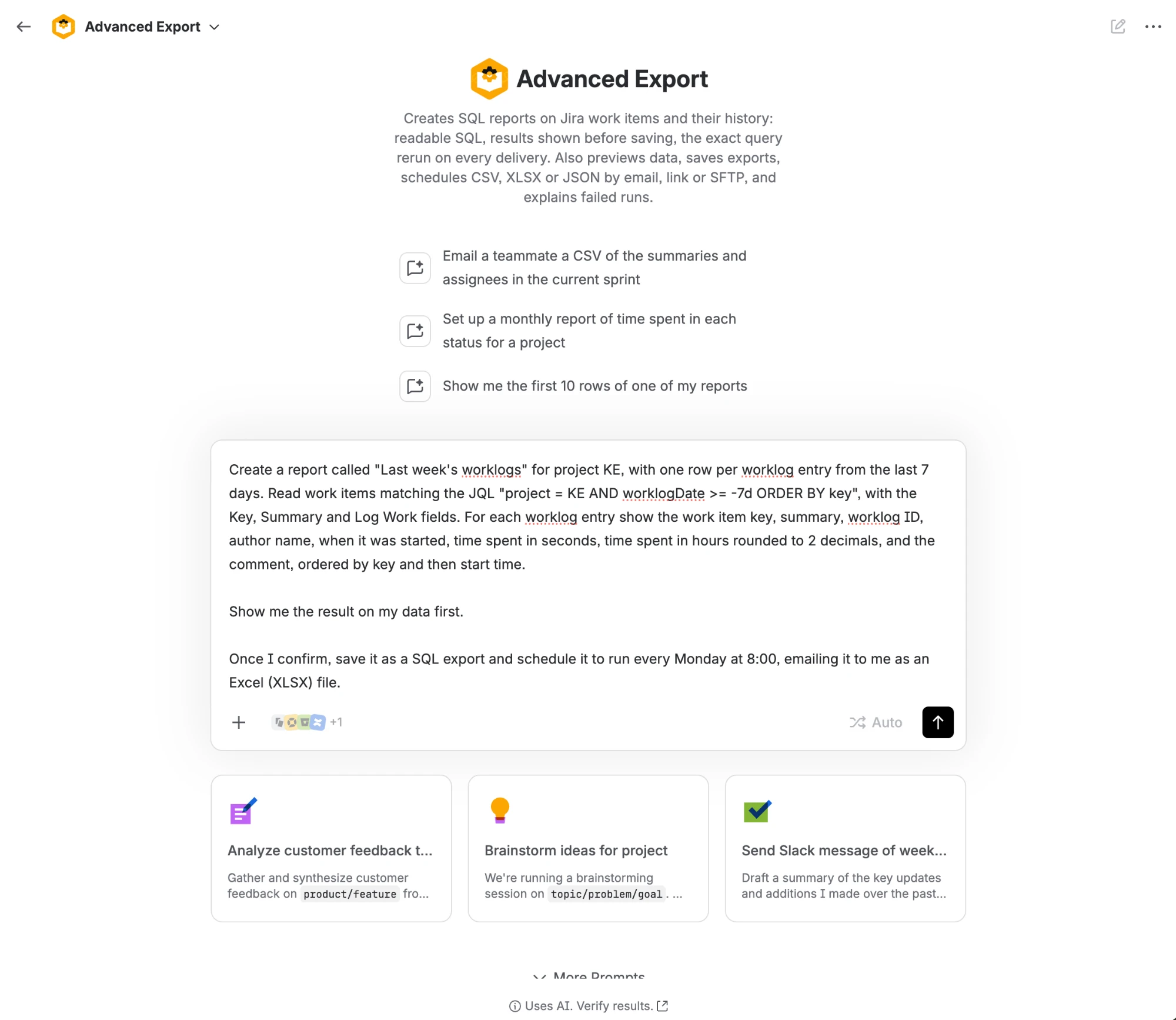
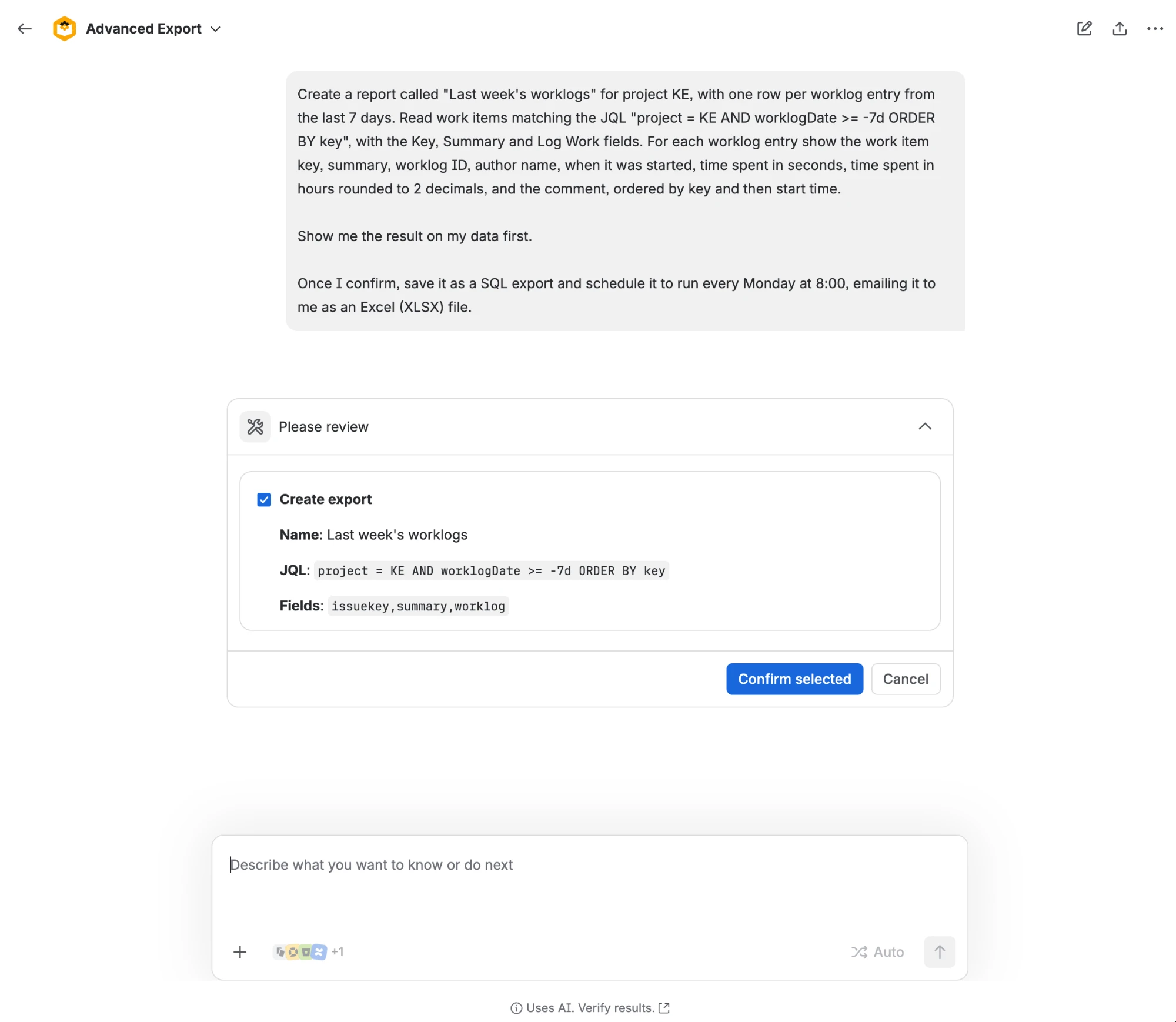
The agent works through it in steps, and asks you to confirm each one that saves something:
-
Create the export. It shows the name, JQL and fields it will use.
-
Load the data and run the query. It reads the work items into a dataset, writes the query, runs it and shows you the result.
-
Save the query to the export. Check the SQL before you confirm: from then on, the export delivers this query’s result.
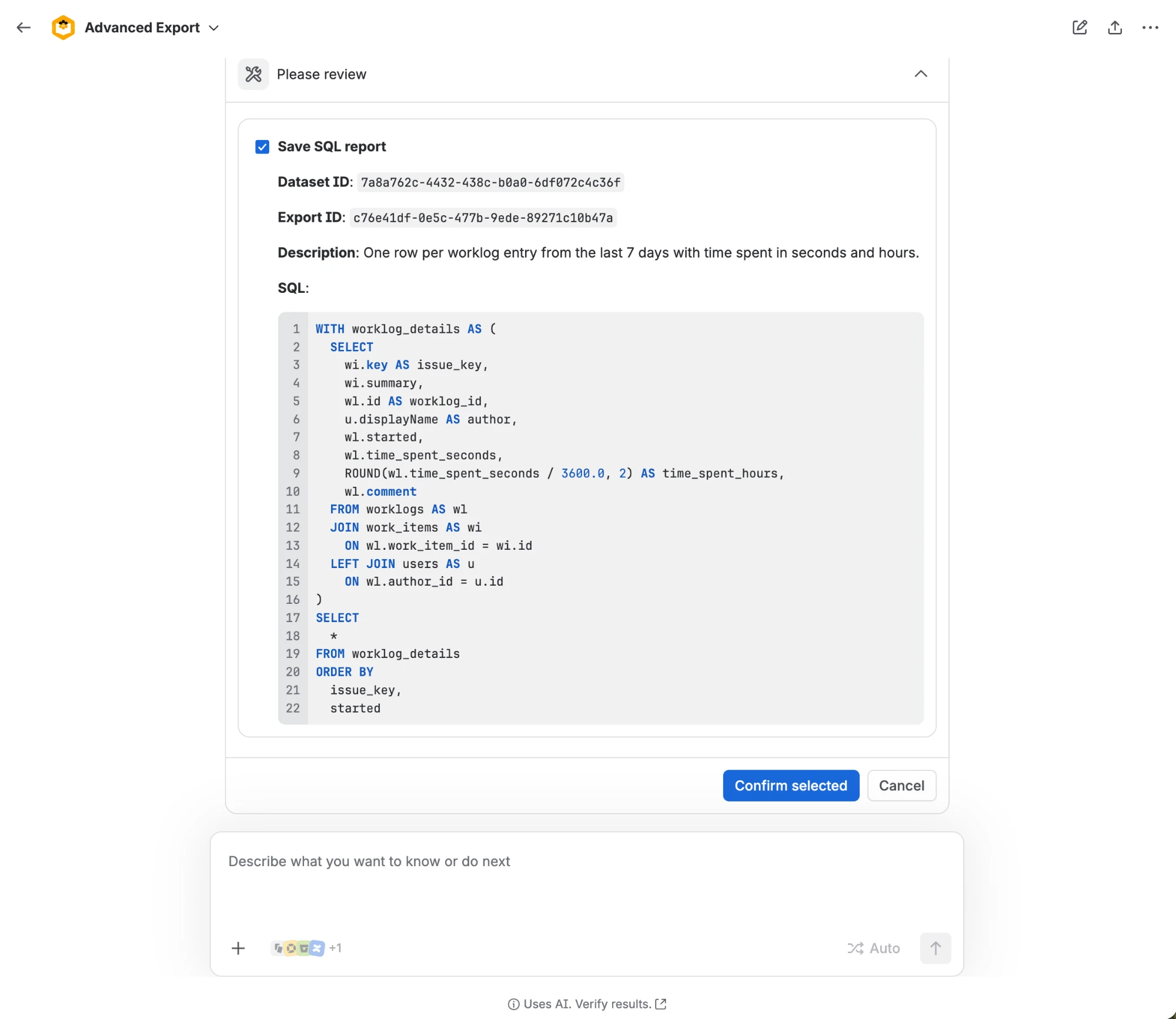
-
Create the schedule, with its recurrence, format and delivery.
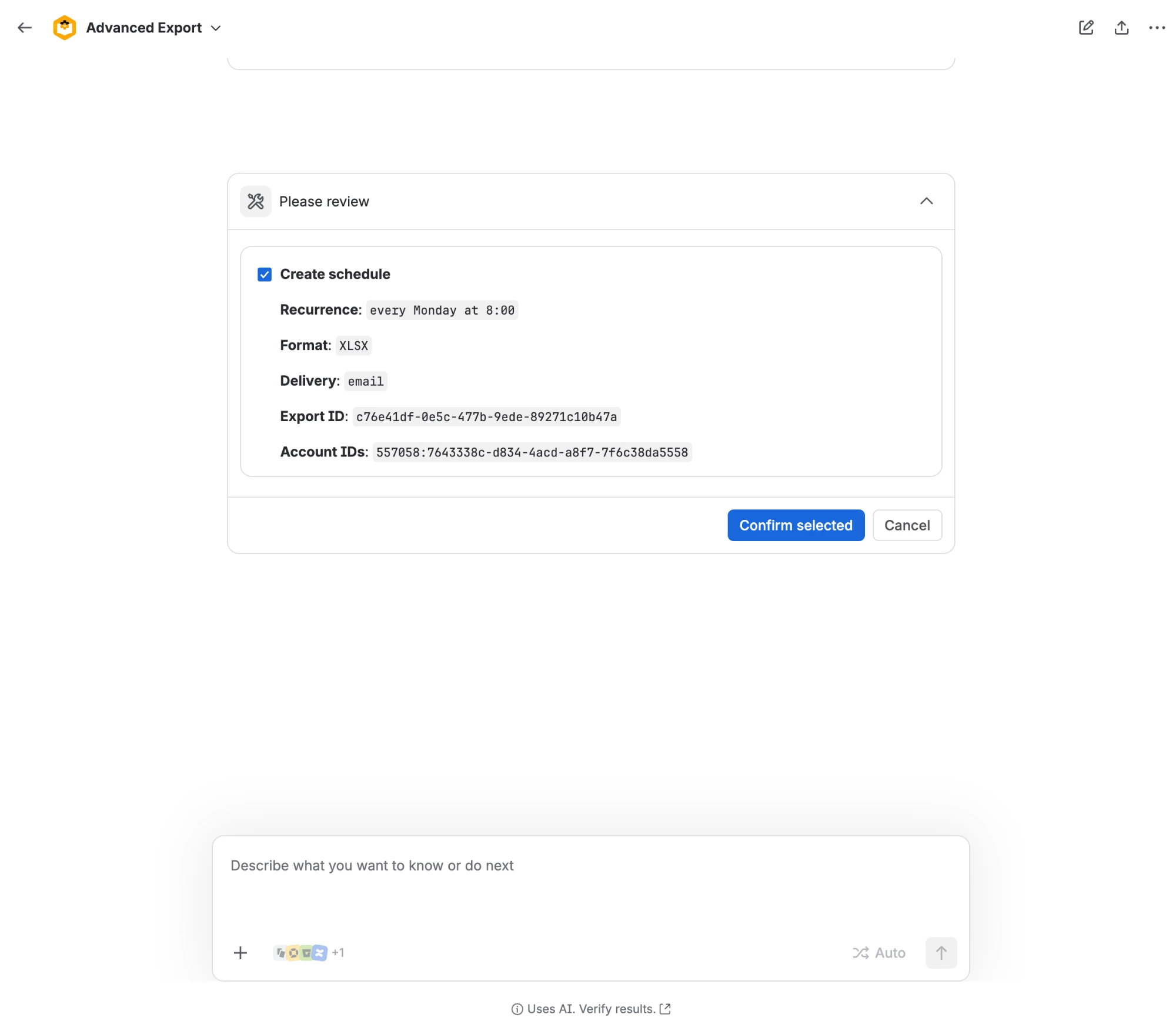
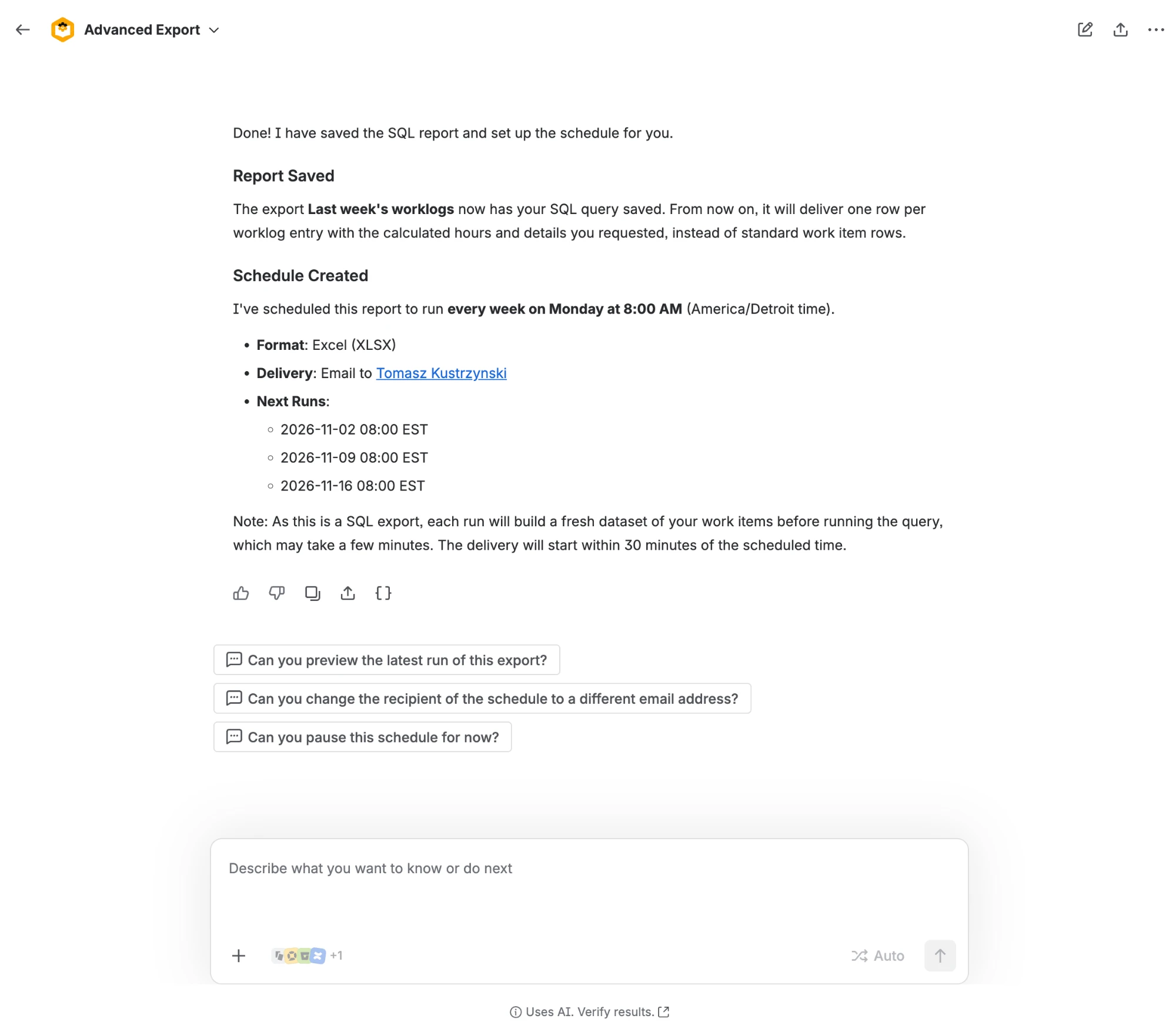
When it is done, it sums up what it saved and lists the next runs. Ask it for a link to the report to open it in the export editor.
In the editor the query is marked Written by an AI agent, not yet edited, and you can run it, change it or save it like any other.
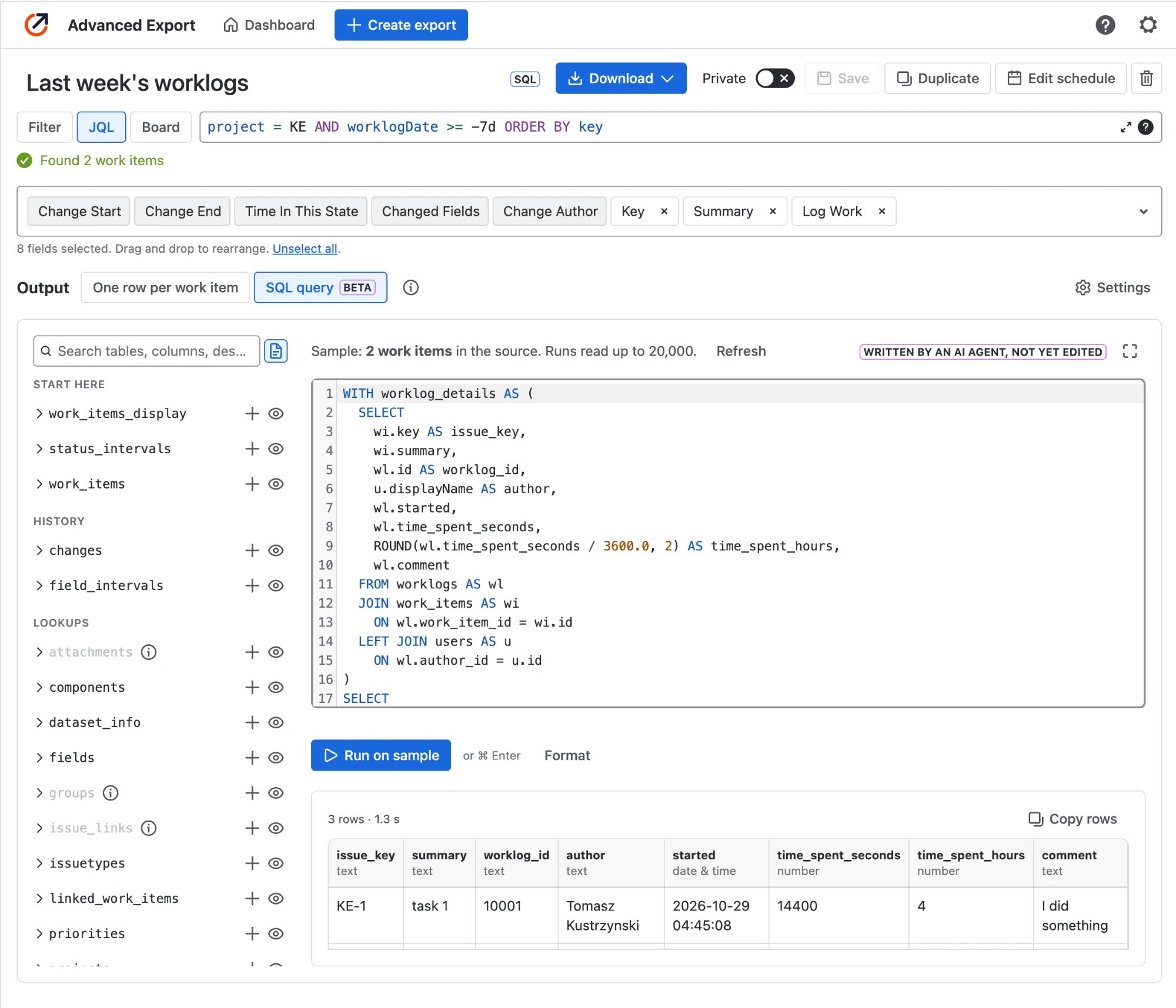
The schedule is on the export and on the dashboard. The agent schedules it in the time zone of your Jira profile; to use another, change it in the schedule.