

Scheduled reports
A schedule delivers an export on a regular basis: hourly, daily, weekly, monthly or yearly. Reports are generated on our servers, so nobody has to keep a browser open.
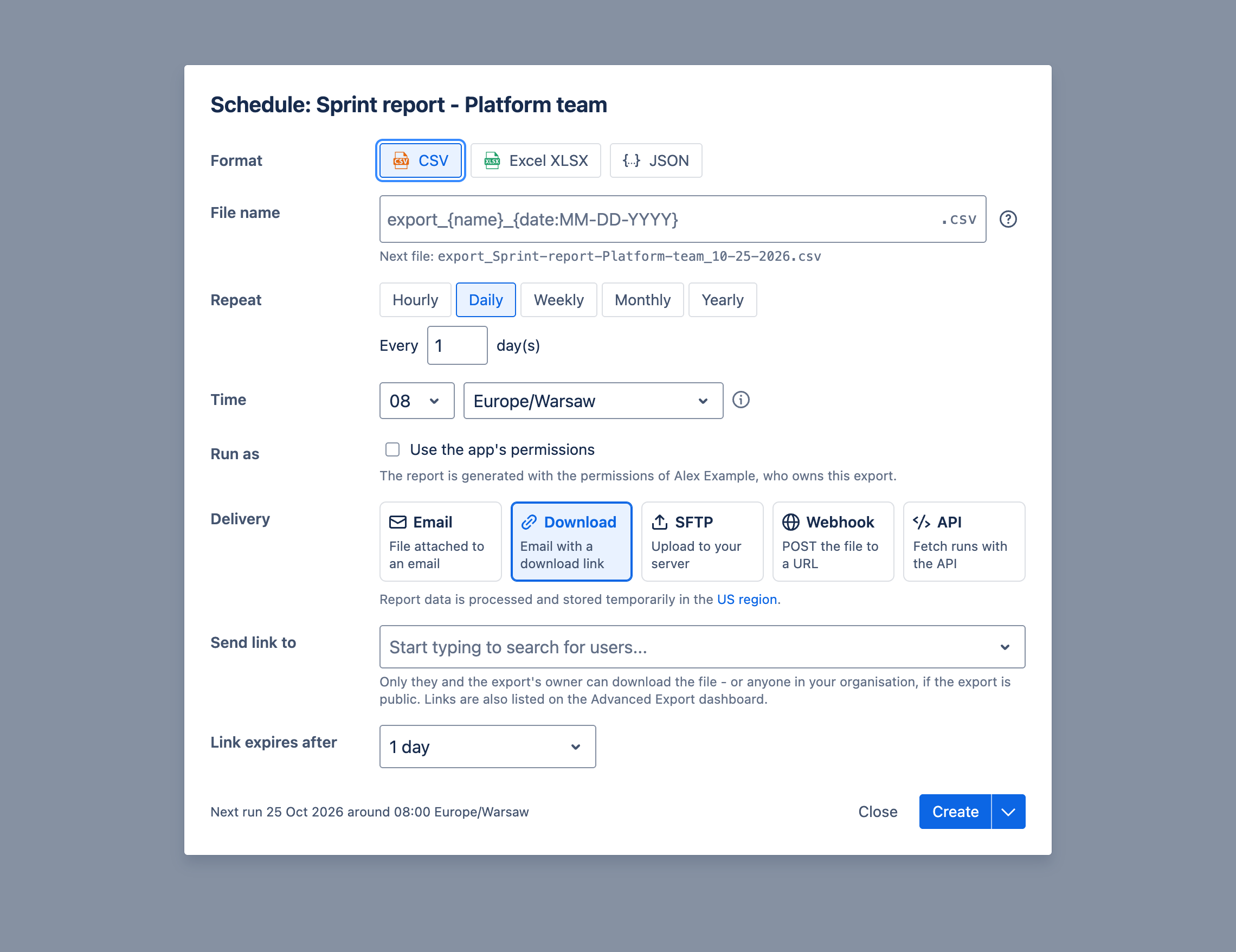
Creating a schedule
Section titled “Creating a schedule”Open the schedule dialog with Schedule in the export editor, or with Edit schedule in the dashboard. Each export has one schedule.
You can schedule only the exports you own. To schedule someone else’s public export, Duplicate it and schedule your copy. Your Jira admin can also restrict who can schedule.
You can also ask the Rovo agent to set it up: “send this export to my team every Monday at 8 as Excel”.
Options
Section titled “Options”- Format: CSV, Excel XLSX or JSON.
- File name: a template for the file name, using
{name}and{date}with a date format of your choice, for example{name}_{date:YYYYMMDD}. The dialog shows the next file’s name. The date is in the schedule’s time zone. - Repeat: hourly, daily, weekly (on chosen days), monthly or yearly, every one or more periods.
- Time: the hour and the time zone to run in.
- Run as: whose Jira permissions the report is generated with. See Execution permissions.
- Delivery: Email, Download, SFTP, Webhook or API. The dialog also shows the region where the report is processed.
The footer shows when the schedule runs next. Create saves it; for an existing schedule, saving keeps the dialog open, so you can test a change straight away with Run now, which runs the schedule once and shows its progress until it finishes.
The ⋯ menu at the top of the dialog holds Pause and Resume, the execution log, and Delete.
Delivery methods
Section titled “Delivery methods”Limits
Section titled “Limits”How much a scheduled report can contain depends on its format:
| Format | Limit |
|---|---|
| CSV, Excel (XLSX) | No limit on the number of work items. Generating the report stops after 30 minutes. |
| JSON | Up to 100,000 work items. |
| Any format with Export each comment in separate column selected | Up to 100,000 work items. |
| SQL reports | Up to 20,000 work items read, and 1,000,000 rows in the result. |
The 30 minutes covers fetching work items from Jira and building the file. Delivering the report (email, upload, webhook) happens after that and isn’t counted.
If a report reaches its limit, the work items collected so far are still delivered, but the report is incomplete. The schedule’s Execution log marks that run as Incomplete and gives the reason.
To get the rest of the data, narrow the JQL query, or split the report into several schedules (for example, by project or by date range).
Delivery has its own size limits. See Email attachment for the 25MB attachment limit.
Pausing a schedule
Section titled “Pausing a schedule”Pause a schedule from the ⋯ menu in the schedule dialog, and resume it from the same menu.
A schedule is also paused automatically after 5 failures in a row. The dashboard keeps it highlighted until you resume it. The schedule’s owner is emailed when a run fails, so they can fix the cause first.
Execution permissions
Section titled “Execution permissions”By default, a scheduled report is generated with the Jira permissions of the export’s owner, so it contains only work items they can see. The dialog names whose permissions it uses.
An admin can allow reports to be generated with the app’s permissions instead, which use the Jira
role atlassian-addons-project-access. To check what that role can see, go to Jira settings →
Work items → Permission schemes, and open the scheme. It needs at least the Browse Projects
permission.
To generate a report with the app’s permissions:
-
In App settings → Permissions, a Jira admin turns on Allow generation of scheduled exports using add-on permissions.
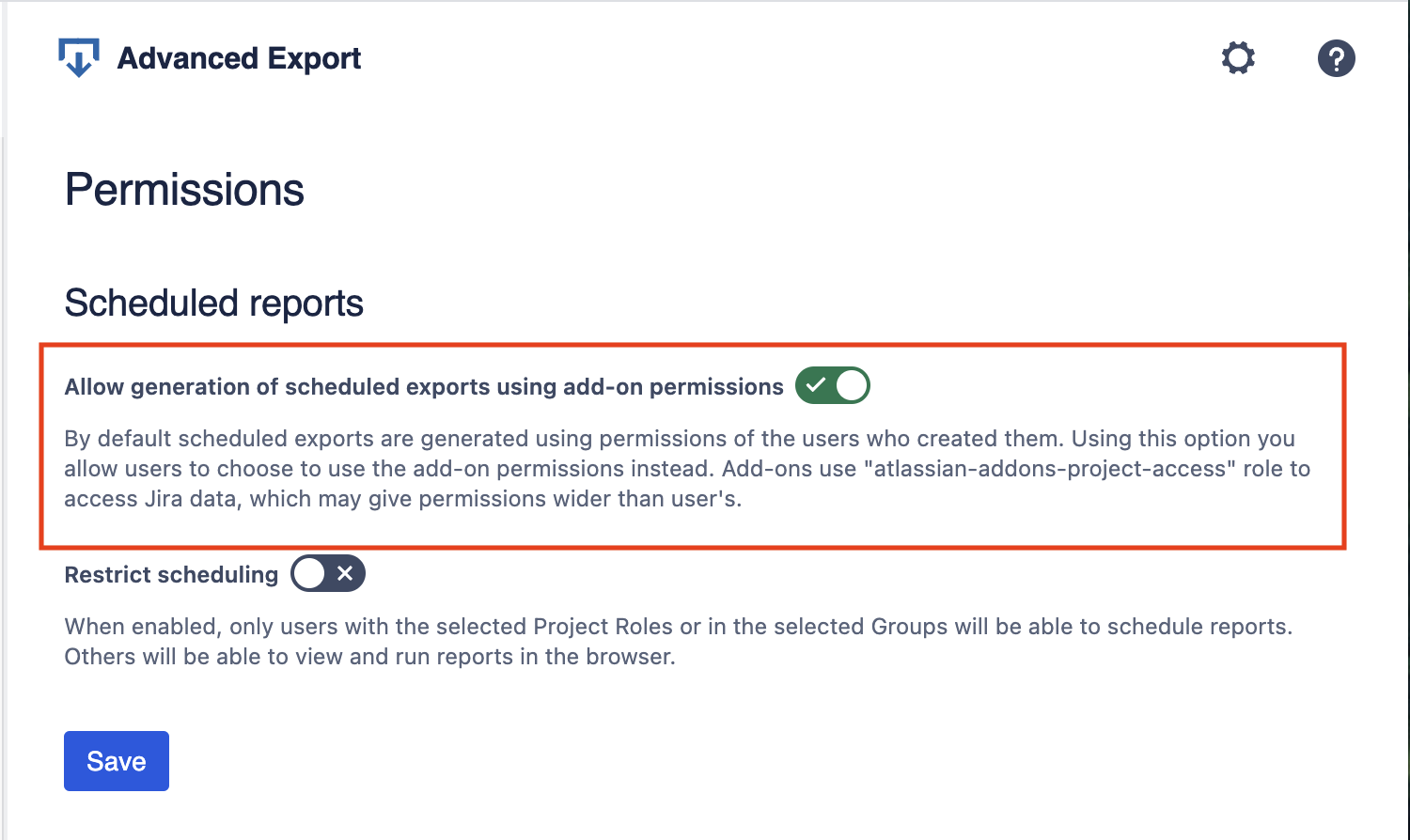
-
In the schedule dialog, under Run as, select Use the app’s permissions.