

Export anything
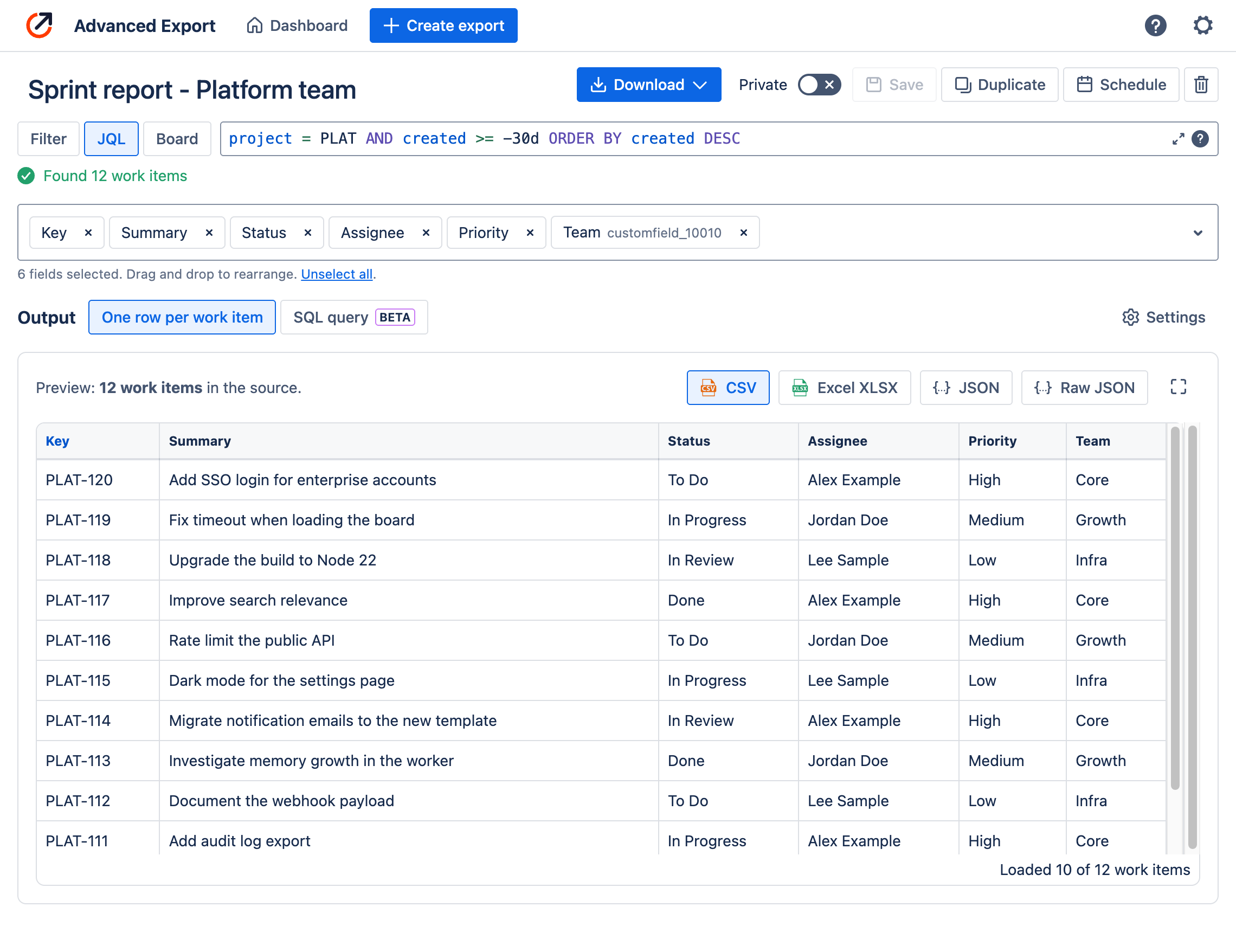
Standard and custom fields, Jira Service Management Assets and comments, for work items selected by JQL, a saved filter, or a board and sprint. Preview the result live, then download it as CSV, Excel (XLSX) or JSON. Exporting data
Advanced Export turns Jira into data you can use. Pick the work items and fields you need, see the result live, and download it as CSV, Excel or JSON. Include the full history of changes to get one row per change, then summarise it with SQL: time in status, cycle time, reopened work. Schedule any export to arrive by email, download link, SFTP, webhook or API. You can also ask Rovo, Claude or another AI assistant to do all of this for you.
Export anything
Standard and custom fields, Jira Service Management Assets and comments, for work items selected by JQL, a saved filter, or a board and sprint. Preview the result live, then download it as CSV, Excel (XLSX) or JSON. Exporting data
Full change history
Get one row for each change to the selected fields, with when it started and ended, who made it and how long the value lasted. Jira shows this one work item at a time; here you get it for every work item in the export. Change history
SQL queries
Add a SQL step to an export to deliver aggregated results instead of raw rows, such as the 85th-percentile time in each status, or throughput per week. Write the query against a sample and see the results as you type. SQL reports
Scheduled delivery
Hourly, daily, weekly, monthly or yearly, in your time zone. Delivered as an email attachment, a download link, an SFTP upload, a webhook, or through the API. Reports are generated on our servers, so nobody has to keep a browser open. Scheduled reports
Rovo agent
Ask in plain language: “email the team a weekly CSV of overdue work”, “which of my reports failed this month?”, “what is the median time in review for project X?”. The agent works with your permissions and asks before every change. Rovo agent
Claude and other assistants (MCP)
Connect Claude, Claude Code or any assistant that supports remote MCP servers to the same tools. It can build reports, schedule them and run SQL on your Jira data. Connect AI assistants
Plus:
“Our Rovo agent summarises the backlog, but it gives a different answer every time we ask.”
If an assistant reads hundreds of work items into a conversation and counts them itself, the result can change from one run to the next, and it can silently miss work items. The fix is to keep two jobs apart: let a database count, and let the AI explain the numbers.
With Advanced Export, the Rovo agent (or Claude, over MCP) can:
Build a dataset of
project = PLAT AND statusCategory != Doneand tell me how many work items are in each status, how many are older than 90 days, and who has the most of them.
See Rovo agent and Data and deliveries.
“I want time in status and cycle time for my team, without building a BI pipeline.”
Create an export of your team’s work items with change history, add a SQL step that calculates the median and 85th-percentile days in each status, and schedule it weekly as Excel to your inbox. The editor offers starter queries for time in status, cycle time and throughput. SQL reports
“Power BI, Tableau or Snowflake need fresh Jira data every night.”
Schedule a CSV or JSON export daily or hourly, and have it uploaded to your SFTP server, POSTed to
your webhook, or fetched by your pipeline through the Advanced Export API.
Use file name templates such as {name}_{date:YYYYMMDD} so every run lands in its own file.
“Who changed the priority of our P1 incidents last quarter?”
Export with change history, and every change becomes a row with its author and time. Filter it in Excel, or let a SQL step return only the changes you care about: priority changes, reopened work items, due dates moved more than twice, work items reassigned back and forth.
“How long do requests wait for the customer, and how long for us?”
Export Jira Service Management requests with their status history, internal or external comments, and Assets fields. A SQL step can split the time spent in Waiting for customer and Waiting for support for each request type.
“Every Friday, send the sprint’s work items to people who don’t use Jira.”
Schedule an Excel export of the current sprint and email it to Jira users and to any other email addresses, with your own subject and message. Or ask the Rovo agent to set it up:
Email a CSV of the summaries and assignees in the current sprint to my team every Friday at 4pm.
“Which of my scheduled reports failed in the last 30 days, and why?”
The dashboard flags failing schedules, and their owners are emailed the error when a run fails. Ask the Rovo agent to list failed runs across all your schedules and explain each error.
Say a work item’s Flavor field started as Vanilla, then changed to Chocolate and later to Strawberry, and its assignee changed once. With change history on, the export has one row for each state the work item was in, newest first:
| Change Start | Change End | Time In This State | Changed Fields | Change Author | Key | Flavor | Assignee |
|---|---|---|---|---|---|---|---|
| 2026-05-15 | 2026-10-24 | 162d | Flavor | Jordan Doe | TST-1 | Strawberry | Alex Example |
| 2026-05-10 | 2026-05-15 | 5d | Flavor | Jordan Doe | TST-1 | Chocolate | Alex Example |
| 2026-05-05 | 2026-05-10 | 5d | Assignee | Lee Sample | TST-1 | Vanilla | Alex Example |
| 2026-05-01 | 2026-05-05 | 4d | TST-1 | Vanilla | Lee Sample |
The bottom row is the work item as created, and the top row is how it is now: its Change End is the time the report was generated. Anything you could read in the work item’s history panel is now a table you can sort, filter, pivot or query. See Change history for every column.