

Exporting data
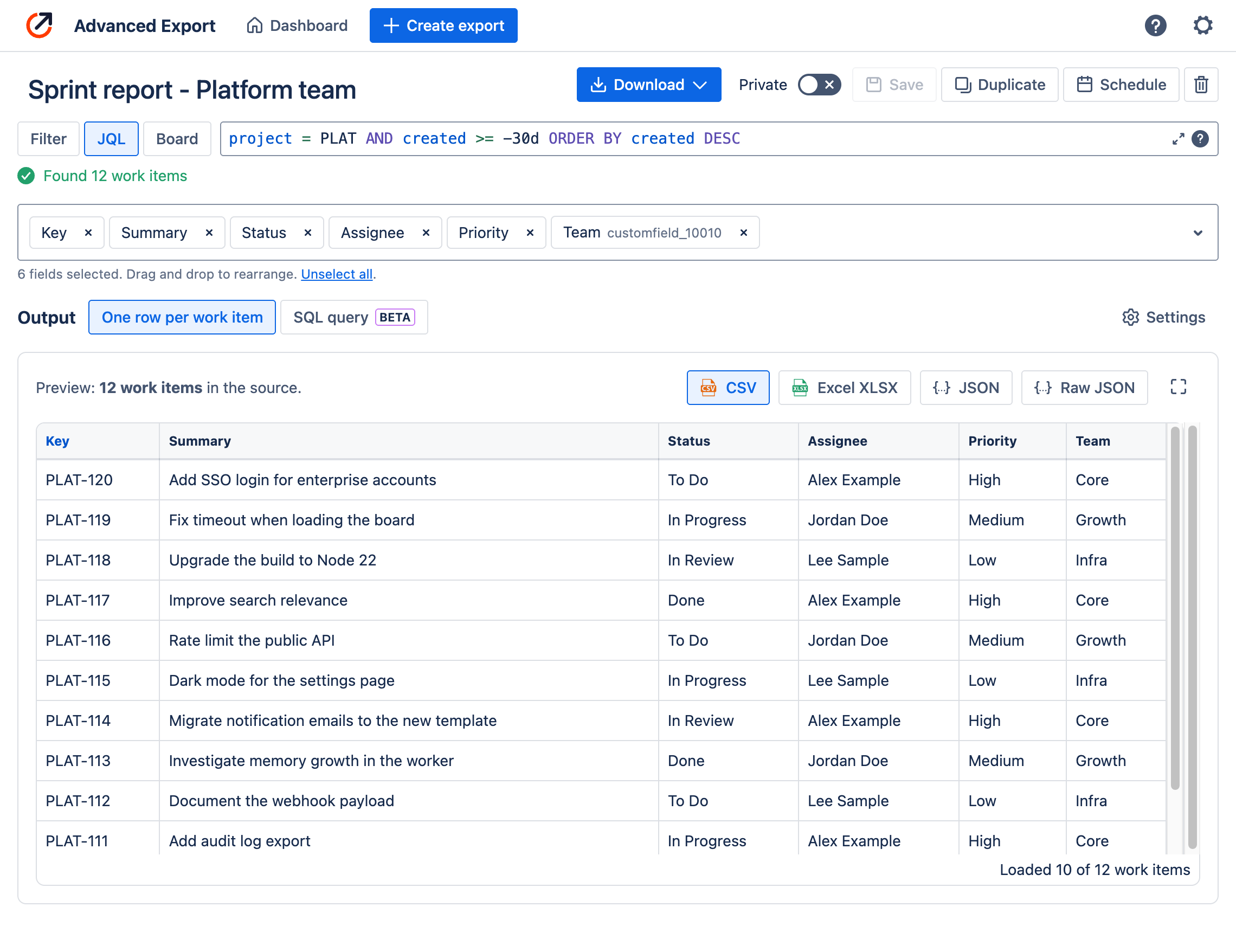
The export editor is where you decide what an export contains: which work items, which fields, and whether to include their change history. The preview below it updates as you go.
Opening the editor
Section titled “Opening the editor”- From the dashboard: Apps → Advanced Export, then Create export, or choose an existing export.
- From issue search, a board or a backlog: open the Advanced Export menu and choose New export to start with the work items you are looking at, or Quick export to apply one of your saved exports’ fields and settings to them.
Choosing work items
Section titled “Choosing work items”Choose the source above the field list:
- Filter: any saved Jira filter you can see.
- JQL: any JQL query. The editor checks it and shows how many work items it matches.
- Board: a board, and optionally one of its sprints or its backlog.
Choosing fields
Section titled “Choosing fields”Add standard and custom fields, including Jira Service Management Assets, and drag them to change
the column order. Custom fields show their id (customfield_10010) beside the name.
If the app does not recognise a custom field’s type, you can still add it, but it is exported as plain text, which for complex fields may be raw JSON.
Output
Section titled “Output”Choose what the export produces:
- One row per work item: the fields you chose, one row per work item, or one row per change with change history turned on.
- SQL query: the result of a SQL query over the export’s data, such as time in each status or throughput per week. See SQL reports.
Live preview
Section titled “Live preview”The preview shows real data for the first work items that match, exactly as the file will contain it. Switch between CSV, Excel XLSX, JSON and Raw JSON to see each format, and expand it to full screen for a closer look.
Settings
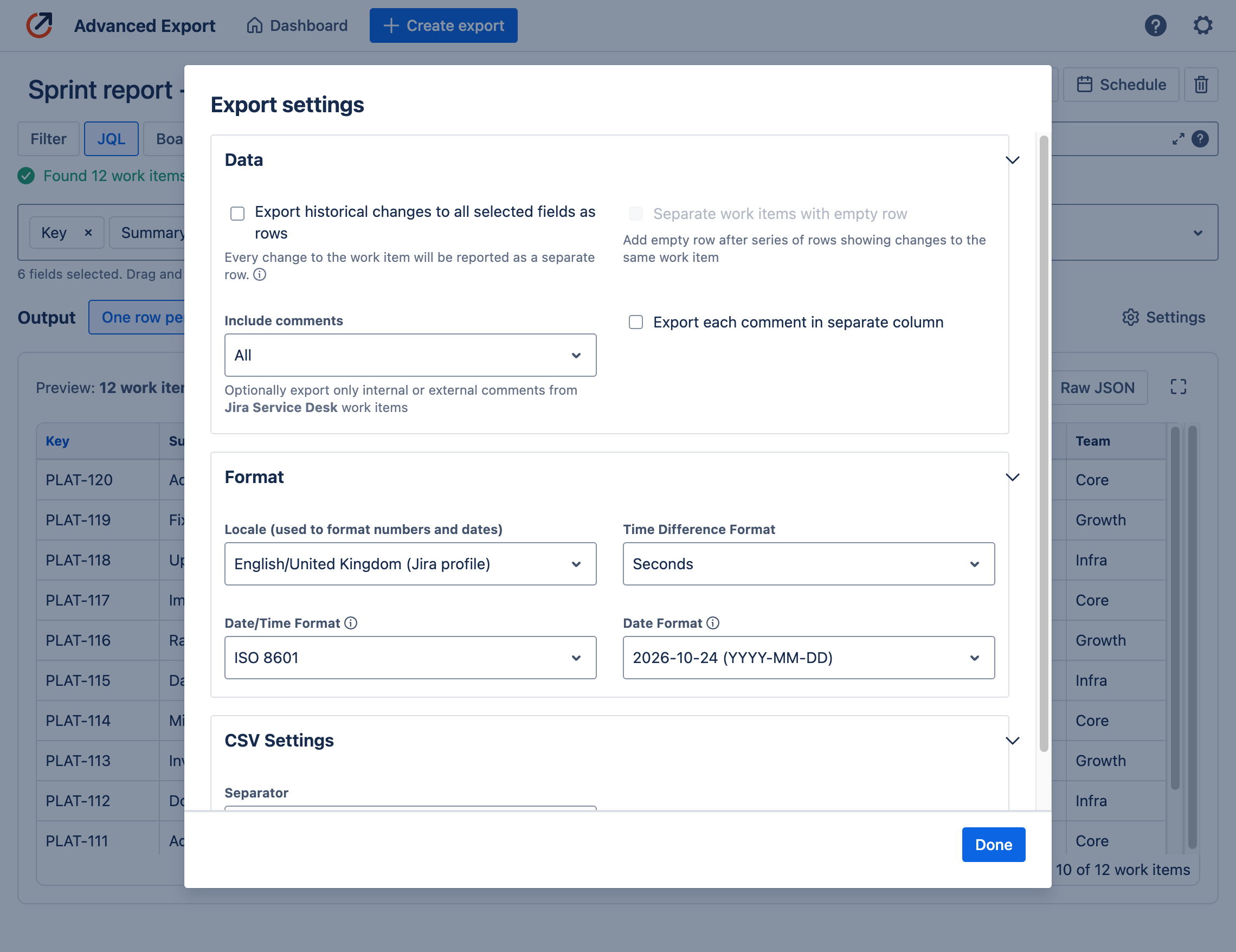
Section titled “Settings”Choose Settings beside the output to change how the data is exported.
Data
- Export historical changes to all selected fields as rows: see Change history.
- Separate work items with empty row: with change history on, adds an empty row after each work item’s rows.
- Include comments: all comments, or for Jira Service Management only the internal or only the external ones. Applies when the Comment field is selected.
- Export each comment in separate column: one column per comment instead of all of them in one column (see Comments).
Format
- Locale: used to format numbers and dates. Defaults to your Jira profile.
- Time Difference Format: how durations such as Time In This State are shown, for example in seconds, minutes or days.
- Date/Time Format and Date Format: for example ISO 8601 or
YYYY-MM-DD.
CSV Settings
- Separator: comma, semicolon, tab and others. Used for CSV files only.
Change history
Section titled “Change history”With Export historical changes to all selected fields as rows turned on, each work item gets one row for every change to the selected fields, newest first. Each row is a snapshot of the work item’s values for the period between two changes. These columns are added at the start:
| Column | What it holds |
|---|---|
| Change Start | When this state began. For the oldest row, when the work item was created |
| Change End | When the next change happened. For the newest row, when the report was generated |
| Time In This State | How long the state lasted, in the Time Difference Format |
| Changed Fields | The fields that changed at Change Start. Empty for the oldest row |
| Change Author | Who made the change |
Only changes to the fields you selected create rows. To see how long work items spend in each status, select Status; to also see assignee changes, add Assignee.
See How change history looks for an example, and SQL reports to calculate time in status, cycle time or reopened work from the history automatically.
Saving, sharing and scheduling
Section titled “Saving, sharing and scheduling”The toolbar above the editor holds:
- Download: generate the file now, in your browser, as CSV, Excel, JSON or Raw JSON.
- Private: turn off to make the export public, so everyone on your site can see and use it.
- Save, Duplicate and delete.
- Schedule: deliver the export regularly. See Scheduled reports.
The editor asks before you leave an export with unsaved changes. Saved exports appear on the dashboard.
Limits
Section titled “Limits”A download from the editor is generated in your browser and can include up to 100,000 work items, with any number of fields. Large exports can take a while.
For more, narrow the JQL, or schedule the export: a scheduled CSV or Excel report is generated on our servers and has no limit on the number of work items. See Limits.
Comments
Section titled “Comments”Comments are exported in a single text column, unless you choose Export each comment in separate column. In a single column:
- comments are sorted newest first;
- each comment is
AUTHOR, DATE:followed by the comment on the next line; - comments are separated by a line holding a single
|; - in CSV, the column is quoted, and quotes inside comments are doubled.
Key,CommentSSP-28,"Alex Example, 2026-02-23T10:11:49-05:00:another comment with ""quotes"" and an emoji 😀|Alex Example, 2026-02-23T09:01:47-05:00:first comment"