

App settings
Jira administrators manage Advanced Export from Settings → Apps, in the Advanced Export section, or from the settings (gear) menu on the Advanced Export dashboard. There are three pages:
- Scheduled Reports Settings: who can schedule, whose permissions reports run with, what AI agents may do, and the region where data is processed.
- Email Settings: send report emails through your own SendGrid account.
- Reassign Reports: move reports from someone who has left to a new owner.
Scheduled reports
Section titled “Scheduled reports”Permissions
Section titled “Permissions”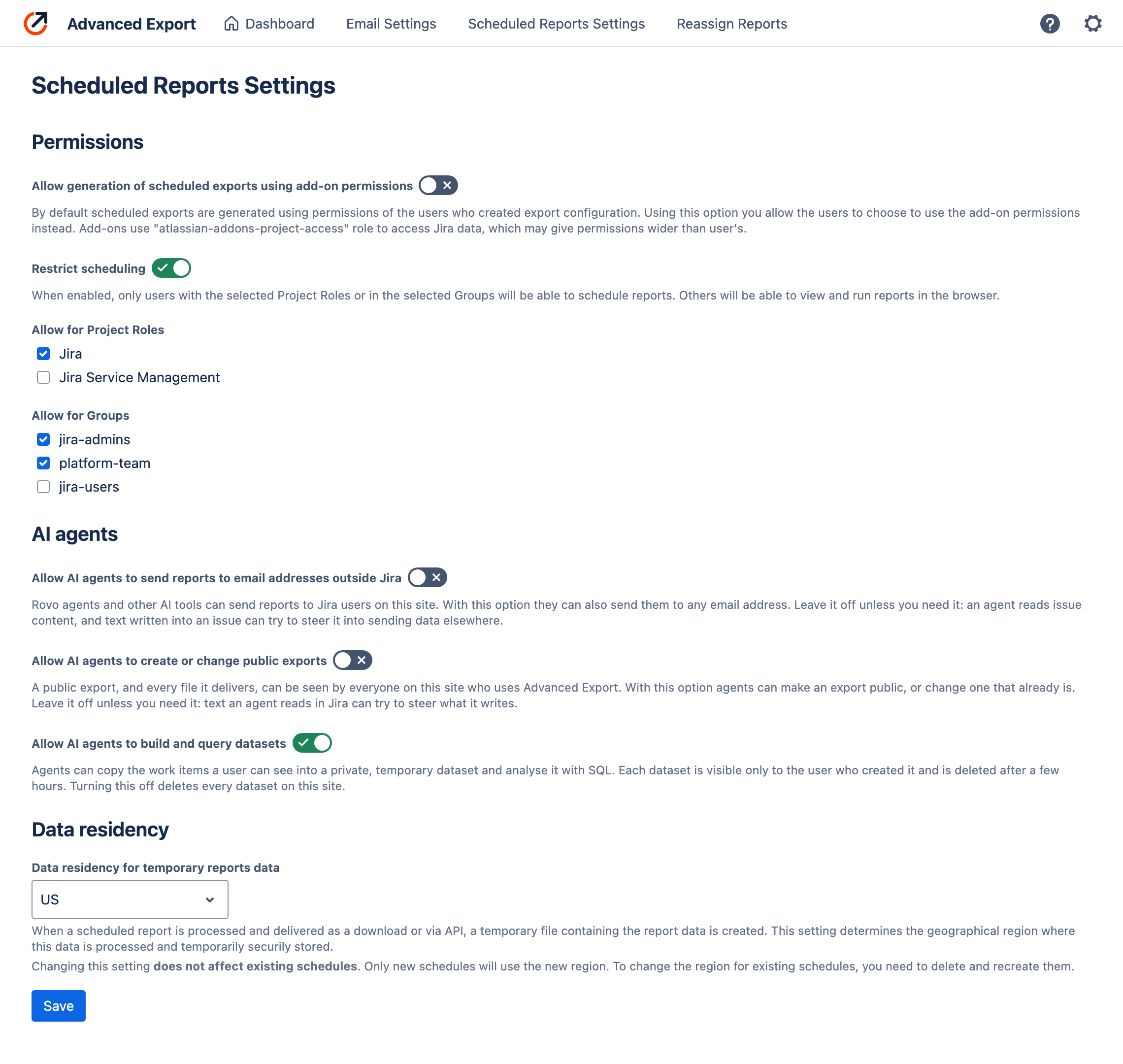
Allow generation of scheduled exports using add-on permissions
Section titled “Allow generation of scheduled exports using add-on permissions”By default scheduled reports are generated with the permissions of the user who created the export configuration. This means that the user must have access to the data they want to export.
It is possible to change this and generate with permissions using Jira role atlassian-addons-project-access. To check what project permissions this role has, go to Jira settings → Work items → Permission schemes, and open the scheme.
It should have at least Browse Projects permission for the export to succeed.
Once this option is enabled, scheduled exports can be configured to generate reports with add-on permissions.
Restrict scheduling
Section titled “Restrict scheduling”By default everyone can schedule reports, however if you’d like to limit that ability, you can specify Project Roles and/or Groups which are allowed to schedule reports.
All the users not allowed to create schedules can still export data in the browser.
The same restriction applies to the Rovo agent and AI tools.
AI agents
Section titled “AI agents”Allow AI agents to send reports to email addresses outside Jira is off by default. While it is off, the Rovo agent and other AI tools can send reports only to Jira users on your site. Leave it off unless you need it: an agent reads work item content, and text written into a work item can try to steer it into sending data elsewhere.
Allow AI agents to create or change public exports is off by default. A public export, and every file it delivers, can be seen by everyone on your site who uses Advanced Export. While the option is off, agents create private exports only, and cannot make an export public or change one that already is.
Allow AI agents to build and query datasets is on by default. Agents can copy the work items a user can see into a private, temporary dataset and analyse it with SQL. Each dataset is visible only to the user who created it and is deleted after a few hours. Turning this off deletes every dataset on your site.
Data residency
Section titled “Data residency”Scheduled reports are generated on our servers. In some cases temporary file is created to store the report before it’s downloaded by the user or accessed via our user facing API. You can choose the location of the server where the data is processed and the temporary files are stored.
At the moment we support the following regions:
- US
- Europe
Once you’ve selected the new region, all the new schedules will be processed in that region. Already existing schedules though, will continue to be processed in the old region.
To check which region a schedule uses, open its schedule dialog: the region is named under the delivery options (“Report data is processed and stored temporarily in the US region”).
Email Settings
Section titled “Email Settings”By default all emails are sent from the domain ae.kanbanalytics.com. You can use this page to configure alternative email provider.
SendGrid
Section titled “SendGrid”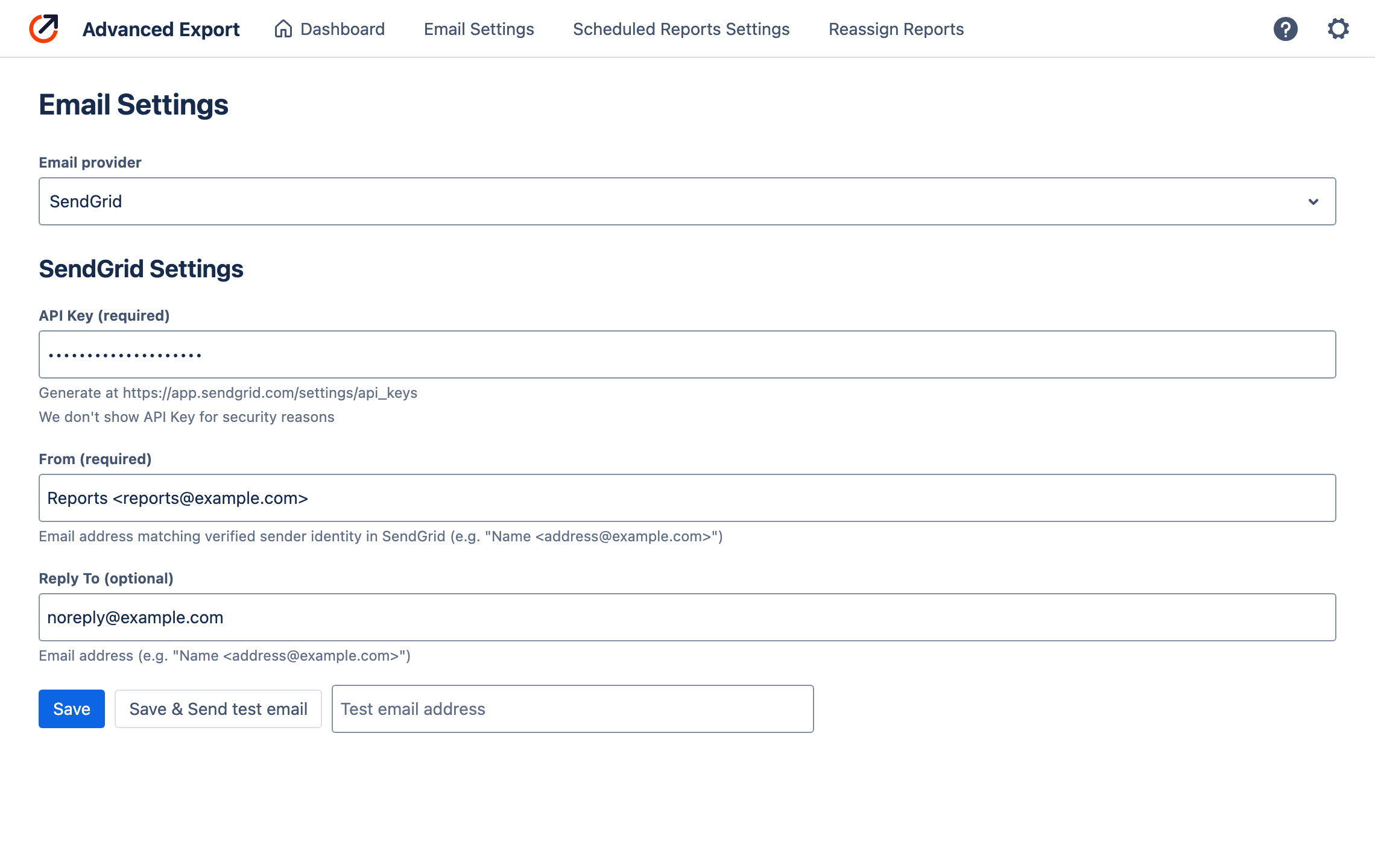
To configure SendGrid as an email provider, you’ll need:
- API Key (you can create one at SendGrid API Keys settings page). Note, that once saved, API Key won’t be shown to you for security reasons. We also encrypt the API Key in the database.
Fromemail address. You have to use From address which belongs to the domain verified for your SendGrid account. To verify a domain, use Email API Integration Guide or Sender Authentication in your SendGrid account.- Optional
Reply Toaddress. This can belong to any domain.
Reassign reports
Section titled “Reassign reports”A scheduled report runs with its owner’s Jira permissions, so when the owner’s account is deactivated, their reports stop running. Reassign Reports lists every report with a schedule, its schedules’ state and its current owner, and flags deactivated owners.
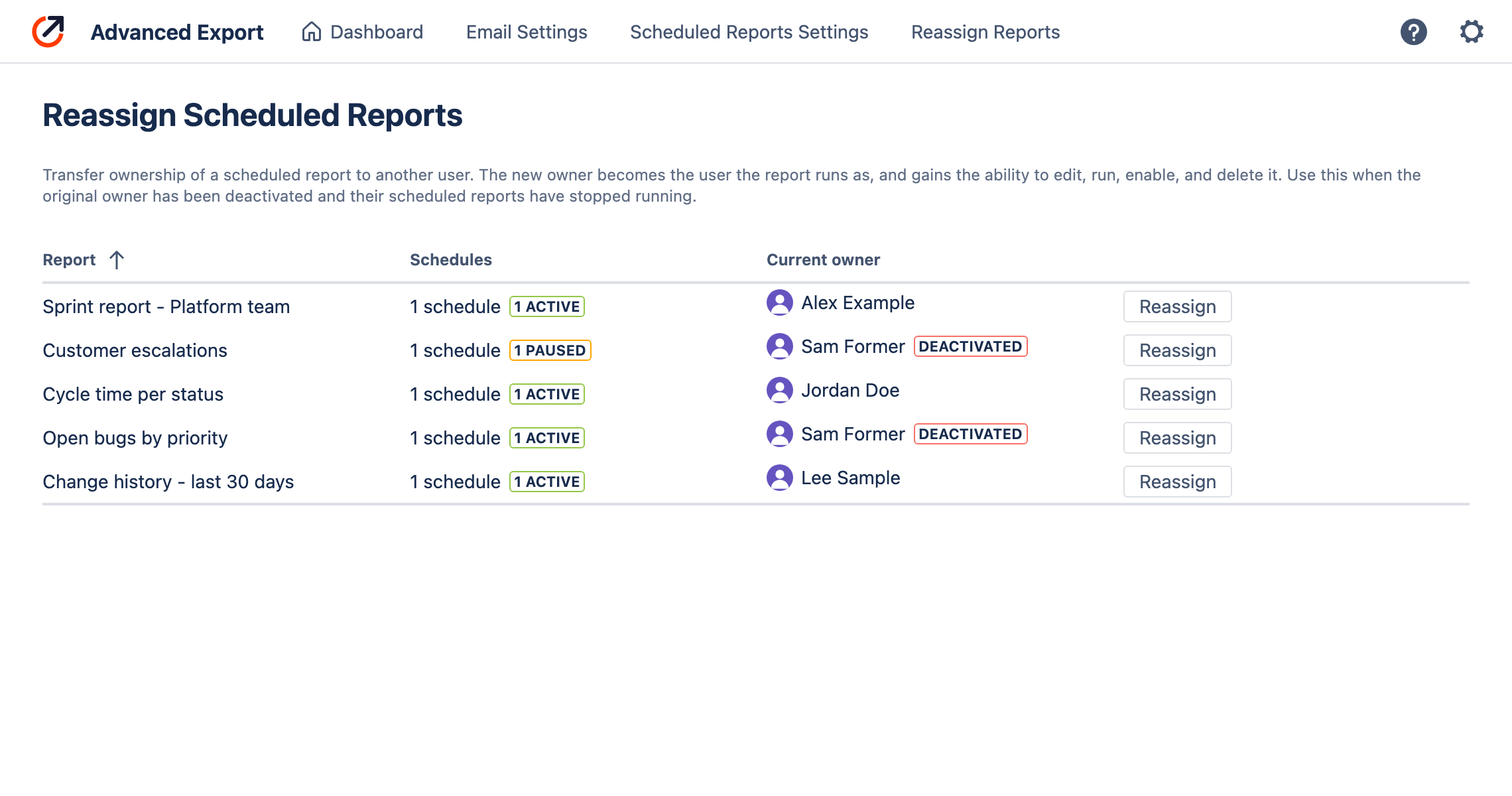
Choose Reassign and pick the new owner. The new owner becomes the user the report runs as, and can edit, run, pause and delete it. If the report delivers to SFTP, the private servers it uses move to the new owner too, so delivery keeps working. Schedules that were paused, typically after repeated failures while the previous owner was deactivated, can be resumed in the same step.