

Connect AI assistants (MCP)
Any AI assistant that supports remote MCP servers can connect to Advanced Export. This uses an Atlassian feature that is in early access.
The Advanced Export server address is:
https://mcp.atlassian.com/forge/c6231e4b-eac5-4d20-a312-9095a916d479Pick your assistant:
Setup has the same three parts for every assistant: an admin turns the tools on once, you add the server address to the assistant, and you sign in to Atlassian.
An admin turns on the tools (once per site)
Section titled “An admin turns on the tools (once per site)”A site or organization admin has to allow AI assistants to use the Advanced Export tools. Until they do, an assistant can connect but finds no tools.
-
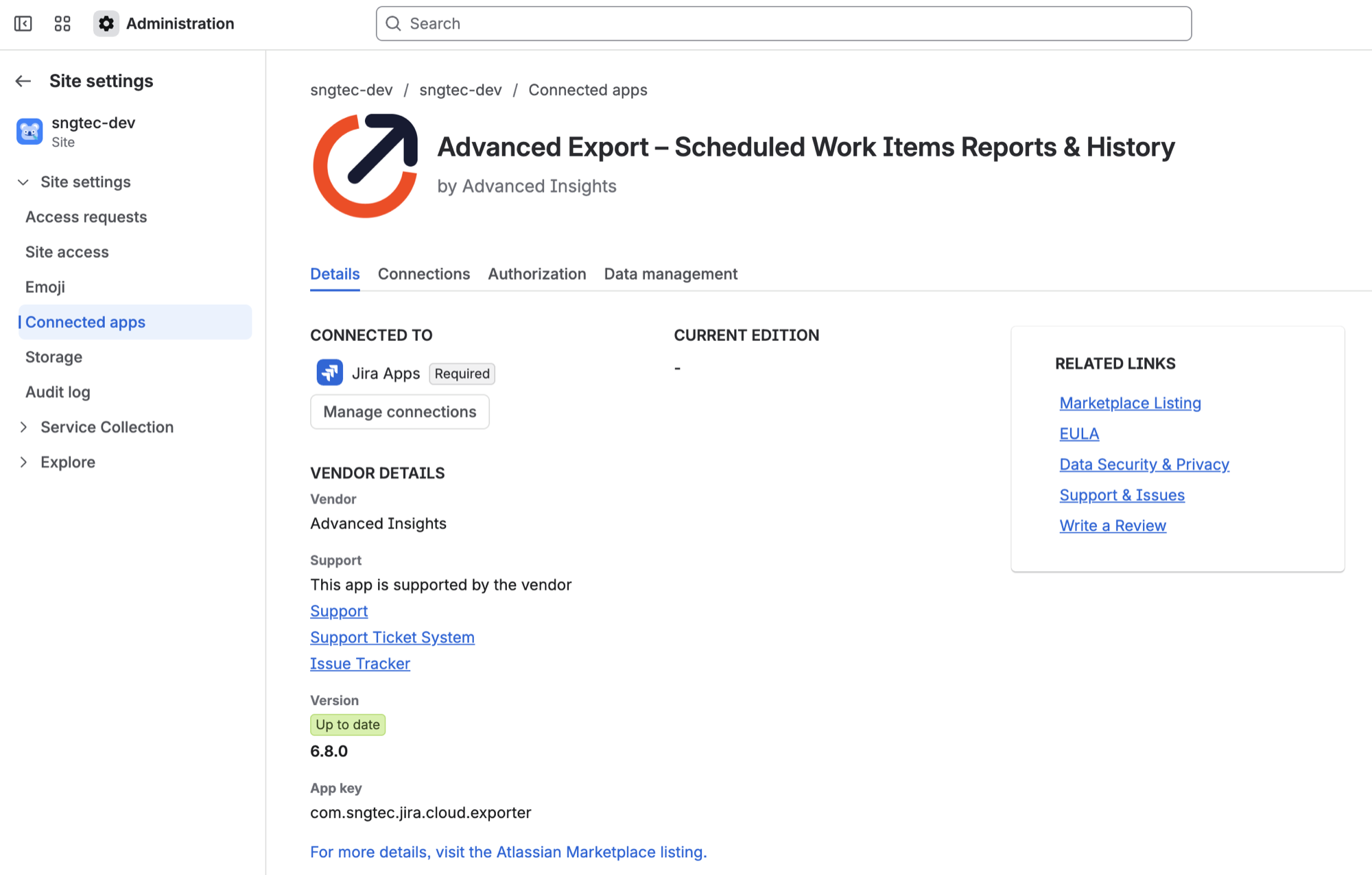
In Atlassian Administration, go to Apps → Sites → your site → Connected apps, and open Advanced Export.
-
Scroll down to Tools. Under Expose tools to MCP-compatible apps, turn the tools on. When they are on, the setting shows Enabled and the button reads Disable tools.
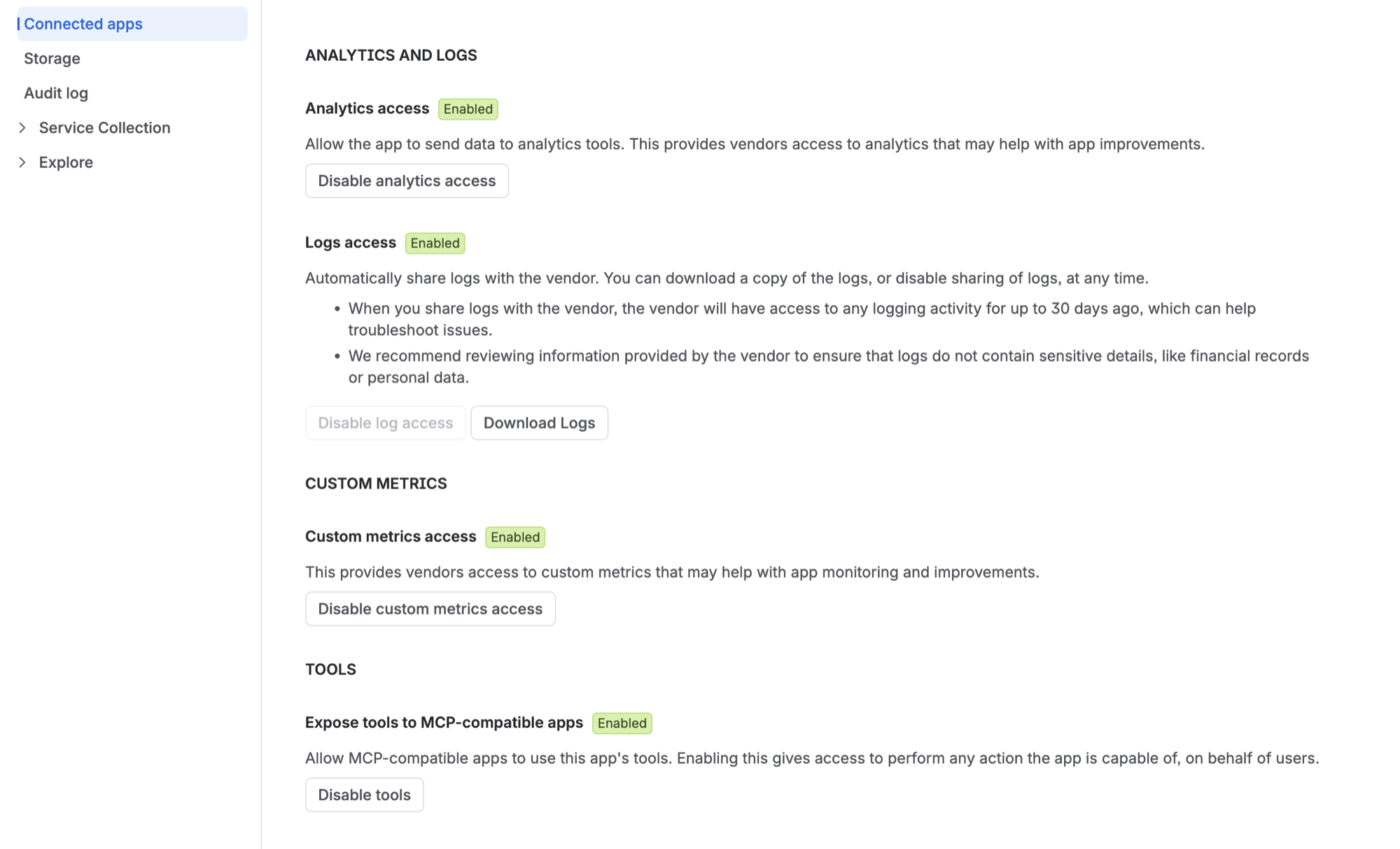
The tools then work for everyone on the site. Each person still signs in as themselves (step 3), and sees and changes only what they could in the dashboard.
Sign in to Atlassian
Section titled “Sign in to Atlassian”When you connect, Atlassian opens in your browser. Sign in if asked, choose the site your Advanced Export is installed on, and choose Accept.
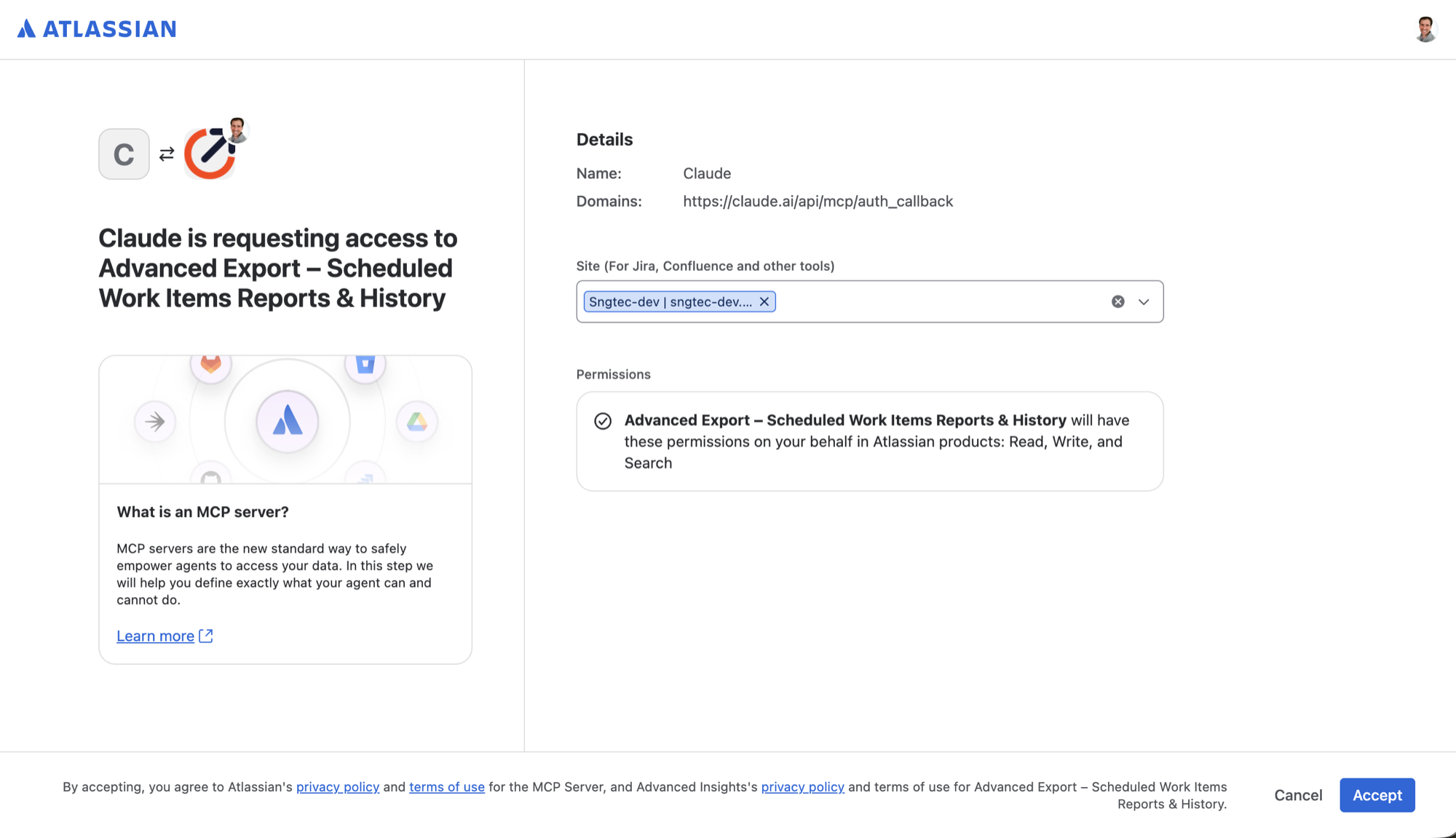
This lets the assistant use the Advanced Export tools as you, on that site only.
The same safety rules and limits apply as in Rovo. Some assistants do not ask before making changes the way Rovo does, but Advanced Export’s own checks apply either way. To stop an assistant using Advanced Export, disconnect it in the assistant, or ask your admin to choose Disable tools.