Claude (desktop app and claude.ai)
Before you start, an admin must have turned on the tools for your site.
Add the connector
Section titled “Add the connector”In Claude, Advanced Export is added as a custom connector. The desktop app and claude.ai share the same connectors, so you only add it once.
-
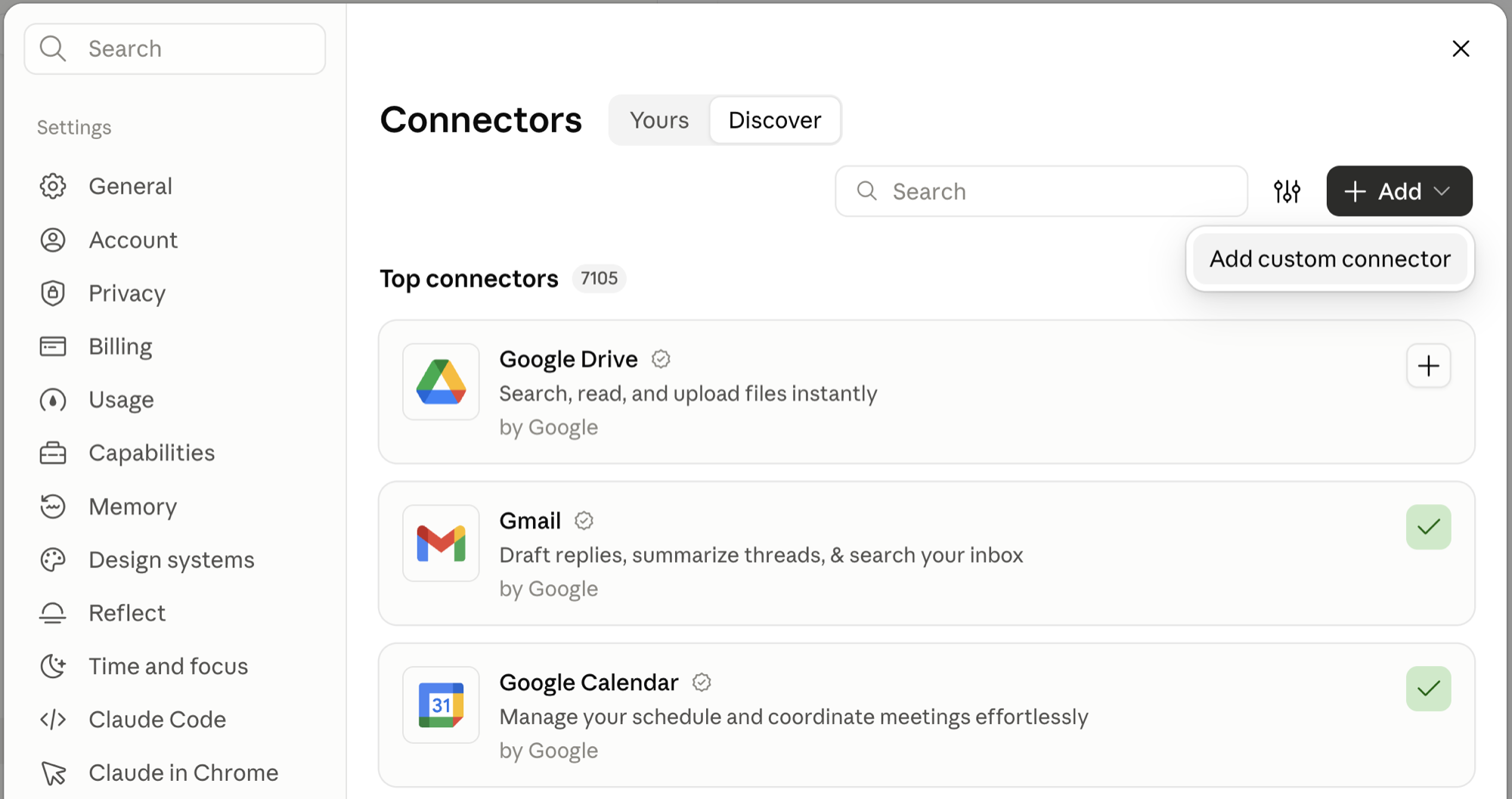
Open Settings → Connectors, choose Add, then Add custom connector.
-
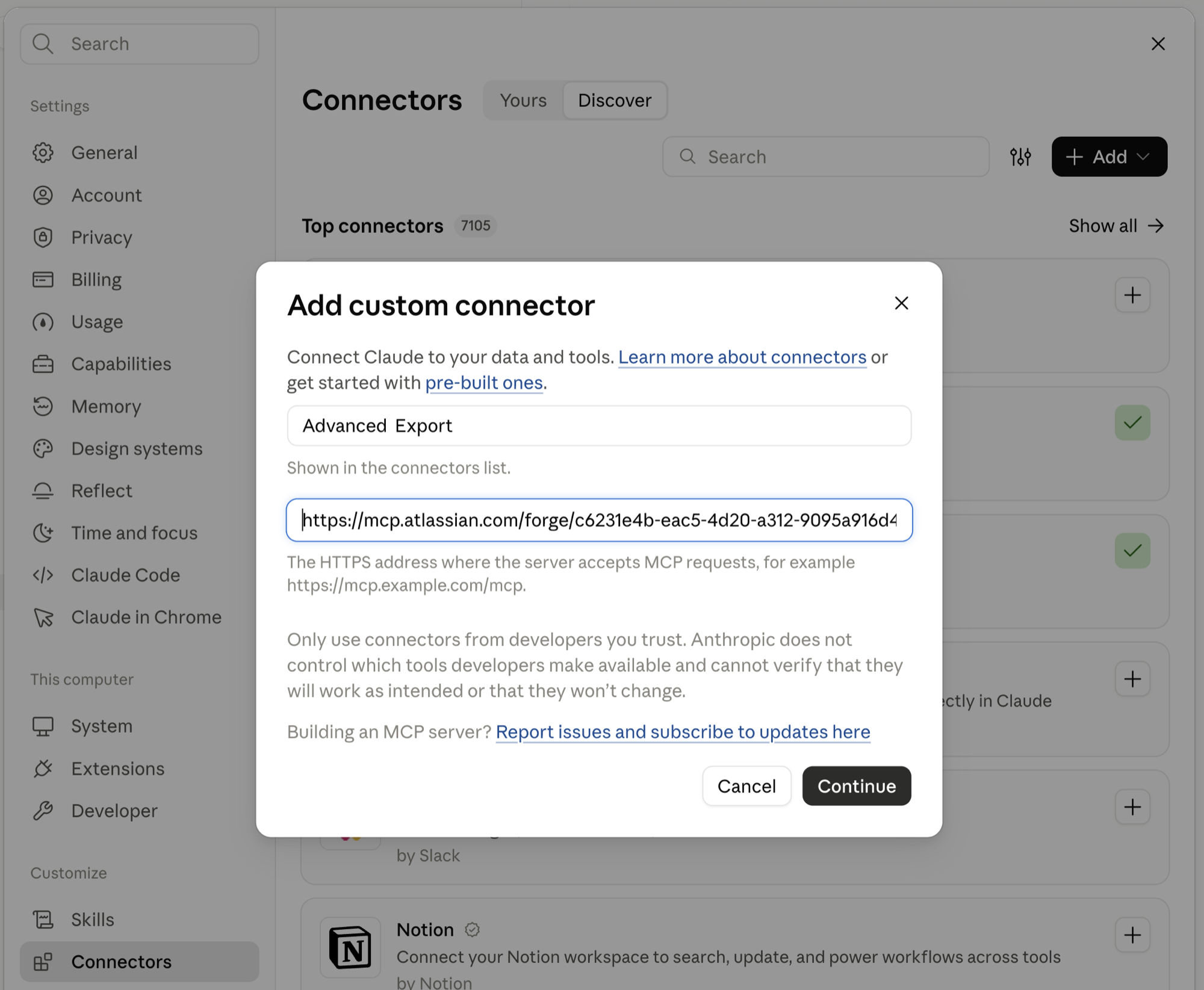
Enter a name, for example Advanced Export, and paste the server address. Choose Continue.
-
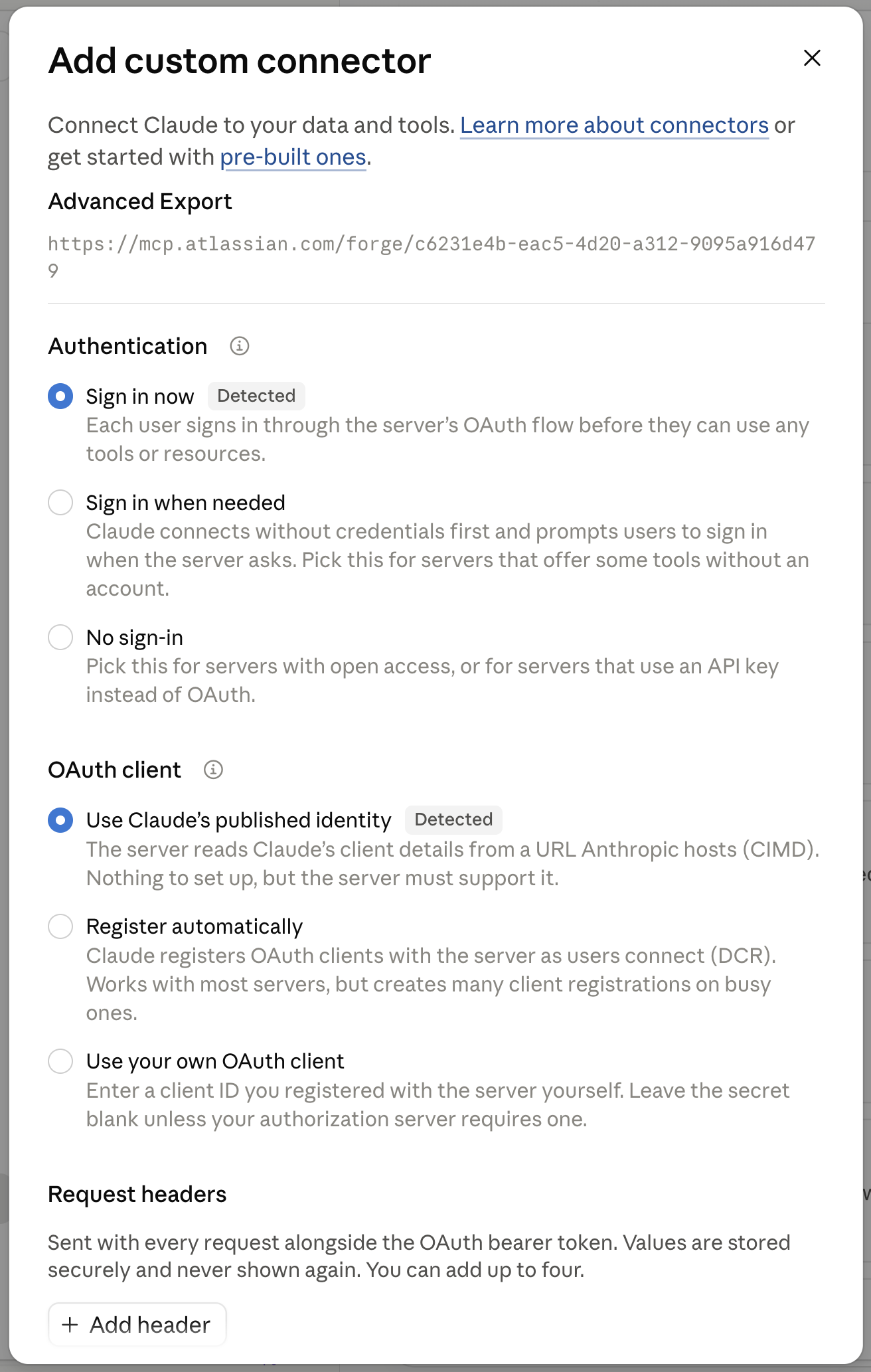
Claude detects how to sign in. Leave the detected options as they are: Sign in now under Authentication, and Use Claude’s published identity under OAuth client. You don’t need to add any request headers. Save the connector.
-
Open the new connector and choose Connect.
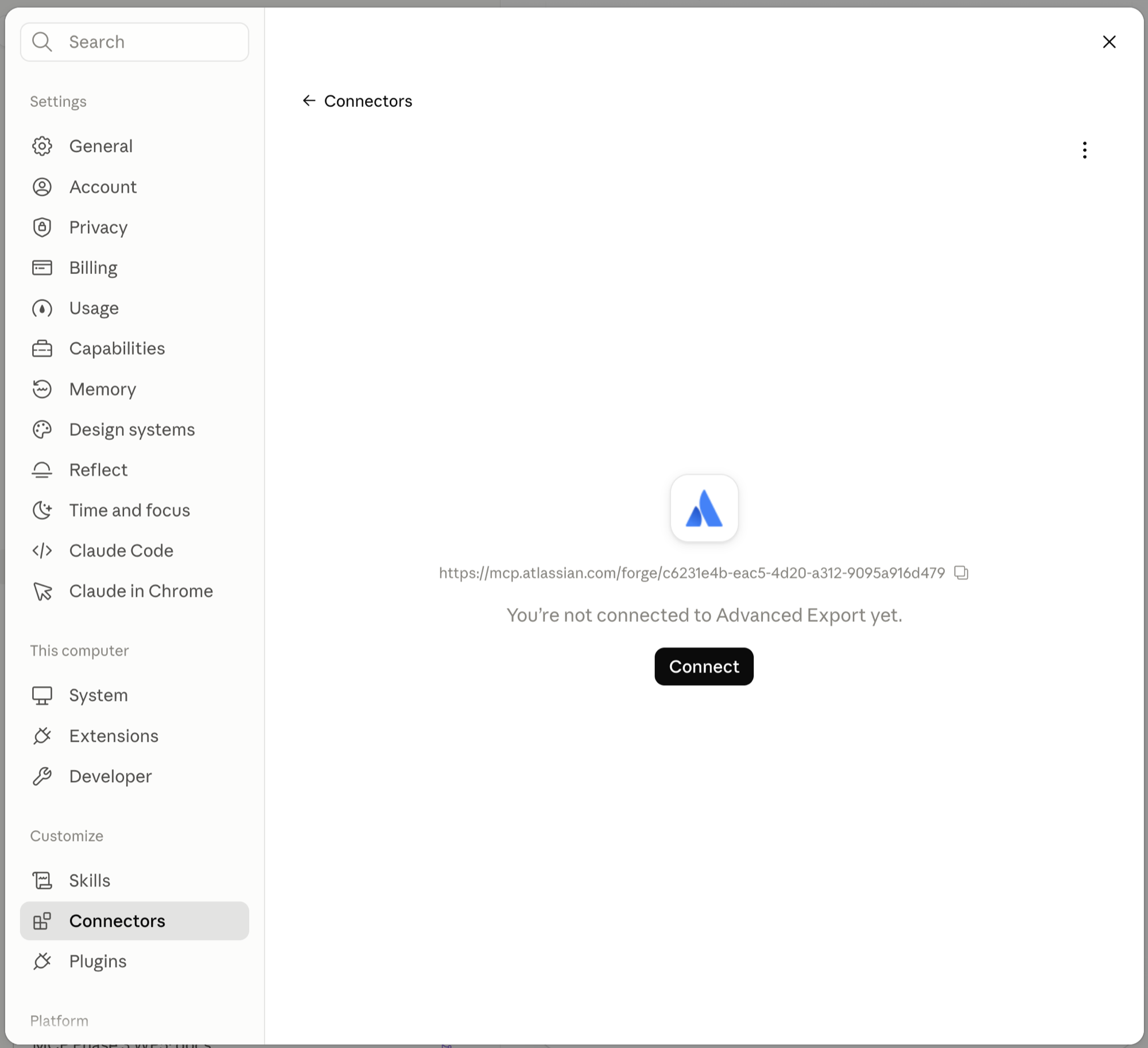
Then sign in to Atlassian.
Choose what Claude may do without asking
Section titled “Choose what Claude may do without asking”Claude lists the Advanced Export tools on the connector’s page. For each tool, or for a whole group, you choose whether Claude may always use it, must ask you first, or must never use it.
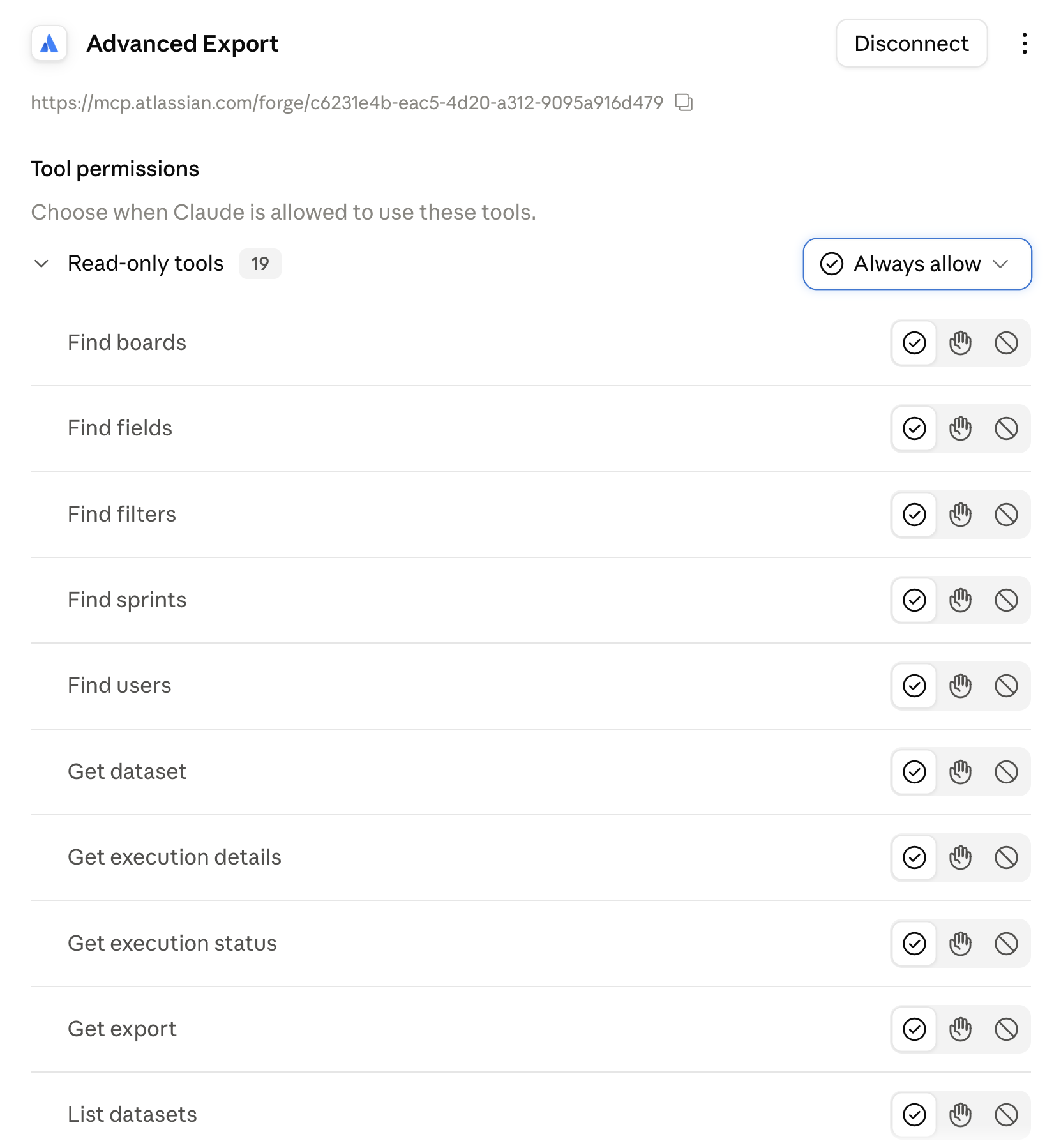
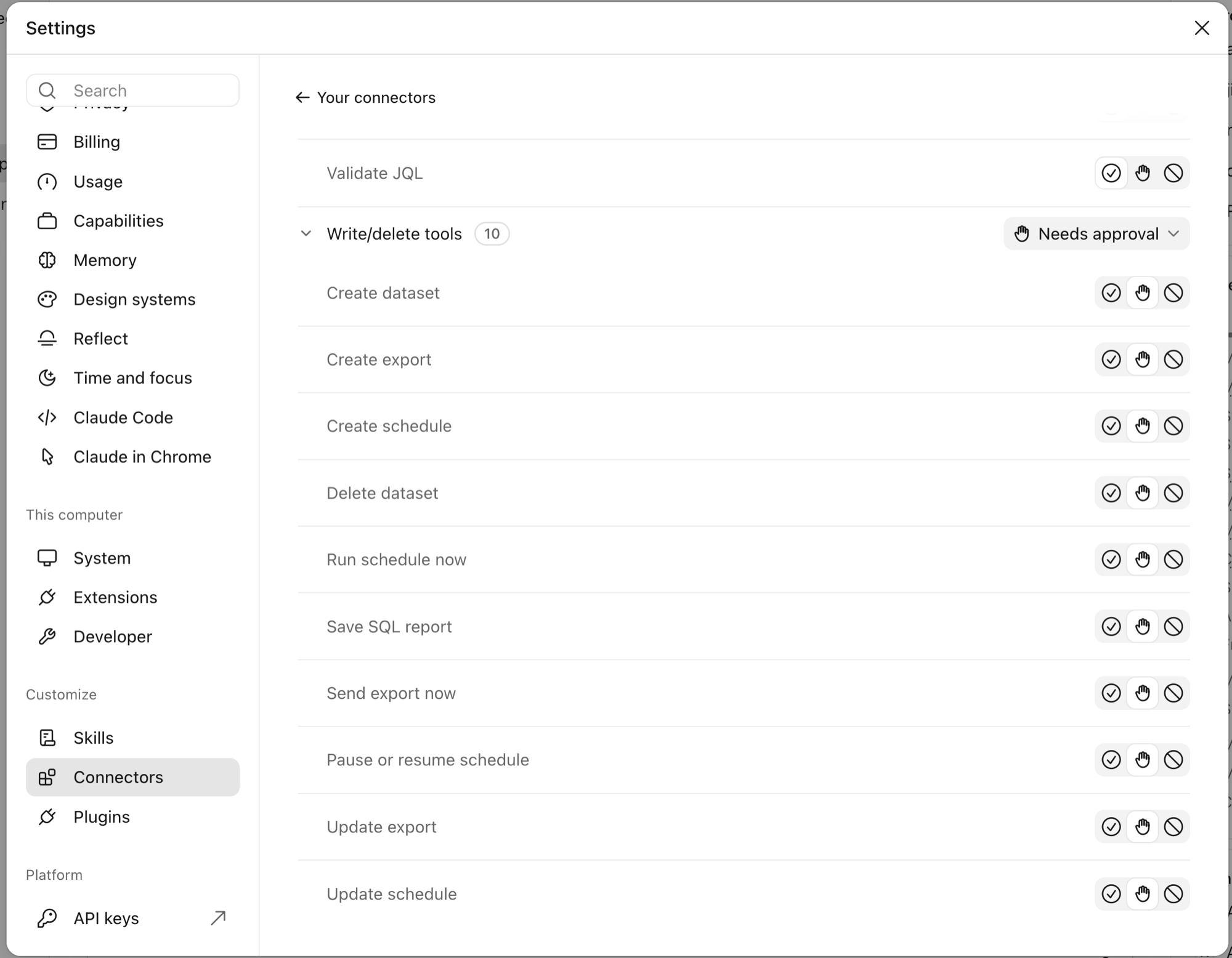
The read-only tools (finding fields, previewing exports, checking runs) are safe to allow. The write/delete tools (creating or changing exports and schedules, running or sending a report) are set to Needs approval to start with. We recommend leaving them that way.
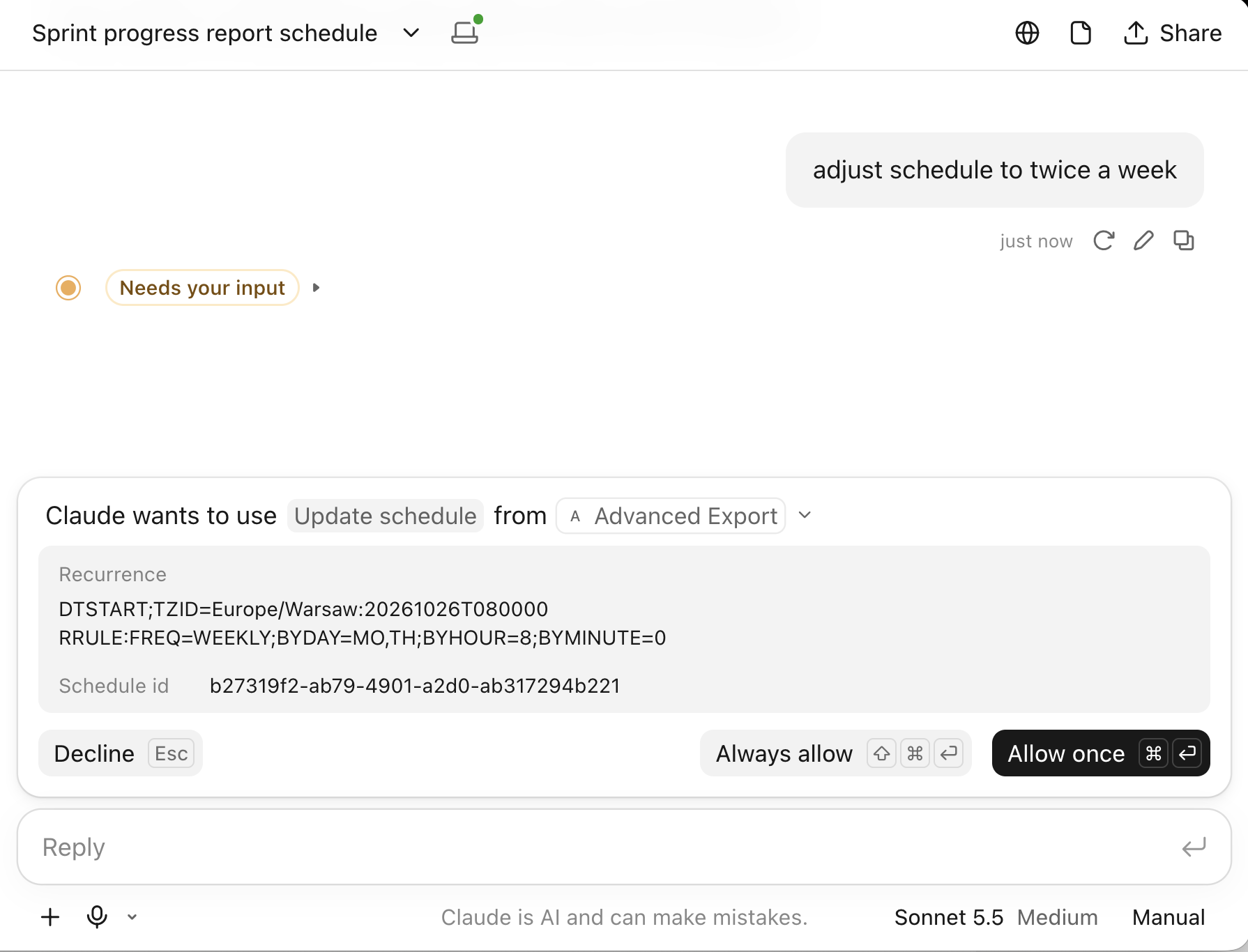
With Needs approval, Claude shows you what it is about to change and waits. Choose Allow once to make the change, or Decline to stop it. Always allow stops Claude asking for that tool in future.
Using it
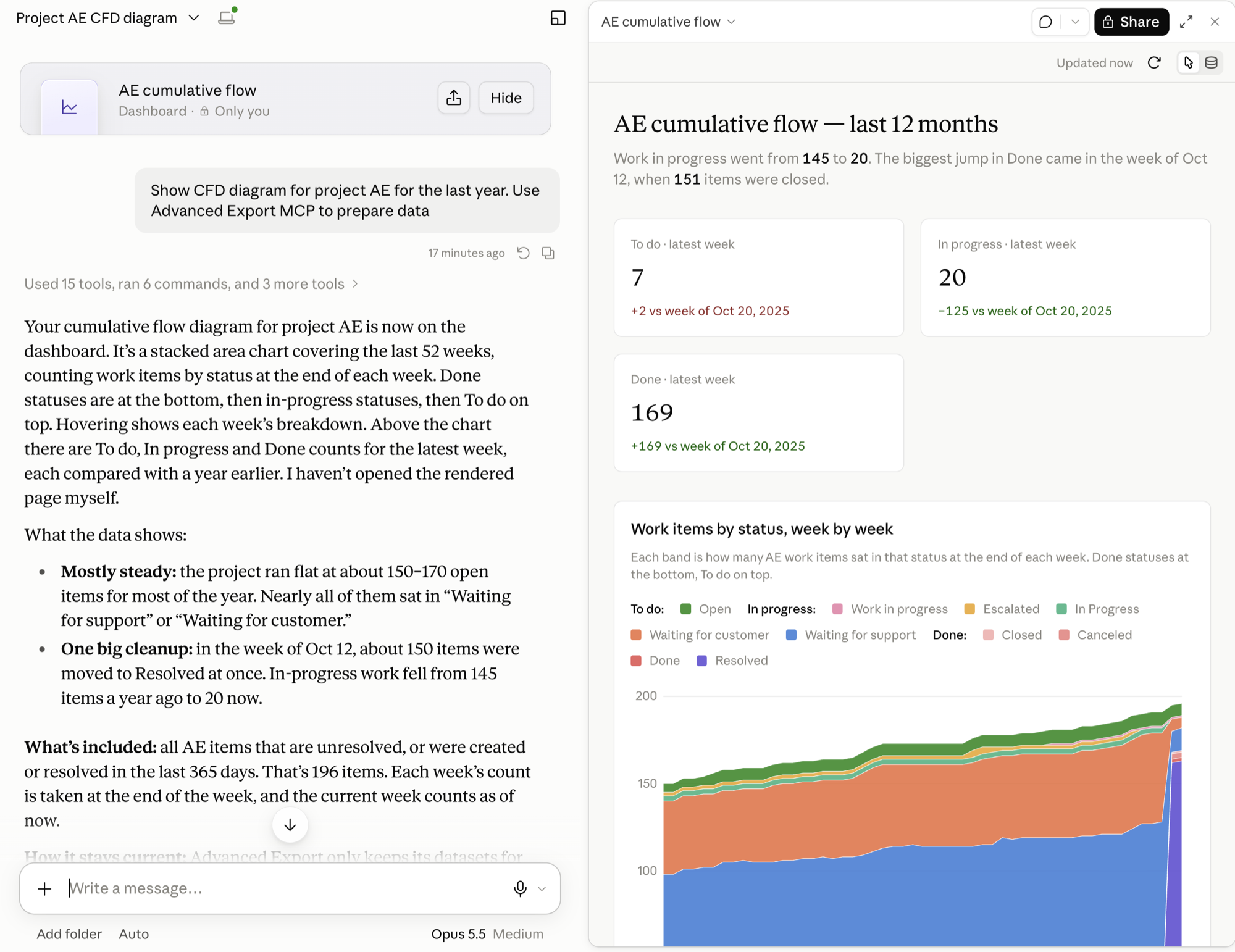
Section titled “Using it”Ask in plain language and mention Advanced Export, for example:
Show a cumulative flow diagram for project AE for the last year. Use Advanced Export to prepare the data.