

SQL exports
A SQL export runs a SQL query over your Jira data and delivers the query’s result instead of one row per work item. Use it when you want an answer rather than raw data: how long work waits in each status, how many work items were finished each week, which ones were reopened.
You schedule and deliver a SQL export like any other export: CSV, Excel or JSON, by email, download link, SFTP, webhook or API. Each run fetches fresh data from Jira, runs the query, and delivers only its result.
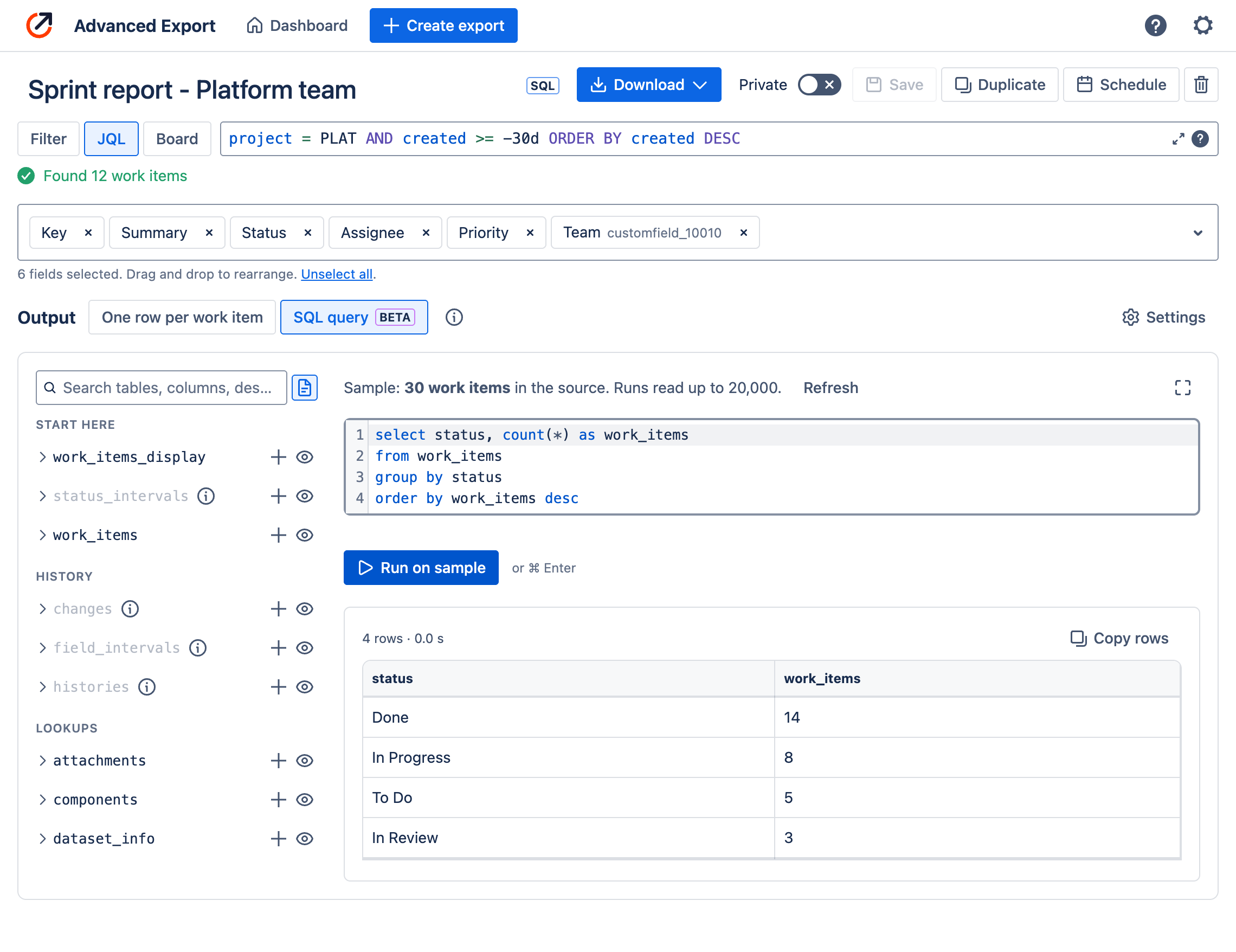
Adding a SQL step
Section titled “Adding a SQL step”- Open an export, or create one. Choose its work items (JQL, saved filter, or board and sprint) and its fields as usual. Every selected field becomes a column you can query.
- Under Output, choose SQL query.
- To query change history (time in status, cycle time, who changed what), open Settings and turn on Export historical changes. Without it the history tables are empty, and they are greyed out in the table list.
- Write your query, or start from one of the starter queries the editor offers while it is empty: work items by status, time in status, cycle time and throughput.
- Choose Run on sample (or press ⌘/Ctrl+Enter) to see the result.
- Save the export. It is marked SQL in the editor and on the dashboard.
To go back to one row per work item, choose One row per work item. Your query is kept for the rest of the session, in case you change your mind.
The editor
Section titled “The editor”- The table list on the left shows every table you can query. Choose a table to see its columns, + to insert its name, or the eye icon to see its first 100 rows without touching your query. Search finds tables and columns by name or description.
- The query editor completes table and column names as you type and describes each column.
- The sample. Queries in the editor run on a sample of up to 1,000 of the export’s work items, built when you open the SQL view. If you change the work items, fields or history setting, choose Refresh to build it again. A scheduled run reads up to 20,000 work items.
- Copy rows copies the result as tab-separated text that pastes into Excel or Google Sheets cells.
Downloading
Section titled “Downloading”Download runs the saved export once, on all of its data rather than the sample, and emails you a download link to the result as Excel, CSV or JSON. It is available to the export’s owner, and always runs the saved query, so save your changes first.
You can also download the sample itself as a DuckDB database (.duckdb), to explore it in DuckDB 1.5 or later, or in any tool that reads DuckDB files.
The tables
Section titled “The tables”Your export’s data is a small relational database. The most useful tables are at the top of the list.
| Table | One row per | Use it for |
|---|---|---|
work_items_display |
work item | The export’s fields, with names (status, assignee, priority) rather than ids. Start here |
work_items |
work item | The same work items, with ids that join to the lookup tables below |
status_intervals |
stay in a status | Time in status, cycle time, throughput, reopened work. Needs change history |
field_intervals |
period a field held a value | The same, for any field: assignee, priority, sprint, custom fields. Needs change history |
changes |
change to a field | Who changed what and when, with old and new values. Needs change history |
linked_work_items |
parent or linked work item | Parents and linked work items, including ones outside the export |
dataset_info |
dataset (one row) | When the data was fetched, its time zone, and whether any limit was reached |
Lookups: users, statuses, status_categories, priorities, issuetypes, projects,
components, versions, sprints, resolutions, security_levels, groups, fields,
issue_links, attachments and worklogs.
Field columns are named by field id, as in Jira: status, assignee, customfield_10010. The
field picker shows each custom field’s id beside its name, and the editor’s completions describe
each column.
A few things worth knowing about the history tables:
secondsis empty (NULL) for a stay that is still in progress. Aggregates such asmedianskip it, so they cover completed stays. Useis_currentto find where work items are now.status_intervalsleaves out zero-second stays, such as a status an automation passes straight through, so they do not drag averages down.field_intervalskeeps them.- Each status’s category is in
category_key:new(To Do),indeterminate(In Progress) ordone. - Names are current. A status renamed since the change was made is reported under its new name.
Examples
Section titled “Examples”Days spent in each status, median and 85th percentile:
SELECT status, count(*) AS stays, round(median(seconds) / 86400, 1) AS median_days, round(quantile_cont(seconds, 0.85) / 86400, 1) AS p85_daysFROM status_intervalsWHERE seconds IS NOT NULLGROUP BY statusORDER BY p85_days DESCWork items finished each week:
SELECT date_trunc('week', started_at) AS week, count(*) AS work_items_doneFROM status_intervalsWHERE category_key = 'done' AND is_currentGROUP BY weekORDER BY weekWork items reopened after they were done:
SELECT issue_key, count(*) AS times_reopenedFROM ( SELECT issue_key, category_key, lag(category_key) OVER (PARTITION BY issue_id ORDER BY started_at) AS previous FROM status_intervals)WHERE previous = 'done' AND category_key <> 'done'GROUP BY issue_keyORDER BY times_reopened DESCWork items reassigned three or more times:
SELECT issue_key, count(*) AS reassignments, list(DISTINCT to_name) AS assigneesFROM changesWHERE field_id = 'assignee'GROUP BY issue_keyHAVING count(*) >= 3ORDER BY reassignments DESCOpen work items by assignee and age:
SELECT coalesce(assignee, 'Unassigned') AS assignee, count(*) FILTER (WHERE created >= current_date - INTERVAL 30 DAY) AS under_30_days, count(*) FILTER (WHERE created < current_date - INTERVAL 30 DAY AND created >= current_date - INTERVAL 90 DAY) AS days_30_to_90, count(*) FILTER (WHERE created < current_date - INTERVAL 90 DAY) AS over_90_daysFROM work_items_displayGROUP BY ALLORDER BY over_90_days DESCQueries use the DuckDB SQL dialect. A query is a single
SELECT statement (WITH is fine); it cannot change data or read anything outside the export.
Dates and times
Section titled “Dates and times”- Times are in the export owner’s time zone, the same zone a flat export of the same export
uses.
created::DATEanddate_trunc('week', ...)group by local days and weeks. - The export’s locale and date formats do not apply. CSV shows times as
YYYY-MM-DD HH:mm:ss, Excel as dates, and JSON as ISO 8601 with the offset. To format a value yourself, usestrftime. - For exact durations, use the
secondscolumn ordate_diff('second', start, end). Subtracting two timestamps directly can be an hour out across a daylight saving change.
Scheduled runs
Section titled “Scheduled runs”Schedule a SQL export from the dashboard or the editor, exactly like any other. Each run:
- fetches the export’s work items (and their history, if turned on) fresh from Jira, with the same permissions as any scheduled run;
- runs your saved query;
- delivers the result in the schedule’s format and by its delivery method.
A run can start up to 30 minutes after its scheduled time, to spread the load. A SQL export is never delivered as raw rows: if the query fails, nothing is delivered and the execution log records why.
Limits
Section titled “Limits”| Limit | |
|---|---|
| Work items read per run | 20,000 |
| Change history items per run | 500,000 |
| Fetching and building the data | 10 minutes |
| Running the query | 2 minutes |
| Rows in the result | 1,000,000 |
| Sample in the editor | 1,000 work items |
If a run reaches a limit, the result is still delivered, and it says so: in the execution log, as a
note in the email, as a Report notes sheet in Excel, and as a notes key in JSON. To stay within
the limits, narrow the export’s JQL, for example to work items updated in the last 90 days.