

Rovo agent
Advanced Export comes with a Rovo agent. Ask it in plain language to set up, run and check your reports, and it does the work with the same exports, schedules and permissions as the Advanced Export dashboard:
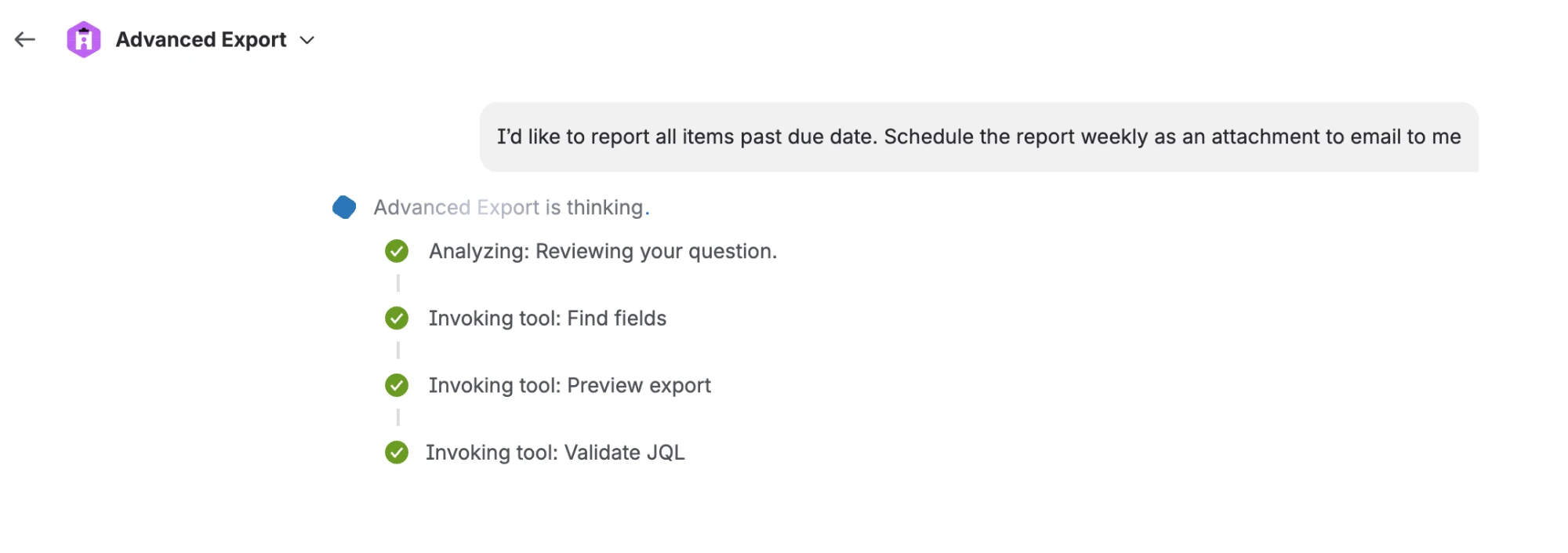
I’d like to report all items past due date. Schedule the report weekly as an attachment to email to me.
Email a teammate a CSV of the summaries and assignees in the current sprint.
Which of my scheduled reports failed in the last 30 days?
What is the median and 85th-percentile time in each status for project PLAT over the last quarter?
Make that a weekly Excel report and email it to me on Mondays.
Anything the agent creates appears in the dashboard, and you can change it there.
Using another assistant, such as Claude? See Connect AI assistants.
Finding the agent
Section titled “Finding the agent”The agent is called Advanced Export. It is installed together with the app, so there is nothing to set up.
- Open Rovo chat in Jira.
- Open the agent list (Browse agents) and search for Advanced Export.
- Choose Chat to agent, or pick one of its suggested prompts.
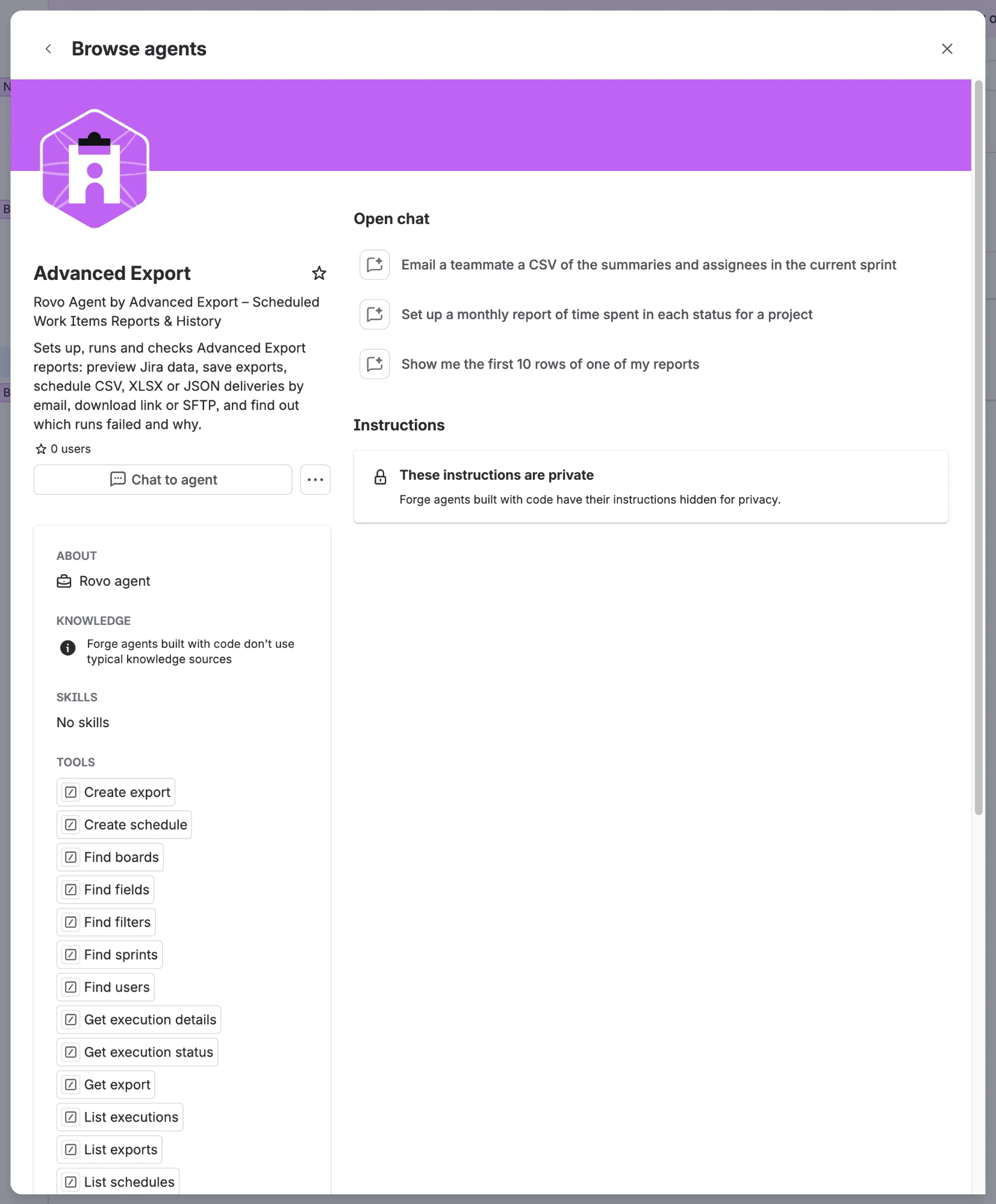
The suggested prompts are a good place to start:
- Which of my scheduled reports failed in the last 30 days?
- Email a teammate a CSV of the summaries and assignees in the current sprint
- Upload a weekly report of work items closed in the last 7 days to SFTP
- Show me the first 10 rows of one of my reports
- Set up a monthly report of time spent in each status for a project
What you can do with the agent
Section titled “What you can do with the agent”Find things
- Your exports, the public exports on your site, and their schedules.
- Jira fields (including custom fields), people, boards, sprints and saved filters, so the agent can build a report without you looking up any ids.
- Your SFTP servers and report templates.
Show data
- A live preview of any export: the data as it is now, as you can see it in Jira.
- The rows of a delivered file: what a scheduled run actually sent, while its download link is still valid.
- Change history: with history mode on, a report has one row per change, with how long each state lasted, so the agent can show things like time spent in each status.
See Where the data comes from for the difference.
Analyse data with SQL
- Build a private, temporary dataset from an export or a JQL query, with change history, and answer questions about it with SQL: counts, ageing, time in status, cycle time, throughput, reopened or reassigned work items.
- Turn the query into a SQL export: the agent shows you an example of the result, saves the query to your export when you agree, and can schedule it.
The numbers come from a database query, not from the agent reading rows, so asking again gives the same answer. Ask the agent to show the SQL it ran.
Set things up
- Save a new export, or change one you own: which work items it includes (JQL, a saved filter, or a board and sprint), its fields, and whether it includes change history. New exports are private unless you ask for them to be public.
- Schedule an export as CSV, Excel (XLSX) or JSON, delivered by email, as a download link, to your SFTP server, or for the Advanced Export API, on any recurrence (“every Monday at 8”, “on the first day of each month”).
- Change a schedule’s timing, format, recipients or destination.
- Pause and resume schedules.
Deliver now
- Run a schedule once, straight away.
- Send an export once, with no schedule at all (a one-off delivery).
Check runs
- Which runs succeeded or failed, when, and why, across all the schedules you can see.
- The details of one run: the error or warning, the number of rows, the file size, and whether a stored copy of the file can still be read.
What the agent cannot do
Section titled “What the agent cannot do”- Delete exports or schedules. To stop a report, ask the agent to pause it, or delete it in the dashboard.
- Add SFTP servers, webhooks or API keys, or read their credentials. Set those up in the dashboard.
- Create or change webhook deliveries.
- Anything you could not do yourself in the dashboard.
An example conversation
Section titled “An example conversation”Ask for what you want. The agent looks up the fields it needs, checks the JQL and previews the data before it saves anything:
It then shows you what it found and what it is going to set up: the query, the format, the recipients and when it will run. Nothing has been saved yet.
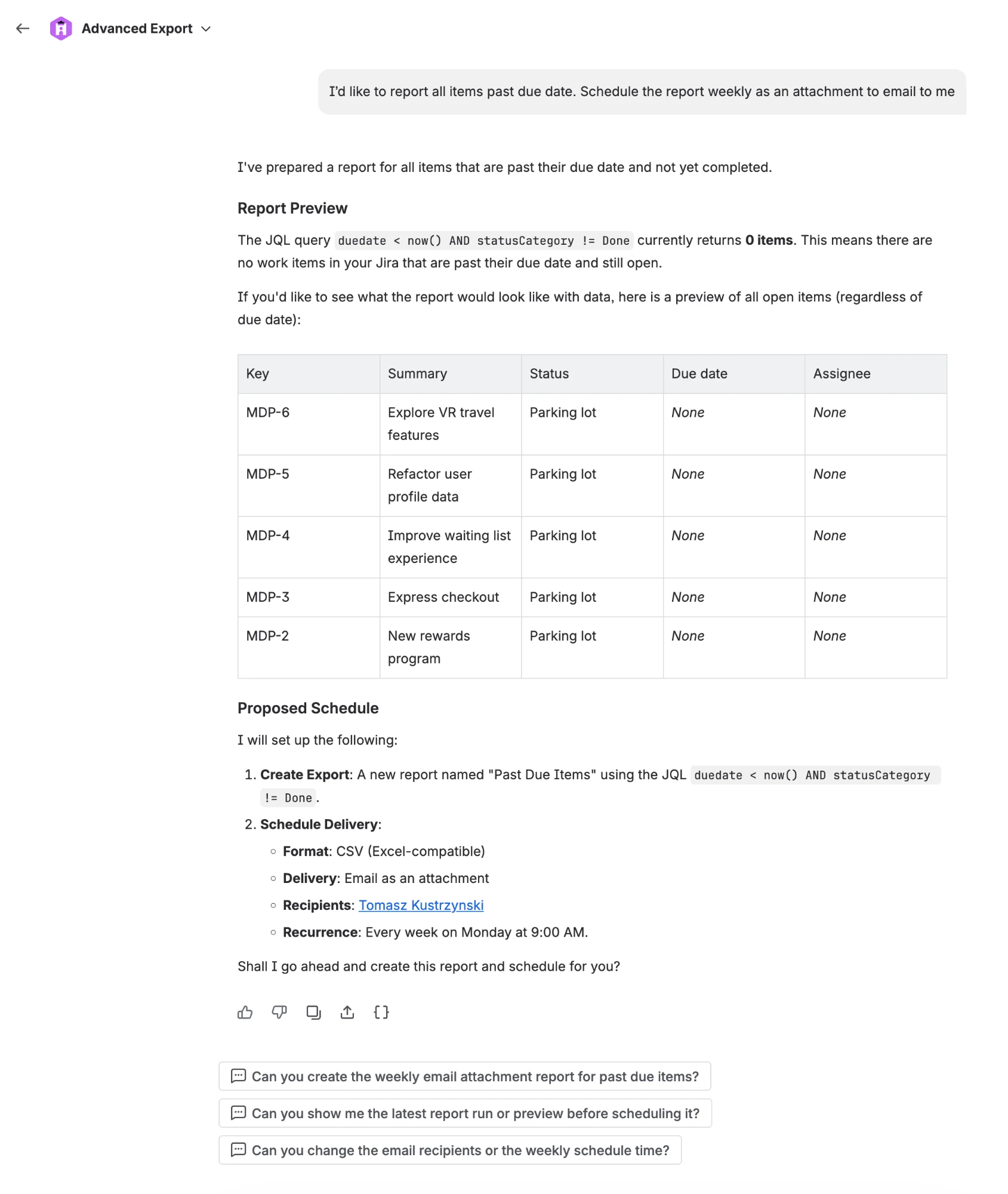
When you agree, Rovo asks you to confirm each change. See You confirm every change.
Using the tools in your own Rovo agents
Section titled “Using the tools in your own Rovo agents”Rovo Studio
Section titled “Rovo Studio”You can build your own agent in Rovo Studio and give it some or all of the Advanced Export tools, with your own instructions. The safety rules above still apply, because Advanced Export enforces them itself. The Advanced Export agent’s own instructions (checking queries before saving, saying where data comes from, asking when two people have the same name) are not part of the tools, so include anything similar your agent needs.