

Dashboard
Open the dashboard from Apps → Advanced Export in the Jira top navigation.
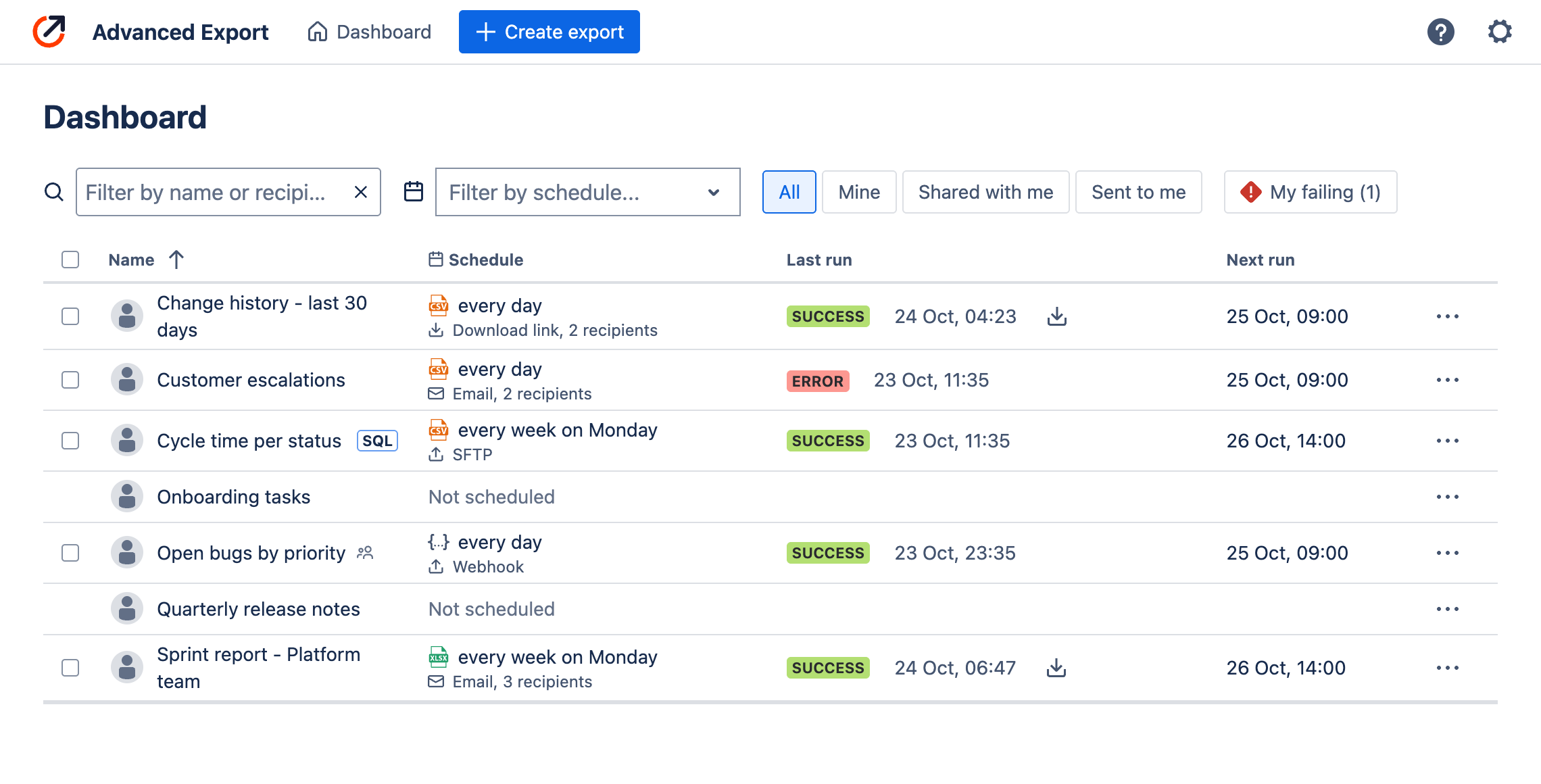
Each row is an export you can see: your own, and the public exports on your site. For each one the dashboard shows:
- Name, with SQL beside SQL reports and a people icon beside public ones.
- Schedule: when it runs, in which format, and how it is delivered. A schedule paused after repeated failures stays highlighted, and download links or emails with no recipients are flagged.
- Last run: the result of the most recent run and when it happened, with a download button while its file is still available. A run in progress shows its progress.
- Next run: when the schedule runs next.
Finding exports
Section titled “Finding exports”- Filter by name or recipient, or by schedule.
- All, Mine, Shared with me (public exports of other people) and Sent to me (reports delivered to you).
- My failing lists your schedules whose last run failed, with how many there are.
Export details
Section titled “Export details”Choose a row to open its details beside the list: the work items it selects, its columns, its schedule and recipients, and its recent runs, each with its download or its error.
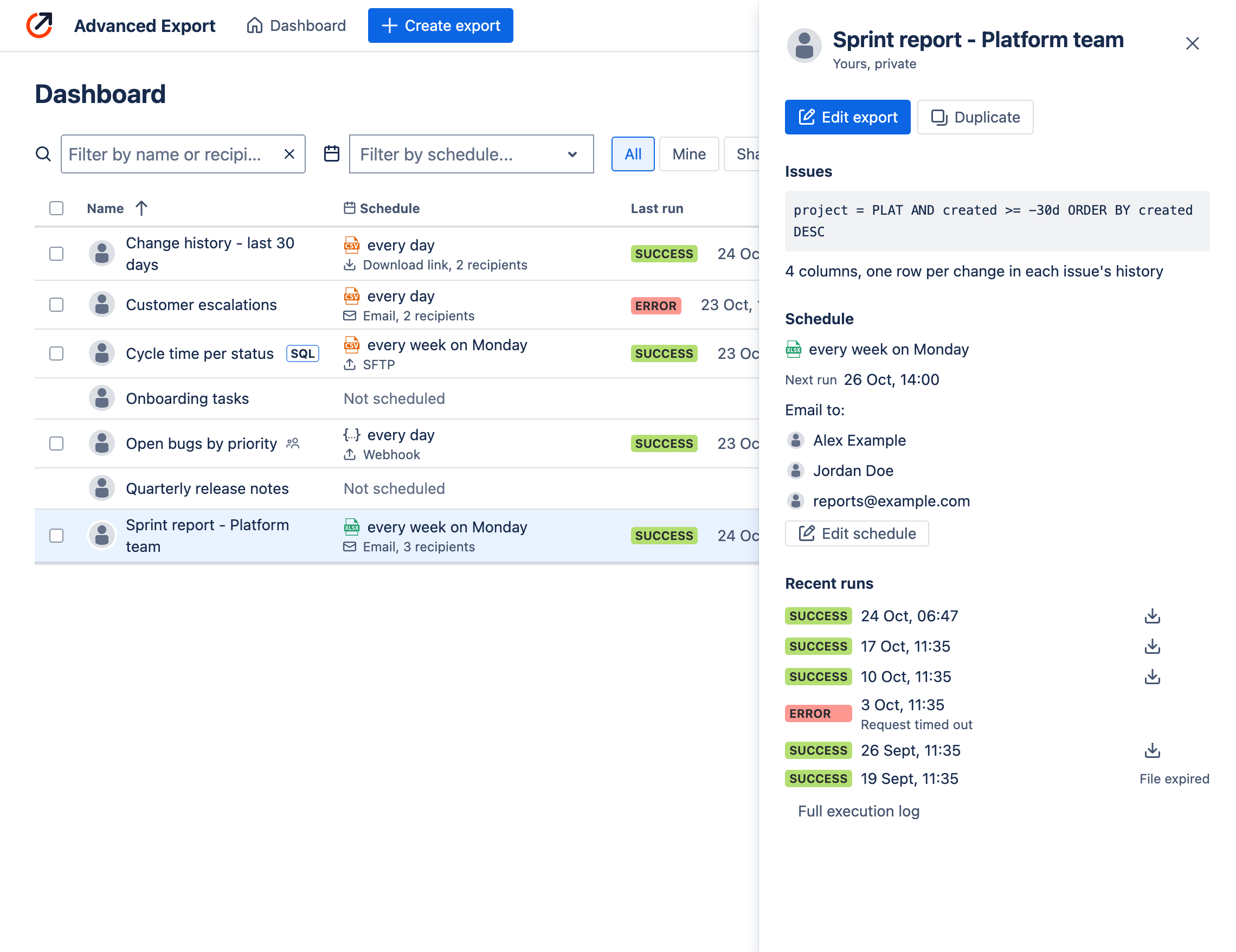
From here you can Edit export, Duplicate it, or Edit schedule. The ⋯ menu on each row has the same actions.
Execution log
Section titled “Execution log”Full execution log lists every run of a schedule: when it ran, whose permissions it ran with, its status, and the error or warning, if any.
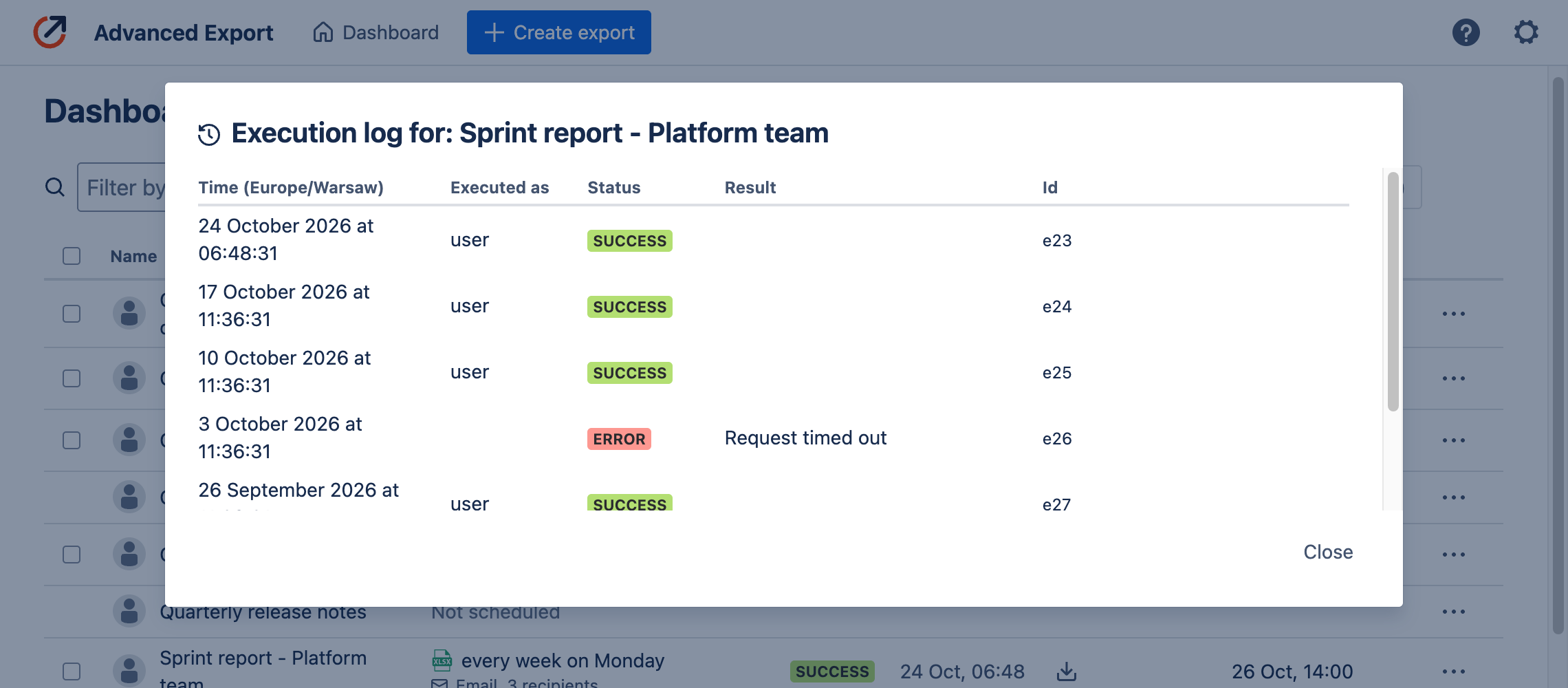
When a scheduled run fails, the schedule’s owner is also emailed the error, with a link to the dashboard. Only the first failure after a successful run sends an email. After 5 failures in a row the schedule is paused.
Downloading a report
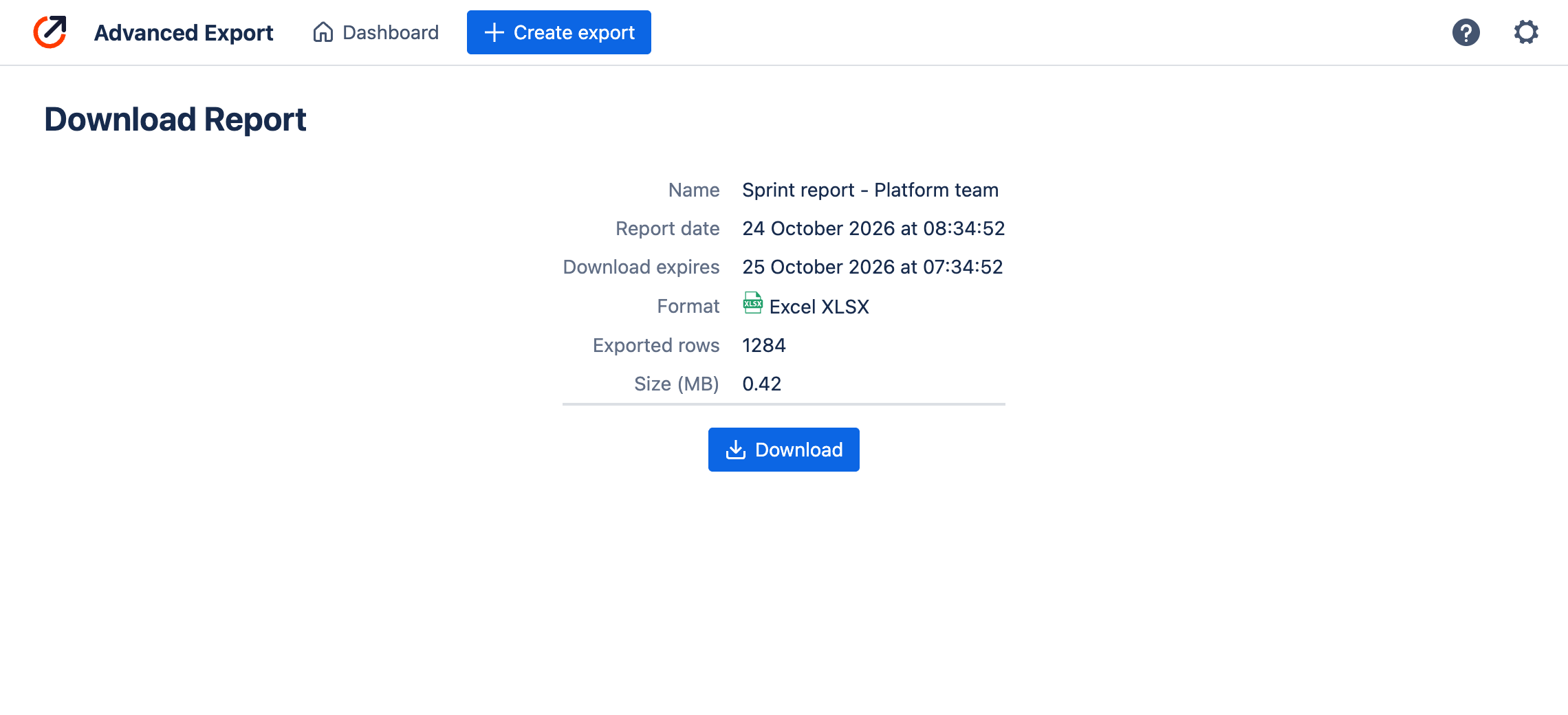
Section titled “Downloading a report”Reports delivered as a download link open a page with the report’s details and a Download button. The same reports can be downloaded from the dashboard until the link expires.
Private and public exports
Section titled “Private and public exports”New exports are private. To share one with everyone on your site, turn off Private in the export editor. Other people can then use it, download it and duplicate it, but only you can change or schedule it.