# Advanced Insights (Kanbanalytics) - full documentation
> Complete text of the Advanced Insights documentation for Atlassian Jira and monday.com apps. Generated from the live pages at https://docs.advancedinsights.app.
---
# Advanced Export (Jira)
Source: https://docs.advancedinsights.app/atlassian/advanced-export
**Advanced Export turns Jira into data you can use.** Pick the work items and fields you need, see
the result live, and download it as CSV, Excel or JSON. Include the full history of changes to get
one row per change, then summarise it with SQL: time in status, cycle time, reopened work. Schedule
any export to arrive by email, download link, SFTP, webhook or API. You can also ask Rovo, Claude
or another AI assistant to do all of this for you.
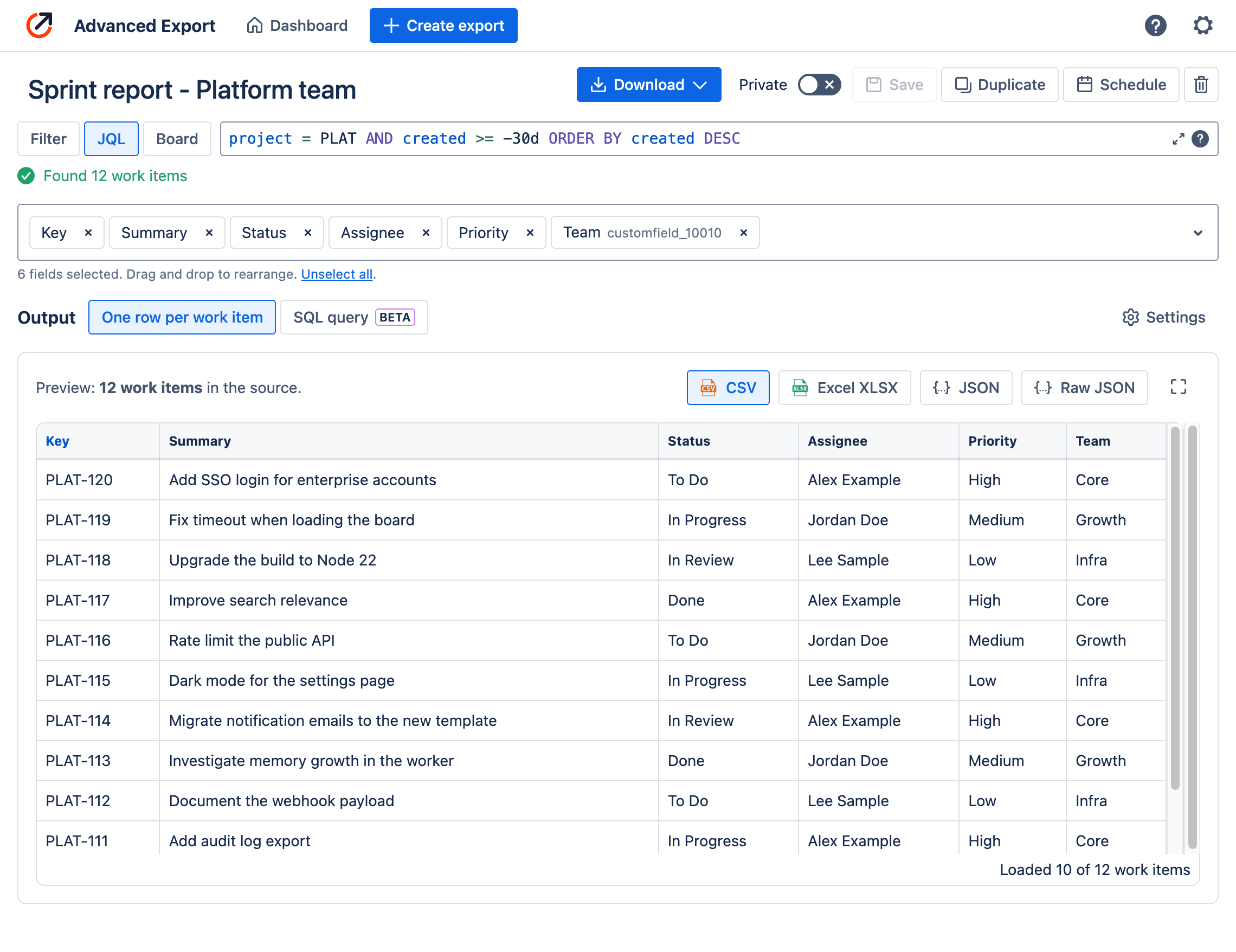
## What you can do
Standard and custom fields, Jira Service Management Assets and comments, for work items
selected by JQL, a saved filter, or a board and sprint. Preview the result live, then download
it as CSV, Excel (XLSX) or JSON.
[Exporting data](/atlassian/advanced-export/exporting-data)
Get one row for each change to the selected fields, with when it started and ended, who made it
and how long the value lasted. Jira shows this one work item at a time; here you get it for
every work item in the export.
[Change history](/atlassian/advanced-export/exporting-data#change-history)
Add a SQL step to an export to deliver aggregated results instead of raw rows, such as the
85th-percentile time in each status, or throughput per week. Write the query against a sample
and see the results as you type.
[SQL exports](/atlassian/advanced-export/sql-exports)
Hourly, daily, weekly, monthly or yearly, in your time zone. Delivered as an email attachment,
a download link, an SFTP upload, a webhook, or through the API. Reports are generated on our
servers, so nobody has to keep a browser open.
[Scheduled reports](/atlassian/advanced-export/scheduled-exports)
Ask in plain language: "email the team a weekly CSV of overdue work", "which of my reports
failed this month?", "what is the median time in review for project X?". The agent works with
your permissions and asks before every change.
[Rovo agent](/atlassian/advanced-export/ai-tools/rovo-agent)
Connect Claude, Claude Code or any assistant that supports remote MCP servers to the same
tools. It can build reports, schedule them and run SQL on your Jira data.
[Connect AI assistants](/atlassian/advanced-export/ai-tools/mcp)
Plus:
- 📋 A [dashboard](/atlassian/advanced-export/dashboard) of every report and schedule, with the last
and next run of each and a filter for failing schedules
- 🔒 Private and public reports, and [restrictions](/atlassian/advanced-export/app-settings#restrict-scheduling) on who can schedule
- 🌎 GDPR friendly: [choose the region](/atlassian/advanced-export/app-settings#data-residency) where data is processed
- 📧 Use the built-in email service, or your own SendGrid account
- 🛡️ [Cloud Fortified](https://www.atlassian.com/trust/marketplace?source=app-listing-badge), built on Atlassian Forge. See [Data security and privacy](/atlassian/advanced-export/privacy)
## Use cases
### Give your AI analysis numbers you can rely on
_"Our Rovo agent summarises the backlog, but it gives a different answer every time we ask."_
If an assistant reads hundreds of work items into a conversation and counts them itself, the
result can change from one run to the next, and it can silently miss work items. The fix is to
keep two jobs apart: let a database count, and let the AI explain the numbers.
With Advanced Export, the Rovo agent (or Claude, over MCP) can:
- **Build a dataset** from your JQL or an existing export: every matching work item and its change
history, up to 20,000 work items, visible only to you.
- **Answer with SQL**: totals by status, assignee or component, ageing, time in status. The numbers
come from a query, so the same question on the same data gives the same answer, and the agent can
show you the query it ran.
- **Deliver a complete baseline file**: the same export sent once as CSV or Excel, with the number
of rows it delivered, so you can check every analysis against a fixed list of work items.
- **Save the query as a report** and schedule it, so next week's numbers arrive without asking again.
> Build a dataset of `project = PLAT AND statusCategory != Done` and tell me how many work items
> are in each status, how many are older than 90 days, and who has the most of them.
See [Rovo agent](/atlassian/advanced-export/ai-tools/rovo-agent) and
[Data and deliveries](/atlassian/advanced-export/ai-tools/data-and-deliveries).
### Flow metrics every Monday morning
_"I want time in status and cycle time for my team, without building a BI pipeline."_
Create an export of your team's work items with change history, add a SQL step that calculates the
median and 85th-percentile days in each status, and schedule it weekly as Excel to your inbox. The
editor offers starter queries for time in status, cycle time and throughput.
[SQL exports](/atlassian/advanced-export/sql-exports)
### Feed your data warehouse or BI tool
_"Power BI, Tableau or Snowflake need fresh Jira data every night."_
Schedule a CSV or JSON export daily or hourly, and have it uploaded to your SFTP server, POSTed to
your webhook, or fetched by your pipeline through the [Advanced Export API](/atlassian/advanced-export/api).
Use file name templates such as `{name}_{date:YYYYMMDD}` so every run lands in its own file.
### Audit who changed what, and when
_"Who changed the priority of our P1 incidents last quarter?"_
Export with change history, and every change becomes a row with its author and time. Filter it in
Excel, or let a SQL step return only the changes you care about: priority changes, reopened work
items, due dates moved more than twice, work items reassigned back and forth.
### Service desk performance
_"How long do requests wait for the customer, and how long for us?"_
Export Jira Service Management requests with their status history, internal or external comments,
and Assets fields. A SQL step can split the time spent in _Waiting for customer_ and _Waiting for
support_ for each request type.
### Status reports for stakeholders
_"Every Friday, send the sprint's work items to people who don't use Jira."_
Schedule an Excel export of the current sprint and email it to Jira users and to any other email
addresses, with your own subject and message. Or ask the Rovo agent to set it up:
> Email a CSV of the summaries and assignees in the current sprint to my team every Friday at 4pm.
### Keep your reports healthy
_"Which of my scheduled reports failed in the last 30 days, and why?"_
The dashboard flags failing schedules, and their owners are emailed the error when a run fails. Ask
the Rovo agent to list failed runs across all your schedules and explain each error.
## How change history looks
Say a work item's **Flavor** field started as _Vanilla_, then changed to _Chocolate_ and later to
_Strawberry_, and its assignee changed once. With change history on, the export has one row for
each state the work item was in, newest first:
| Change Start | Change End | Time In This State | Changed Fields | Change Author | Key | Flavor | Assignee |
| --- | --- | --- | --- | --- | --- | --- | --- |
| 2026-05-15 | 2026-10-24 | 162d | Flavor | Jordan Doe | TST-1 | Strawberry | Alex Example |
| 2026-05-10 | 2026-05-15 | 5d | Flavor | Jordan Doe | TST-1 | Chocolate | Alex Example |
| 2026-05-05 | 2026-05-10 | 5d | Assignee | Lee Sample | TST-1 | Vanilla | Alex Example |
| 2026-05-01 | 2026-05-05 | 4d | | | TST-1 | Vanilla | Lee Sample |
The bottom row is the work item as created, and the top row is how it is now: its **Change End** is
the time the report was generated. Anything you could
read in the work item's history panel is now a table you can sort, filter, pivot or query. See
[Change history](/atlassian/advanced-export/exporting-data#change-history) for every column.
## Get started
> **Note:**
Questions or ideas? [Contact support](/atlassian/advanced-export/support). We read every message.
---
# Installation
Source: https://docs.advancedinsights.app/atlassian/advanced-export/installation
1. A Jira admin installs [Advanced Export from the Atlassian Marketplace](https://marketplace.atlassian.com/apps/1217474/advanced-export?hosting=cloud&tab=overview).
A free trial is available.
2. Open it from _Apps → Advanced Export_ in the Jira top navigation. You can also start an export
from issue search, a board or a backlog, through the **Advanced Export** menu.
3. Optionally, an admin reviews the [App settings](/atlassian/advanced-export/app-settings): who can
schedule reports, the region where data is processed, the email service, and what AI agents may do.
The [Rovo agent](/atlassian/advanced-export/ai-tools/rovo-agent) is installed with the app. To use
Advanced Export from Claude or another assistant, an admin turns on its tools once; see
[Connect AI assistants](/atlassian/advanced-export/ai-tools/mcp).
## Updates
Advanced Export is a Forge app, and most updates reach your site automatically. An update that asks
for new permissions waits until a Jira admin approves it in _Apps → Manage apps_. Until then, the
app keeps working as before, without the new features. See
[Forge migration](/atlassian/advanced-export/forge-migration#the-update-that-asks-for-your-approval).
---
# Video tutorials
Source: https://docs.advancedinsights.app/atlassian/advanced-export/tutorials
## Basics
- how to access Advanced Export
- create new export and save it
- select issues to export
- export data in different formats
## Export options
- export history of changes
- formatting options
- format specific options
## Scheduled exports
- how to schedule exports
- types of export delivery methods
- manual execution and export logs
- configure custom email server
---
# Exporting data
Source: https://docs.advancedinsights.app/atlassian/advanced-export/exporting-data
The export editor is where you decide what an export contains: which work items, which fields, and
whether to include their change history. The preview below it updates as you go.

## Opening the editor
- **From the dashboard**: _Apps → Advanced Export_, then **Create export**, or choose an existing
export.
- **From issue search, a board or a backlog**: open the **Advanced Export** menu and choose
**New export** to start with the work items you are looking at, or **Quick export** to apply one of
your saved exports' fields and settings to them.
## Choosing work items
Choose the source above the field list:
- **Filter**: any saved Jira filter you can see.
- **JQL**: any JQL query. The editor checks it and shows how many work items it matches.
- **Board**: a board, and optionally one of its sprints or its backlog.
## Choosing fields
Add standard and custom fields, including Jira Service Management Assets, and drag them to change
the column order. Custom fields show their id (`customfield_10010`) beside the name.
If the app does not recognise a custom field's type, you can still add it, but it is exported as
plain text, which for complex fields may be raw JSON.
## Output
Choose what the export produces:
- **One row per work item**: the fields you chose, one row per work item, or one row per change
with [change history](#change-history) turned on.
- **SQL query**: the result of a SQL query over the export's data, such as time in each status or
throughput per week. See [SQL exports](/atlassian/advanced-export/sql-exports).
## Live preview
The preview shows real data for the first work items that match, exactly as the file will contain
it. Switch between **CSV**, **Excel XLSX**, **JSON** and **Raw JSON** to see each format, and
expand it to full screen for a closer look.
## Settings
Choose **Settings** beside the output to change how the data is exported.
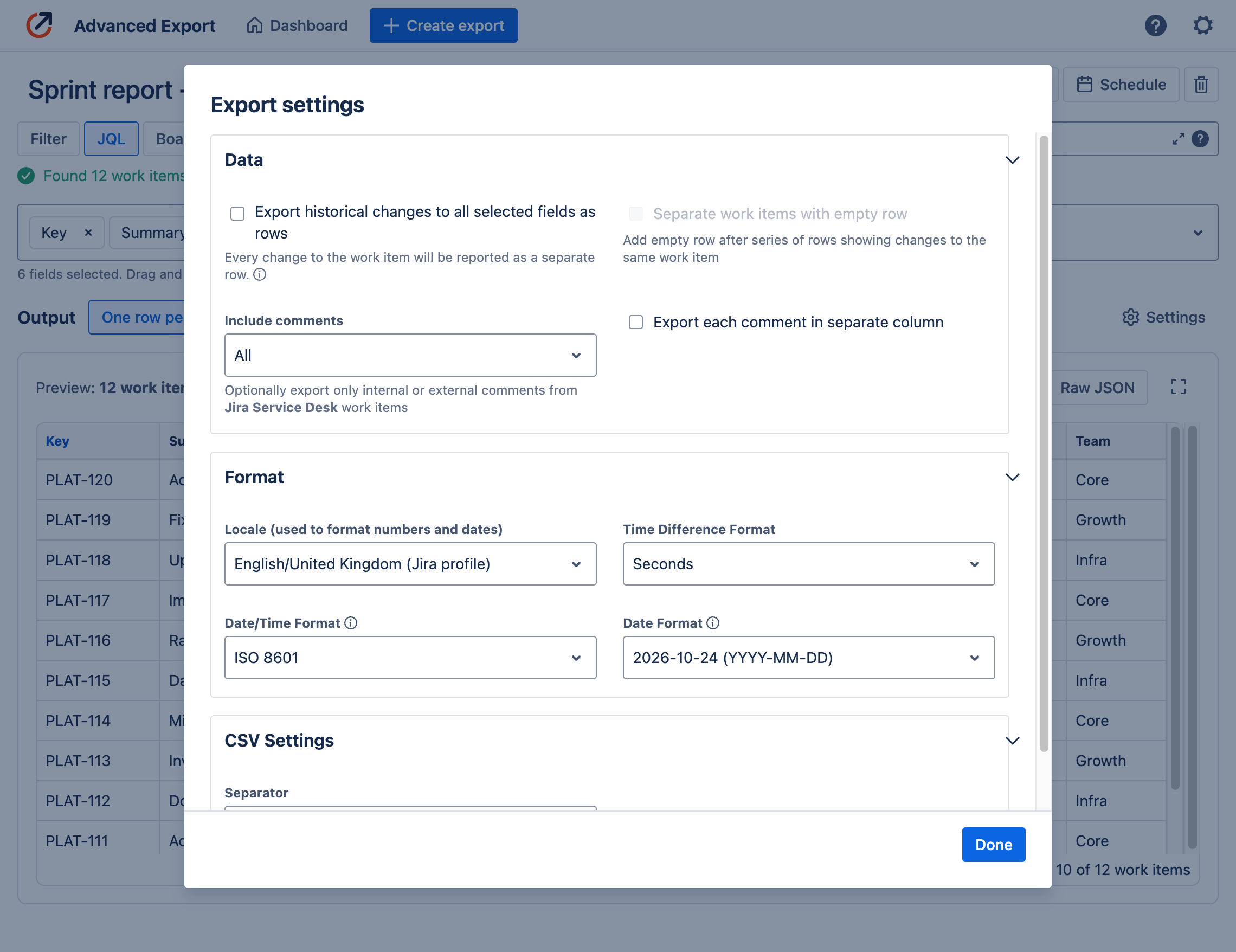
**Data**
- **Export historical changes to all selected fields as rows**: see [Change history](#change-history).
- **Separate work items with empty row**: with change history on, adds an empty row after each work
item's rows.
- **Include comments**: all comments, or for Jira Service Management only the internal or only the
external ones. Applies when the Comment field is selected.
- **Export each comment in separate column**: one column per comment instead of all of them in one
column (see [Comments](#comments)).
**Format**
- **Locale**: used to format numbers and dates. Defaults to your Jira profile.
- **Time Difference Format**: how durations such as **Time In This State** are shown, for example in
seconds, minutes or days.
- **Date/Time Format** and **Date Format**: for example ISO 8601 or `YYYY-MM-DD`.
**CSV Settings**
- **Separator**: comma, semicolon, tab and others. Used for CSV files only.
> **Note:**
Dates are shown in the time zone of your Jira profile, which may not be your computer's. The
editor tells you when the two differ.
## Change history
With **Export historical changes to all selected fields as rows** turned on, each work item gets one
row for every change to the selected fields, newest first. Each row is a snapshot of the work
item's values for the period between two changes. These columns are added at the start:
| Column | What it holds |
| --- | --- |
| **Change Start** | When this state began. For the oldest row, when the work item was created |
| **Change End** | When the next change happened. For the newest row, when the report was generated |
| **Time In This State** | How long the state lasted, in the Time Difference Format |
| **Changed Fields** | The fields that changed at Change Start. Empty for the oldest row |
| **Change Author** | Who made the change |
Only changes to the fields you selected create rows. To see how long work items spend in each
status, select **Status**; to also see assignee changes, add **Assignee**.
See [How change history looks](/atlassian/advanced-export#how-change-history-looks) for an example,
and [SQL exports](/atlassian/advanced-export/sql-exports) to calculate time in status, cycle time
or reopened work from the history automatically.
## Saving, sharing and scheduling
The toolbar above the editor holds:
- **Download**: generate the file now, in your browser, as CSV, Excel, JSON or Raw JSON.
- **Private**: turn off to make the export public, so everyone on your site can see and use it.
- **Save**, **Duplicate** and delete.
- **Schedule**: deliver the export regularly. See [Scheduled reports](/atlassian/advanced-export/scheduled-exports).
The editor asks before you leave an export with unsaved changes. Saved exports appear on the
[dashboard](/atlassian/advanced-export/dashboard).
## Limits
A download from the editor is generated in your browser and can include up to **100,000 work
items**, with any number of fields. Large exports can take a while.
For more, narrow the JQL, or [schedule the export](/atlassian/advanced-export/scheduled-exports): a
scheduled CSV or Excel report is generated on our servers and has no limit on the number of work
items. See [Limits](/atlassian/advanced-export/scheduled-exports#limits).
## Comments
Comments are exported in a single text column, unless you choose **Export each comment in separate
column**. In a single column:
- comments are sorted newest first;
- each comment is `AUTHOR, DATE:` followed by the comment on the next line;
- comments are separated by a line holding a single `|`;
- in CSV, the column is quoted, and quotes inside comments are doubled.
```csv
Key,Comment
SSP-28,"Alex Example, 2026-02-23T10:11:49-05:00:
another comment with ""quotes"" and an emoji 😀
|
Alex Example, 2026-02-23T09:01:47-05:00:
first comment"
```
---
# SQL exports
Source: https://docs.advancedinsights.app/atlassian/advanced-export/sql-exports
A **SQL export** runs a SQL query over your Jira data and delivers the query's result instead of
one row per work item. Use it when you want an answer rather than raw data: how long work waits in
each status, how many work items were finished each week, which ones were reopened.
You schedule and deliver a SQL export like any other export: CSV, Excel or JSON, by email, download
link, SFTP, webhook or API. Each run fetches fresh data from Jira, runs the query, and delivers only
its result.
> **Beta, US region:**
SQL exports are in beta, and available for sites whose data is processed in the
[US region](/atlassian/advanced-export/app-settings#data-residency).
## Adding a SQL step
1. Open an export, or create one. Choose its work items (JQL, saved filter, or board and sprint)
and its fields as usual. Every selected field becomes a column you can query.
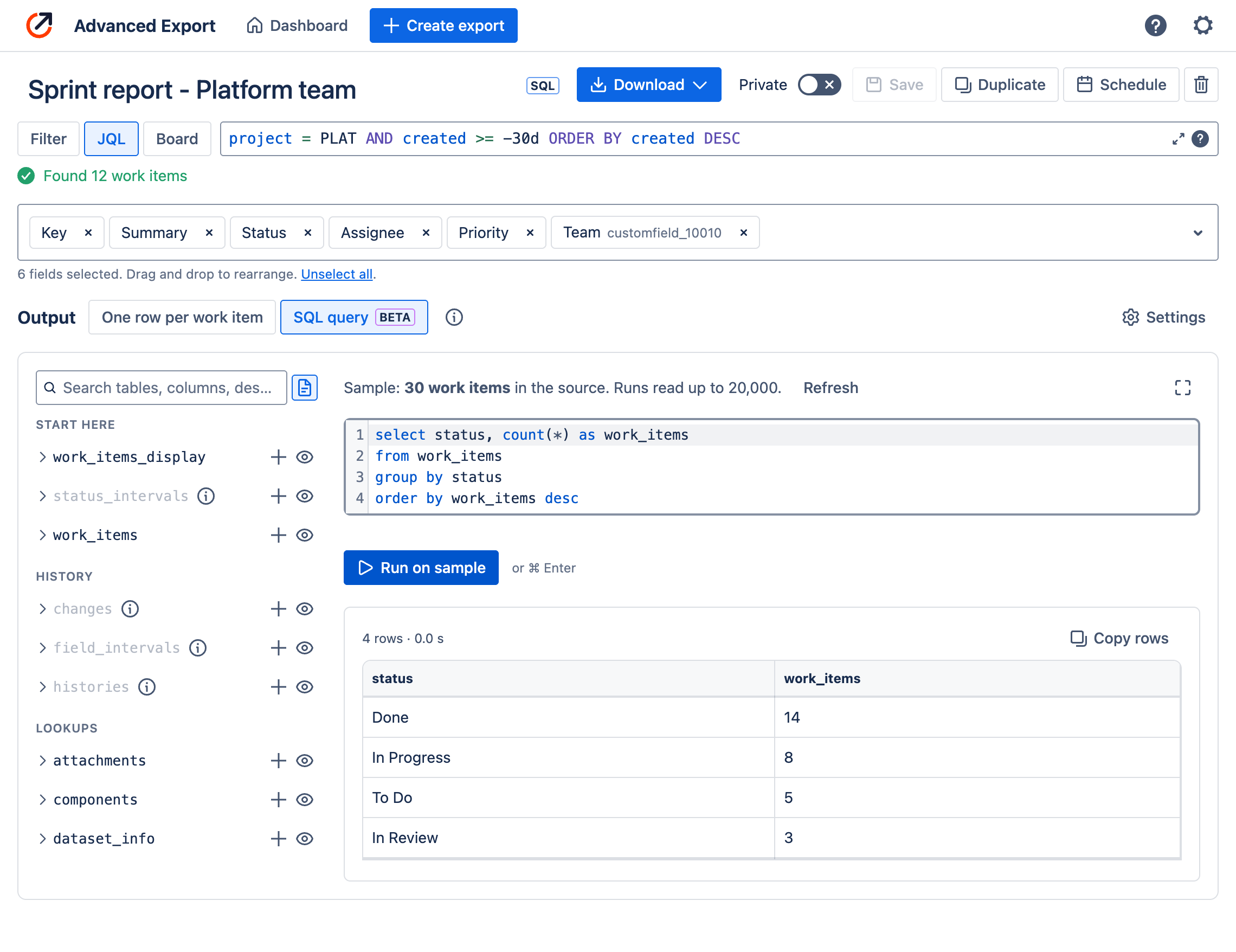
2. Under **Output**, choose **SQL query**.
3. To query change history (time in status, cycle time, who changed what), open **Settings** and
turn on **Export historical changes**. Without it the history tables are empty, and they are
greyed out in the table list.
4. Write your query, or start from one of the starter queries the editor offers while it is empty:
work items by status, time in status, cycle time and throughput.
5. Choose **Run on sample** (or press ⌘/Ctrl+Enter) to see the result.
6. **Save** the export. It is marked **SQL** in the editor and on the dashboard.
To go back to one row per work item, choose **One row per work item**. Your query is kept for the
rest of the session, in case you change your mind.
### The editor
- **The table list** on the left shows every table you can query. Choose a table to see its
columns, **+** to insert its name, or the eye icon to see its first 100 rows without touching your
query. Search finds tables and columns by name or description.
- **The query editor** completes table and column names as you type and describes each column.
- **The sample.** Queries in the editor run on a sample of up to 1,000 of the export's work items,
built when you open the SQL view. If you change the work items, fields or history setting, choose
**Refresh** to build it again. A scheduled run reads up to 20,000 work items.
- **Copy rows** copies the result as tab-separated text that pastes into Excel or Google Sheets
cells.
### Downloading
**Download** runs the saved export once, on all of its data rather than the sample, and emails you
a download link to the result as Excel, CSV or JSON. It is available to the export's owner, and
always runs the saved query, so save your changes first.
You can also download the sample itself as a **DuckDB database (.duckdb)**, to explore it in DuckDB
1.5 or later, or in any tool that reads DuckDB files.
## The tables
Your export's data is a small relational database. The most useful tables are at the top of the
list.
| Table | One row per | Use it for |
| --- | --- | --- |
| `work_items_display` | work item | The export's fields, with names (status, assignee, priority) rather than ids. Start here |
| `work_items` | work item | The same work items, with ids that join to the lookup tables below |
| `status_intervals` | stay in a status | Time in status, cycle time, throughput, reopened work. Needs change history |
| `field_intervals` | period a field held a value | The same, for any field: assignee, priority, sprint, custom fields. Needs change history |
| `changes` | change to a field | Who changed what and when, with old and new values. Needs change history |
| `linked_work_items` | parent or linked work item | Parents and linked work items, including ones outside the export |
| `dataset_info` | dataset (one row) | When the data was fetched, its time zone, and whether any limit was reached |
**Lookups:** `users`, `statuses`, `status_categories`, `priorities`, `issuetypes`, `projects`,
`components`, `versions`, `sprints`, `resolutions`, `security_levels`, `groups`, `fields`,
`issue_links`, `attachments` and `worklogs`.
Field columns are named by field id, as in Jira: `status`, `assignee`, `customfield_10010`. The
field picker shows each custom field's id beside its name, and the editor's completions describe
each column.
A few things worth knowing about the history tables:
- **`seconds` is empty (NULL) for a stay that is still in progress.** Aggregates such as `median`
skip it, so they cover completed stays. Use `is_current` to find where work items are now.
- **`status_intervals` leaves out zero-second stays**, such as a status an automation passes
straight through, so they do not drag averages down. `field_intervals` keeps them.
- **Each status's category** is in `category_key`: `new` (To Do), `indeterminate` (In Progress) or
`done`.
- **Names are current.** A status renamed since the change was made is reported under its new name.
## Examples
Days spent in each status, median and 85th percentile:
```sql
SELECT status,
count(*) AS stays,
round(median(seconds) / 86400, 1) AS median_days,
round(quantile_cont(seconds, 0.85) / 86400, 1) AS p85_days
FROM status_intervals
WHERE seconds IS NOT NULL
GROUP BY status
ORDER BY p85_days DESC
```
Work items finished each week:
```sql
SELECT date_trunc('week', started_at) AS week,
count(*) AS work_items_done
FROM status_intervals
WHERE category_key = 'done' AND is_current
GROUP BY week
ORDER BY week
```
Work items reopened after they were done:
```sql
SELECT issue_key, count(*) AS times_reopened
FROM (
SELECT issue_key, category_key,
lag(category_key) OVER (PARTITION BY issue_id ORDER BY started_at) AS previous
FROM status_intervals
)
WHERE previous = 'done' AND category_key <> 'done'
GROUP BY issue_key
ORDER BY times_reopened DESC
```
Work items reassigned three or more times:
```sql
SELECT issue_key, count(*) AS reassignments, list(DISTINCT to_name) AS assignees
FROM changes
WHERE field_id = 'assignee'
GROUP BY issue_key
HAVING count(*) >= 3
ORDER BY reassignments DESC
```
Open work items by assignee and age:
```sql
SELECT coalesce(assignee, 'Unassigned') AS assignee,
count(*) FILTER (WHERE created >= current_date - INTERVAL 30 DAY) AS under_30_days,
count(*) FILTER (WHERE created < current_date - INTERVAL 30 DAY
AND created >= current_date - INTERVAL 90 DAY) AS days_30_to_90,
count(*) FILTER (WHERE created < current_date - INTERVAL 90 DAY) AS over_90_days
FROM work_items_display
GROUP BY ALL
ORDER BY over_90_days DESC
```
Queries use the [DuckDB SQL dialect](https://duckdb.org/docs/sql/introduction). A query is a single
`SELECT` statement (`WITH` is fine); it cannot change data or read anything outside the export.
> **Let the Rovo agent write it:**
Ask the [Rovo agent](/atlassian/advanced-export/ai-tools/rovo-agent) for the report you want,
such as "a weekly report of the 85th-percentile time in each status for project PLAT". It writes
the query, runs it on your data, shows you the result, and saves it to your export when you
agree. The editor marks a query written by Rovo until someone edits it.
## Dates and times
- **Times are in the export owner's time zone**, the same zone a flat export of the same export
uses. `created::DATE` and `date_trunc('week', ...)` group by local days and weeks.
- **The export's locale and date formats do not apply.** CSV shows times as `YYYY-MM-DD HH:mm:ss`,
Excel as dates, and JSON as ISO 8601 with the offset. To format a value yourself, use `strftime`.
- **For exact durations, use the `seconds` column or `date_diff('second', start, end)`.**
Subtracting two timestamps directly can be an hour out across a daylight saving change.
## Scheduled runs
Schedule a SQL export from the dashboard or the editor, exactly like any other. Each run:
1. fetches the export's work items (and their history, if turned on) fresh from Jira, with the
same permissions as any [scheduled run](/atlassian/advanced-export/scheduled-exports#execution-permissions);
2. runs your saved query;
3. delivers the result in the schedule's format and by its delivery method.
A run can start up to 30 minutes after its scheduled time, to spread the load. A SQL export is
never delivered as raw rows: if the query fails, nothing is delivered and the
[execution log](/atlassian/advanced-export/dashboard#execution-log) records why.
## Limits
| | Limit |
| --- | --- |
| Work items read per run | 20,000 |
| Change history items per run | 500,000 |
| Fetching and building the data | 10 minutes |
| Running the query | 2 minutes |
| Rows in the result | 1,000,000 |
| Sample in the editor | 1,000 work items |
If a run reaches a limit, the result is still delivered, and it says so: in the execution log, as a
note in the email, as a **Report notes** sheet in Excel, and as a `notes` key in JSON. To stay within
the limits, narrow the export's JQL, for example to work items updated in the last 90 days.
---
# Dashboard
Source: https://docs.advancedinsights.app/atlassian/advanced-export/dashboard
Open the dashboard from _Apps → Advanced Export_ in the Jira top navigation.
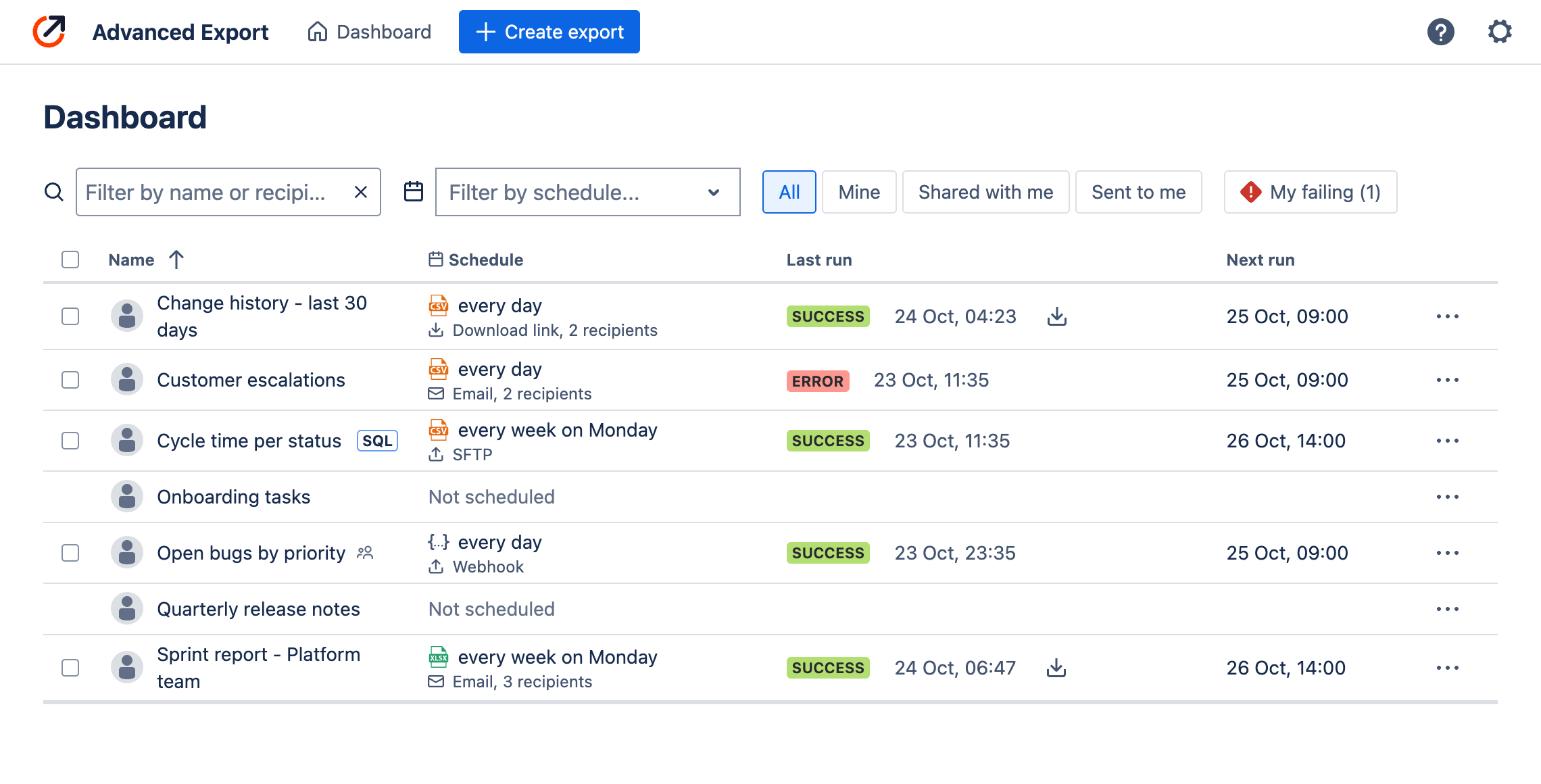
Each row is an export you can see: your own, and the public exports on your site. For each one the
dashboard shows:
- **Name**, with **SQL** beside [SQL exports](/atlassian/advanced-export/sql-exports) and a people
icon beside public ones.
- **Schedule**: when it runs, in which format, and how it is delivered. A schedule paused after
repeated failures stays highlighted, and download links or emails with no recipients are flagged.
- **Last run**: the result of the most recent run and when it happened, with a download button
while its file is still available. A run in progress shows its progress.
- **Next run**: when the schedule runs next.
## Finding exports
- **Filter by name or recipient**, or by schedule.
- **All**, **Mine**, **Shared with me** (public exports of other people) and **Sent to me** (reports
delivered to you).
- **My failing** lists your schedules whose last run failed, with how many there are.
## Export details
Choose a row to open its details beside the list: the work items it selects, its columns, its
schedule and recipients, and its recent runs, each with its download or its error.
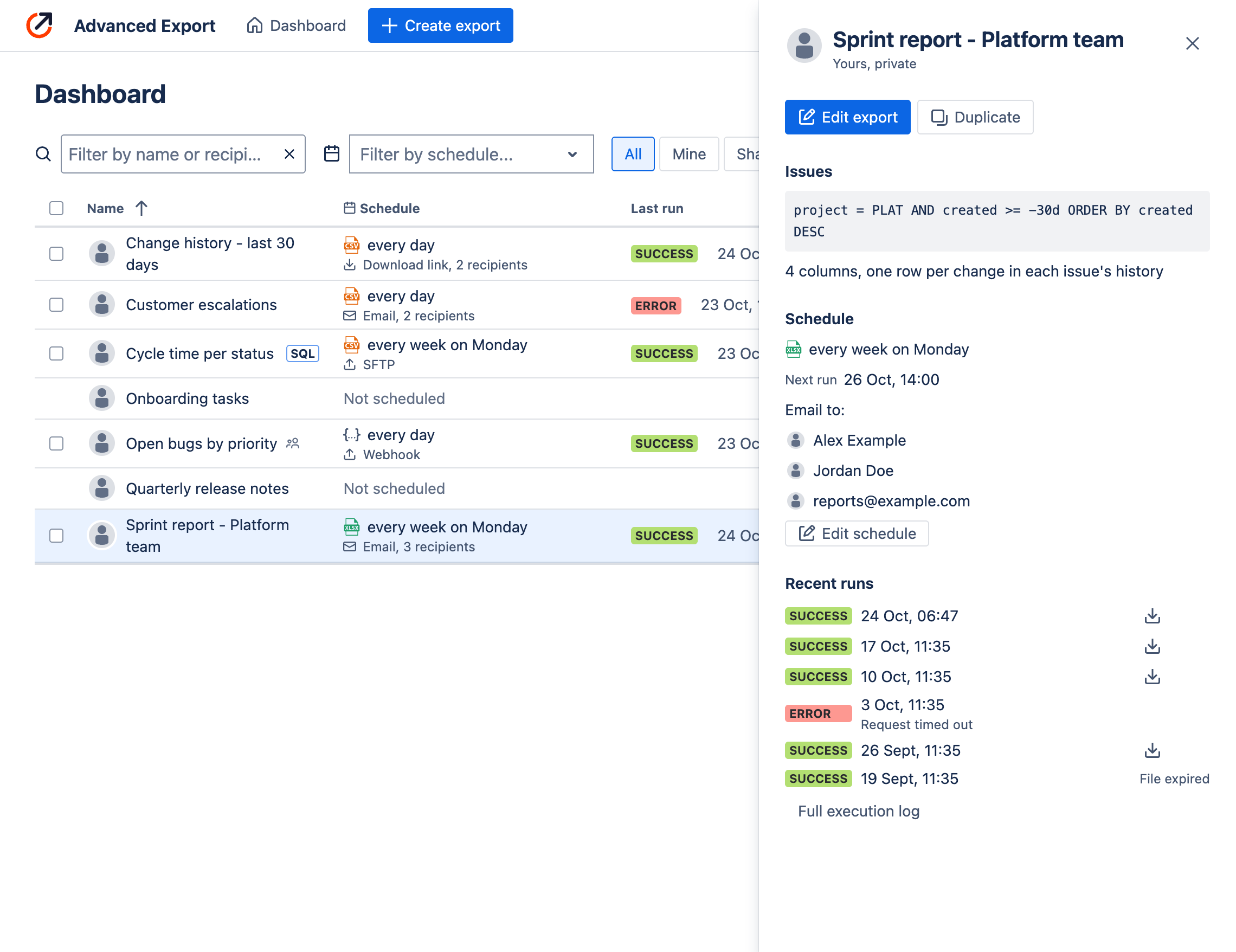
From here you can **Edit export**, **Duplicate** it, or **Edit schedule**. The **⋯** menu on each row
has the same actions.
## Execution log
**Full execution log** lists every run of a schedule: when it ran, whose permissions it ran with, its
status, and the error or warning, if any.
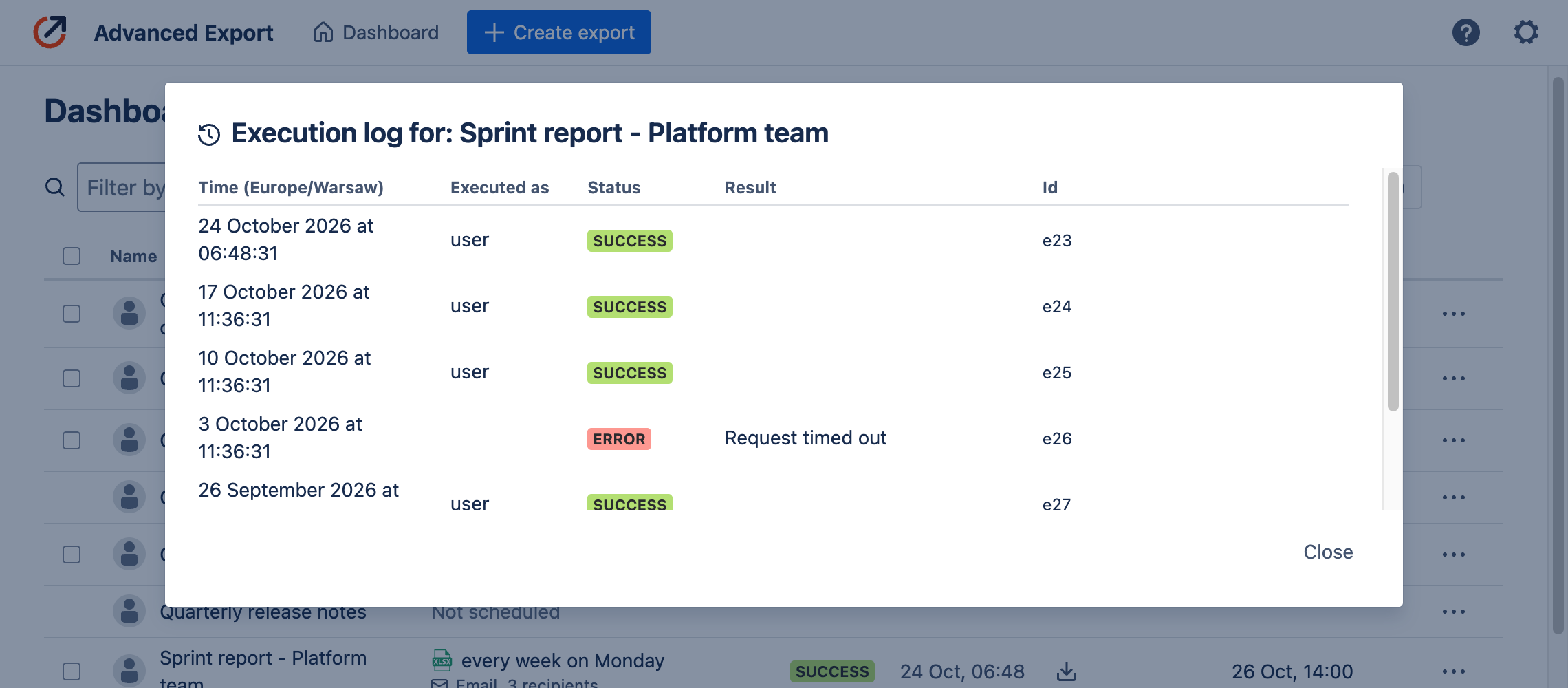
When a scheduled run fails, the schedule's owner is also emailed the error, with a link to the
dashboard. Only the first failure after a successful run sends an email. After 5 failures in a row
the schedule is [paused](/atlassian/advanced-export/scheduled-exports#pausing-a-schedule).
## Downloading a report
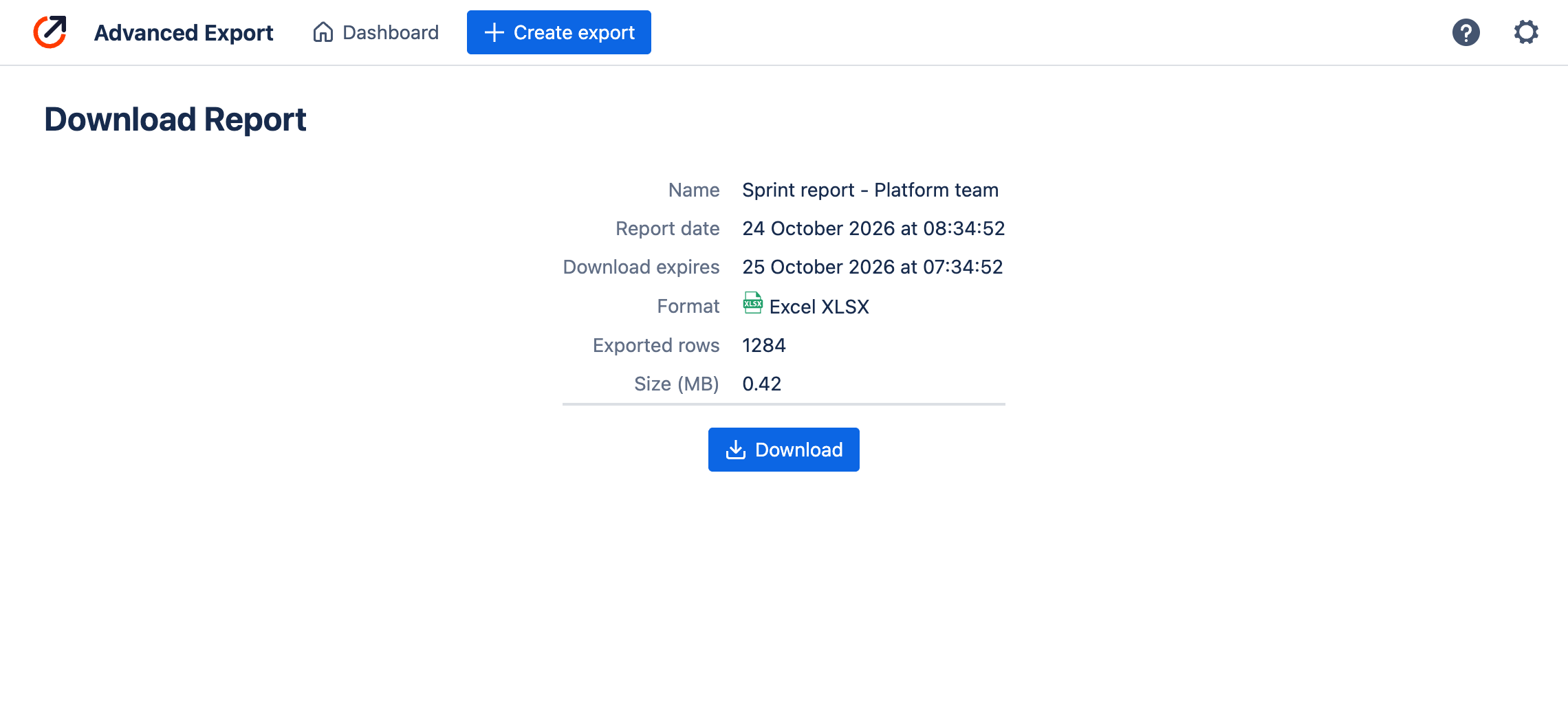
Reports delivered as a download link open a page with the report's details and a **Download**
button. The same reports can be downloaded from the dashboard until the link expires.
## Private and public exports
New exports are private. To share one with everyone on your site, turn off **Private** in the
[export editor](/atlassian/advanced-export/exporting-data#saving-sharing-and-scheduling). Other people
can then use it, download it and duplicate it, but only you can change or schedule it.
---
# Scheduled reports
Source: https://docs.advancedinsights.app/atlassian/advanced-export/scheduled-exports
A schedule delivers an export on a regular basis: hourly, daily, weekly, monthly or yearly. Reports
are generated on our servers, so nobody has to keep a browser open.
> **Your data on our servers:**
Reports delivered as a **download link**, through the **API**, or by **webhook** are kept on our
servers until the link expires, so they can be downloaded. Reports delivered by email or SFTP are
not stored. See [Data security and privacy](/atlassian/advanced-export/privacy).
## Creating a schedule
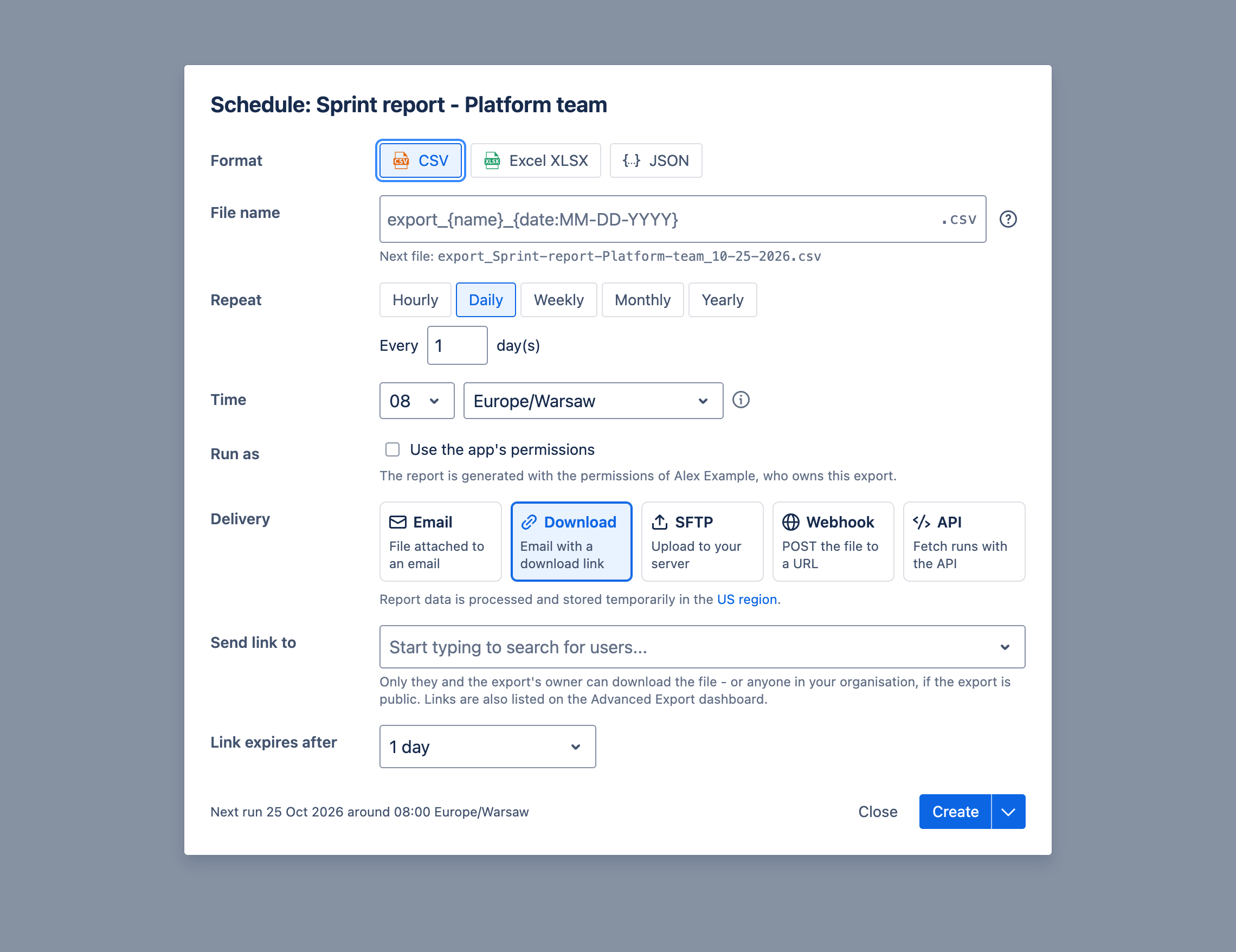
Open the schedule dialog with **Schedule** in the [export editor](/atlassian/advanced-export/exporting-data),
or with **Edit schedule** in the [dashboard](/atlassian/advanced-export/dashboard). Each export has one
schedule.
You can schedule only the exports you own. To schedule someone else's public export, **Duplicate** it
and schedule your copy. Your Jira admin can also [restrict who can schedule](/atlassian/advanced-export/app-settings#restrict-scheduling).
You can also ask the [Rovo agent](/atlassian/advanced-export/ai-tools/rovo-agent) to set it up:
"send this export to my team every Monday at 8 as Excel".
## Options
- **Format**: CSV, Excel XLSX or JSON.
- **File name**: a template for the file name, using `{name}` and `{date}` with a date format of
your choice, for example `{name}_{date:YYYYMMDD}`. The dialog shows the next file's name. The date
is in the schedule's time zone.
- **Repeat**: hourly, daily, weekly (on chosen days), monthly or yearly, every one or more periods.
- **Time**: the hour and the time zone to run in.
- **Run as**: whose Jira permissions the report is generated with. See [Execution permissions](#execution-permissions).
- **Delivery**: [Email](/atlassian/advanced-export/scheduled-exports/email), [Download](/atlassian/advanced-export/scheduled-exports/download-link), [SFTP](/atlassian/advanced-export/scheduled-exports/sftp),
[Webhook](/atlassian/advanced-export/scheduled-exports/webhook) or [API](/atlassian/advanced-export/scheduled-exports/api). The dialog also shows the
[region](/atlassian/advanced-export/app-settings#data-residency) where the report is processed.
The footer shows when the schedule runs next. **Create** saves it; for an existing schedule, saving
keeps the dialog open, so you can test a change straight away with **Run now**, which runs the
schedule once and shows its progress until it finishes.
The **⋯** menu at the top of the dialog holds **Pause** and **Resume**, the execution log, and
**Delete**.
## Delivery methods
## Limits
How much a scheduled report can contain depends on its format:
| Format | Limit |
| --- | --- |
| CSV, Excel (XLSX) | No limit on the number of work items. Generating the report stops after **30 minutes**. |
| JSON | Up to **100,000 work items**. |
| Any format with **Export each comment in separate column** selected | Up to **100,000 work items**. |
| [SQL exports](/atlassian/advanced-export/sql-exports#limits) | Up to **20,000 work items** read, and 1,000,000 rows in the result. |
The 30 minutes covers fetching work items from Jira and building the file. Delivering the report
(email, upload, webhook) happens after that and isn't counted.
If a report reaches its limit, the work items collected so far are still delivered, but the report
is incomplete. The schedule's **Execution log** marks that run as _Incomplete_ and gives the reason.
To get the rest of the data, narrow the JQL query, or split the report into several schedules (for
example, by project or by date range).
Delivery has its own size limits. See [Email attachment](/atlassian/advanced-export/scheduled-exports/email) for the 25MB
attachment limit.
## Pausing a schedule
Pause a schedule from the **⋯** menu in the schedule dialog, and resume it from the same menu.
A schedule is also paused automatically after 5 failures in a row. The dashboard keeps it
highlighted until you resume it. The schedule's owner is emailed when a run fails, so they can fix
the cause first.
## Execution permissions
By default, a scheduled report is generated with the Jira permissions of **the export's owner**, so
it contains only work items they can see. The dialog names whose permissions it uses.
An admin can allow reports to be generated with the app's permissions instead, which use the Jira
role `atlassian-addons-project-access`. To check what that role can see, go to **Jira settings →
Work items → Permission schemes**, and open the scheme. It needs at least the **Browse Projects**
permission.
> **App permissions:**
The app's permissions may be wider than the owner's, so the report may contain work items the
owner cannot see in Jira.
To generate a report with the app's permissions:
1. In [App settings → Permissions](/atlassian/advanced-export/app-settings#permissions), a Jira admin
turns on **Allow generation of scheduled exports using add-on permissions**.
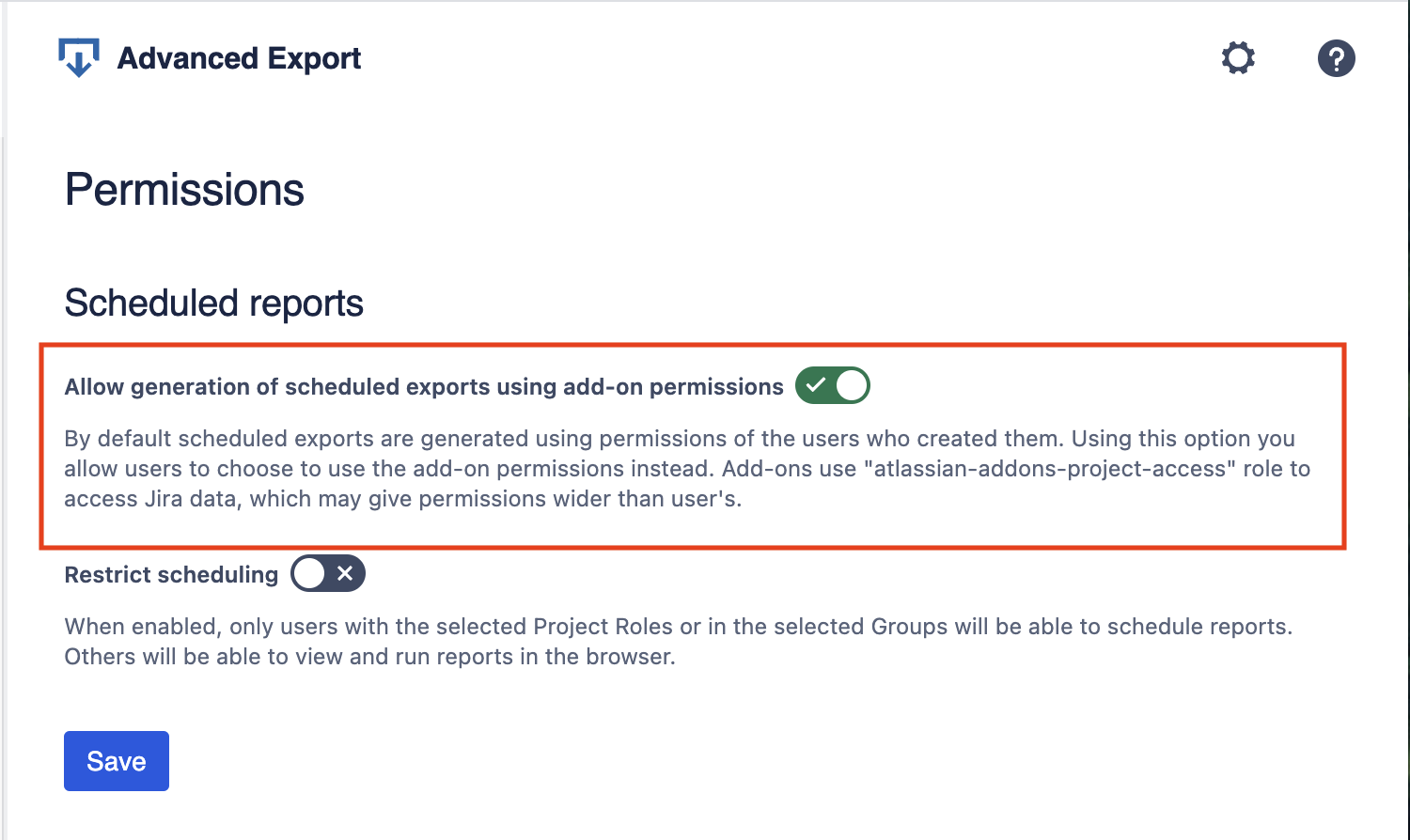
2. In the schedule dialog, under **Run as**, select **Use the app's permissions**.
---
# Email attachment
Source: https://docs.advancedinsights.app/atlassian/advanced-export/scheduled-exports/email
The report is attached to an email and sent to the recipients you choose.
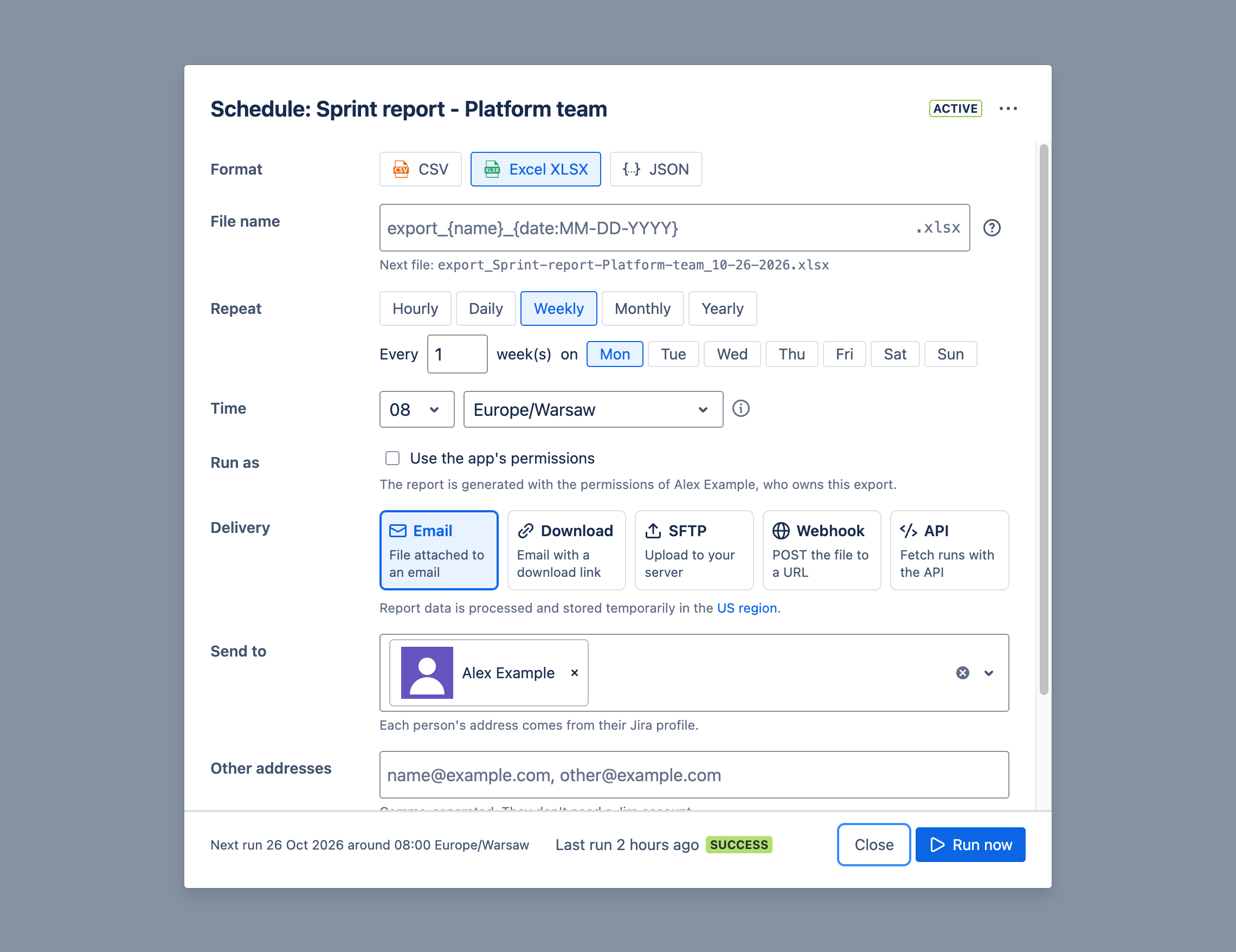
- **Send to**: Jira users. Each person's address comes from their Jira profile.
- **Other addresses**: any email addresses, separated by commas. They don't need a Jira account.
Your admin can [allow or block](/atlassian/advanced-export/app-settings#ai-agents) AI agents
sending to them.
- **Zip the file**: attach the report as a ZIP file, typically 10 times smaller.
- **Subject and message**: your own text, with placeholders such as the number of rows. See
[Templates](/atlassian/advanced-export/templates).
An attachment can be up to 25MB. If your reports are bigger, zip them, or use a download link.
> **Note:**
Emails arrive from the `ae.kanbanalytics.com` domain, so you may need to allow it in your email
client. You can also send them through your own [SendGrid](/atlassian/advanced-export/app-settings#email-settings)
account.
---
# Download link
Source: https://docs.advancedinsights.app/atlassian/advanced-export/scheduled-exports/download-link
Recipients are emailed a link to a page where they can download the report. Only they and the
export's owner can download it, or anyone on your site if the export is public. Links are also
listed on the dashboard.
Choose how long the link stays valid in **Link expires after**, from 6 hours to 30 days. The file
is deleted from our servers when the link expires.

Use a download link for reports too big for an email attachment, or when you'd rather not send the
data itself by email. A download link can also be read back by the
[Rovo agent](/atlassian/advanced-export/ai-tools/data-and-deliveries) while it is valid.
---
# SFTP upload
Source: https://docs.advancedinsights.app/atlassian/advanced-export/scheduled-exports/sftp
The report is uploaded to a folder on your SFTP server, for example for a data warehouse or
BI tool to pick up. Use a [file name template](/atlassian/advanced-export/scheduled-exports#options)
such as `{name}_{date:YYYYMMDD}` so each run lands in its own file.
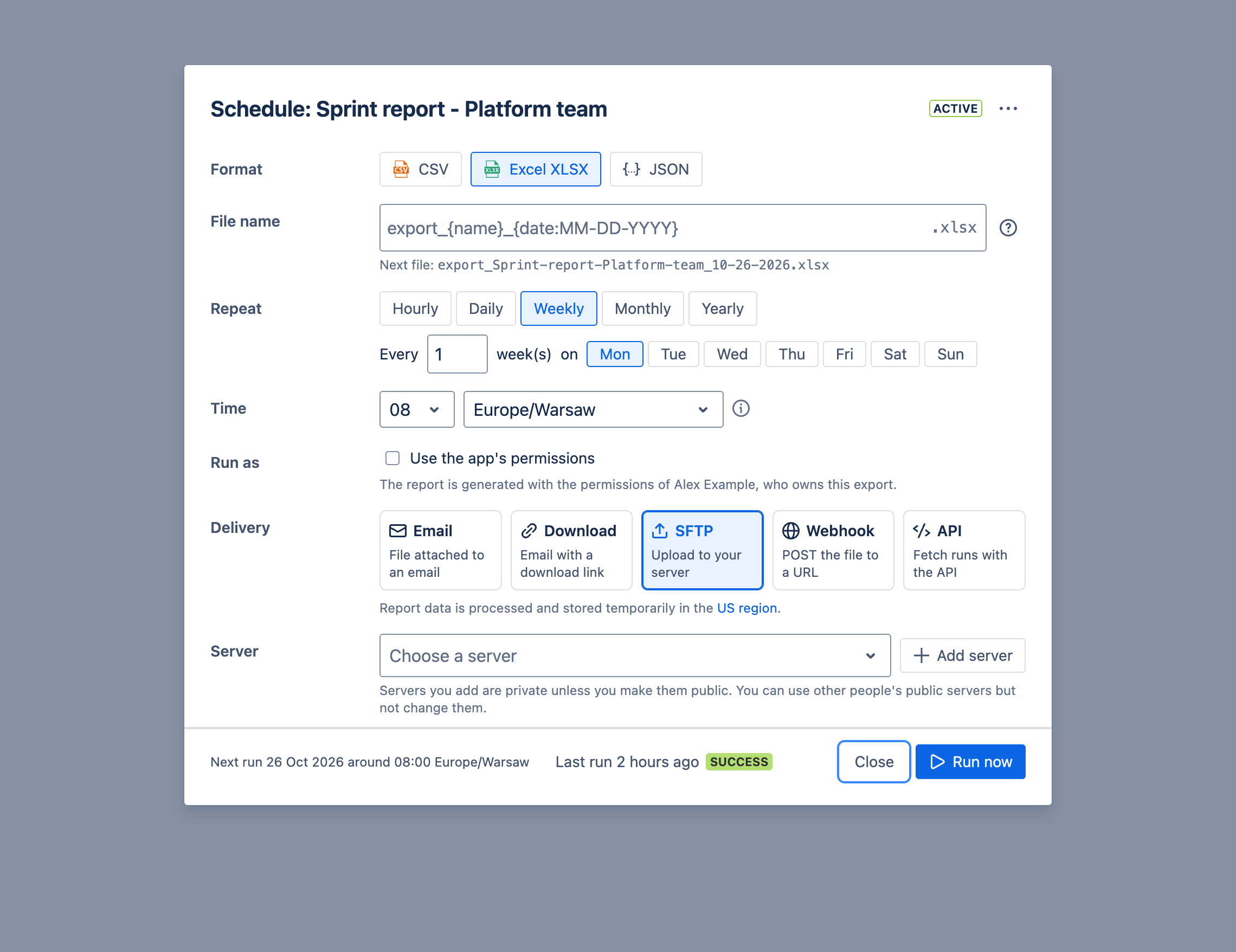
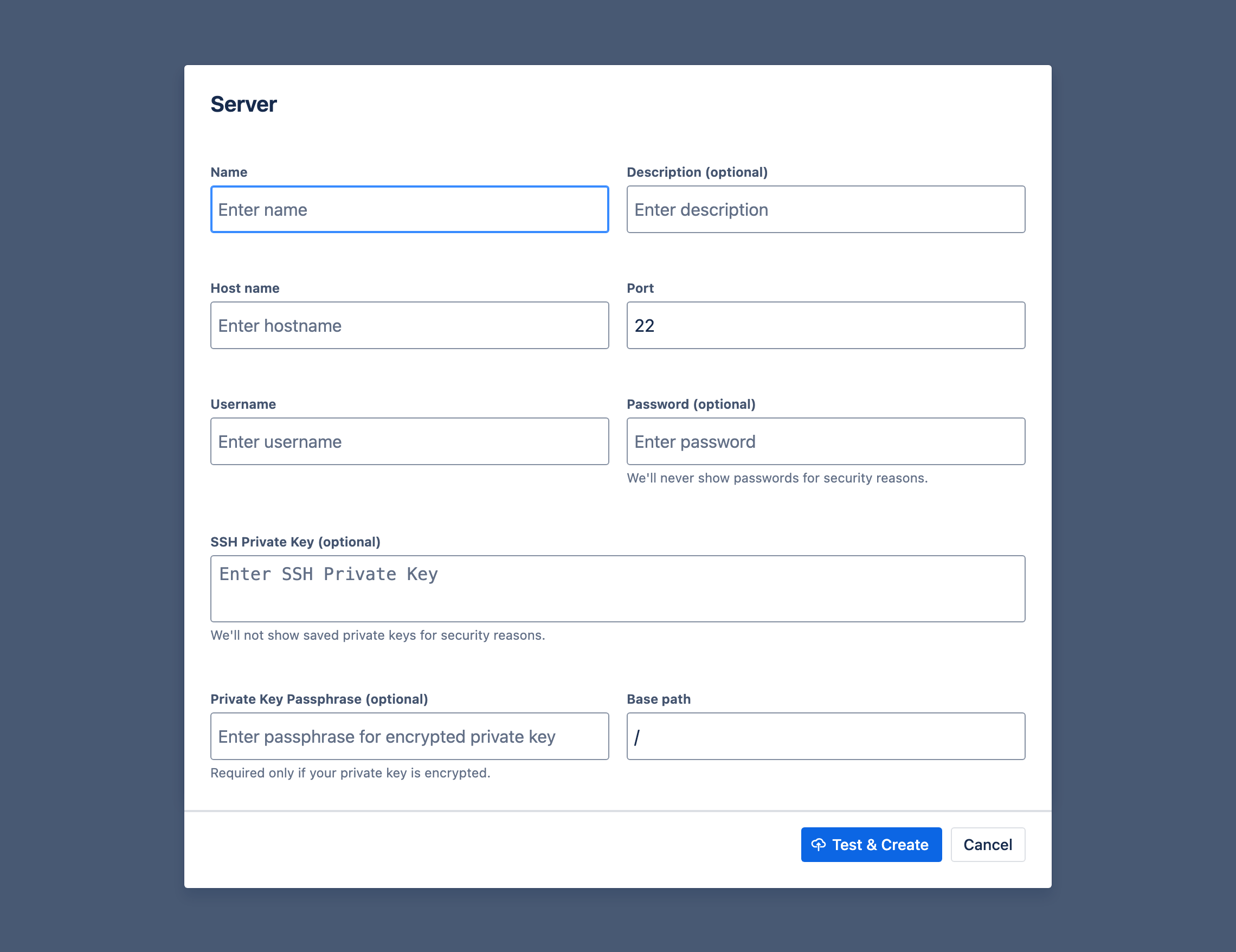
Choose a server, or **Add server** to set one up: its name, host name, port, user name and base
path, and either a password or an SSH private key, optionally protected by a passphrase.
**Test & Create** checks the connection before saving. Credentials are stored encrypted, and never
shown again.
Servers you add are private unless you make them public. You can use other people's public servers,
but not change them.
The [Rovo agent](/atlassian/advanced-export/ai-tools/rovo-agent) can schedule reports to servers you
have already added, but cannot add servers or read their credentials.
---
# Webhook
Source: https://docs.advancedinsights.app/atlassian/advanced-export/scheduled-exports/webhook
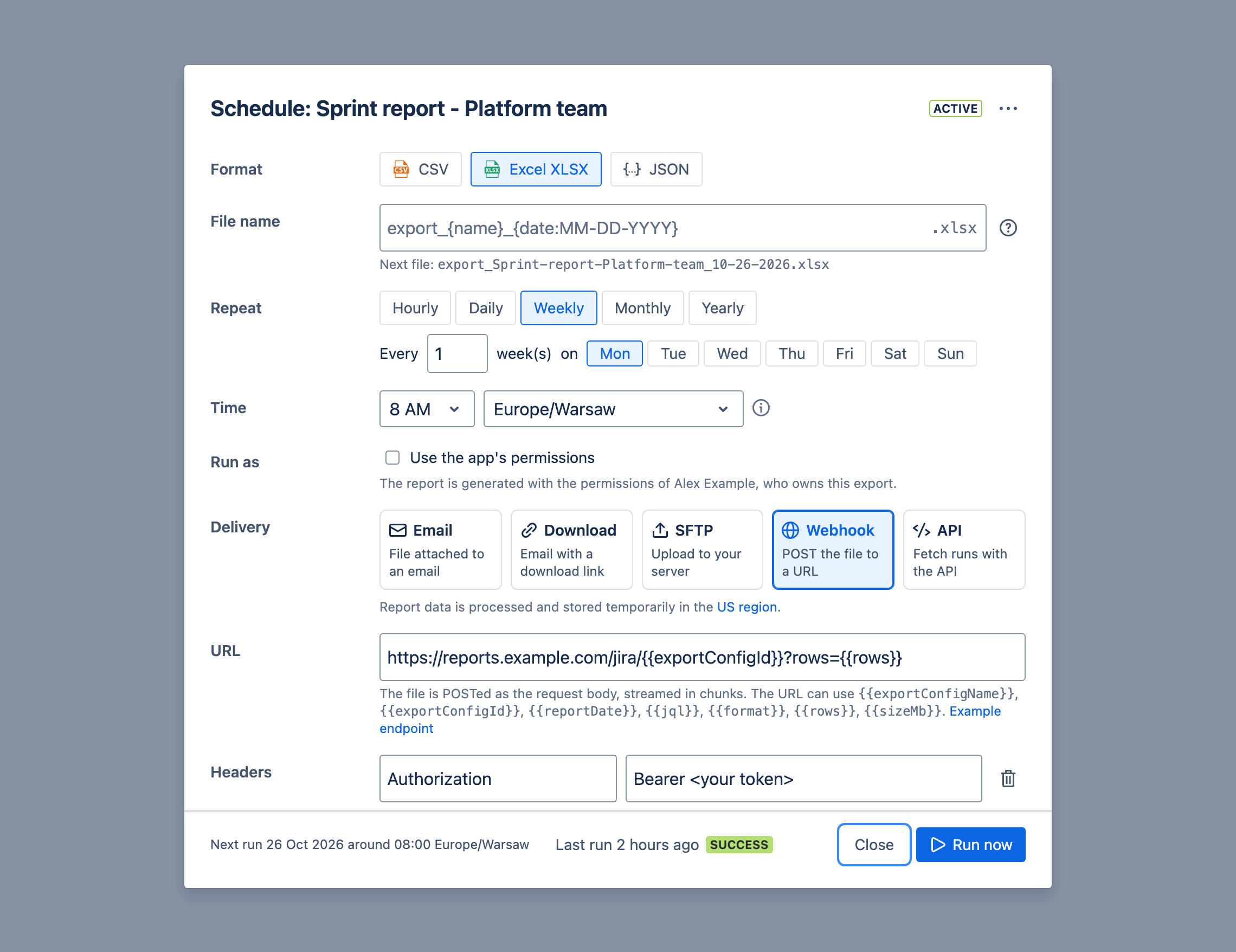
You can also receive the scheduled reports via webhook. The webhook is sent to the URL you specify in the Schedule settings.
Webhook will be called with `POST` method, with the following headers:
- `user-agent: Advanced Export/3.0.7`
- `transfer-encoding: chunked`
- `content-disposition: attachment; filename="FILENAME"` - absent for JSON report format
- `content-type: "MIME_TYPE or application/json for JSON"`
- `x-download-schedule-id: "SCHEDULE_ID"`
- `x-download-schedule-execution-id: "SCHEDULE_EXECUTION_ID"`
- `x-report-warning: "..."` - only when the report hit a limit, for example a [SQL export](/atlassian/advanced-export/sql-exports#limits) that read its maximum number of work items
- any custom headers you add under **Headers**, for example `Authorization: Bearer `
Your endpoint has to accept streamed content ("transfer-encoding: chunked").
Webhook URL can use following values:
- `{{exportConfigName}}`
- `{{exportConfigId}}`
- `{{reportDate}}`
- `{{jql}}`
- `{{format}}`
- `{{rows}}`
- `{{sizeMb}}`
Any part of the URL containing these values will be substituted. For example:
`https://example.com/report/{{exportConfigId}}?date={{reportDate}}&format={{format}}&rows={{rows}}&size={{sizeMb}}`
may result in a call to:
`https://example.com/report/1234-5678-9012?date=2022-03-14T08:42:00.000Z&format=CSV&rows=42&size=1.25`
## Example webhook endpoint implementation and test
Here's an example of the NodeJS Express based server receiving the content of the report and saving it as a file.
Note the name of the file is taken from the `content-disposition` header.
There's no authorisation implemented below, however you can for example supply your custom header (e.g. `Authorization: Basic XXXXXXXX`) to verify webhook is being called from the Advacned Export application.
```js showLineNumbers copy
const app = express();
app.use(express.json());
const UPLOAD_DIR = "./uploads";
app.post("/upload", (req, res) => {
const contentDisposition = req.headers["content-disposition"];
const contentType = req.headers["content-type"];
if (contentType === "application/json") {
const body = req.body;
// process JSON data...
console.log(body.columns);
console.log(body.rows);
res.sendStatus(200);
} else if (contentDisposition) {
// process file attachement
let filename = "file.dat";
const filenameRegex = /filename[^;=\n]*=((['"]).*?\2|[^;\n]*)/;
let matches = filenameRegex.exec(contentDisposition);
if (matches != null && matches[1]) {
filename = matches[1].replace(/['"]/g, "");
}
const writeStream = fs.createWriteStream(`${UPLOAD_DIR}/${filename}`);
req.pipe(writeStream);
writeStream.on("finish", () => {
console.log(`Received file ${filename}, ${contentType}`);
res.sendStatus(200);
});
writeStream.on("error", (err) => {
console.error(`Error writing file: ${err.message}`);
res.sendStatus(500);
});
}
});
app.listen(3002, () => {
console.log("Server listening on port 3002");
});
```
This code and more example is available in the [GitHub repository](https://github.com/sngtec/advanced-export-examples)
To test it:
- Save the above code as `server.js`
- Run the server locally with `node server.js`
- Use [ngrok](https://ngrok.com) to expose it to the internet:
```bash
ngrok http 3002
```
- Use the [ngrok](https://ngrok.com) tunnel as the webhook URL in the schedule settings, e.g. `https://xxxx-xxxx-xxxx.ngrok-free.app/upload` (note the `/upload` path).
- You can then use **Run now** in the schedule dialog to run the schedule and test the webhook.
---
# API
Source: https://docs.advancedinsights.app/atlassian/advanced-export/scheduled-exports/api
With **API** delivery, nothing is sent anywhere: each run's file is kept on our servers for the
time you choose, and your own scripts or pipeline fetch it through the
[Advanced Export API](/atlassian/advanced-export/api).
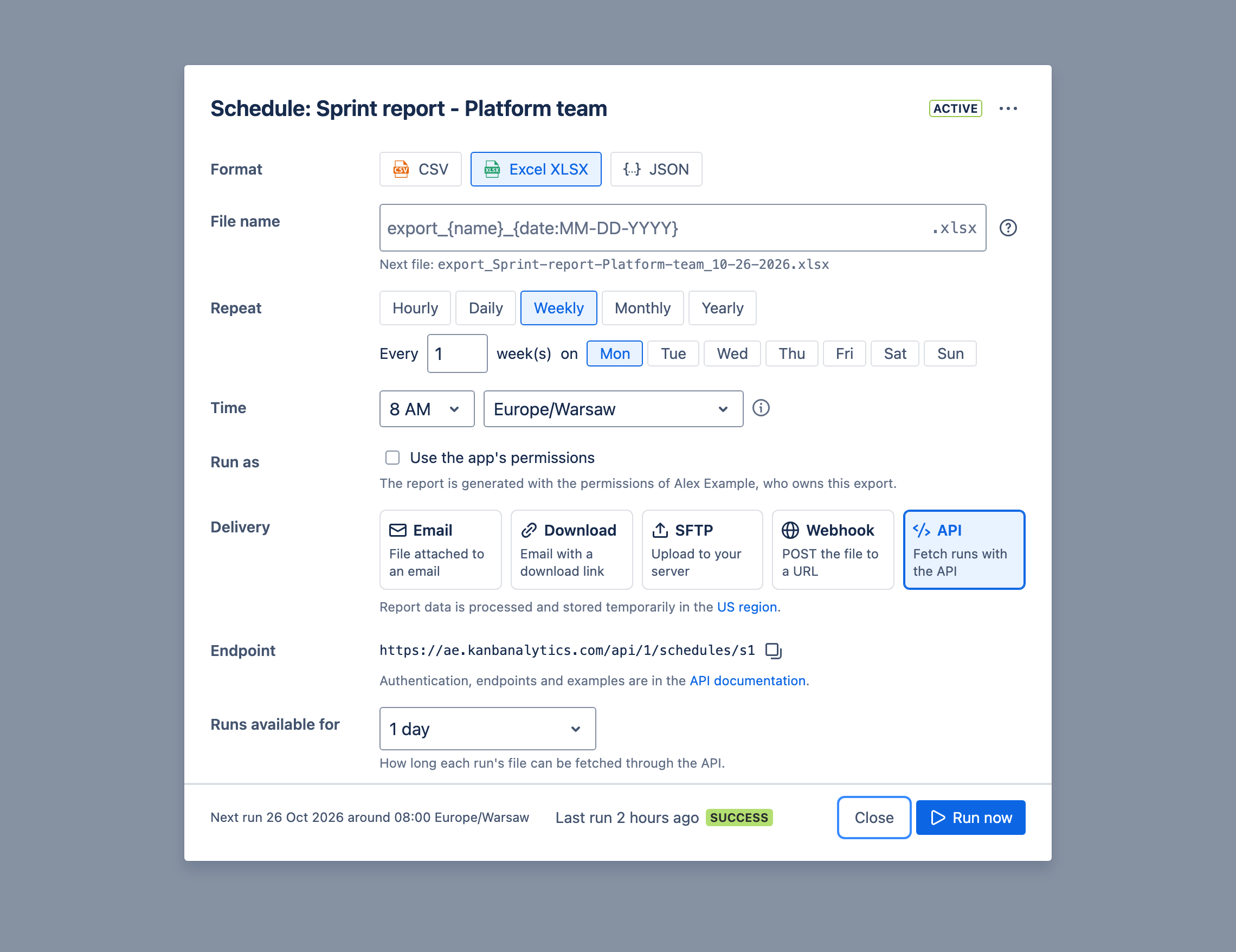
- **Endpoint**: the schedule's own API address, shown once the schedule is saved, with a button to
copy it.
- **Runs available for**: how long each run's file can be fetched, from 6 hours to 30 days. It is
deleted from our servers after that.
To call the API you need an API key: see [Authentication](/atlassian/advanced-export/api#authentication).
Only schedules with API delivery can be read through the API.
---
# Templates
Source: https://docs.advancedinsights.app/atlassian/advanced-export/templates
## Email Templates
You can use following tags in your email subject and body:
- `{{name}}` - the name of the export configuration
- `{{format}}` - format of the generated report file
- `{{rows}}` - number of rows generated
- `{{sizeMb}}` - size of the generated file (before compression) in MB
- `{{patternEn}}` - description of the pattern (e.g. "every day") in English
- `{{jql}}` - JQL used to generate the report
- `{{{dashboardUrl}}}` - Link to the Advanced Export dashboard (note the triple curly braces)
For example, following template:
`We've created a {{format}} file with {{rows}} rows and size of {{sizeMb}}MB.`
may produce following result:
`We've created a CSV file with 156 rows and size of 0.5MB.`
Read more about [Scheduled reports](/atlassian/advanced-export/scheduled-exports).
---
# AI tools
Source: https://docs.advancedinsights.app/atlassian/advanced-export/ai-tools
Advanced Export has a set of tools that AI can use to set up, run and check your reports, and to
analyse your Jira data with SQL. You can use them through:
Whichever you use, the same rules apply, and they are enforced by Advanced Export itself:
- [Safety and permissions](/atlassian/advanced-export/ai-tools/safety-and-permissions): the assistant acts as you, can send reports only where your site already sends them, and you confirm changes.
- [Data and deliveries](/atlassian/advanced-export/ai-tools/data-and-deliveries): live previews, delivered files, datasets for SQL analysis, one-off deliveries and privacy.
- [Tool catalogue](/atlassian/advanced-export/ai-tools/tool-catalogue): every tool and what it does.
---
# Rovo agent
Source: https://docs.advancedinsights.app/atlassian/advanced-export/ai-tools/rovo-agent
Advanced Export comes with a **Rovo agent**. Ask it in plain language to set up, run and check your
reports, and it does the work with the same exports, schedules and permissions as the Advanced
Export dashboard:
> I'd like to report all items past due date. Schedule the report weekly as an attachment to email to me.
> Email a teammate a CSV of the summaries and assignees in the current sprint.
> Which of my scheduled reports failed in the last 30 days?
> What is the median and 85th-percentile time in each status for project PLAT over the last quarter?
> Make that a weekly Excel report and email it to me on Mondays.
Anything the agent creates appears in the [dashboard](/atlassian/advanced-export/dashboard), and you can change it there.
Using another assistant, such as Claude? See [Connect AI assistants](/atlassian/advanced-export/ai-tools/mcp).
## Finding the agent
The agent is called **Advanced Export**. It is installed together with the app, so there is nothing
to set up.
1. Open **Rovo chat** in Jira.
2. Open the agent list (**Browse agents**) and search for _Advanced Export_.
3. Choose **Chat to agent**, or pick one of its suggested prompts.
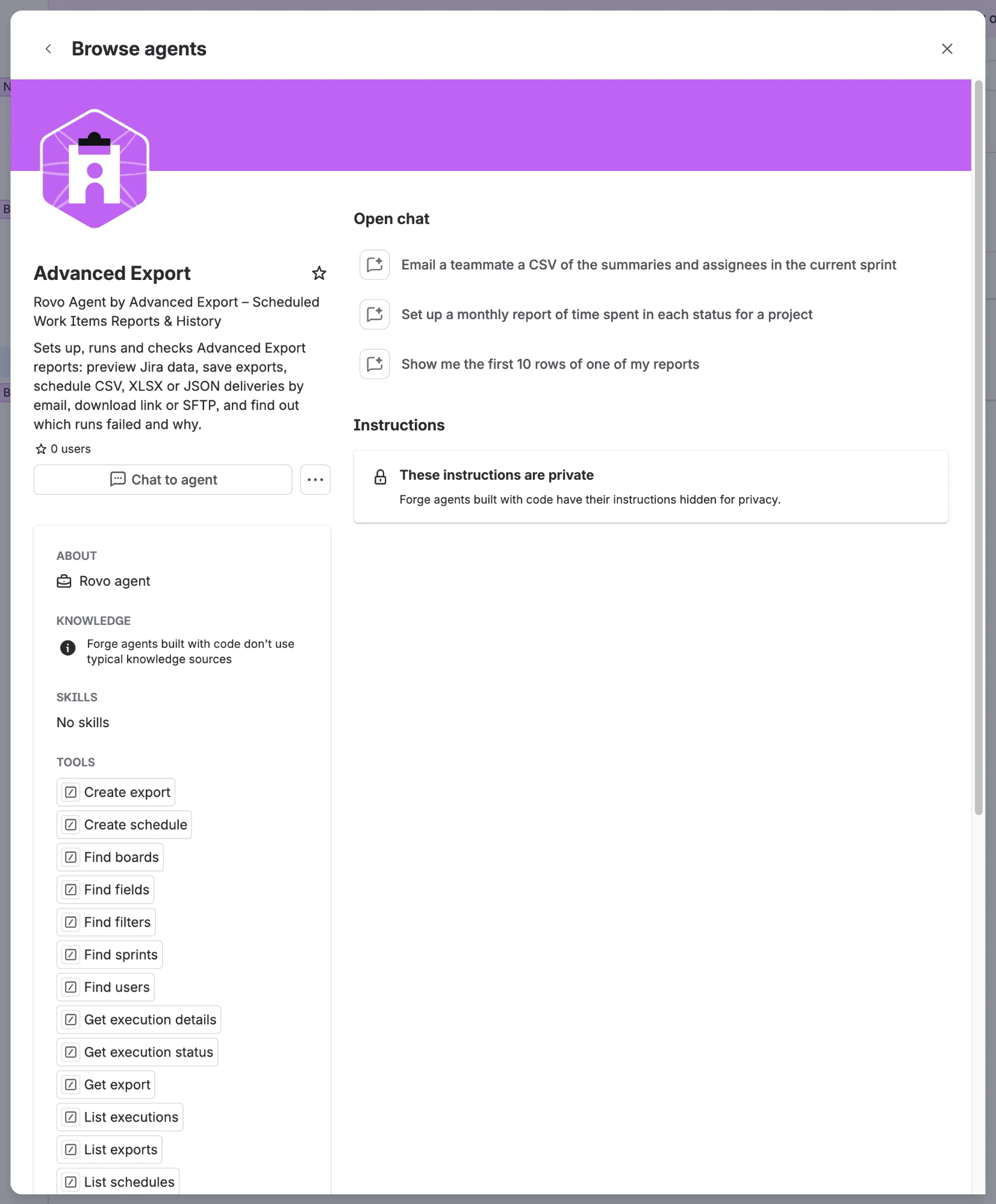
The suggested prompts are a good place to start:
- Which of my scheduled reports failed in the last 30 days?
- Email a teammate a CSV of the summaries and assignees in the current sprint
- Upload a weekly report of work items closed in the last 7 days to SFTP
- Show me the first 10 rows of one of my reports
- Set up a monthly report of time spent in each status for a project
> **Note:**
Rovo must be available on your Jira site. If you can't see the agent, check with your Jira admin
that Rovo is turned on and that your Advanced Export installation is up to date.
## What you can do with the agent
**Find things**
- Your exports, the public exports on your site, and their schedules.
- Jira fields (including custom fields), people, boards, sprints and saved filters, so the agent can
build a report without you looking up any ids.
- Your SFTP servers and report templates.
**Show data**
- A **live preview** of any export: the data as it is now, as you can see it in Jira.
- The rows of a **delivered file**: what a scheduled run actually sent, while its download link is
still valid.
- Change history: with history mode on, a report has one row per change, with how long each state
lasted, so the agent can show things like time spent in each status.
See [Where the data comes from](/atlassian/advanced-export/ai-tools/data-and-deliveries#where-the-data-comes-from) for the difference.
**Analyse data with SQL**
- Build a private, temporary [dataset](/atlassian/advanced-export/ai-tools/data-and-deliveries#datasets)
from an export or a JQL query, with change history, and answer questions about it with SQL: counts,
ageing, time in status, cycle time, throughput, reopened or reassigned work items.
- Turn the query into a [SQL export](/atlassian/advanced-export/sql-exports): the agent shows you an
example of the result, saves the query to your export when you agree, and can schedule it.
The numbers come from a database query, not from the agent reading rows, so asking again gives the
same answer. Ask the agent to show the SQL it ran.
**Set things up**
- Save a new export, or change one you own: which work items it includes (JQL, a saved filter, or a
board and sprint), its fields, and whether it includes change history. New exports are private
unless you ask for them to be public.
- [Schedule](/atlassian/advanced-export/scheduled-exports) an export as CSV, Excel (XLSX) or JSON, delivered by email, as a
download link, to your SFTP server, or for the [Advanced Export API](/atlassian/advanced-export/api), on any recurrence
("every Monday at 8", "on the first day of each month").
- Change a schedule's timing, format, recipients or destination.
- Pause and resume schedules.
**Deliver now**
- Run a schedule once, straight away.
- Send an export once, with no schedule at all (a [one-off delivery](/atlassian/advanced-export/ai-tools/data-and-deliveries#one-off-deliveries)).
**Check runs**
- Which runs succeeded or failed, when, and why, across all the schedules you can see.
- The details of one run: the error or warning, the number of rows, the file size, and whether a
stored copy of the file can still be read.
### What the agent cannot do
- **Delete exports or schedules.** To stop a report, ask the agent to pause it, or delete it in the
dashboard.
- Add SFTP servers, webhooks or API keys, or read their credentials. Set those up in the dashboard.
- Create or change webhook deliveries.
- Anything you could not do yourself in the dashboard.
## An example conversation
Ask for what you want. The agent looks up the fields it needs, checks the JQL and previews the
data before it saves anything:
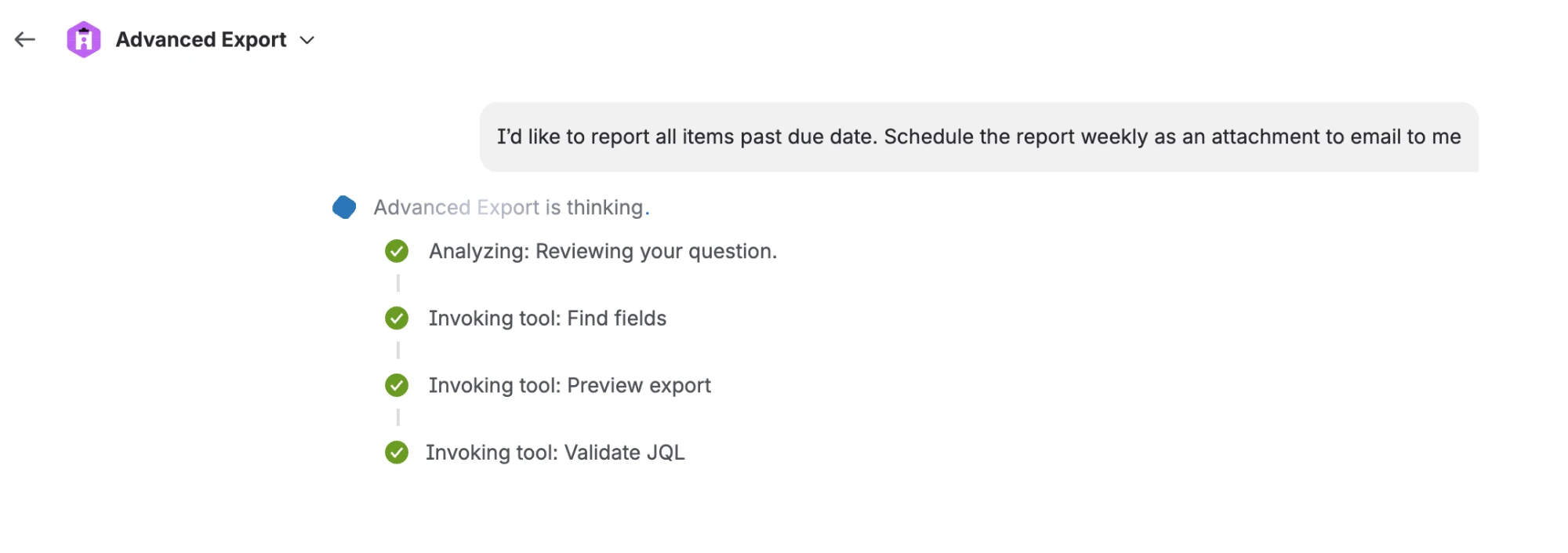
It then shows you what it found and what it is going to set up: the query, the format, the
recipients and when it will run. Nothing has been saved yet.
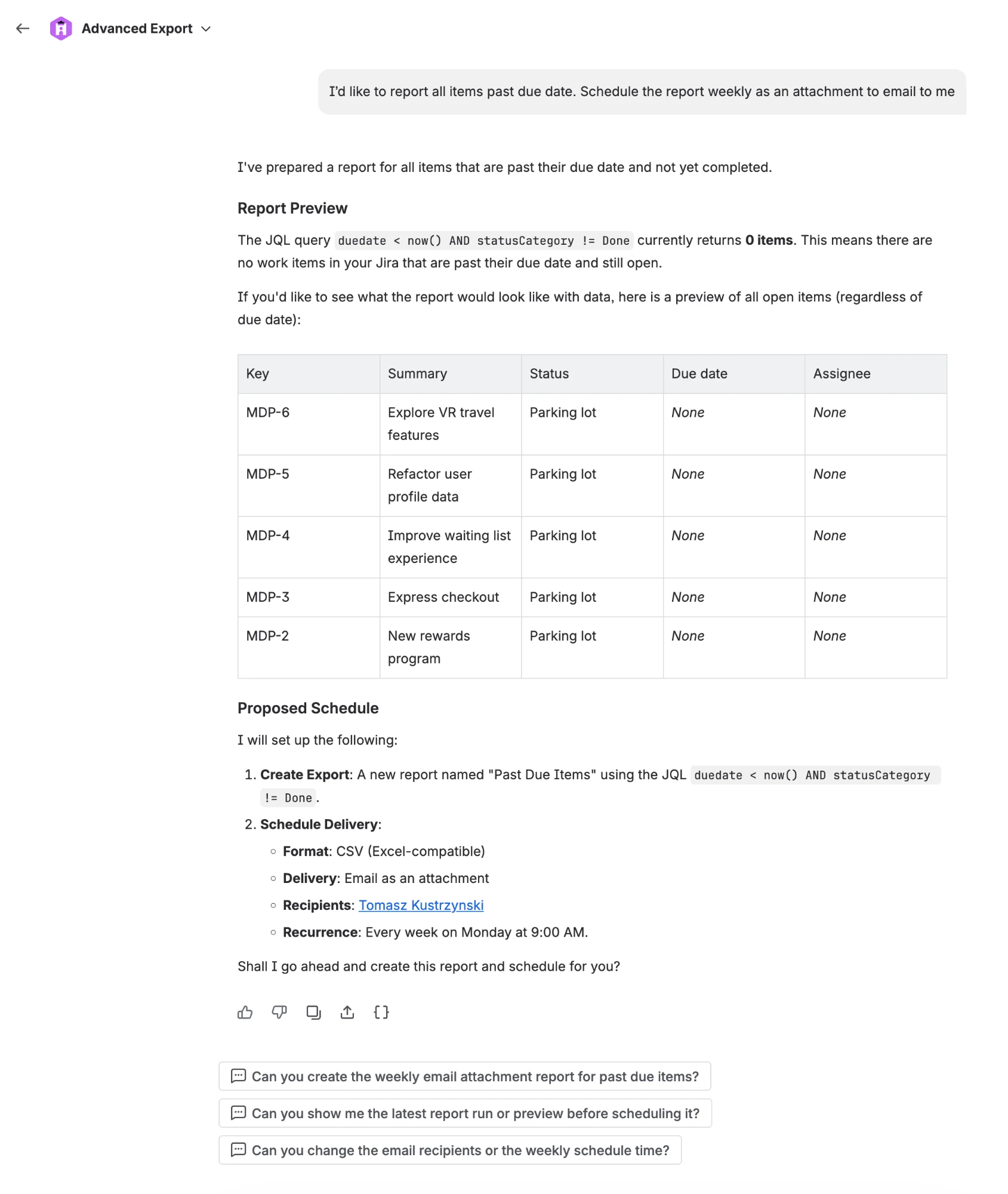
When you agree, Rovo asks you to confirm each change. See [You confirm every change](/atlassian/advanced-export/ai-tools/safety-and-permissions#you-confirm-every-change).
## Using the tools in your own Rovo agents
## Rovo Studio
You can build your own agent in Rovo Studio and give it some or all of the Advanced Export tools,
with your own instructions. The safety rules above still apply, because Advanced Export enforces
them itself. The **Advanced Export** agent's own instructions (checking queries before saving,
saying where data comes from, asking when two people have the same name) are not part of the
tools, so include anything similar your agent needs.
---
# Connect AI assistants (MCP)
Source: https://docs.advancedinsights.app/atlassian/advanced-export/ai-tools/mcp
Any AI assistant that supports remote MCP servers can connect to Advanced Export. This uses an
Atlassian feature that is in early access.
The Advanced Export server address is:
```
https://mcp.atlassian.com/forge/c6231e4b-eac5-4d20-a312-9095a916d479
```
Pick your assistant:
- [Claude (desktop app and claude.ai)](/atlassian/advanced-export/ai-tools/mcp/claude)
- [Claude Code](/atlassian/advanced-export/ai-tools/mcp/claude-code)
- [Other assistants](/atlassian/advanced-export/ai-tools/mcp/other-assistants)
Setup has the same three parts for every assistant: an admin turns the tools on once, you add the
server address to the assistant, and you sign in to Atlassian.
## An admin turns on the tools (once per site)
A site or organization admin has to allow AI assistants to use the Advanced Export tools. Until
they do, an assistant can connect but finds no tools.
1. In Atlassian Administration, go to _Apps → Sites →_ your site _→ Connected apps_, and open
**Advanced Export**.
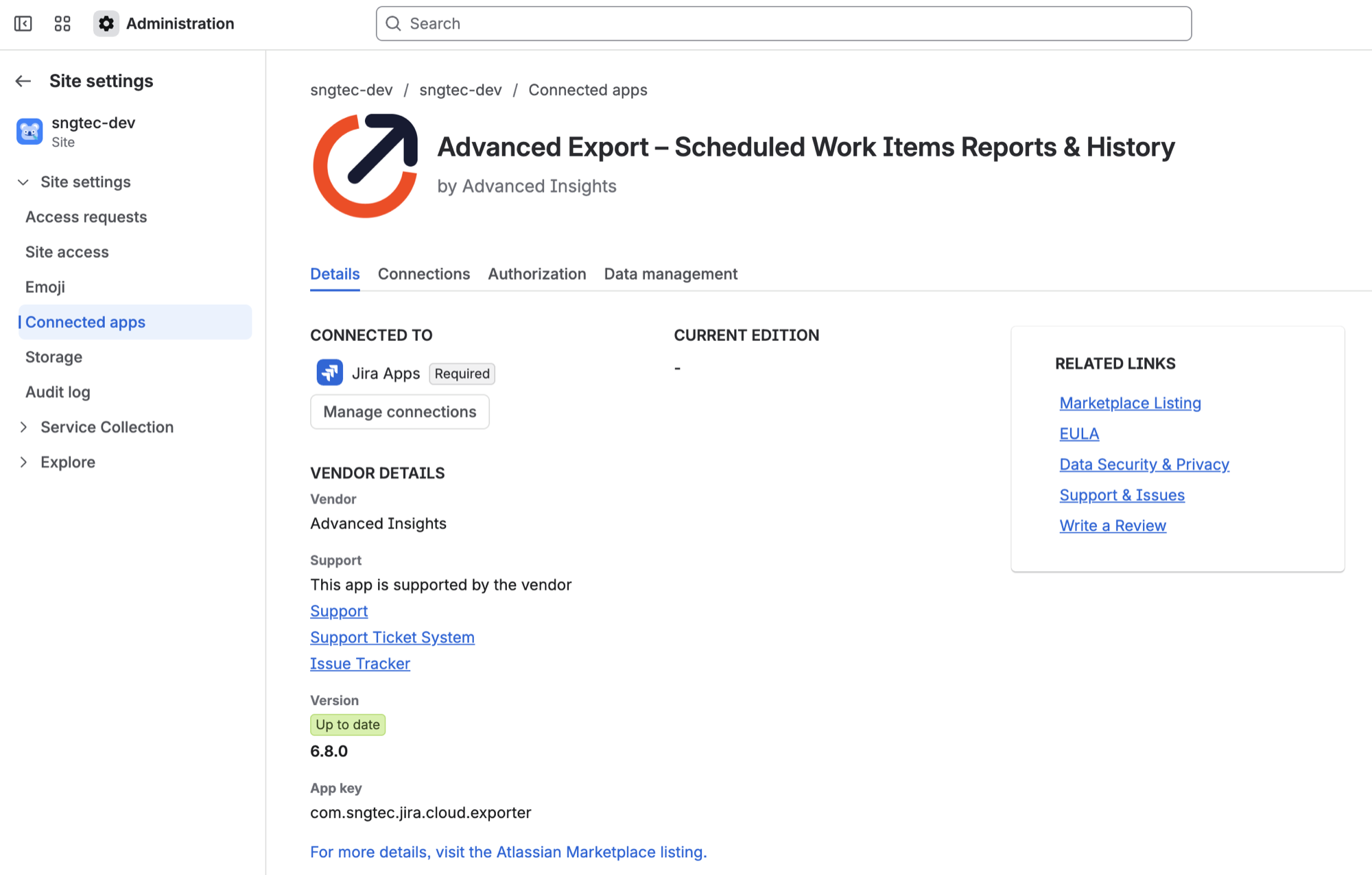
2. Scroll down to **Tools**. Under **Expose tools to MCP-compatible apps**, turn the tools on. When
they are on, the setting shows **Enabled** and the button reads **Disable tools**.
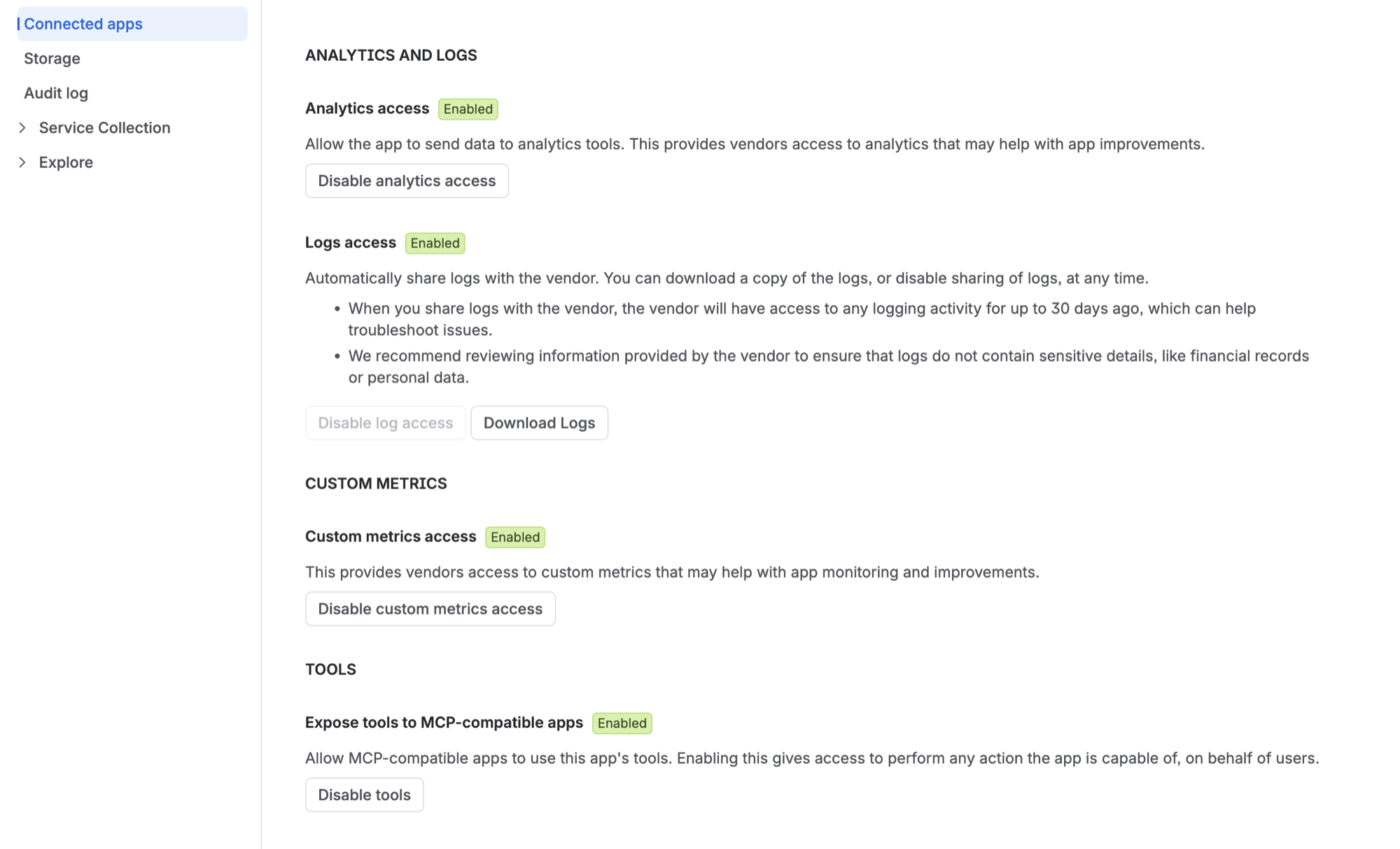
The tools then work for everyone on the site. Each person still signs in as themselves (step 3),
and sees and changes only what they could in the dashboard.
## Sign in to Atlassian
When you connect, Atlassian opens in your browser. Sign in if asked, choose the **site** your
Advanced Export is installed on, and choose **Accept**.
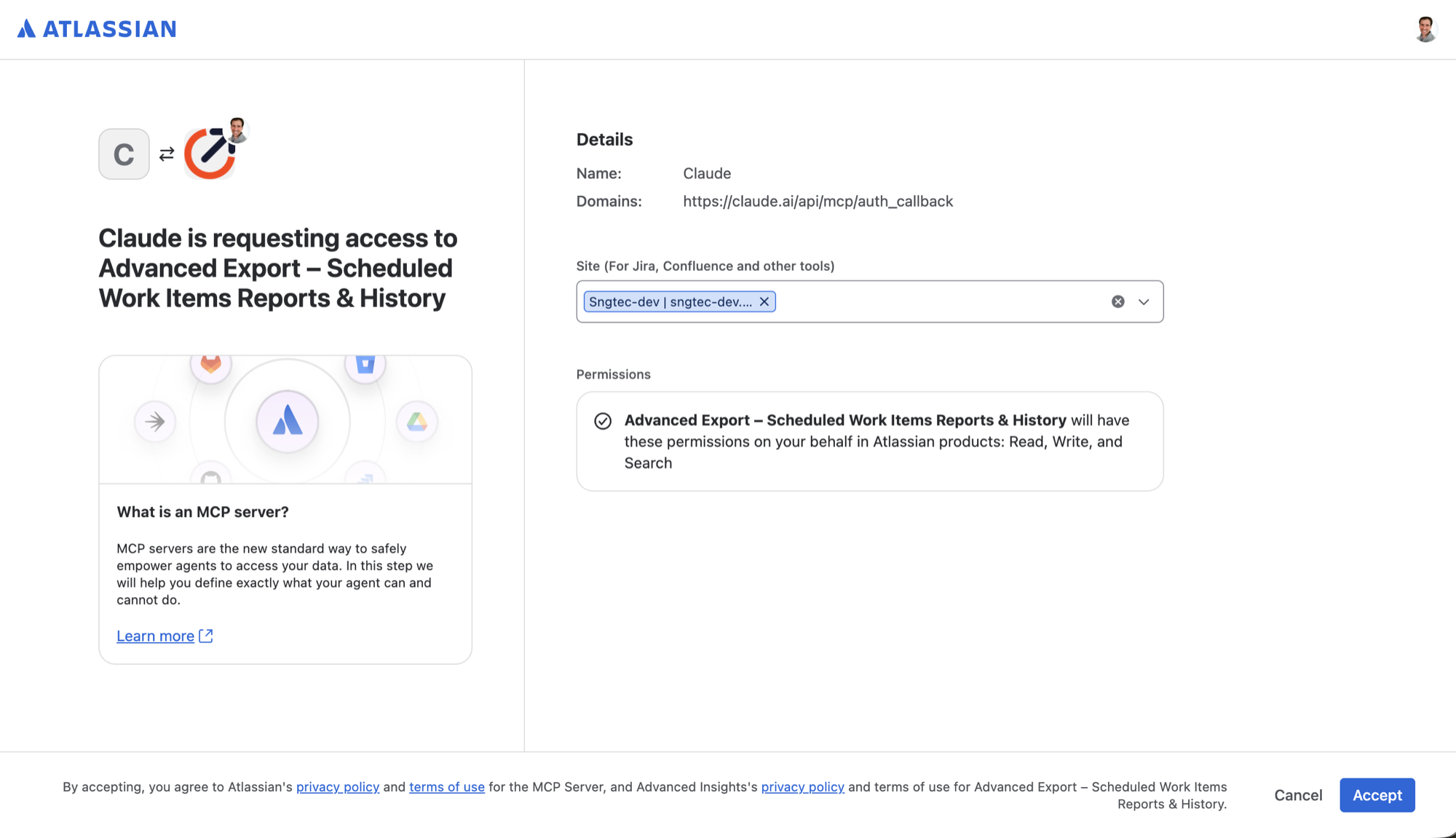
This lets the assistant use the Advanced Export tools as you, on that site only.
The same safety rules and limits apply as in Rovo. Some assistants do not ask before making changes
the way Rovo does, but Advanced Export's own checks apply either way. To stop an assistant using
Advanced Export, disconnect it in the assistant, or ask your admin to choose **Disable tools**.
---
# Claude (desktop app and claude.ai)
Source: https://docs.advancedinsights.app/atlassian/advanced-export/ai-tools/mcp/claude
Before you start, an admin must have [turned on the tools](/atlassian/advanced-export/ai-tools/mcp#an-admin-turns-on-the-tools-once-per-site) for your site.
## Add the connector
In Claude, Advanced Export is added as a **custom connector**. The desktop app and claude.ai share
the same connectors, so you only add it once.
1. Open **Settings → Connectors**, choose **Add**, then **Add custom connector**.
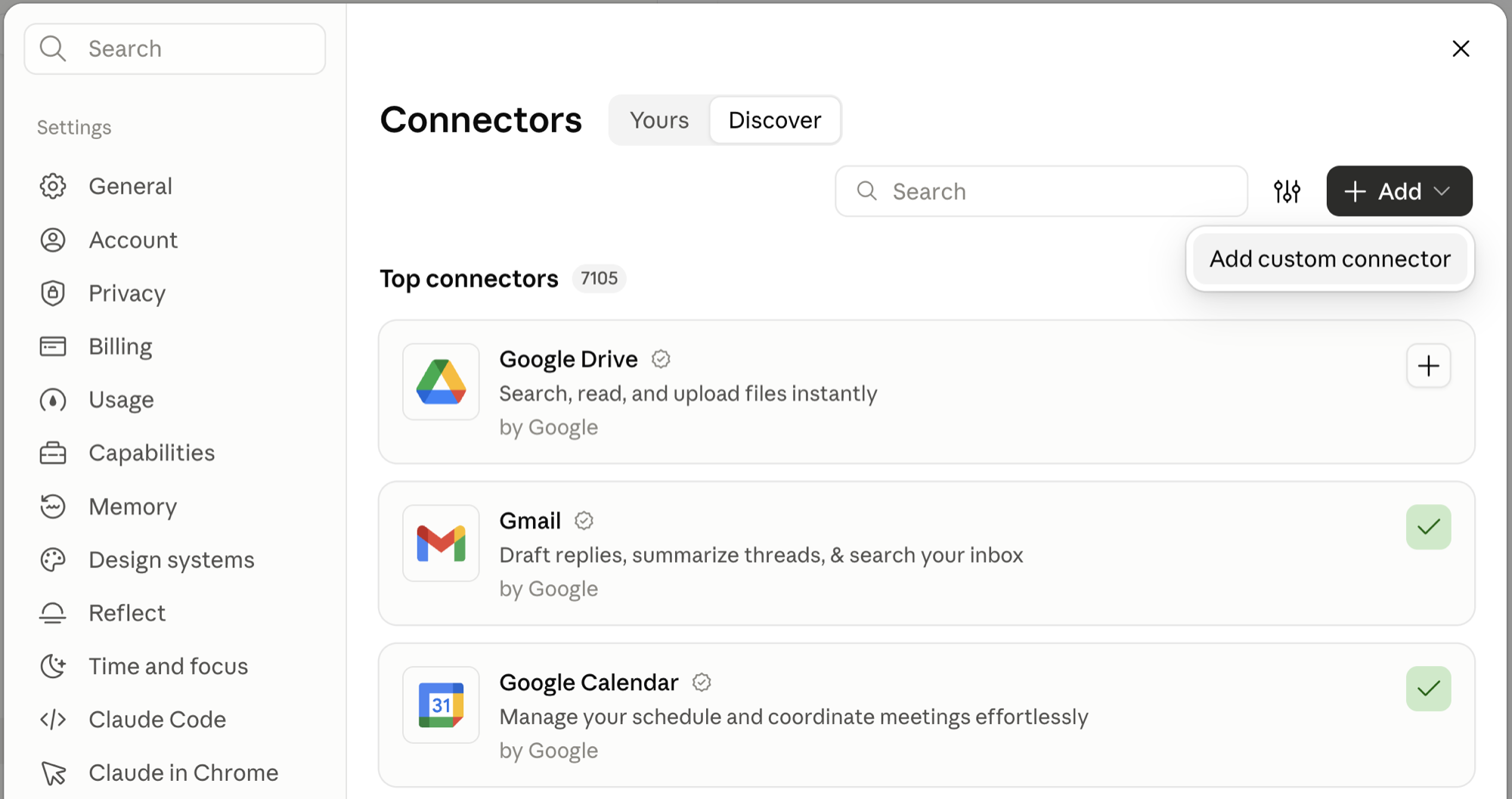
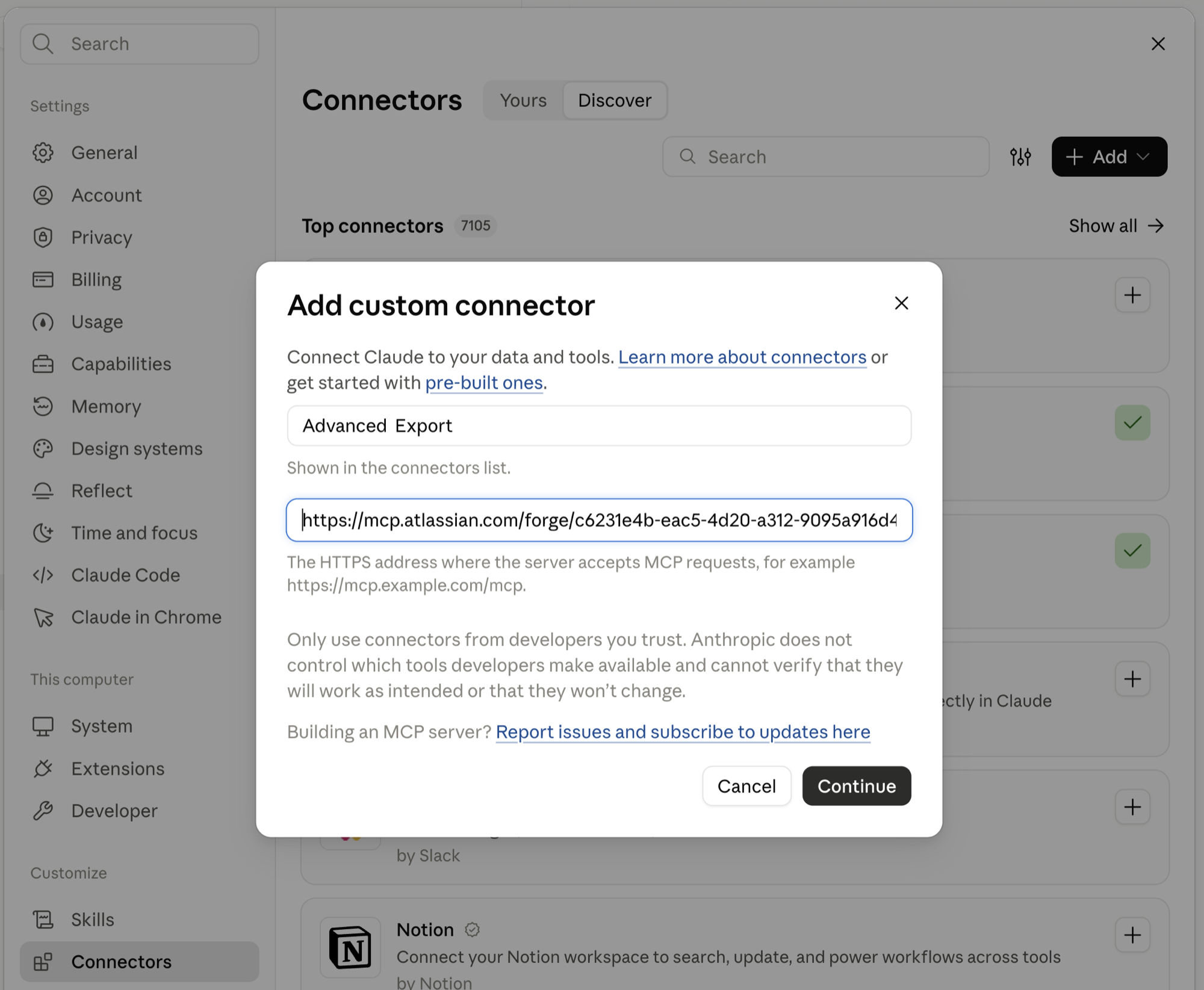
2. Enter a name, for example _Advanced Export_, and paste the server address. Choose **Continue**.
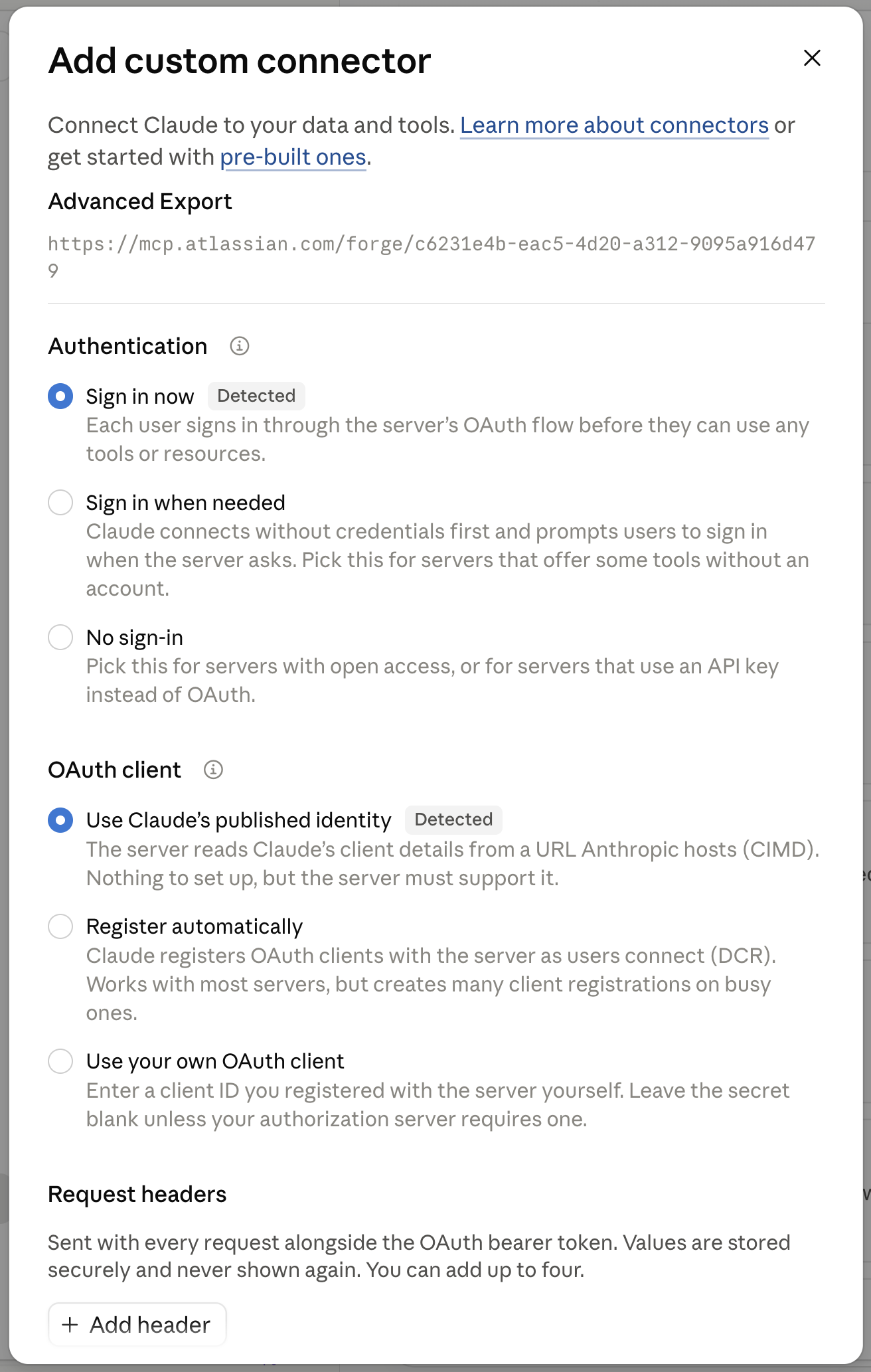
3. Claude detects how to sign in. Leave the detected options as they are: **Sign in now** under
**Authentication**, and **Use Claude's published identity** under **OAuth client**. You don't need
to add any request headers. Save the connector.
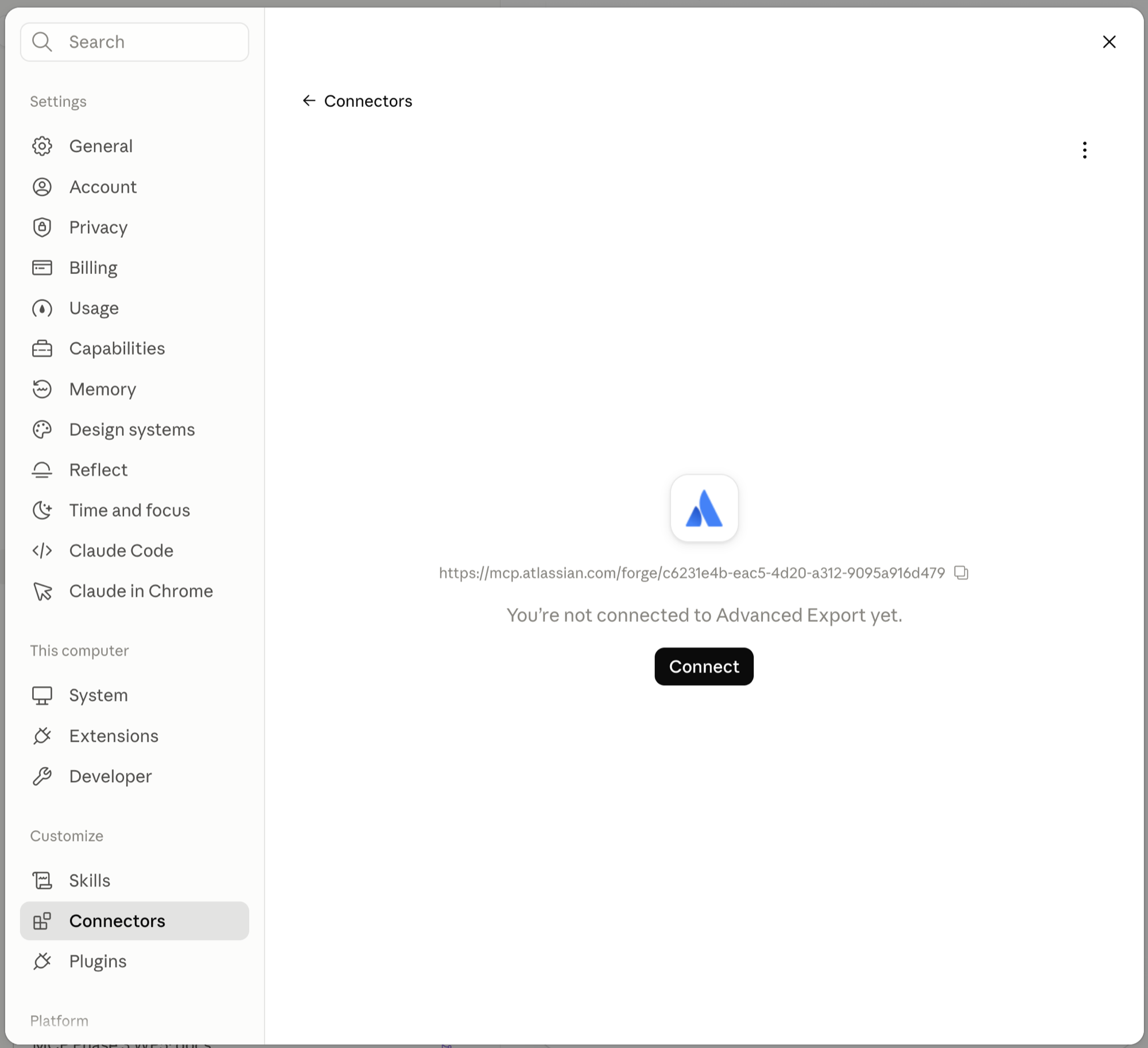
4. Open the new connector and choose **Connect**.
> **Note:**
If you use Claude through your company (a Team or Enterprise plan), the owner of your Claude
organization may need to add the connector before you can connect to it.
Then [sign in to Atlassian](/atlassian/advanced-export/ai-tools/mcp#sign-in-to-atlassian).
## Choose what Claude may do without asking
Claude lists the Advanced Export tools on the connector's page. For each tool, or for a whole group,
you choose whether Claude may always use it, must ask you first, or must never use it.
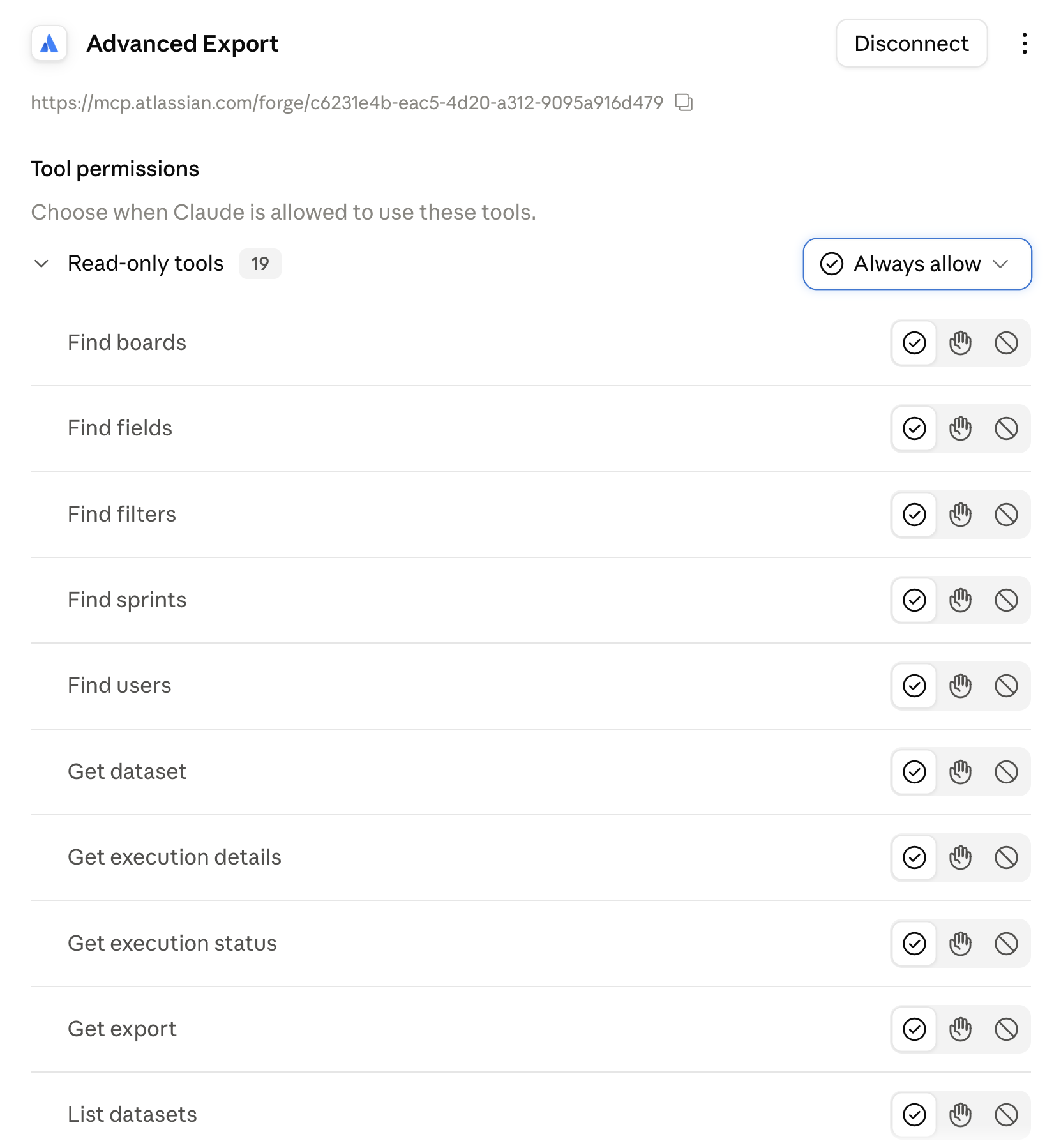
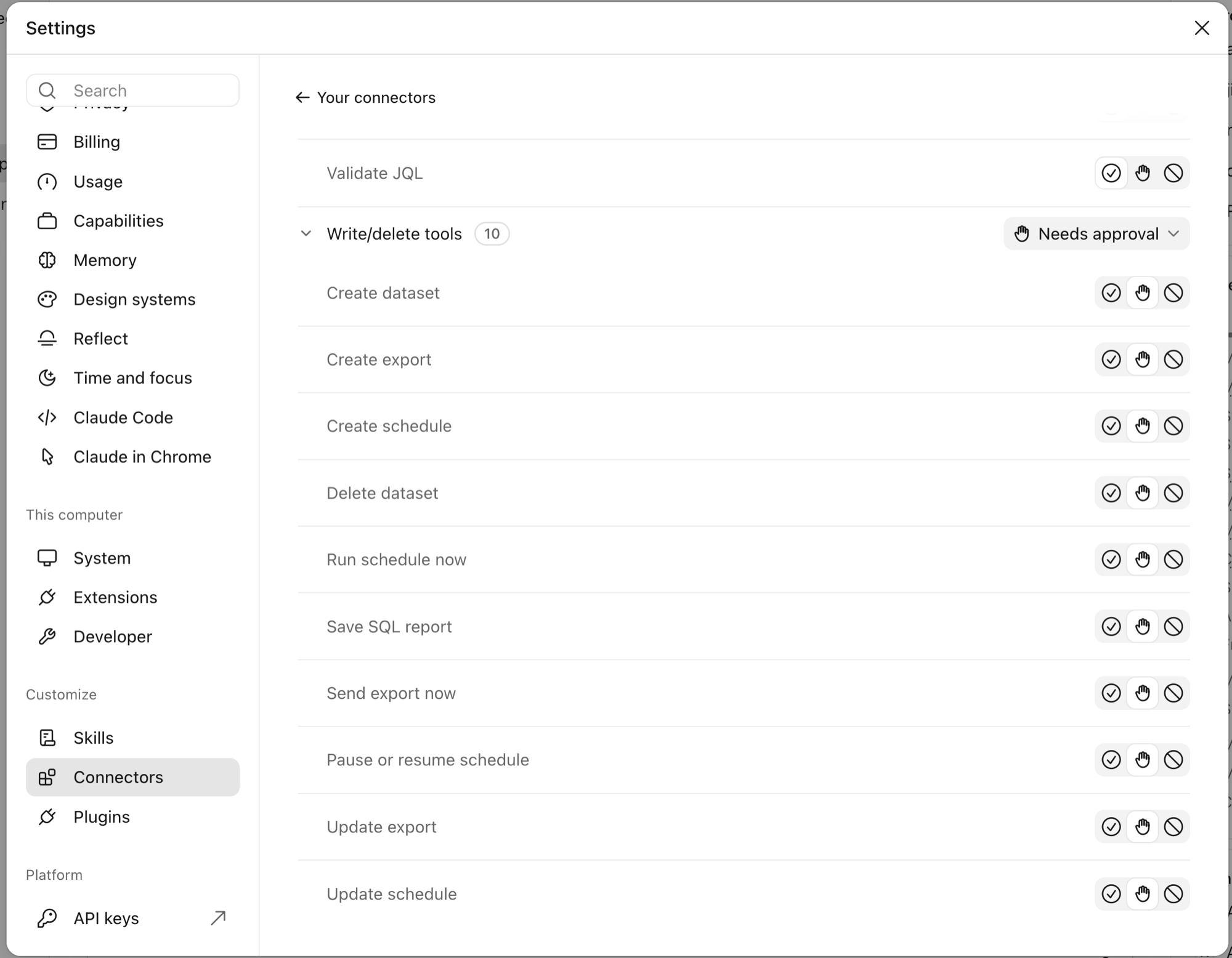
The **read-only tools** (finding fields, previewing exports, checking runs) are safe to allow. The
**write/delete tools** (creating or changing exports and schedules, running or sending a report)
are set to **Needs approval** to start with. We recommend leaving them that way.
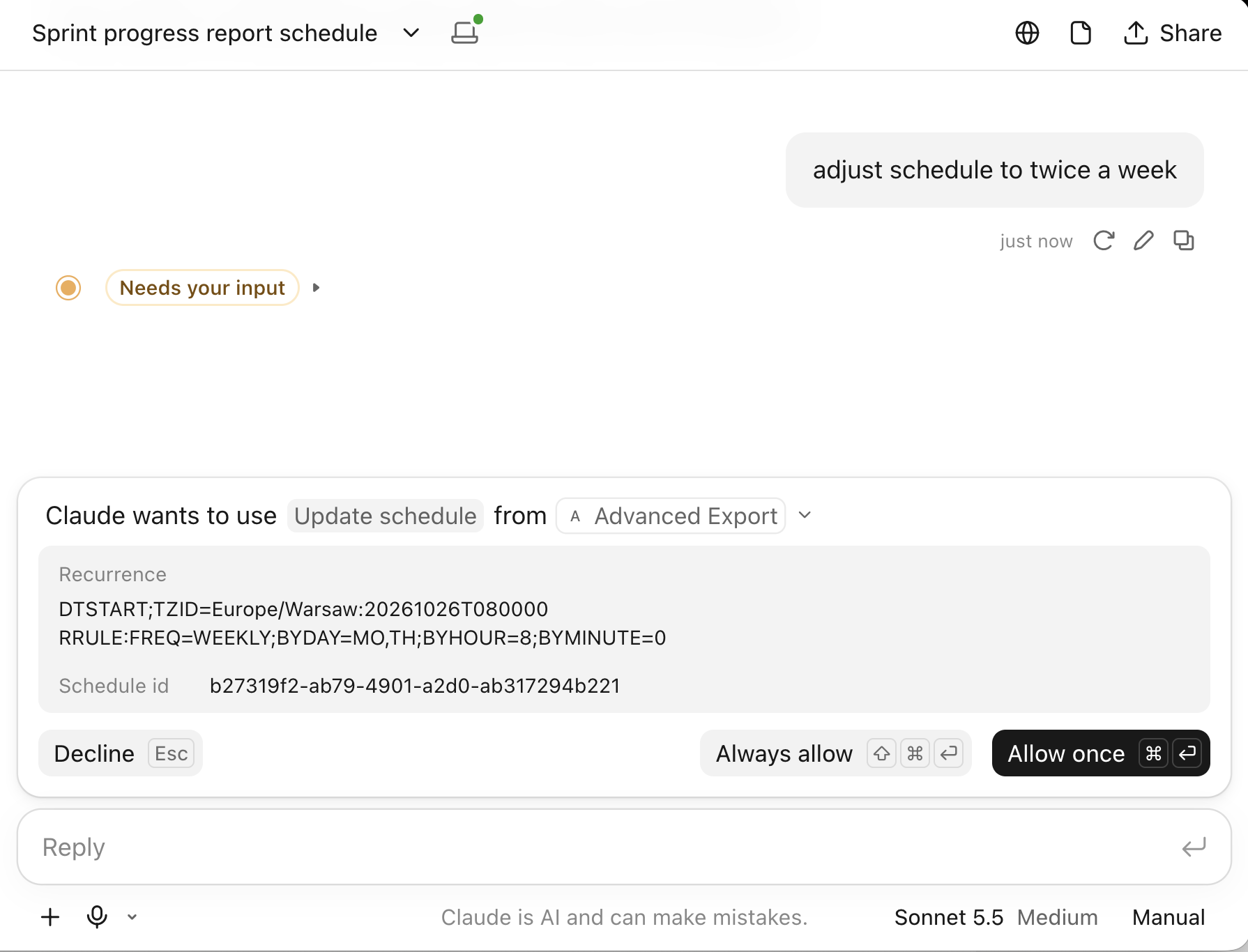
With **Needs approval**, Claude shows you what it is about to change and waits. Choose **Allow
once** to make the change, or **Decline** to stop it. **Always allow** stops Claude asking for that
tool in future.
## Using it
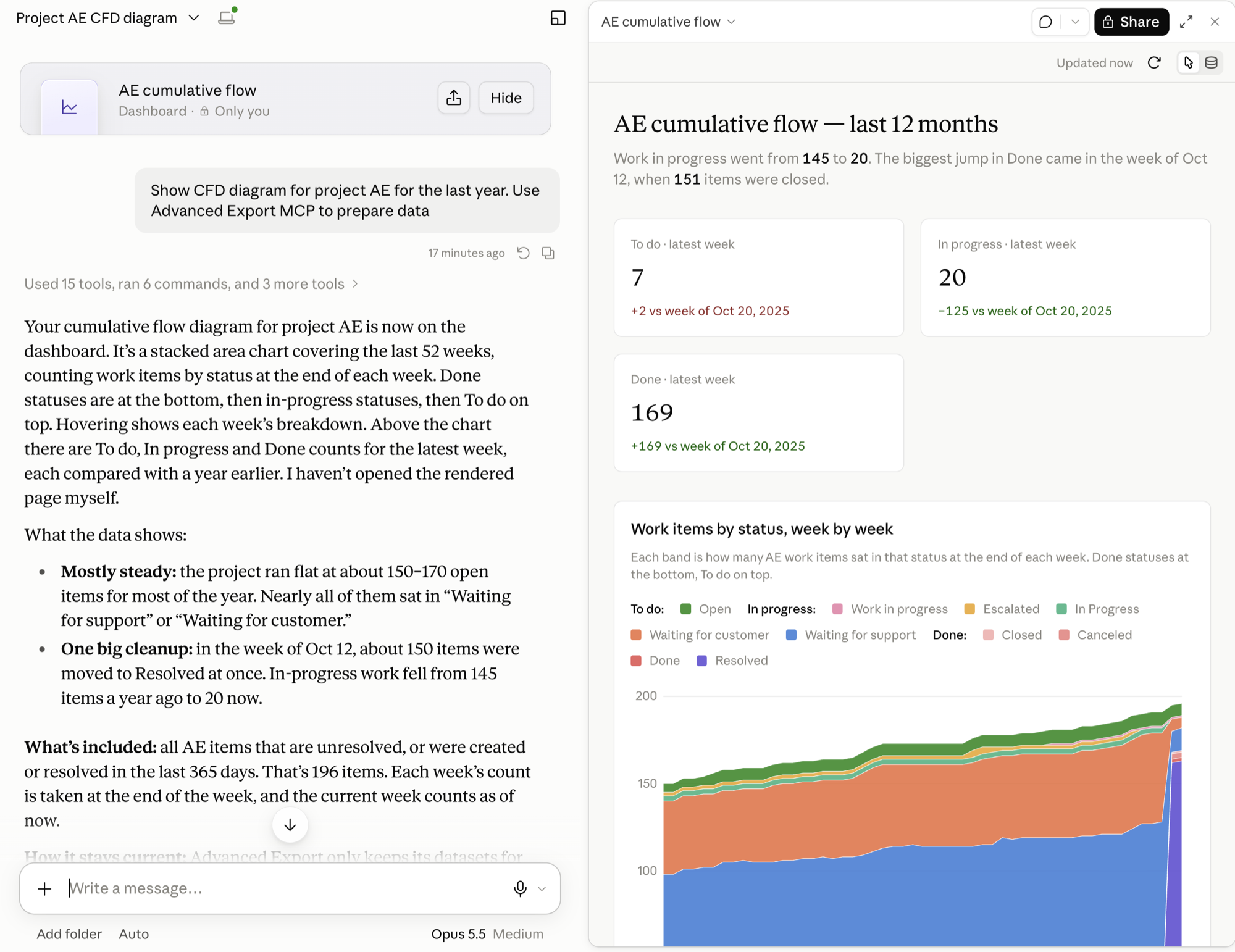
Ask in plain language and mention Advanced Export, for example:
> Show a cumulative flow diagram for project AE for the last year. Use Advanced Export to prepare the data.
---
# Claude Code
Source: https://docs.advancedinsights.app/atlassian/advanced-export/ai-tools/mcp/claude-code
Before you start, an admin must have [turned on the tools](/atlassian/advanced-export/ai-tools/mcp#an-admin-turns-on-the-tools-once-per-site) for your site.
```
claude mcp add --transport http advanced-export https://mcp.atlassian.com/forge/c6231e4b-eac5-4d20-a312-9095a916d479
```
Then start Claude Code, type `/mcp`, choose **advanced-export** and sign in.
Then [sign in to Atlassian](/atlassian/advanced-export/ai-tools/mcp#sign-in-to-atlassian). Claude Code asks before it makes changes, and you can allow or deny each Advanced Export tool in its permissions.
---
# Other assistants
Source: https://docs.advancedinsights.app/atlassian/advanced-export/ai-tools/mcp/other-assistants
Add the server address wherever your assistant lets you add a remote MCP server or connector. The
assistant must support signing in with OAuth.
The server address is:
```
https://mcp.atlassian.com/forge/c6231e4b-eac5-4d20-a312-9095a916d479
```
After adding it, [sign in to Atlassian](/atlassian/advanced-export/ai-tools/mcp#sign-in-to-atlassian). An admin must also have [turned on the tools](/atlassian/advanced-export/ai-tools/mcp#an-admin-turns-on-the-tools-once-per-site) for your site.
Some assistants do not ask before making changes the way Rovo does, but Advanced Export's own checks apply either way: see [Safety and permissions](/atlassian/advanced-export/ai-tools/safety-and-permissions).
---
# Safety and permissions
Source: https://docs.advancedinsights.app/atlassian/advanced-export/ai-tools/safety-and-permissions
An agent reads work item content, and anyone who can edit or comment on a work item can write text
that tries to steer it. So Advanced Export does not rely on the agent behaving well. The rules below
are enforced by Advanced Export itself, whatever the agent is told, and they apply equally to Rovo
Studio agents and other AI assistants.
## The agent acts as you
- **Your identity comes from Atlassian, not from the conversation.** Rovo tells Advanced Export who
is asking. Nothing typed into the chat, or written in a work item, can make the agent act as
someone else or on another site.
- **It reads Jira with your permissions.** Previews, field and user lookups and JQL checks run as
you, so they show only what you can see in Jira. They never borrow the permissions of the
export's owner or of the app.
- **It sees what you see in the dashboard.** Your own exports and the public exports on your site,
and their schedules and runs.
- **It changes only what you own.** You can save new exports. Only the owner of an export can
change it, or create, change, pause or run its schedule.
- **Files generated with add-on permissions stay restricted.** A delivered file from a schedule
that [generates with add-on permissions](/atlassian/advanced-export/app-settings#allow-generation-of-scheduled-exports-using-add-on-permissions)
may contain more than any one person can see, so only the export's owner and Jira admins can read
it through the agent.
- **No new permissions.** The agent uses the access the app already has. Installing or updating it
did not ask your admin to approve anything new.
## Reports go only where your site already sends them
- **Recipients are people on your Jira site.** The agent finds them by name and asks you to choose
when two people match. Their email addresses are looked up by the app and are never shown to the
agent.
- **Email addresses outside Jira are off by default.** A Jira admin can allow them in
[Settings](/atlassian/advanced-export/app-settings) (Jira settings → Apps → Advanced Export Settings → Scheduled Reports,
under **AI agents**), with **Allow AI agents to send reports to email addresses outside Jira**. Leave it off unless you need
it.
- **SFTP only to your own servers.** The agent can deliver only to SFTP servers you have already set
up yourself in the dashboard. It cannot add a server or read its credentials.
- **No webhooks.** The agent cannot create or change a webhook delivery.
## You confirm every change
Rovo asks you before the agent creates or changes an export or schedule, pauses or resumes a
schedule, or runs or sends a report. Each change is listed with its details, and nothing happens
until you choose **Confirm selected**. **Cancel** stops it.
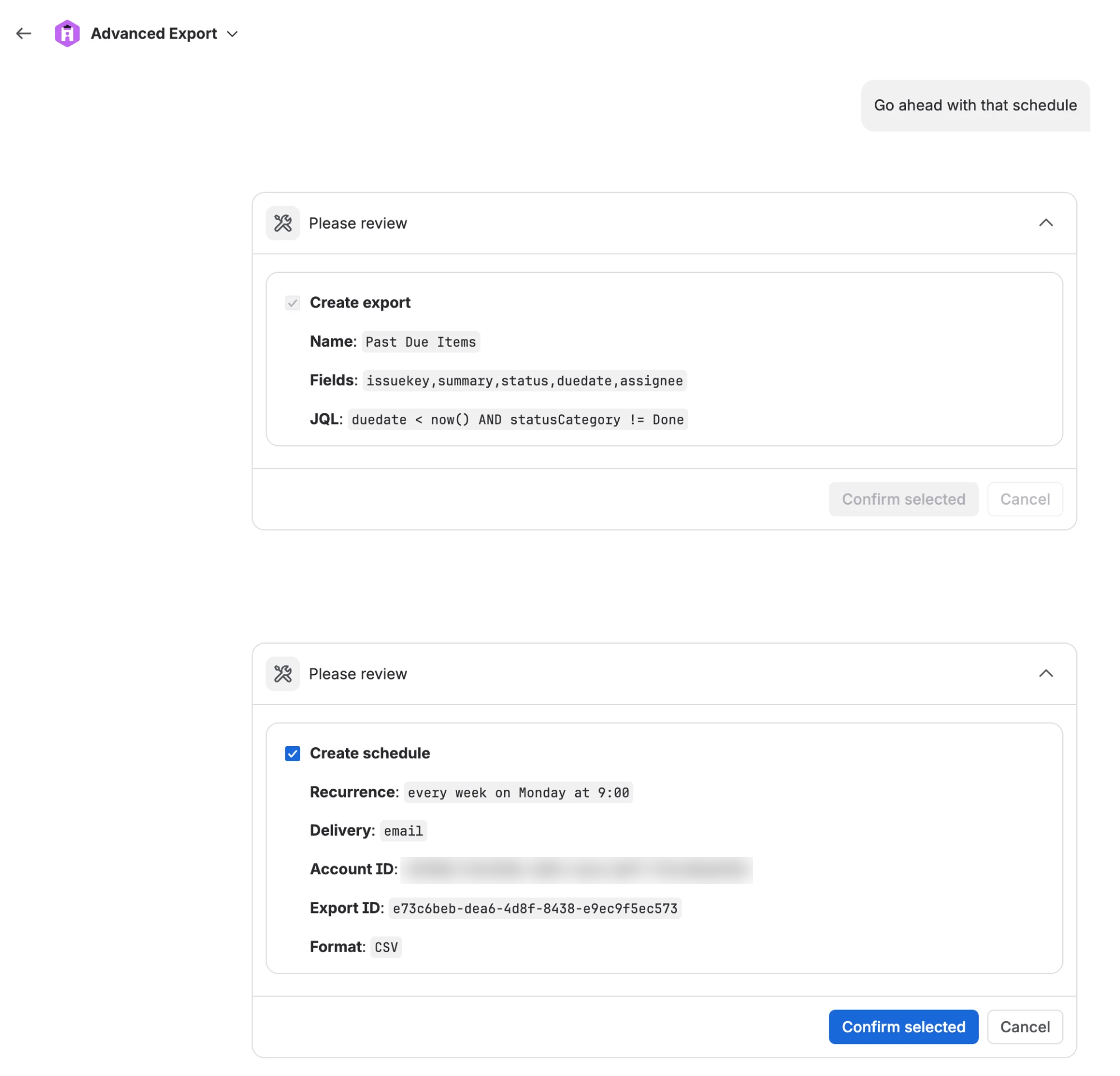
Before it asks, the agent also tells you in plain words who will receive the report and when it
will run. After it saves a schedule, it shows the next run times so you can check them.
Rovo agents started by a Jira automation rule cannot make changes at all, because there is nobody
to confirm them. They can still find and show data.
## Scheduling restrictions apply to the agent
If a Jira admin has [restricted scheduling](/atlassian/advanced-export/app-settings#restrict-scheduling) to some groups and
project roles, the agent is restricted in exactly the same way as the dashboard. If you are not
allowed to schedule, it cannot create, change, pause or run schedules for you, or send an export,
and it tells you:
> A Jira admin has restricted scheduling on this site to some groups and roles, and you are not in them. You can still run exports in the dashboard.
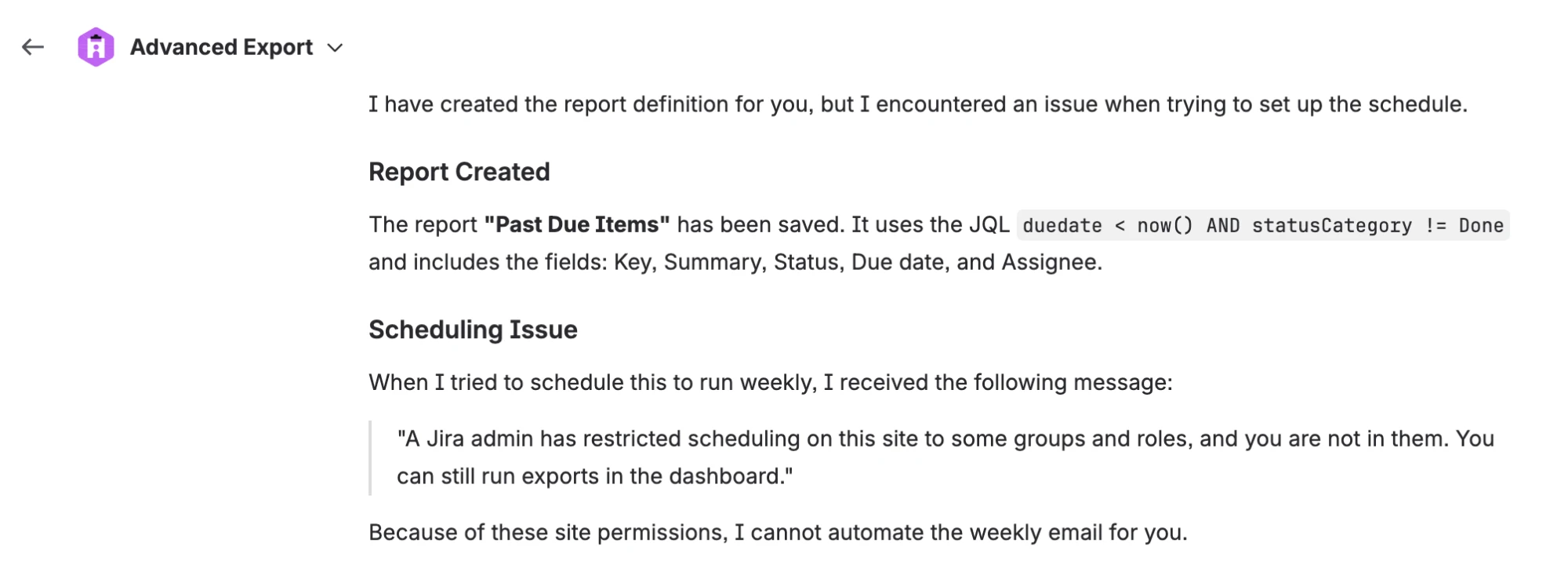
You can still save exports with the agent, preview them, and [export in the browser](/atlassian/advanced-export/exporting-data).
## Everything is recorded
Every change made through the agent is recorded with who asked for it and when.
## Rate limits
To keep an agent that has gone wrong from flooding inboxes or your Jira site, each person can make,
per site and per hour:
| | Limit |
| --- | --- |
| Runs and sends (run a schedule now, send an export now) | 20 an hour |
| Changes (create or change an export or schedule, pause or resume) | 60 an hour |
Attempts count even when they are refused. When you reach a limit the agent tells you when you can
try again. Finding and previewing data are not limited this way.
## Licence
Running a schedule now or sending an export now follows the same licence rules as scheduled
reports.
---
# Data and deliveries
Source: https://docs.advancedinsights.app/atlassian/advanced-export/ai-tools/data-and-deliveries
## Where the data comes from
When you ask the agent to show you a report, there are two different things it can show. The agent
always tells you which one you are looking at.
| | Live preview | Delivered file |
| --- | --- | --- |
| What it is | The export run now, by the agent | The file a scheduled run produced and delivered |
| When it is available | Always | Only for reports delivered as a **download link**, through the **API**, or as a webhook file, and only until the download link expires |
| Whose permissions | **Yours**: it shows only work items you can see in Jira | The permissions the schedule ran with: its owner's, or the app's if the schedule [generates with add-on permissions](/atlassian/advanced-export/app-settings#allow-generation-of-scheduled-exports-using-add-on-permissions) |
| Size | A limited number of work items. The agent tells you when it is showing only part of the data | The whole file, read a page at a time |
**Reports delivered by email or SFTP are not stored by Advanced Export**, so for those the agent
can show a live preview, but not the file that was sent. This is the same as the dashboard: see
[Your data on our servers](/atlassian/advanced-export/scheduled-exports).
## Datasets
A live preview shows only the first work items, and the agent reads delivered files a page at a
time. Neither is a good way to answer "how many" or "how long" over hundreds of work items: a
language model that counts rows itself can miss some, and can give a different answer each time.
For questions like these the agent builds a **dataset** instead, and answers with SQL:
- **What it holds**: the work items of an export or a JQL query, with your Jira permissions, and by
default their change history. Up to 20,000 work items and 500,000 history items. If a limit is
reached, the agent tells you.
- **How it answers**: the agent writes a SQL query, the database calculates the result, and the
agent explains it. Ask it to show the query, and you can check the logic or reuse it in a
[SQL export](/atlassian/advanced-export/sql-exports). The same query on the same dataset always
gives the same numbers.
- **Who can use it**: only you. Nobody else, including other people's agents, can query it.
- **How long it lasts**: 4 hours by default, at most 24 hours. Then it is deleted. You can also ask
the agent to delete it sooner.
Building a dataset takes from seconds to a few minutes, depending on the number of work items. You
can build one at a time, and up to 10 an hour.
Datasets are available for sites whose data is processed in the US region. A Jira admin can turn
them off in [App settings](/atlassian/advanced-export/app-settings#ai-agents).
## One-off deliveries
An export has one schedule: the one the dashboard shows and edits. If you ask the agent to schedule
an export that already has one, it offers to change that schedule instead. It cannot add a second
one.
When the agent sends an export once ("send this to Jane now"), Advanced Export records it as a
one-off delivery of that export. It never repeats, and it cannot be switched on as a schedule. It
does not replace the export's schedule in the dashboard, and its run is not shown in the export's
[execution log](/atlassian/advanced-export/scheduled-exports). Ask the agent whether it succeeded, when it ran, and about any
error. To send it again, ask the agent.
## Data and privacy
The agent works on the same data as the rest of Advanced Export, processed in the
[region](/atlassian/advanced-export/app-settings#data-residency) your admin chose. It does not add any new place where your
data is stored: live previews are generated on request and not kept, and delivered files are the
ones your schedules already store for download links. See [Data Security and Privacy](/atlassian/advanced-export/privacy).
What you send to Rovo, and what the agent answers, is handled by Atlassian Rovo under Atlassian's
terms.
---
# Tool catalogue
Source: https://docs.advancedinsights.app/atlassian/advanced-export/ai-tools/tool-catalogue
These are the tools the agent uses. You will see their names in Rovo while the agent works
("Invoking tool: Find fields"). The same tools are available to your own Rovo Studio agents and to
other AI assistants.
Tools that change something are marked **Confirm**: Rovo asks you before each one runs.
## Lookups
| Tool | What it does |
| --- | --- |
| Find fields | Finds Jira fields by name, including custom fields and Advanced Export's change history fields, and returns their ids |
| Find users | Finds active people on your site by name. Never returns email addresses |
| Find boards | Finds boards by name, with their type and project |
| Find sprints | Finds sprints by name or board, with their state and dates |
| Find filters | Finds saved filters you can see, with their JQL |
| Validate JQL | Checks a JQL query and returns Jira's errors, or roughly how many work items it matches |
| List SFTP servers | Lists the SFTP servers you can use: name and host. Never credentials |
| List templates | Lists the report templates on your site you can see |
## Exports
| Tool | What it does | |
| --- | --- | --- |
| List exports | Lists the exports you can see | |
| Get export | Shows one export's definition: which work items, fields, history mode, options and schedule | |
| Preview export | Runs a saved export, or an unsaved query, as you and returns the first rows: a [live preview](/atlassian/advanced-export/ai-tools/data-and-deliveries#where-the-data-comes-from) | |
| Create export | Saves a new export. Private unless you ask for it to be public | **Confirm** |
| Update export | Changes an export you own | **Confirm** |
## Schedules
| Tool | What it does | |
| --- | --- | --- |
| List schedules | Lists the schedules you can see, with their latest run, and marks one-off deliveries | |
| Create schedule | Schedules an export you own: recurrence, format, delivery and recipients. Returns the next run times | **Confirm** |
| Update schedule | Changes a schedule's timing, format, recipients or destination | **Confirm** |
| Pause or resume schedule | Pauses a schedule, or resumes a paused one | **Confirm** |
| Run schedule now | Runs a schedule once, straight away | **Confirm** |
| Send export now | Delivers an export once, with no schedule | **Confirm** |
## Runs
| Tool | What it does |
| --- | --- |
| Get execution status | A schedule's recent runs, and the progress of one that is running now |
| List executions | Runs across all the schedules you can see, filtered by status, date, schedule or export |
| Get execution details | One run: its error or warning, rows, size, whose permissions it ran with, and whether its file can still be read |
| Read execution result | Reads the rows of a [delivered file](/atlassian/advanced-export/ai-tools/data-and-deliveries#where-the-data-comes-from), a page at a time |
## Data analysis
These tools build a private, temporary **dataset** of work items and their change history, and
answer questions about it with SQL. See [Datasets](/atlassian/advanced-export/ai-tools/data-and-deliveries#datasets).
| Tool | What it does | |
| --- | --- | --- |
| Create dataset | Builds a dataset from an export or a JQL query: the work items you can see and, by default, their change history | **Confirm** |
| Get dataset | Shows a dataset's progress, and when it is ready, its tables and columns | |
| List datasets | Lists your own datasets, so the agent can pick up one from an earlier conversation | |
| Query dataset | Runs a read-only SQL query on one of your datasets and returns the result | |
| Delete dataset | Deletes one of your datasets before it expires | **Confirm** |
| Save SQL report | Saves a query as an export's [SQL step](/atlassian/advanced-export/sql-exports), once it has run on that export's data | **Confirm** |
---
# App settings
Source: https://docs.advancedinsights.app/atlassian/advanced-export/app-settings
Jira administrators manage Advanced Export from _Settings → Apps_, in the Advanced Export section, or
from the settings (gear) menu on the Advanced Export dashboard. There are three pages:
- [Scheduled Reports Settings](#scheduled-reports): who can schedule, whose permissions reports run
with, what AI agents may do, and the region where data is processed.
- [Email Settings](#email-settings): send report emails through your own SendGrid account.
- [Reassign Reports](#reassign-reports): move reports from someone who has left to a new owner.
## Scheduled reports
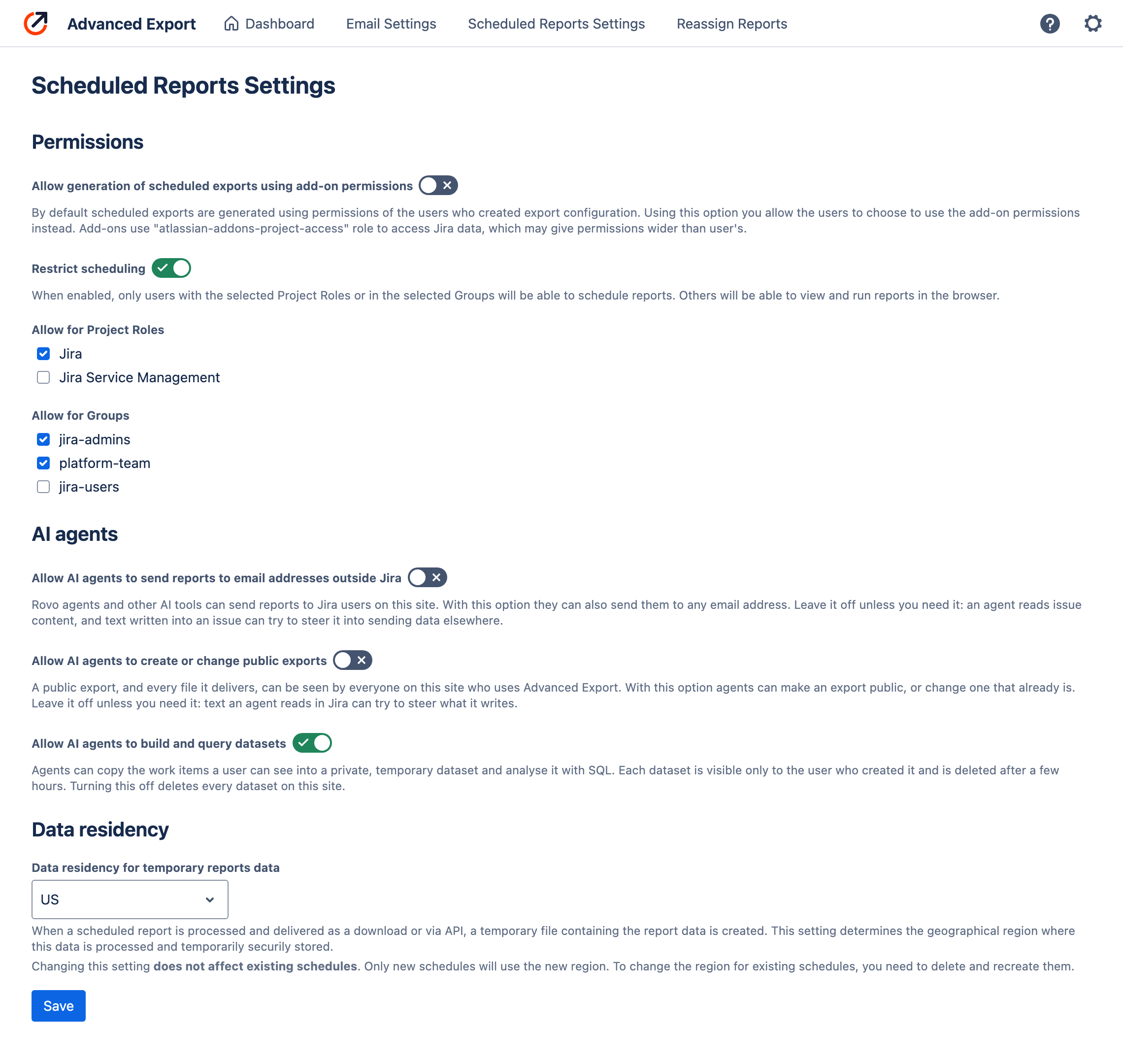
### Permissions
### Allow generation of scheduled exports using add-on permissions
By default scheduled reports are generated with the permissions of **the user who created the export configuration**. This means that the user must have access to the data they want to export.
It is possible to change this and generate with permissions using Jira role `atlassian-addons-project-access`. To check what project permissions this role has, go to **Jira settings → Work items → Permission schemes**, and open the scheme.
It should have at least `Browse Projects` permission for the export to succeed.
Once this option is enabled, [scheduled exports](/atlassian/advanced-export/scheduled-exports#execution-permissions) can be configured to generate reports with add-on permissions.
### Restrict scheduling
By default everyone can schedule reports, however if you'd like to limit that ability, you can specify Project Roles and/or Groups which are allowed to schedule reports.
All the users not allowed to create schedules can still export data in the browser.
The same restriction applies to the [Rovo agent and AI tools](/atlassian/advanced-export/ai-tools/safety-and-permissions#scheduling-restrictions-apply-to-the-agent).
### AI agents
**Allow AI agents to send reports to email addresses outside Jira** is off by default. While it is off, the [Rovo agent and other AI tools](/atlassian/advanced-export/ai-tools/rovo-agent) can send reports only to Jira users on your site. Leave it off unless you need it: an agent reads work item content, and text written into a work item can try to steer it into sending data elsewhere.
**Allow AI agents to create or change public exports** is off by default. A public export, and every file it delivers, can be seen by everyone on your site who uses Advanced Export. While the option is off, agents create private exports only, and cannot make an export public or change one that already is.
**Allow AI agents to build and query datasets** is on by default. Agents can copy the work items a user can see into a private, temporary [dataset](/atlassian/advanced-export/ai-tools/data-and-deliveries#datasets) and analyse it with SQL. Each dataset is visible only to the user who created it and is deleted after a few hours. Turning this off deletes every dataset on your site.
### Data residency
Scheduled reports are generated on our servers. In some cases temporary file is created to store the report before it's downloaded by the user or accessed via our user facing API.
You can choose the location of the server where the data is processed and the temporary files are stored.
At the moment we support the following regions:
- US
- Europe
Once you've selected the new region, all the new schedules will be processed in that region. Already existing schedules though, will continue to be processed in the old region.
> **Changing the region:**
To change the region for existing schedules, you need to delete them and recreate.
To check which region a schedule uses, open its schedule dialog: the region is named under the
delivery options ("Report data is processed and stored temporarily in the US region").
## Email Settings
By default all emails are sent from the domain `ae.kanbanalytics.com`. You can use this page to configure alternative email provider.
### SendGrid
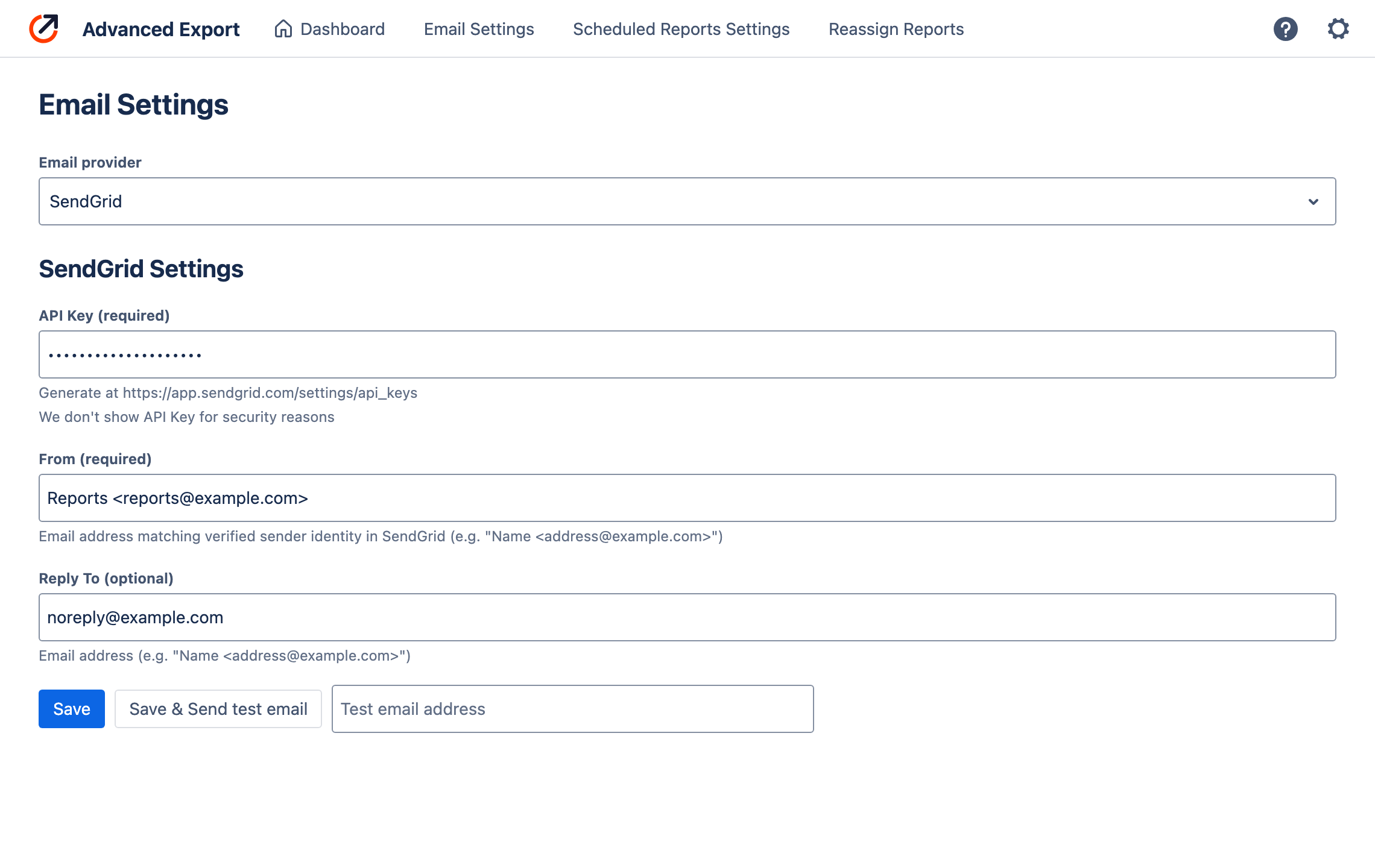
To configure [SendGrid](https://sendgrid.com) as an email provider, you'll need:
- API Key (you can create one at [SendGrid API Keys settings page](https://app.sendgrid.com/settings/api_keys)). Note, that once saved, API Key won't be shown to you for security reasons. We also encrypt the API Key in the database.
- `From` email address. You have to use From address which belongs to the domain verified for your SendGrid account. To verify a domain, use [Email API Integration Guide](https://app.sendgrid.com/guide/integrate) or [Sender Authentication](https://app.sendgrid.com/settings/sender_auth) in your SendGrid account.
- Optional `Reply To` address. This can belong to any domain.
> **Note:**
The email addresses can optionally be specified in **mailbox** format - with an optional display name of the recipient/sender and address enclosed in `<` and `>`, e.g.
`Recipient Name`
## Reassign reports
A scheduled report runs with its owner's Jira permissions, so when the owner's account is
deactivated, their reports stop running. **Reassign Reports** lists every report with a schedule,
its schedules' state and its current owner, and flags deactivated owners.
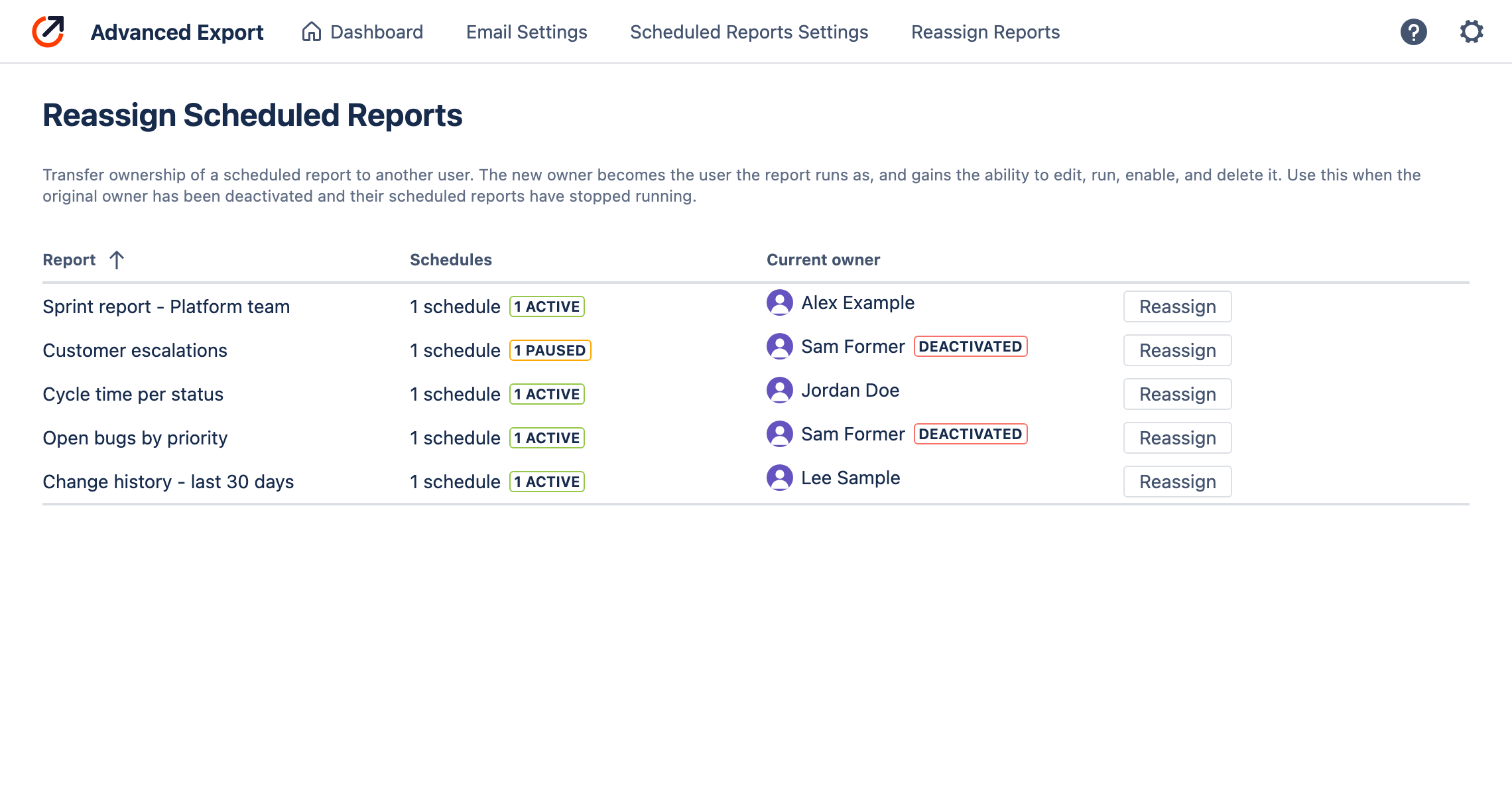
Choose **Reassign** and pick the new owner. The new owner becomes the user the report runs as, and
can edit, run, pause and delete it. If the report delivers to SFTP, the private servers it uses move
to the new owner too, so delivery keeps working. Schedules that were paused, typically after
repeated failures while the previous owner was deactivated, can be resumed in the same step.
---
# API documentation
Source: https://docs.advancedinsights.app/atlassian/advanced-export/api
## Authentication
The API is authenticated with an API key. To create one, open the Advanced Export
[dashboard](/atlassian/advanced-export/dashboard), then the settings (gear) menu → **API
Configuration**. There you can generate a key, or delete it. The key is shown only once, when it is
created.
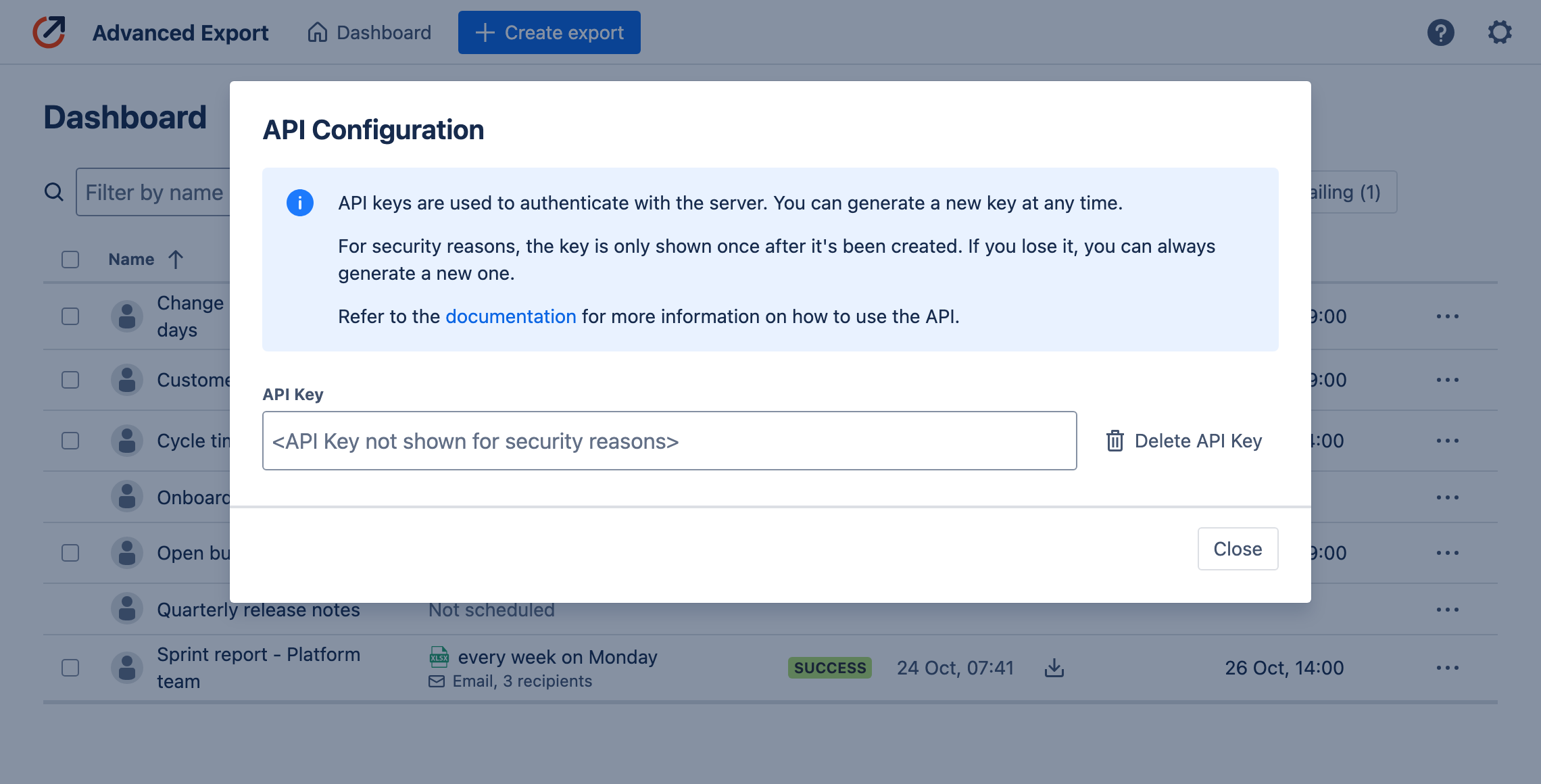
> **Note:**
Your API Key allows you to access the API on behalf of **your user account**, which means only scheduled exports visible to you (the ones you created and public ones) will be accessible.
In addition, schedules have to have **API** as their delivery method to be accessible through the API.
The schedule dialog shows each schedule's endpoint, and how long each run's file stays available.

API Key should be passed in the `Authorization` header, e.g.:
```sh
curl -X GET https://ae.kanbanalytics.com/api/1/schedules \
-H "Authorization: Bearer "
```
The base URL for the API is `https://ae.kanbanalytics.com/api/1`. All the endpoints described below are relative to this URL.
## Endpoints
All the endpoints return statuses:
- **200 Success**
- **401 Unauthorized** - Check if you have provided the correct API Key as `Authorized` header.
- **404 Not found** - Check if you provided correct id of the resource.
### Get schedules
**`GET /schedules`**
Returns a list of scheduled exports visible to you which are enabled for API delivery.
**Request:**
```sh
curl https://ae.kanbanalytics.com/api/1/schedules \
-H "Authorization: Bearer "
```
**Response:**
```json
[
{
"id": "7fb0af3c-fd0b-4fc6-a77e-445c8d7c23ad",
"format": "JSON",
"paused": false,
"pauseReason": null,
"ExportConfig": {
"name": "Export configuration",
"isPublic": false,
}
},
...
]
```
### Get latest execution info
**`GET /schedules//executions/latest`**
Returns information about the latest execution of the schedule with the given ID. The ID can be obtained either using the `/schedules` endpoint or from the Advanced Export app Dashboard.
**Request:**
```sh
curl https://ae.kanbanalytics.com/api/1/schedules/43cf1ea8-dea8-4bec-8614-1ebab9f49513/executions/latest \
-H "Authorization: Bearer "
```
**Response:**
```json
{
"id": "43cf1ea8-dea8-4bec-8614-1ebab9f49513",
"type": "scheduled",
"executionDate": "2024-04-21T16:02:04.835Z",
"result": "{\"exportedRows\":10,\"exportedSizeMb\":0.1}",
"uploadExpirationDate": "2024-04-22T14:02:07.006Z",
"error": null,
"format": "JSON",
"filename": "export_04-21-2024.json"
}
```
### Get latest execution data
**`GET /schedules//executions/latest/result`**
Returns the result of the latest execution of the schedule with the given ID.
**Request:**
If the request contains `Accept: application/json` header and the format of exported file is JSON, the response will be JSON and contain header:
```
Content-Type: application/json
```
Otherwise, the response will be a file with the exported data with headers:
```
Content-Disposition: attachment; filename="[FILENAME]"
Content-Type: [application/json | text/csv | application/vnd.openxmlformats-officedocument.spreadsheetml.sheet]
```
Example:
```sh
curl https://ae.kanbanalytics.com/api/1/schedules/43cf1ea8-dea8-4bec-8614-1ebab9f49513/executions/latest/result \
-H "Authorization: Bearer " \
-H "Accept: application/json"
```
**Response:**
File or JSON payload with contents of the export. Example JSON payload:
```json
{
"columns": [
{
"id": "issuekey",
"displayName": "Key",
"unsupported": false,
"special": true,
"type": "string"
},
{
"id": "comment",
"displayName": "Comment",
"unsupported": false,
"special": false,
"type": "comments-page"
},
{
"id": "assignee",
"displayName": "Assignee",
"unsupported": false,
"special": false,
"type": "user"
}
],
"rows": [
...
]
}
```
---
# Changelog
Source: https://docs.advancedinsights.app/atlassian/advanced-export/changelog
> **Note:**
Changes in Forge versions 5 and 6 reach your site once your Jira admin has approved the update.
See [Forge migration](/atlassian/advanced-export/forge-migration#the-update-that-asks-for-your-approval).
## Forge version 6 (23 October 2026)
### Highlights
- ✅ **[SQL exports](/atlassian/advanced-export/sql-exports)**: add a **SQL step** to an export to deliver the result of a query instead of the raw rows - for example time spent in each status per assignee, or how many work items were reopened each week. The export editor shows the tables your export provides, runs your query on a sample as you write it, and you schedule a SQL export like any other: CSV, Excel or JSON, by email, download link, SFTP or API. Each run fetches fresh data from Jira, runs the query and delivers only its result. SQL exports are currently available for sites whose data is processed in the US region.
- ✅ **Datasets for AI agents**: the [Rovo agent and AI tools](/atlassian/advanced-export/ai-tools/rovo-agent) can build a dataset from an export or a JQL query - the work items and their full change history - and answer questions about it with SQL, such as the 85th-percentile time in each status. A dataset holds only what you can see in Jira, nobody else can query it, and it is deleted when it expires (after at most 24 hours).
- ✅ **The agent writes SQL reports**: ask the Rovo agent for a report that needs aggregation, and it can write the SQL step for you, check it on a dataset and save it to your export, ready to schedule.
### Improvements
- ✅ **Redesigned schedule dialog**: delivery methods are shown as tiles and the schedule reads as one sentence. Saving keeps the dialog open, so you can run a changed schedule straight away with **Run now**. Pause, resume, the execution log and delete are in the dialog's menu.
- ✅ **Clearer dashboard**: each schedule takes one line, with new **Last run** and **Next run** columns. A schedule paused after repeated failures stays highlighted, and download links or emails with no recipients are flagged.
- ✅ The export editor now asks before you leave an export with unsaved changes.
## Forge version 6 (19 October 2026)
### Highlights
- ✅ **Rovo agent**: Advanced Export now comes with a Rovo agent. Ask it in plain language to set up, schedule, run and check your reports. It acts with your Jira permissions, can only change what you own, and asks you to confirm every change. See [Rovo agent and AI tools](/atlassian/advanced-export/ai-tools/rovo-agent).
- ✅ **AI tools (MCP)**: the same tools are available to your own Rovo Studio agents and, in early access, to other AI assistants that support the Model Context Protocol, such as Claude. See [Using the tools in your own agents](/atlassian/advanced-export/ai-tools/rovo-agent#using-the-tools-in-your-own-rovo-agents).
- ✅ **Failure emails**: the owner of a schedule is now emailed when a scheduled run fails or is interrupted, with the error and a link to the dashboard. Only the first failure after a successful run sends an email.
### Improvements
- ✅ **Execute now** asks for confirmation in a dialog, then shows the run's progress until it finishes.
- ✅ When an admin has restricted scheduling, the schedule dialog now explains why a schedule cannot be created or deleted.
- ✅ Security improvements to how exports, executions and downloads are restricted to the people allowed to see them.
- 🐛 Change history exports no longer split multi-value fields such as sprint names on spaces ("Sprint 2, Sprint 1" was exported as "Sprint,2,,Sprint,1").
## Forge version 6 (15 October 2026)
- ✅ **File name templates**: choose the file name of a scheduled report, using `{name}` and `{date}` placeholders with a date format of your choice, for example `{name}_{date:YYYYMMDD}`. The date is in the schedule's time zone. Leave the template empty to keep the current file names.
- ✅ **Live run status**: the dashboard, the schedule dialog and the execution log show a run's progress while it is waiting or running, without reopening them.
## Forge version 6 (24 September 2026)
- ✅ **Forge migration complete**: the app no longer uses Atlassian Connect. The migration notice disappears once your Jira admin approves the update. See [Forge migration](/atlassian/advanced-export/forge-migration).
## Forge version 5 (23 September 2026)
- ✅ **Permissions update**: this version asks your Jira admin to approve updated permissions, as part of the move to Forge. Until it is approved, the app keeps working as before. See [Forge migration](/atlassian/advanced-export/forge-migration).
## Forge version 4.13 (12 March 2026)
- ✅ **SSH Key Passphrase Support**: SFTP connections now support encrypted SSH private keys. Users can provide a passphrase when configuring a server, which is securely encrypted and stored. The passphrase can be entered in Server configuration modal when editing SFTP Upload method for Schedule.
## Forge version 3.0.0 (27th December 2025)
### Major Update: Forge Framework Migration
The application has undergone a significant transformation:
- ✅ **Forge Framework Rewrite**: The entire User Interface has been rewritten using the Forge framework.
- ✅ **Sleeker Design**: The new UI is sleeker and offers a more modern experience.
- ✅ **Jira Standards Alignment**: The interface is now more aligned with Jira standards, ensuring it feels like a native part of your Jira environment.
## 1.3.25-AC (2nd October 2025)
- ✅ We've made fetching work items from Jira more reliable by adding retries in case of temporary Jira API errors.
## 1.3.24-AC (25th March 2025)
- ✅ When exporting history of issues, we now export 2 new columns: Change Start and Change End. The column As of Date has been removed in favour of Change Start and Change End. The new columns describe in more obvious way the period in which issue field values were present.
## 1.3.23-AC (2nd March 2025)
### Highlights
- ✅ We now allow selecting the geographical region where the scheduled reports are processed. This means, that if you are in Europe, you can choose to have your reports processed and temporary data stored in Europe.
This is useful if you have to comply with GDPR or other data protection regulations. We currently support 2 regions: US and Europe.
## 1.3.21-AC (14th October 2024)
### Highlights
- ✅ Added Support for SSH Key Authentication for SFTP Server Uploads
- You can now use SSH private keys to authenticate when uploading scheduled reports to an SFTP server. This enhancement improves security by allowing key-based authentication instead of traditional password-based methods.

## 1.3.20-AC (23rd August 2024)
### Highlights
- ✅ added support for **Jira Service Management Assets** field in scheduled reports
- Exported Assets fields contain their labels for now, although you'll soon be able to customise the format fields are exported in (e.g. export asset's attribute instead).
- Assets are **only supported in scheduled reports** at the moment. Preview and export from the browser will result in values being exported as "\".
- To read more about Assets in **JSM**, check [Atlassian's documentation](https://www.atlassian.com/software/jira/service-management/product-guide/getting-started/asset-and-configuration-management#how-it-works).
## 1.3.19-AC (22nd April 2024)
We've added the ability to accees results of scheduled exports via API. This is useful if you want to integrate the results with other systems or if you want to build your own dashboard.
API is authenticated using API Key. To generate an API Key, go to the Advanced Export [Dashboard](/atlassian/advanced-export/dashboard), click Settings -> API Configuration.:
### Highlights
- ✅ new scheduled exports delivery method: API
- ✅ API v1: Ability to query schedules, schedule details and download reports (for schedules with API delivery method) via API at https://ae.kanbanalytics.com/api/1
## 1.3.18-AC (25th March 2024)
You can now export issues by agile board and sprint. You don't have to use JQL or filters, just select the board and sprint you want to export.
You can of course schedule exports saved with board and sprint filter as well.
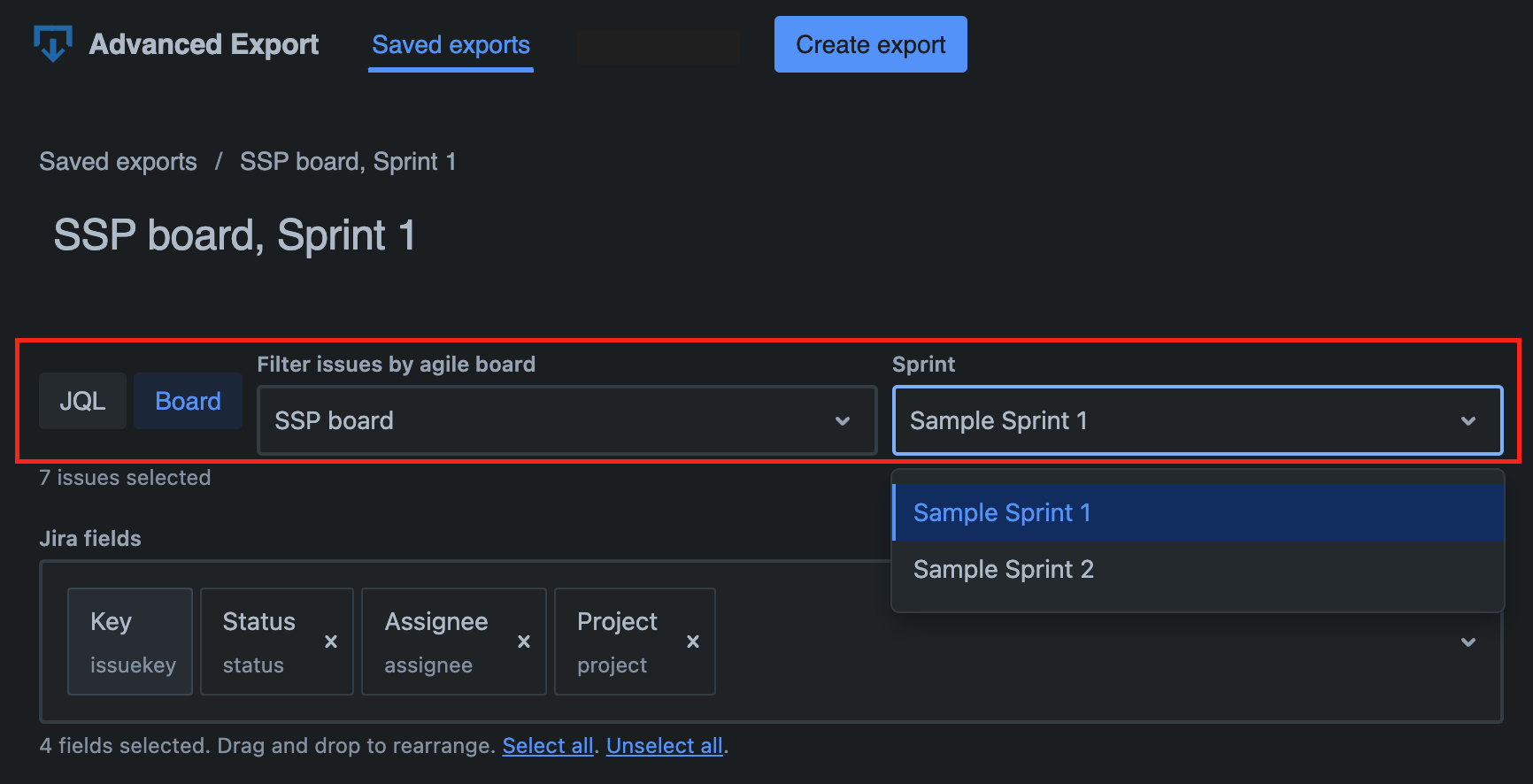
### Highlights
- ✅ For Jira Software users: Filter issues by agile board and sprint
- 🐛 Minor usability fixes
## 1.3.17-AC (24th February 2024)
We'll pause the scheduled reports automatically after 5 or more failures in a row.
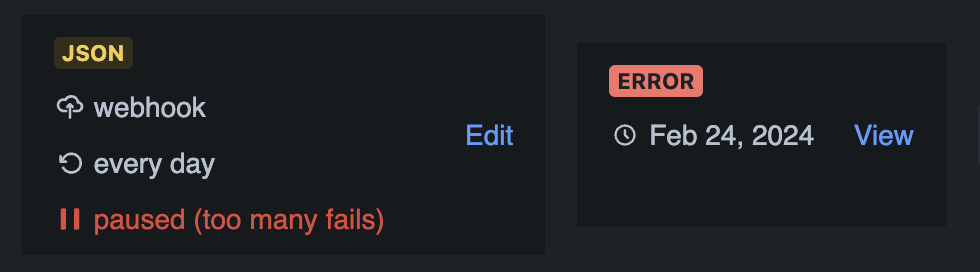
To reactivate the reports, go to Schedule modal and toggle the "Paused" switch in the upper right corner.
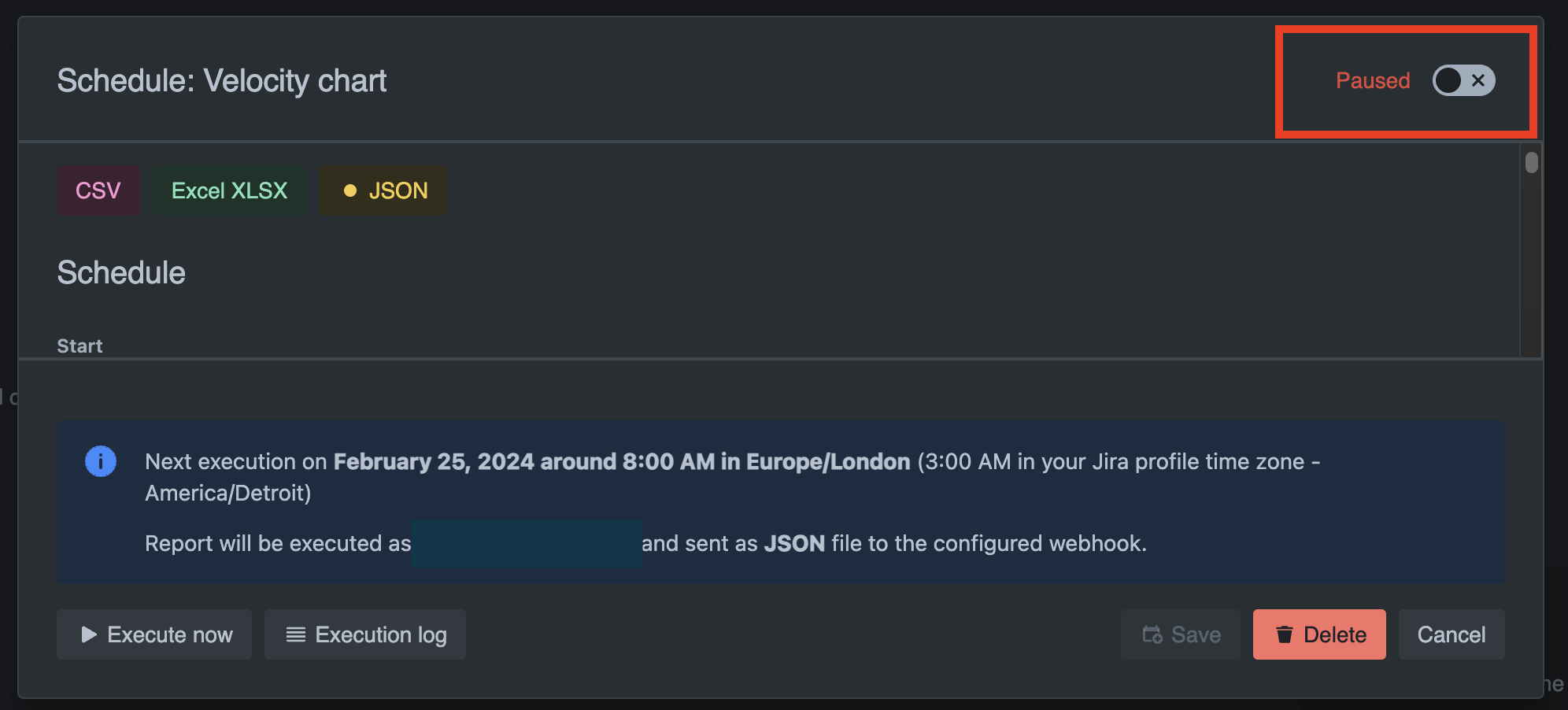
### Highlights
- ✅ Scheduled reports: Ability to pause scheduled reports
- ✅ Scheduled reports: Pause reports automatically after 5 or more failures in a row
- ✅ Schedule modal: Cosmetic changes to the footer
- 📄 We started calling "scheduled exports" "scheduled reports".
## 1.3.16-AC (9th January 2024)
New method of delivering scheduled reports: **webhooks**.
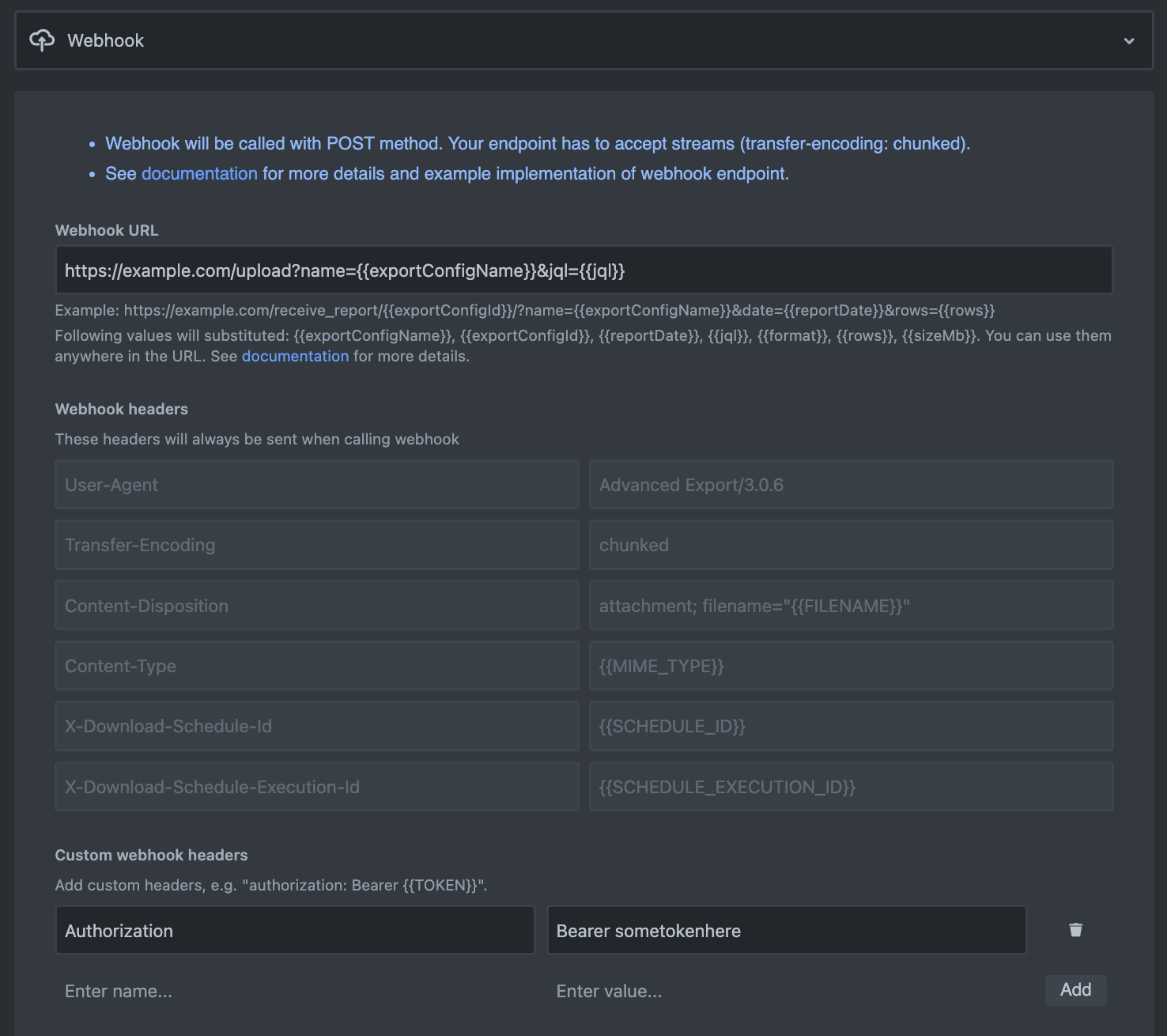
You can now specify a webook URL, and custom headers which will be used to send a POST request.
Payload of the request will be the report file.
There's an example implementation of the webhook endpoint in the [scheduled exports documentation](/atlassian/advanced-export/scheduled-exports).
### Highlights
- ✅ Scheduled reports: Ability to send scheduled reports via webhooks
## 1.3.15-AC (6th January 2024)
Added ability to execute scheduled exports manually at any time. This is useful if you want to test your scheduled exports or if you want to generate a report right now.
Depending on the configuration, it will send notification emails, upload to SFTP server etc.
Execute now button in the schedule dialog:
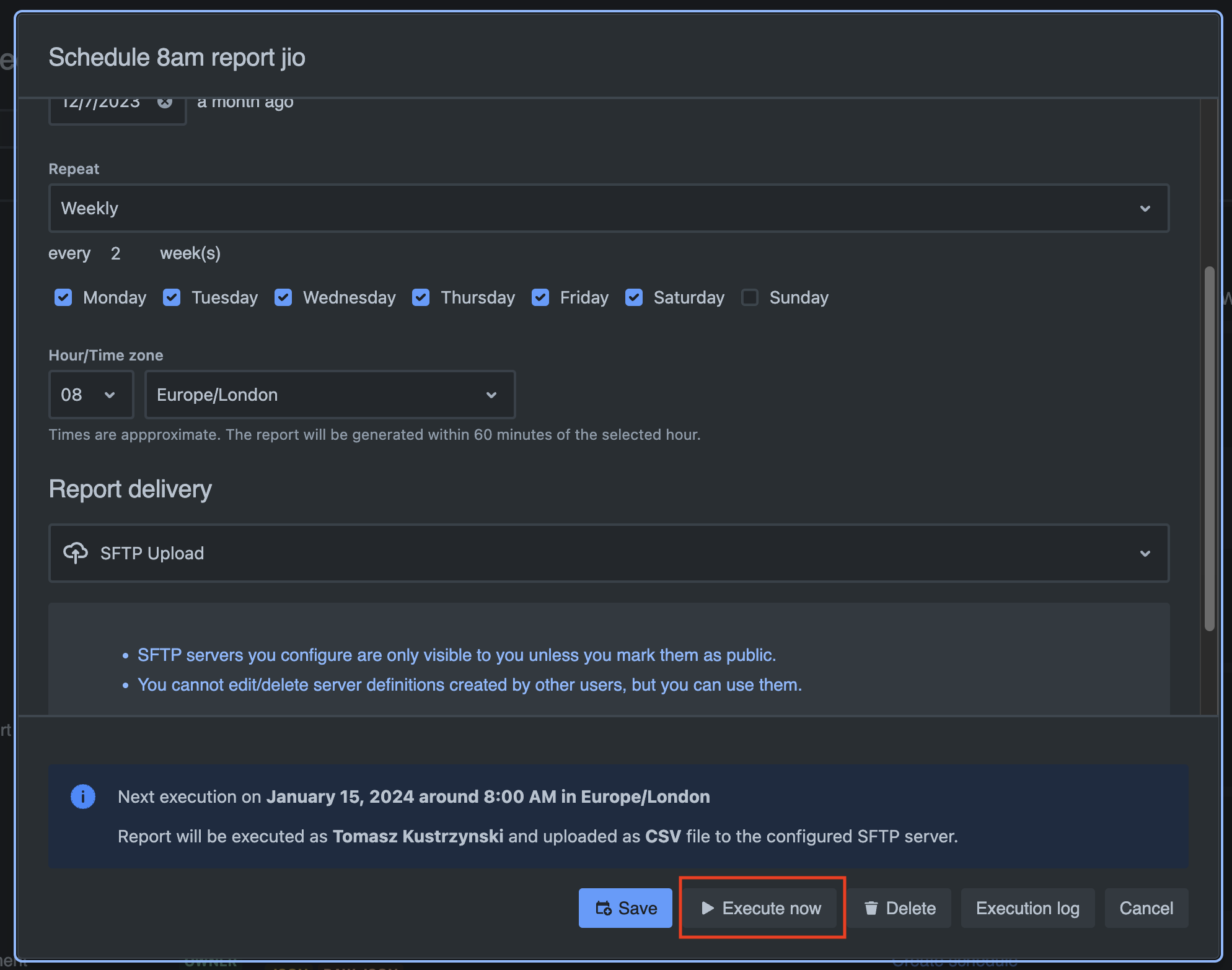
Example of manual report execution in the execution log:
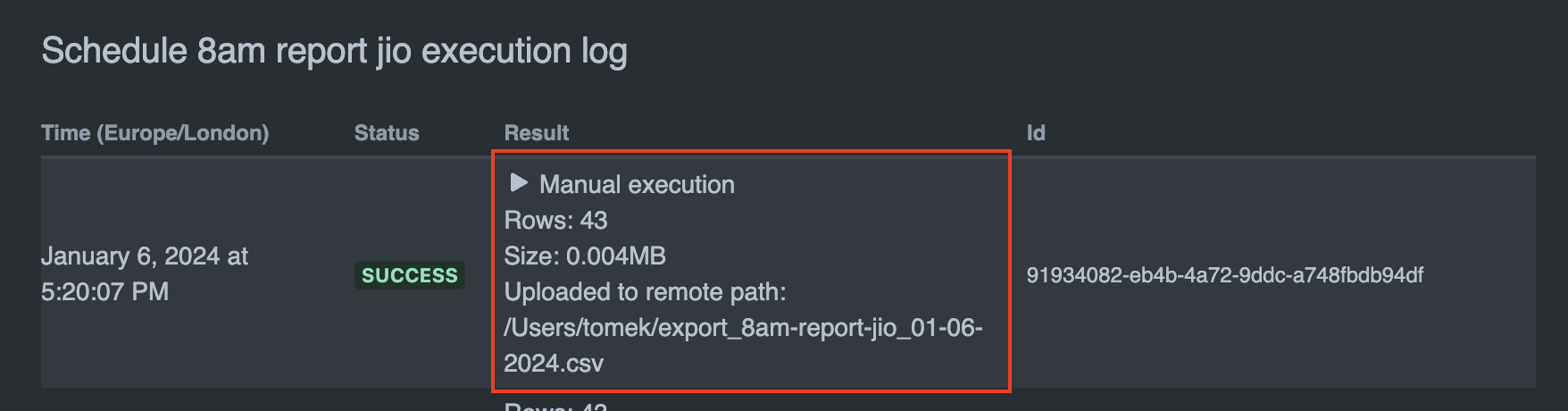
### Highlights
- ✅ Scheduled reports: Ability to execute scheduled report manually at any time
## 1.3.14-AC (4th January 2024)
Added support for SFTP server upload for scheduled reports.
This means you now have 3 ways to delivery your reports:
- email attachments
- download link
- SFTP server upload
### Highlights
- ✅ Scheduled reports: Ability to upload scheduled reports to an SFTP server
- ✅ SFTP server management modal (add/edit/delete)
- ✅ Support for Parent link field
- 🐛 Parent issue field wasn't exporting data
## 1.3.13-AC (31st December 2023) 🎉🎉🎉
We're ending the year with a release of a feature requested by many of our customers - 🎁 the ability to download large report files.
Scheduled reports were previously sent as email attachments, which meant they were limited to 25MB in size. You can now choose to receive reports via "download link", which allows you to download reports of any size.
### Highlights
- ✅ Scheduled reports: Ability to download large reports via a link (sent in an email and available in the dashboard). This is an alternative to receiving reports as email attachments.
- ✅ Dashboard: Presentation of schedule preview and execution log in the dashboard has been improved.
- ✅ Email templates for scheduled reports: New variable available: "dashboardUrl".
- ✅ Help menu now contains link to the service desk portal.
- 🐛 Fixed: Export preview crashed when switching from "raw JSON" to CSV format.
- 🐛 Fixed: Schedule modal: weekly schedule didn't correctly show selected report days.
- 🐛 Fixed: Several minor visual issues
> **Note:**
When using "download link" report delivery method, the report is stored in AWS
S3 storage encrypted. It's deleted after the link expires (you can select when
you want the link to expire). We don't store any of your data, but we need to
store the report file temporarily in order to be able to send it to you.
## 1.3.10-AC (15th December 2023)
This is a release addressing few issues reported by users and improving overall user experience.
- [feature] Added locale support. By default, new export configurations will pick up locale from your Jira profile. You can change it to whatever you like in the "Format" tab of export config settings. Locale will affect how dates and numbers are formatted.
- [feature] Reorganised settings for export configurations (they're now grouped in 3 tabs: Data, Format, CSV specific settings).
- [feature] You can now live preview raw JSON format too (apart from simplified JSON).
- [feature] You can not reorder fields which were previously locked in place: "Key", "Created" and 4 fields added when exporting history: "As Of", "Changed Fields", "Change Author" and "Time to Next Change".
- [feature] Option to add empty line after every issue when exporting history of changes.
- [change] JSON export - fields which are computed (i.e. not received directly from Jira) are now prefixed with "ae\_". There are currently 4 of them: "ae_asOf", "ae_changedFields", "ae_changeAuthor", "ae_timeToNextChange"
- [change] The details in the dashboard list of export configs now shows if the history is exports, and what locale the export uses
## 1.3.8-AC (12th December 2023)
We have reworked the UI for the whole application!
It is now consistent with Jira interface and should be easier to use.
### Highlights
- [feature] dark mode support
- [feature] simplified JSON export
- [fix] JSON exports now format dates in ISO 8601 format
- [fix] changes to Excel export - types for numbers and dates and now properly exported which means Excel can interpret them as such and use its configured locale for formatting
## 1.3.7-AC (24th June 2023)
### Highlights
We have added the ability to use SendGrid as an email provider.
This way you can start sending reports using your email service which is useful if you want emails coming from your domain.
Set up is simple and requires API Key which can be obtained from your SendGrid account. For more information refer to [App Settings page](/atlassian/advanced-export/app-settings).
- [feature] Ability to use SendGrid as an email provider.
## 1.3.3-AC (16th June 2023)
### Highlights
- [feature] Ability to set permission to create scheduled reports in the Admin -> Apps settings page
## 1.3.2-AC (3rd June 2023)
Minor changes and enhancements to Scheduled Exports options basef on the feedback.
### Highlights
- [feature] Scheduled reports: We rearranged email options in the dialog to make it more readable
- [feature] Scheduled reports: Ability to define templates for email subject and text. You can include any text in your report email and use variables like number of exported rows, size of the report file etc.
## 1.3.1-AC (31st May 2023)
We're continuing to work on improving Scheduled Exports based on the feedback from our lovely customers!
### Highlights
- [feature] Scheduled reports: Ability to compress exported files using ZIP. This typically reduces size of the file 10 times, which is useful given size limit for email attachement sent by our system is 25MB.
- [feature] Scheduled reports: Ability to set the exact hour of when report should be generated (in a time zone of your choosing). The report is generated within 60 minutes time window from the selected hour.
- [fix] Scheduled reports: There were cases reports didn't get generated because our system got overloaded. We scaled the backend up accordingly and everything seems to be running smoothly now!
- [fix] Saving of export configuration with long JQL statement failed. JQL can now have up to 2048 characters.
- as usual, a host of other smaller improvements
## 1.3.0-AC (18th May 2023)
This is a major release with several new features.
The most notable one is ability to **schedule recurring exports**.
You can still use Advanced Export as before, for exporting directly via browser (in which case they're generated on the fly, in the browser), however we find scheduling recurrent exports just so much more convenient!
> **Note:**
Note, that the app now asks for "Act on JIRA user's behalf" permission in order to be able to generate scheduled exports.
We still don't store any of your data, but we need this permission to be able to execute scheduled exports on the server on behalf of the user who defined the export. Scheduled exports are sent as email attachments and at no time are they stored on our servers.
### Highlights
- [feature] Added Dashboard where you can create/view/edit or schedule defined exports.
- [feature] Ability to schedule recurrent exports (daily, weekly on specified day of the week, monthly, yearly).
- [fix] Fixed error retrieving saved exports when page left open for a long time (error 401 caused by expiring Jira security token).
- [fix] Other minor fixes and improvements.
## 2.0.6
Visual and usability improvements.
### Highlights
- [feature] Visual changes to the export creation page. Download/Schedule buttons are now at the bottom.
- [improvement] Warn when leaving the export screen if there are unsaved changes.
- [fix] Fixed issues when Excel export would fail because a cell contains more than 32767 characters (that's an Excel limitation). We truncate the cell content to 32767 characters.
- [fix] Other minor fixes and improvements.
---
# Forge migration plan
Source: https://docs.advancedinsights.app/atlassian/advanced-export/forge-migration
> **In short:**
The migration is complete: the latest version of Advanced Export runs entirely
on Atlassian Forge, with no Connect components, and it will keep working after
January 2027. There is no plan to discontinue the app. Updating to it asks an
administrator to approve a set of permissions — all of them read-only — and
[this section](#the-update-that-asks-for-your-approval) explains exactly what
they cover and what happens if you do not.
If you administer Jira, you may have seen a message like this next to Advanced Export on the
**Connected apps** page in Atlassian Administration:
> This app may stop working after January 2027, as it's running on a platform that will be
> unsupported from that date.
This page explains what that message means, why it appears for our app, and what we are doing
about it.
## Why you are seeing this message
Atlassian is retiring **Atlassian Connect**, its older app platform, on **31 January 2027**. It is
replaced by **Forge**, the modern platform. To help administrators plan, Atlassian now shows a
notice on every app that still uses any part of Connect.
Advanced Export has already moved to Forge. Everything you interact with — the dashboard, the
export screens, the board and backlog actions, the admin settings, authentication and permissions
— runs as a native Forge app today.
If your site has not yet approved the latest update, it is still running an earlier version in
which a small internal component uses a Connect interface. It is not
something you see or use directly: it is the mechanism our backend uses to authenticate to your
Jira site when generating scheduled reports. Because that component exists in the version your site runs,
Atlassian's automated check classifies the app as "using Connect", and shows the notice. Approving
the update removes it.
The notice is generated automatically from that classification. It is not an assessment of our
app specifically, and it is not a signal that we have stopped maintaining it.
## The update that asks for your approval
The update that completes the migration changes how our backend authenticates to Jira: away from the
Connect mechanism Atlassian is retiring, and onto Forge's own tokens. Forge grants access through
explicit, itemised permissions, so the new version has to ask for a set of them — and Atlassian
requires an administrator to approve any update that does.
You will see the usual Atlassian prompt on the **Connected apps** page, listing the permissions
and asking you to approve the update. Nothing changes for your users until you do.
### What is being asked for
Every permission that touches your Jira data is **read-only**. The app cannot create, edit or
delete anything in Jira, and none of these permissions lets it do so.
| What the app asks for | What it is used for |
| ------------------------------------------------- | ------------------------------------------------------------------------------------ |
| Read issues, fields, projects, filters and boards | Building the exports themselves |
| Read user details and email addresses | Naming people in reports, and delivering reports by email |
| Check what a user is permitted to see | Making sure a scheduled report never contains more than its author could see in Jira |
| Read Assets objects (Jira Service Management) | Including Assets fields in exports |
| Platform tokens | Letting scheduled reports run when nobody is signed in |
Most of these are the Forge equivalents of access the app already has through Connect today —
they look new only because Forge itemises what Connect granted in one block. Two are genuinely
new: checking a user's permissions, and reading Assets objects.
### Why the permission check is there
Scheduled reports run in the background, hours or days after anyone last opened Jira. They run
**as the person who created the schedule**, so the report contains exactly what that person can
see — no more.
Preserving that under Forge is what the permission-checking access is for. It is a privacy
control rather than a broadening of access: without it, a background report would have to run
with the app's own permissions, which are wider than any individual's.
### What happens if you do not approve
Nothing breaks. Your site stays on the version you have now, and it keeps working exactly as it
does today.
Two things to know:
- The Atlassian end-of-support notice will **remain** on your Connected apps page, because your
site is still running the version that uses Connect.
- Connect support ends on **31 January 2027**. The update needs to be approved before then.
Once you approve, the notice disappears from the Connected apps page.
There is no rush on any particular day, and no penalty for taking time over an internal review.
If you need documentation for one, please [ask us](/atlassian/advanced-export/support) — we would
rather send you what you need than have you approve something you have not read.
### What approving does not do
- It does **not** require you to reinstall the app.
- It does **not** affect your saved exports, templates, schedules, permissions or settings.
- It does **not** interrupt scheduled reports.
- It does **not** change where your data is processed — that stays as you set it in
[App Settings](/atlassian/advanced-export/app-settings).
## Will the app stop working?
No. The migration was completed in September 2026, well before the January 2027 deadline, and the
latest version passes Atlassian's own Connect-removal check with no remaining Connect components.
There is no plan to sunset Advanced Export. It remains actively developed and supported.
## Will I need to do anything?
One thing: approve the permissions update described [above](#the-update-that-asks-for-your-approval),
at whatever point suits you before 31 January 2027.
Beyond that, no.
- You will **not** need to reinstall the app.
- You will **not** lose your saved exports, templates, schedules or settings.
- Your scheduled reports will continue to run without interruption.
Each release is recorded in the [changelog](/atlassian/advanced-export/changelog).
## Our timeline
| Phase | Status |
| ---------------------------------------------------------------------- | ----------------------------- |
| Move the user interface, authentication and permissions to Forge | **Complete** |
| Publish our migration commitment to Atlassian | **Complete** |
| Build and test backend Jira authentication on Forge tokens | **Complete** |
| Replace the remaining Connect lifecycle component | **Complete** |
| Release the update that asks administrators to approve new permissions | **Complete** |
| Remove all Connect components; Atlassian notice disappears | **Complete** — September 2026 |
The one remaining step is yours: approving the update on your site, at any point before
31 January 2027.
## Why Advanced Export uses its own backend
A question that often comes up alongside this one: why does the app have a backend server at all,
rather than running entirely on Atlassian's infrastructure?
Several of the app's core features cannot be provided by the Forge runtime alone:
- **Scheduled reports** that run on a recurring cadence, independently of anyone's browser
session.
- **Large exports** that take longer to generate than Forge's function time limit allows.
- **Delivery to your systems** — uploading report files to your SFTP server, or sending them
through your own email provider.
- **Temporary file storage** for download links and API access, retained for the period you
choose.
For these cases Atlassian provides **Forge Remote**, a supported part of the Forge platform that
lets a Forge app delegate work to a backend operated by the vendor. This is the documented and
recommended approach for apps like ours, and it is unaffected by the Connect end-of-support
timeline.
You choose the geographic region in which that processing happens — see
[App Settings](/atlassian/advanced-export/app-settings). Details of what is stored, where, and for
how long are in our
[Data Security and Privacy Statement](/atlassian/advanced-export/privacy).
## Questions
If you have questions about this migration, or you need something in writing for an internal
review, please [contact our support team](/atlassian/advanced-export/support). We are happy to
help.
## Further reading
- [Atlassian: Connect end of support timeline](https://www.atlassian.com/blog/development/getting-ready-for-connect-end-of-support)
- [Atlassian: what the Connected apps messages mean](https://developer.atlassian.com/platform/adopting-forge-from-connect/what-admins-see/)
---
# Data security and privacy
Source: https://docs.advancedinsights.app/atlassian/advanced-export/privacy
This app is [Cloud Fortified](https://www.atlassian.com/trust/marketplace?source=app-listing-badge)
## Data storage
This app doesn’t store any personal data related to users (PII), issues or any other information from JIRA instance it’s installed on if scheduled reports are not used.
In case of scheduled reports, the app processes and stores data temporarily on our servers. The data is stored in the geographical region specified by the user in the app settings. The data is stored for the time period specified by the user (default 3 days).
The app can store configuration (such as currently selected fields to export) in user browser’s local storage (if enabled in the browser).
All data is stored in certified databases:
- ISO 27001 (Security Management Controls)
- ISO 27017 (Cloud Specific Controls)
- ISO 27018 (Personal Data Protection)
- SOC 1, 2, 3 (Security, Availability & Confidentiality Reports)
Any API keys and other secret data is encrypted with industry standard symmetric encryption.
## Exporting data
While performing exports from the browser, all the computations are performed in the browser. No data from JIRA is transmitted to the server at any time.
Scheduled reports are generated by the server. Data is retrieved from Jira instance and deleted after each report, unless we need to store it in temporary files.
Temporary files are necessary in these cases:
- user receives download link for the report
- data is accessed by user via our API
Files are not created if the user chooses to receive the report via email or by upload to SFTP server.
Temporary files are deleted after time period specified by user (default 3 days).
## Statistics
The app uses [Mixpanel](https://mixpanel.com/) to track usage statistics and [Rollbar.com](https://rollbar.com/) to track data related to bugs and crashes.
## Atlassian standards
This app:
- is [Cloud Fortified](https://www.atlassian.com/trust/marketplace?source=app-listing-badge)
- follows Atlassian [App Security Guidelines](https://developer.atlassian.com/platform/marketplace/app-security-guidelines/).
- is part of [Marketplace Security Bug Bounty Program](https://developer.atlassian.com/platform/marketplace/marketplace-security-bug-bounty-program/).
---
# Support
Source: https://docs.advancedinsights.app/atlassian/advanced-export/support
Send us an email: support@advancedinsights.app
SNG Technologies Ltd. aims to respond within 24 hours to new support requests and provide an update at least every 48 hours for existing support requests, although we frequently respond much faster.
With clients working across many different time zones, we try to prioritise our support requests, so that we can provide the best level of support for all our customers across several continents.
Read our [Service Level Agreement](/sla).
---
# Funnels (Jira)
Source: https://docs.advancedinsights.app/atlassian/funnels
Available on the [Atlassian Marketplace](https://marketplace.atlassian.com/apps/1228905/funnels?hosting=cloud&tab=overview)
Funnels for Jira is an app providing ability to visualise sales, marketing or development funnels and journey of items through the workflow (statuses).
This app provides tools to create 2 types of funnels:
## Classic Funnel Chart
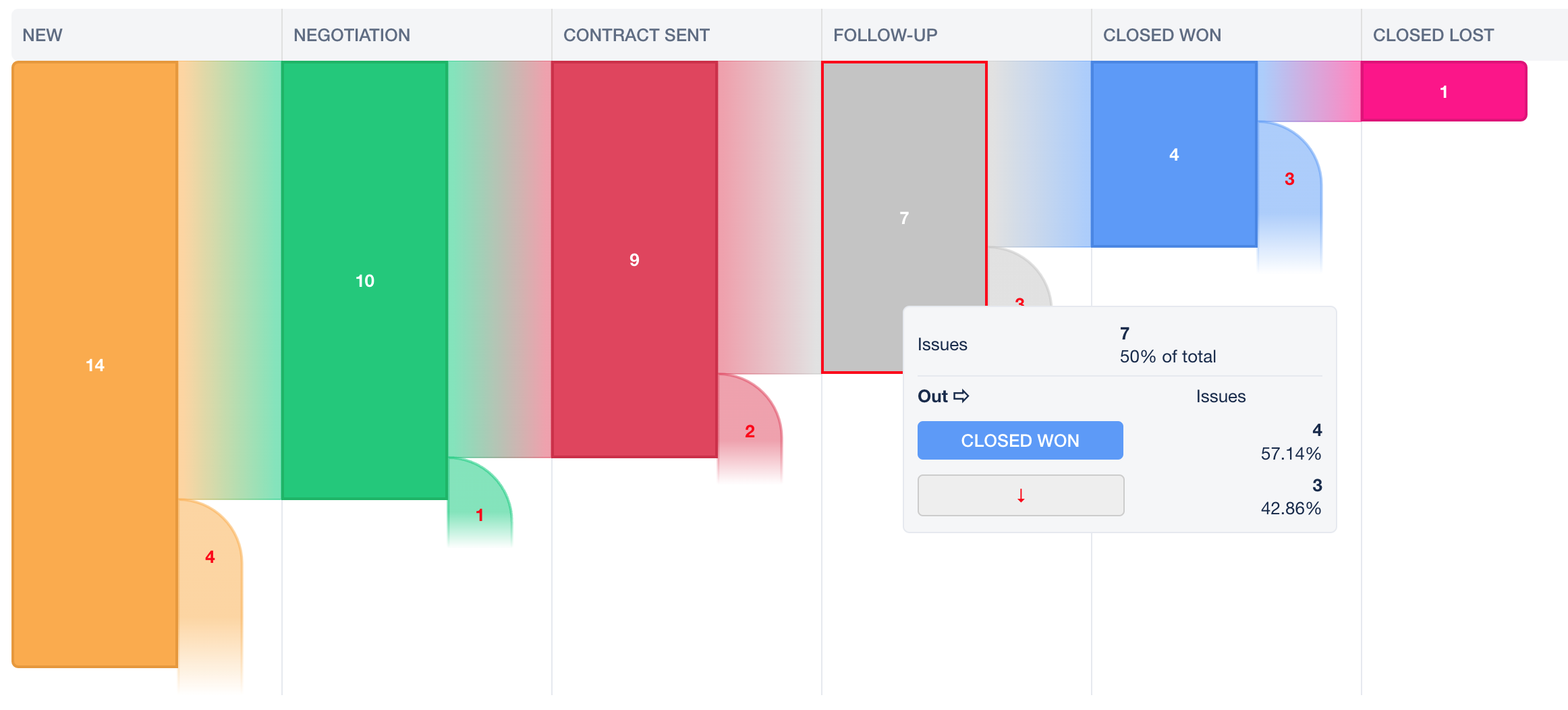
This view lets you visualise traditional funnel showing number of issues per column (by default a *column* contains single Status, but you can configure it to contain more, as well as change the order of columns).
This chart can be used to show any workflow, but is typically used to show sales or marketing funnels.
[Read more](/atlassian/funnels/funnel)
## Tree / Journey Chart
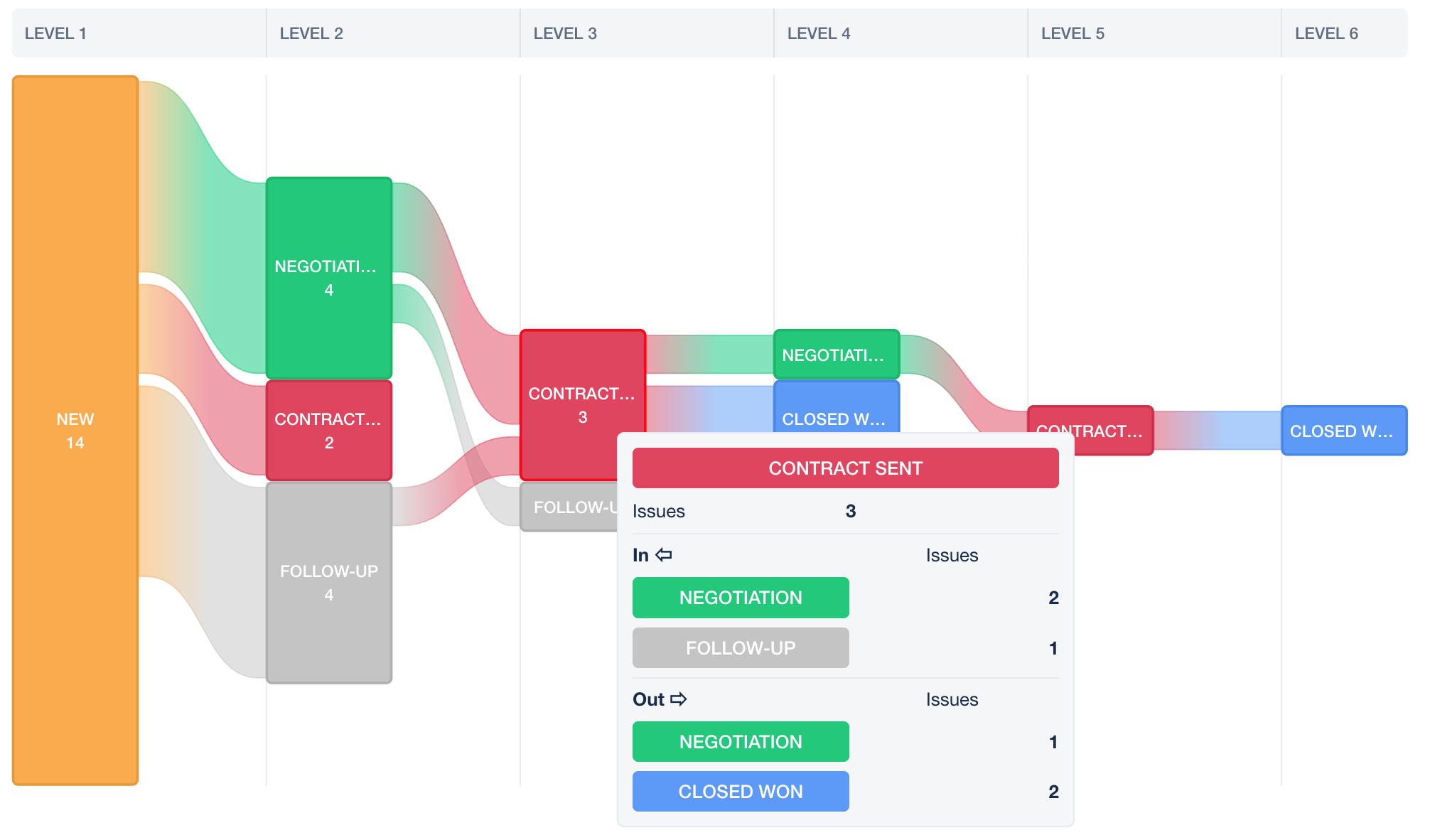
This view shows transitions of issues between columns and takes into account the whole activity log of issues (by default a *column* contains single Status, but you can configure it to contain more, as well as change the order of columns).
This chart can be used to show any workflow, but it's useful to show:
- sales or development journey of issues
- visualise which paths of the workflow are used the most/the least
- how many steps are necessary to reach certain columns
- find bottlenecks in the workflow
[Read more](/atlassian/funnels/journey)
## Selected features
- use count of issues or weight values to show relative size of nodes in diagrams (any numerical field can be used to provide weights)
- drill down to show column transitions of individual items
- customise graphs:
- create custom workflows (assign Jira Statuses to columns)
- show or hide any columns in the workflow
- change scale of nodes
- freely pan and zoom graphs
- save configurations and reuse them
You can find more details in the [Funnels](/atlassian/funnels/funnel) and [Journey](/atlassian/funnels/journey) docs.
---
# Installation
Source: https://docs.advancedinsights.app/atlassian/funnels/installation
App is available from the [Atlassian Marketplace](https://marketplace.atlassian.com/apps/1228905/funnels?hosting=cloud&tab=overview)
Funnels doesn’t require initial setup and is ready to use right after installation. You can access it via **Project’s page**, by selecting _Funnels - Sales Funnel_ or _Funnels - Journey_ views.
## First usage
You can access the funnel views in following ways:
- use lefthand project menu
- project Reports page
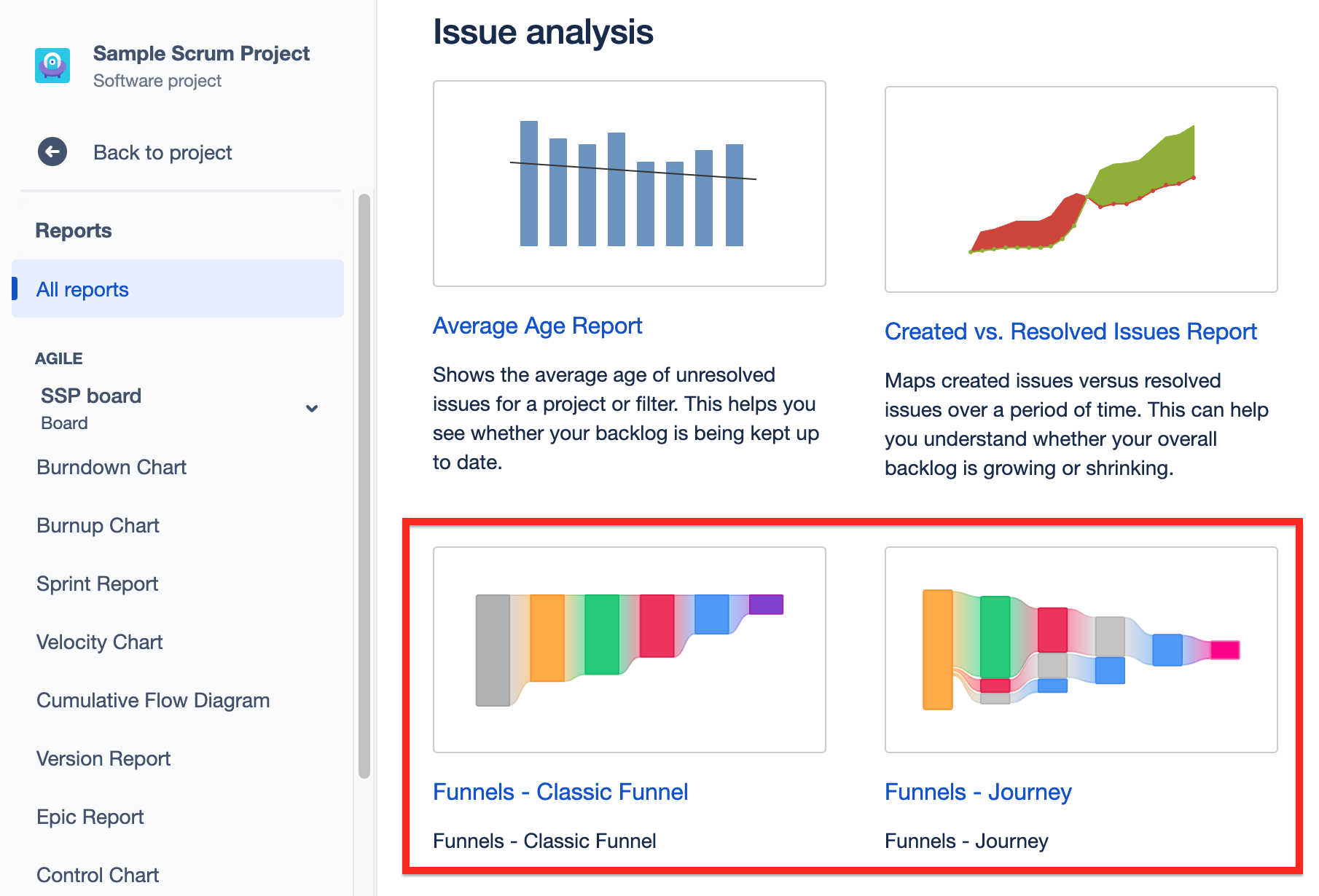
Either of these options will open empty [Classic Funnel](/atlassian/funnels/funnel) or [Journey](/atlassian/funnels/journey) view. Refer to their documentation for more information.
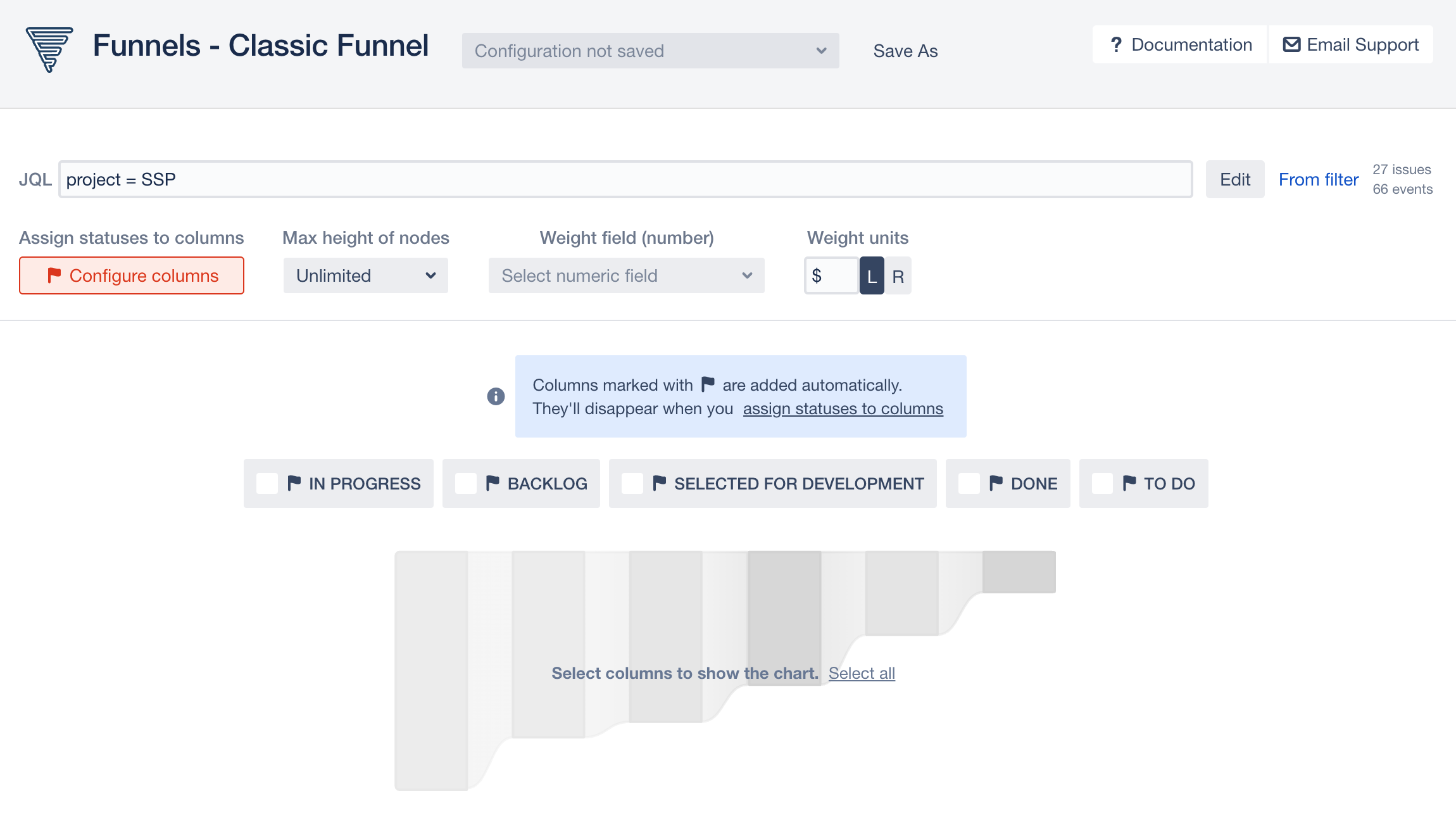
---
# Classic Funnel
Source: https://docs.advancedinsights.app/atlassian/funnels/funnel

## What is it
This view lets you visualise traditional funnel showing number of issues per column (by default a *column* contains single Status, but you can configure it to contain more, as well as change the order of columns).
This chart can be used to show any workflow, but is typically used to show sales or marketing funnels.
Chart assumes, that reaching certain column means an issue went through **all** previous columns. For example:
- given 3 columns: *Todo* -> *Doing* -> *Done*
- and 3 issues:
- 1 issue in *Todo* column
- 1 issue moved *Todo* -> *Done*
- 1 issue moved *Todo* -> *Doing*
- chart will show:
- **3** issues in *Todo* column
- **2** issues in *Doing* column (this includes issue which moved to *Done*)
- **1** issue in *Done* column
## Set up
### Select issues for the chart
Use JQL editor:
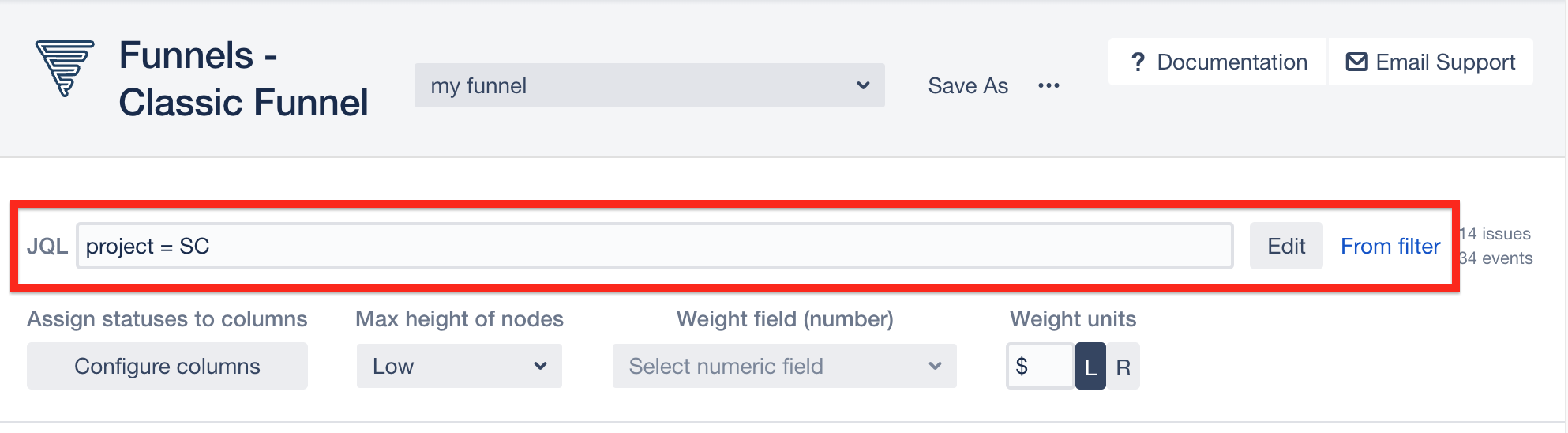
or select from existing filter:
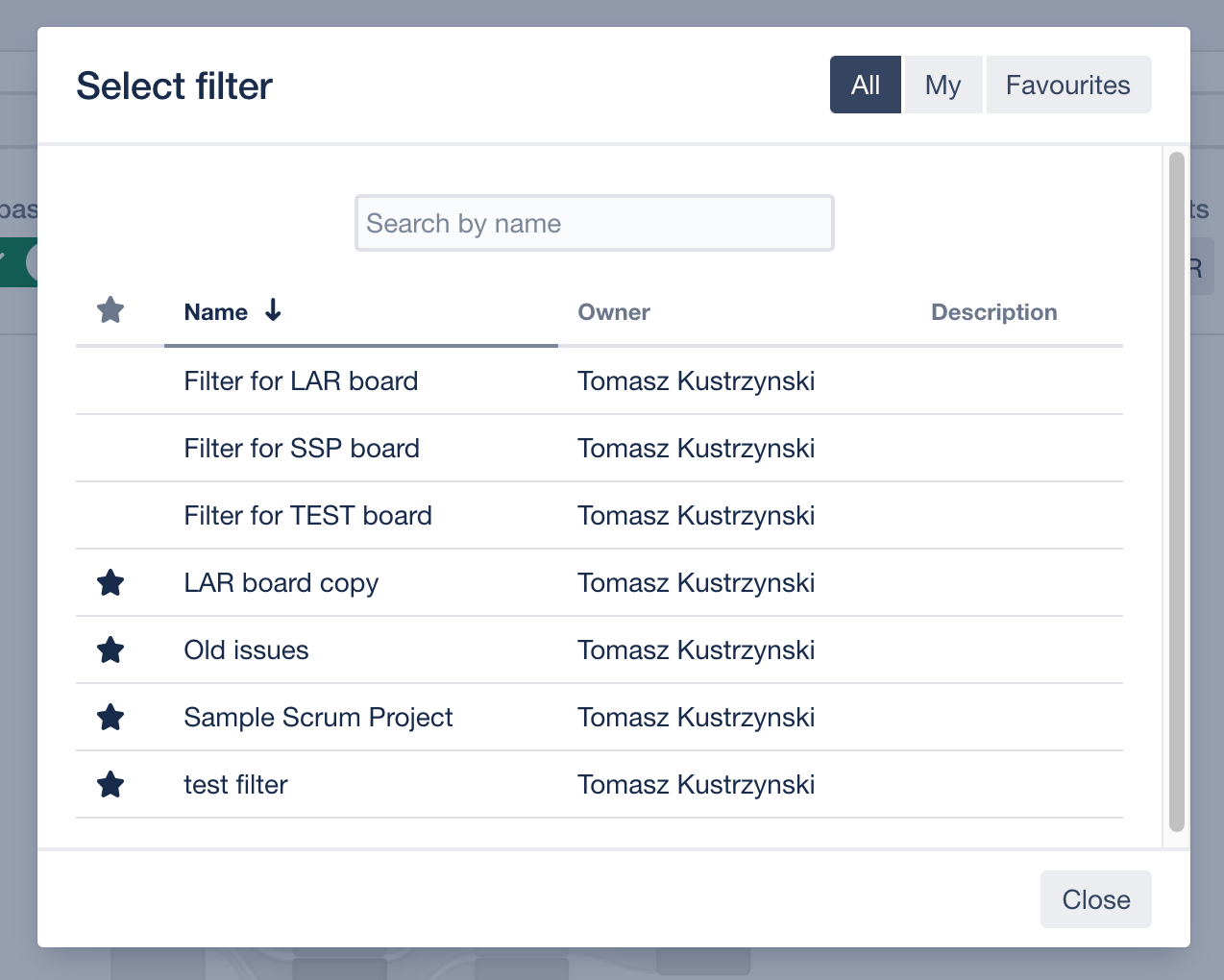
### Configure columns
By default columns are created from Statuses. There's 1 column per Status. Columns created automatically have a **flag** icon next to their name.
Manual configuration in **Configure Columns** modal allows for more flexibility:
- change of order / name / colour of columns
- assigning more than 1 Status to a single column
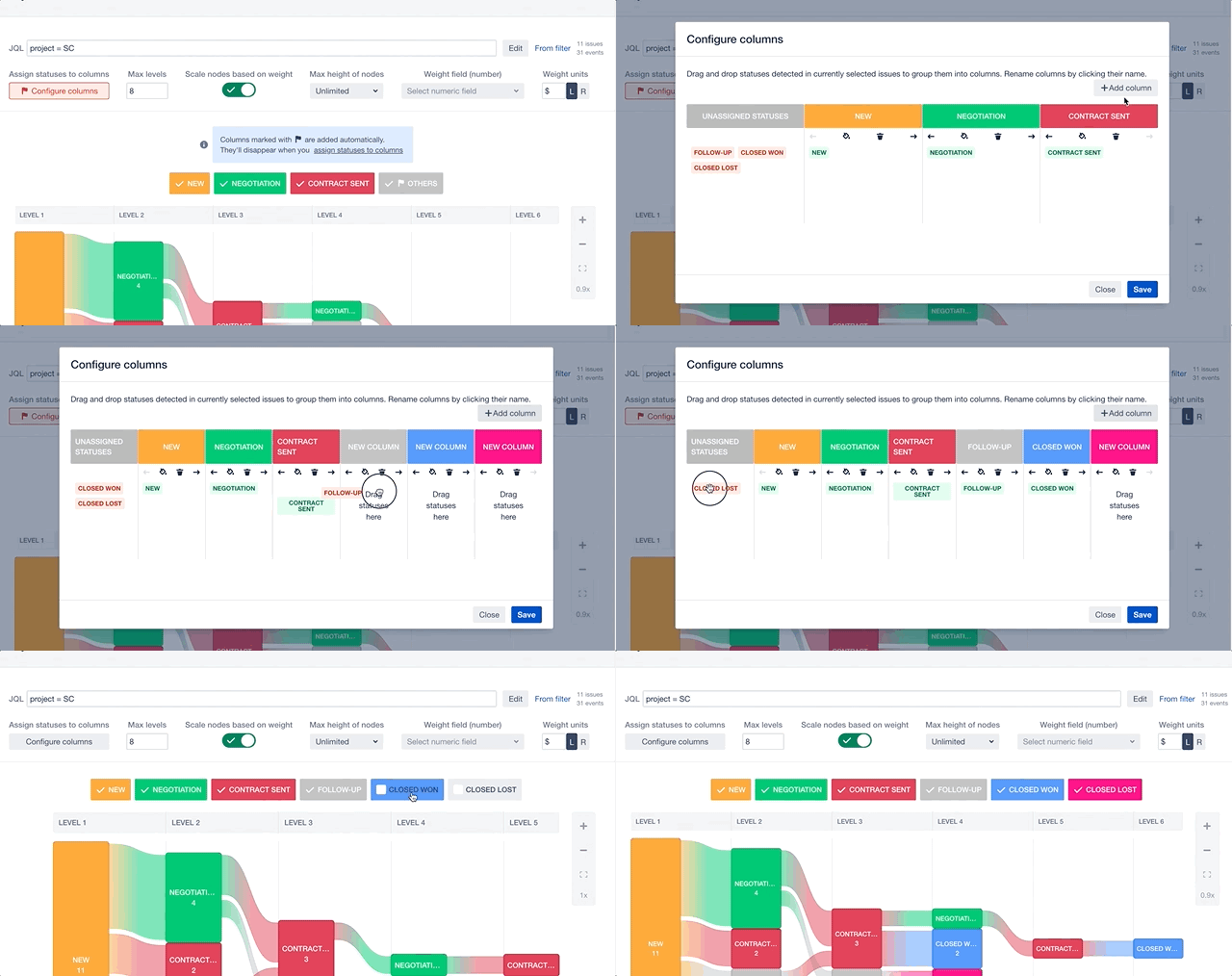
### Select columns
By default no columns are selected for display. Select any number of
columns to create chart off them.

### Use weights
By default chart uses **number of issues** to show the size of nodes (the weight of each issue is 1). You can override it with any **numerical field**. When a weight field is selected, you can also specify a unit to be displayed before or after weight value.
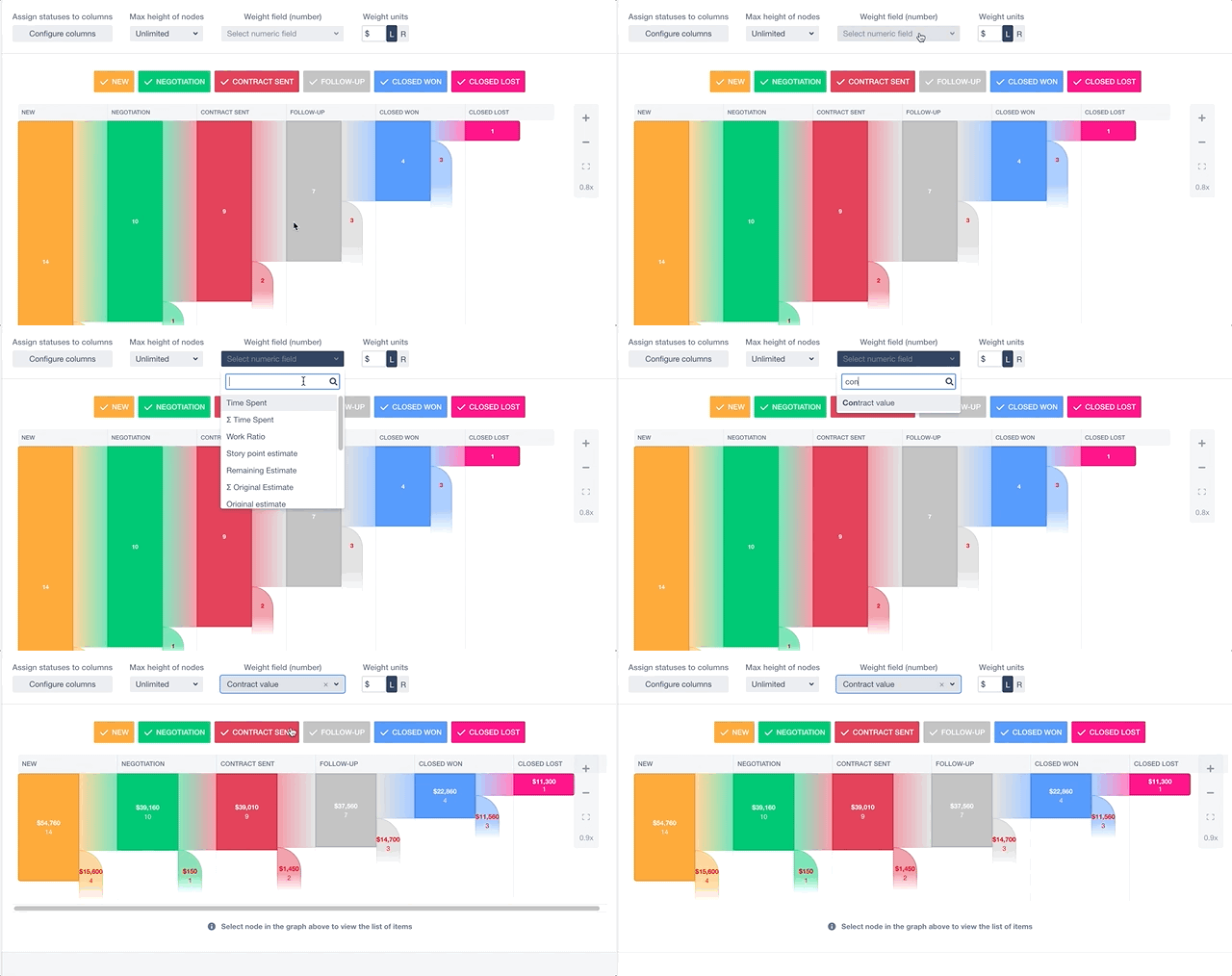
### Adjust height of nodes
In some cases, when weights of nodes differ a lot, chart becomes difficult to read. To prevent the effect of very large nodes next to very small ones, you can use **Max height of nodes** option to balance the height of nodes.
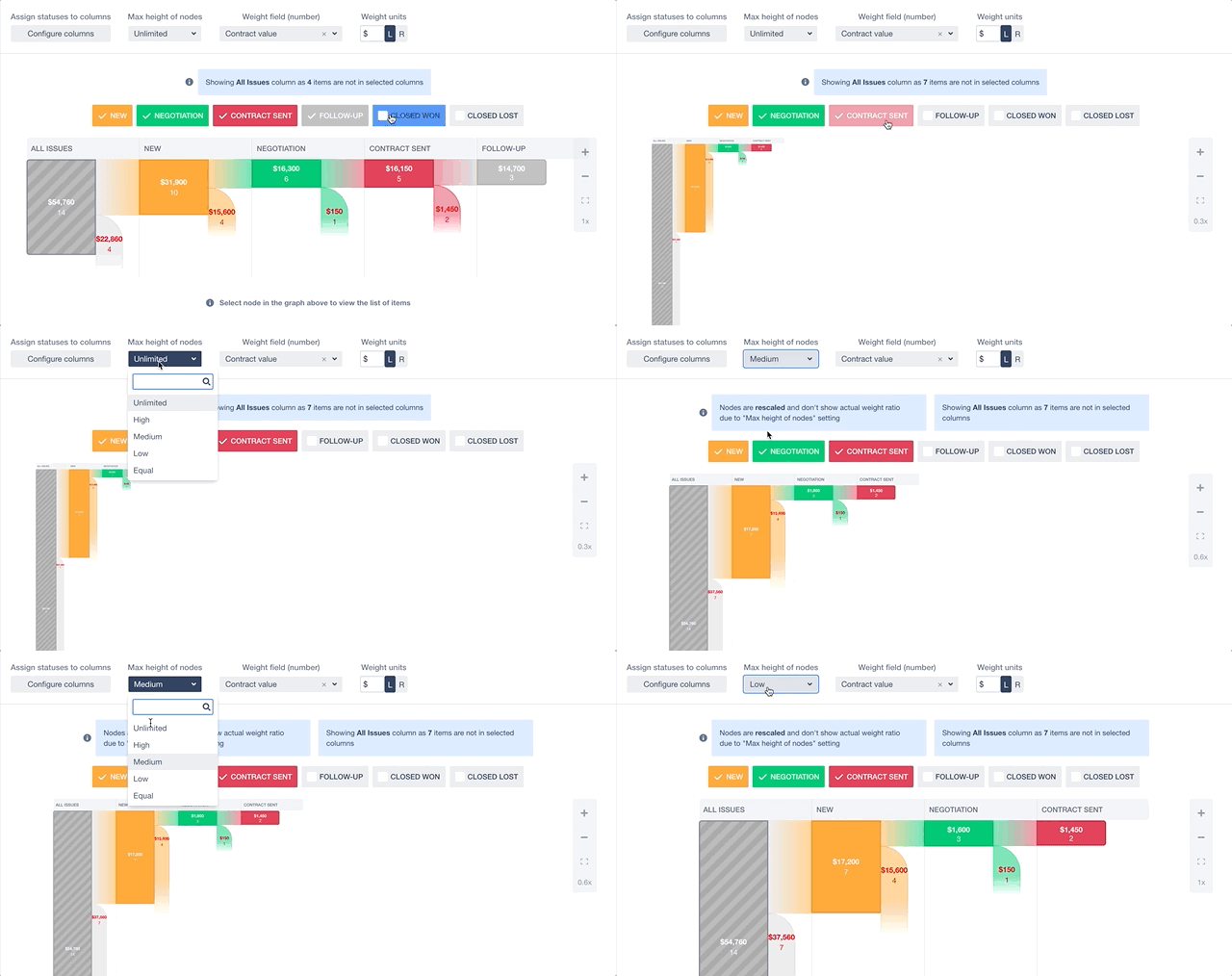
## Reading the chart
### Hover to view details of nodes
Hovering over any node gives more details on number and weight of issues which went in and out of the column.
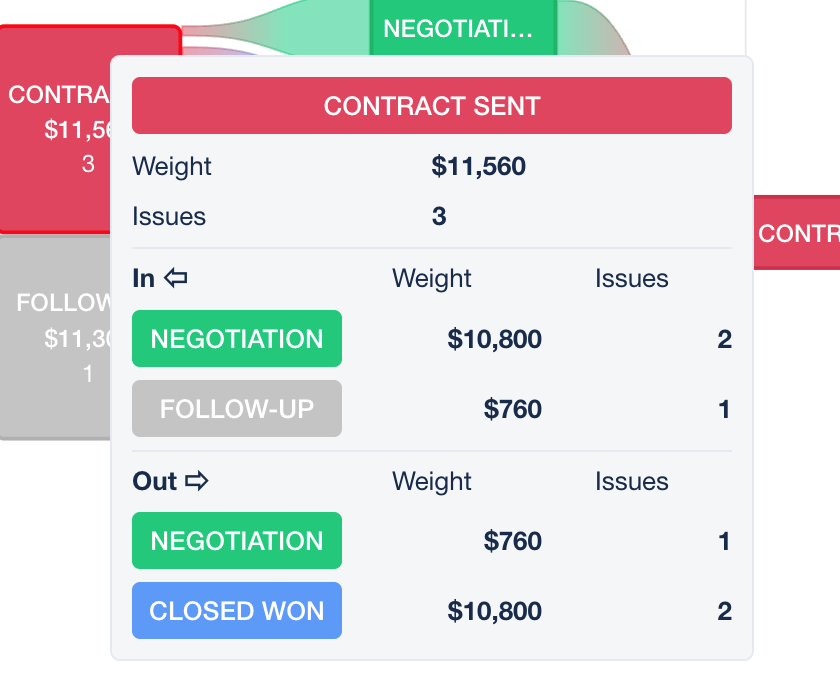
### Click any node to see the list of issues in it
Selecting a node shows issues in it, together with a list of visited columns and weight values per issue.
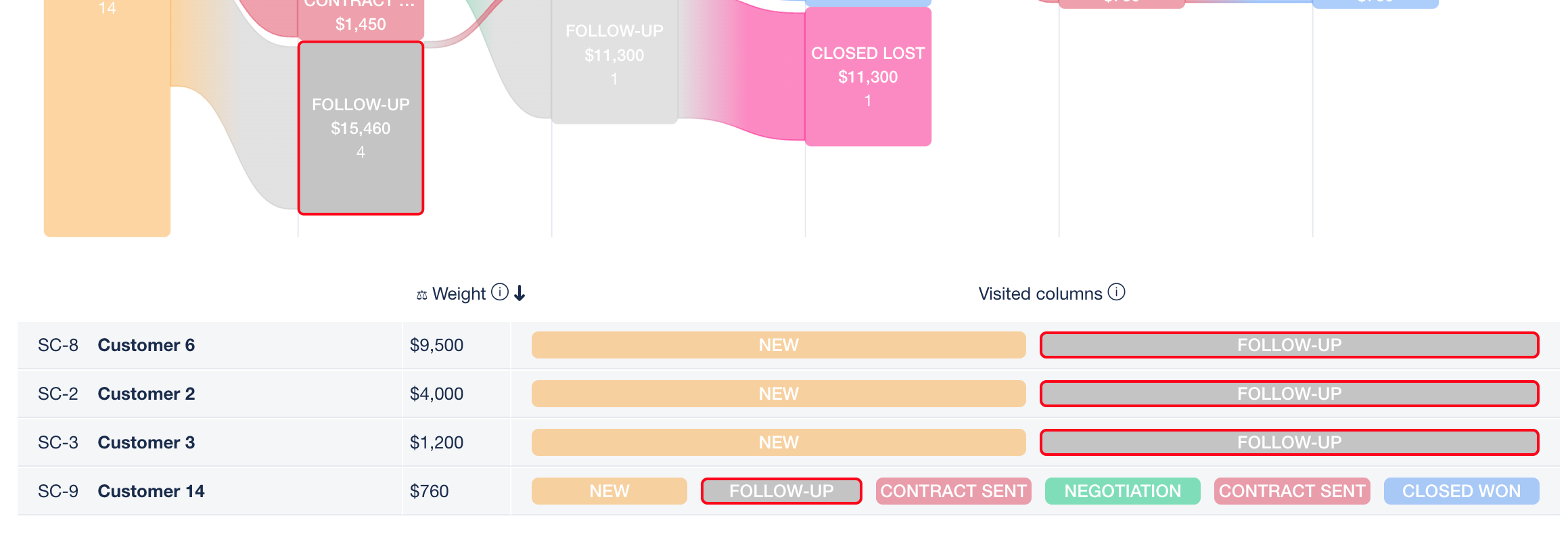
## Saving chart configurations
Configuration of the chart can be saved and reused. Saved configuration preserves all the settings, including JQL, column configuration and all the other options.
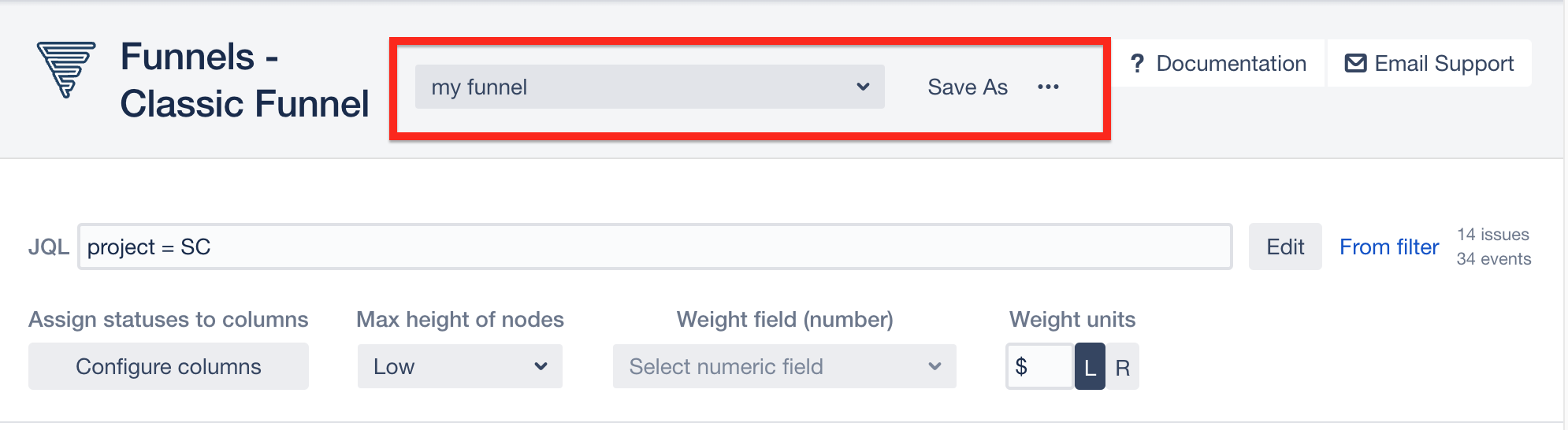
---
# Journey
Source: https://docs.advancedinsights.app/atlassian/funnels/journey

## What is it
This view shows transitions of issues between columns and takes into account the whole activity log of issues (by default a *column* contains single Status, but you can configure it to contain more, as well as change the order of columns).
This chart can be used to show any workflow, but it's useful to show:
- sales or development journey of issues
- visualise which paths of the workflow are used the most/the least
- how many steps are necessary to reach certain columns
- find bottlenecks in the workflow
## Set up
### Select issues for the chart
Use JQL editor:

or select from existing filter:

### Configure columns
By default columns are created from Statuses. There's 1 column per Status. Columns created automatically have a **flag** icon next to their name.
Manual configuration in **Configure Columns** modal allows for more flexibility:
- change of order / name / colour of columns
- assigning more than 1 Status to a single column

### Select columns
By default no columns are selected for display. Select any number of
columns to create chart off them.

### Use weights
By default chart uses **number of issues** to show the size of nodes (the weight of each issue is 1). You can override it with any **numerical field**. When a weight field is selected, you can also specify a unit to be displayed before or after weight value.

### Adjust height of nodes
In some cases, when weights of nodes differ a lot, chart becomes difficult to read. To prevent the effect of very large nodes next to very small ones, you can use **Max height of nodes** option to balance the height of nodes.

## Reading the chart
### Hover to view details of nodes
Hovering over any node gives more details on number and weight of issues which went in and out of the column.

### Click any node to see the list of issues in it
Selecting a node shows issues in it, together with a list of visited columns and weight values per issue.

### (Journey only) Max number of levels
If there's too levels to show (i.e. some issues had large number of transitions between Statuses which result in large number of column changes), you can use **Max levels** option to limit the number of levels shown.
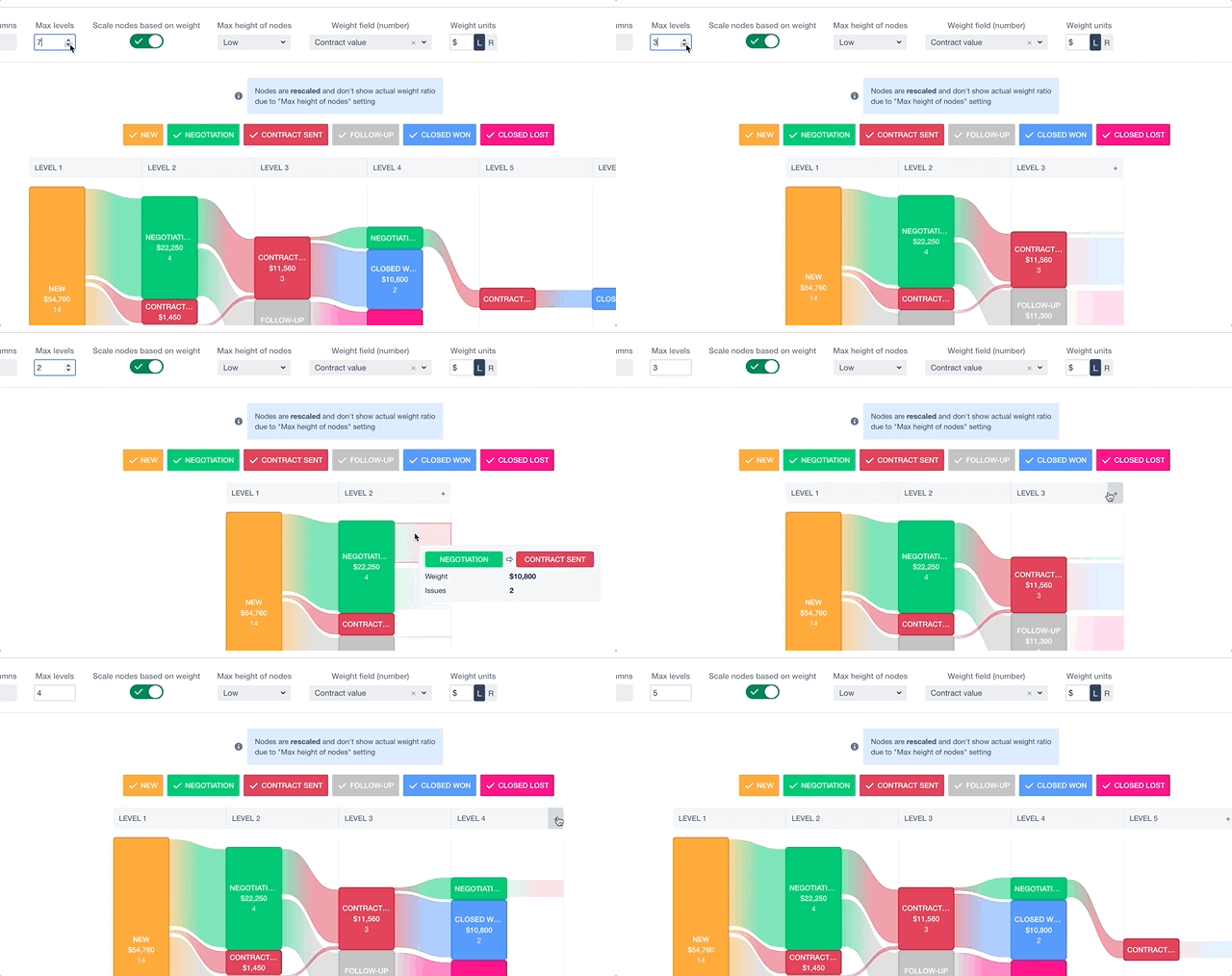
### (Journey only) Scale nodes based on weight
To simplify chart, you can turn off **Scale nodes based on weight** option. It will render nodes with the same size regardless of weight or number of issues.
## Saving chart configurations
Configuration of the chart can be saved and reused. Saved configuration preserves all the settings, including JQL, column configuration and all the other options.


---
# Forge migration plan
Source: https://docs.advancedinsights.app/atlassian/funnels/forge-migration
> **In short:**
The migration is complete: the latest version of Funnels runs entirely on Atlassian Forge, with
no Connect components, and it will keep working after January 2027. There is no plan to
discontinue the app. Updating to it asks an administrator to approve a read-only permission, and
your saved configurations are carried across automatically.
If you administer Jira, you may have seen a message about Funnels on the **Connected apps** page
in Atlassian Administration — either a warning that
> This app may stop working after January 2027, as it's running on a platform that will be
> unsupported from that date.
or an informational notice that the app is being migrated, linking to this page.
This page explains what that message means, what has changed, and what — if anything — you need
to do.
## Why you are seeing this message
Atlassian is retiring **Atlassian Connect**, its older app platform, on **31 January 2027**. It is
replaced by **Forge**, the modern platform. To help administrators plan, Atlassian shows a notice
on every app that still uses Connect.
Funnels has now moved to Forge. The two views (Classic Funnel and Journey) run as native Forge
modules, and nothing is served through Connect any more. If you still see the notice, your site
has not yet approved the latest update — approving it removes the notice.
## The update that asks for your approval
Forge grants access through explicit, itemised permissions, so the Forge version of the app
declares its access differently from the Connect one, and Atlassian asks an administrator to
approve the update in the usual way on the **Connected apps** page.
| What the app asks for | What it is used for |
| ---------------------------------------------------- | ------------------------------------------ |
| Read Jira project and issue data (`read:jira-work`) | Building the funnels from your issues |
It is **read-only**. The app cannot create, edit or delete anything in Jira. This is the Forge
equivalent of the read access the Connect version already had.
If you do not approve, nothing breaks: your site stays on the version it has now. The Atlassian
notice will remain, though, and the update needs to be approved before **31 January 2027**.
## What changes after the update
- **You do not need to reinstall.** The Forge version upgrades the Connect app in place, on the
same Marketplace listing and the same licence.
- **Your saved configurations come with you.** They are copied into the Forge app's storage
automatically when the update is applied, with a daily retry until the copy succeeds. They
remain shared across all projects, exactly as before.
- **Jira data is read as the signed-in user.** Each person sees funnels built only from issues
they are permitted to see in Jira.
- **Your data still never leaves Atlassian.** All computation continues to happen in your browser
(see our [Data Security and Privacy Statement](/atlassian/funnels/privacy)); the Forge version
has no external backend at all.
### If your saved configurations are missing
The copy runs by itself, but a Jira administrator can check on it or start it by hand: go to
**Jira settings → Apps → Funnels** and open **Saved configuration migration**. The page shows
whether the copy has completed and lets you run it again. If it reports a problem, please
[contact our support team](/atlassian/funnels/support).
## Will the app stop working?
No. The migration was completed in September 2026, well before the January 2027 deadline. There is
no plan to sunset Funnels. It remains supported, and it continues to be available on the
[Atlassian Marketplace](https://marketplace.atlassian.com/apps/1228905/funnels?hosting=cloud&tab=overview).
## Our timeline
| Phase | Status |
| ------------------------------------------------------------ | ----------------------------- |
| Declare our migration commitment to Atlassian | **Complete** |
| Publish this migration plan | **Complete** |
| Rebuild the Classic Funnel and Journey views on Forge | **Complete** |
| Ship the Forge version as the successor to the Connect app | **Complete** — September 2026 |
| Remove all Connect components; Atlassian notice disappears | **Complete** — September 2026 |
The one remaining step is yours: approving the update on your site, at any point before
31 January 2027.
## Questions
If you have questions about this migration, or you need something in writing for an internal
review, please [contact our support team](/atlassian/funnels/support). We are happy to help.
## Further reading
- [Atlassian: Connect end of support timeline](https://www.atlassian.com/blog/development/getting-ready-for-connect-end-of-support)
- [Atlassian: what the Connected apps messages mean](https://developer.atlassian.com/platform/adopting-forge-from-connect/what-admins-see/)
---
# Data Security and Privacy Statement
Source: https://docs.advancedinsights.app/atlassian/funnels/privacy
This app doesn’t store any data related to users, issues or any other information from JIRA instance it’s installed on. All the computations are performed in the browser. No data from JIRA is transmitted to the server at any time.
It can store configuration (such as order of statuses in your workflow) in user browser’s local storage.
The app uses [Google Analytics](https://analytics.google.com/) to track usage statistics and [Rollbar.com](https://rollbar.com/) to track data related to crashes.
This app follows Atlassian [App Security Guidelines](https://developer.atlassian.com/platform/marketplace/app-security-guidelines/).
This app is part of [Marketplace Security Bug Bounty Program](https://developer.atlassian.com/platform/marketplace/marketplace-security-bug-bounty-program/).
---
# Support
Source: https://docs.advancedinsights.app/atlassian/funnels/support
Send us an email: support@advancedinsights.app
SNG Technologies Ltd. aims to respond within 24 hours to new support requests and provide an update at least every 48 hours for existing support requests, although we frequently respond much faster.
With clients working across many different time zones, we try to prioritise our support requests, so that we can provide the best level of support for all our customers across several continents.
Read our [Service Level Agreement](/sla).
---
# Retrospective Tools (Jira)
Source: https://docs.advancedinsights.app/atlassian/retrospective-tools
**We're the [winners of Atlassian Codegeist 2015 - Best Jira Cloud add-on](https://www.atlassian.com/blog/add-ons/announcing-codegeist-2015-winners)**
## See your project from a different perspective
Discover past events that affected delivery of the project as you navigate the timeline.
See dynamics of the team as the history of issues travelling through workflow is replayed in fast forward.
## Identify bottlenecks, analyse individual tasks
Get deep understanding of your workflow.
Bottlenecks, too large tasks, other constraints become obvious when looking at statistics - both totals and per individual task.
## Features
Retrospective Tools for Jira helps to improve effectiveness and efficiency of the team:
- Watch your project unfold on an animated, customisable agile board (Kanban/Scrum).
- Analyse statistics of individual issues or groups of issues.
- Customise columns per project with a built-in editor (e.g. group several Jira statuses in one column to analyse Development phase vs. Testing phase).
Retrospective Tools provides 2 views accessible from __Project / Add-on__ menu in Jira:
- **Replay View** - this is where you replay the historsy of status changes for the project or arbitrary group of issues selected with JQL
- **Statistics View** - view showing times spent in statuses for individual issues as well as various statistics.
You can find more details in the [Replay View](/atlassian/retrospective-tools/replay) and [Statistics View](/atlassian/retrospective-tools/stats) docs.
---
# Installation
Source: https://docs.advancedinsights.app/atlassian/retrospective-tools/installation
App is available from [Atlassian Marketplace](https://marketplace.atlassian.com/apps/1213882/retrospective-tools-for-jira?hosting=cloud&tab=overview)
Retrospective Tools for JIRA doesn’t require initial setup and is ready to use right after installation. You can access it via **Project’s page Add-ons menu**, by selecting _Retrospective - Replay_ or _Retrospective - Statistics_ links.
---
# Replay View
Source: https://docs.advancedinsights.app/atlassian/retrospective-tools/replay

## How to select issues for animation
Use the JQL editor or "From filter" dialog to select issues. JQL editor opens automatically when clicking on the JQL text field.

Try to limit number of your issues. If your retrospective meeting follows a sprint, use JQL filter to limit issues from the last sprint (something like `project = DEV and Sprint = "My Sprint 6"`).
Note, that the number of issues being analysed as well as number of status or assignee change events across all these issues is displayed to the right of the JQL editor.
## How to configure columns
Initially you'll be notified there are statuses not assigned to columns.
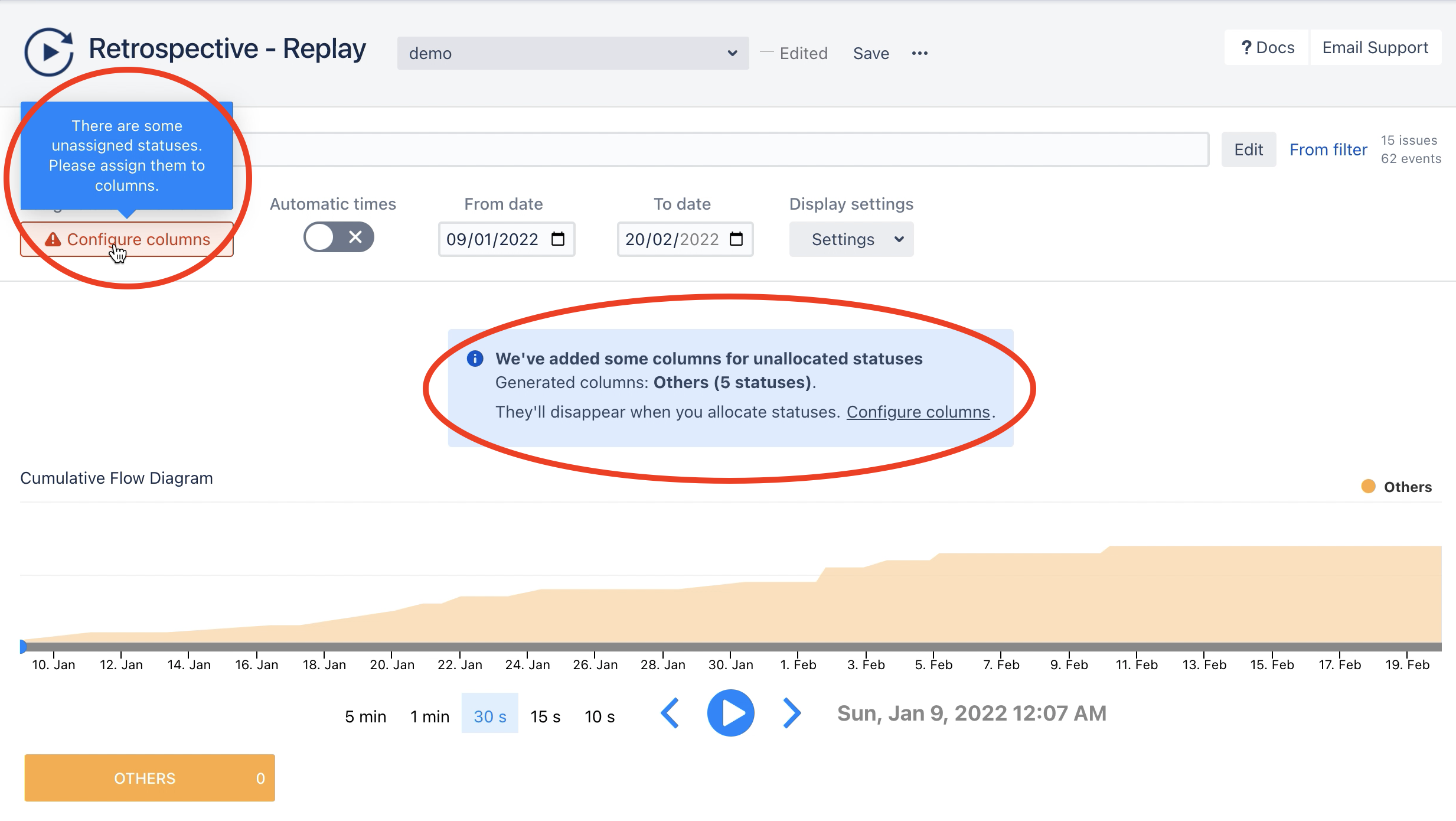
Click the *Configure Columns* button in the Settings area to open configuration dialog.
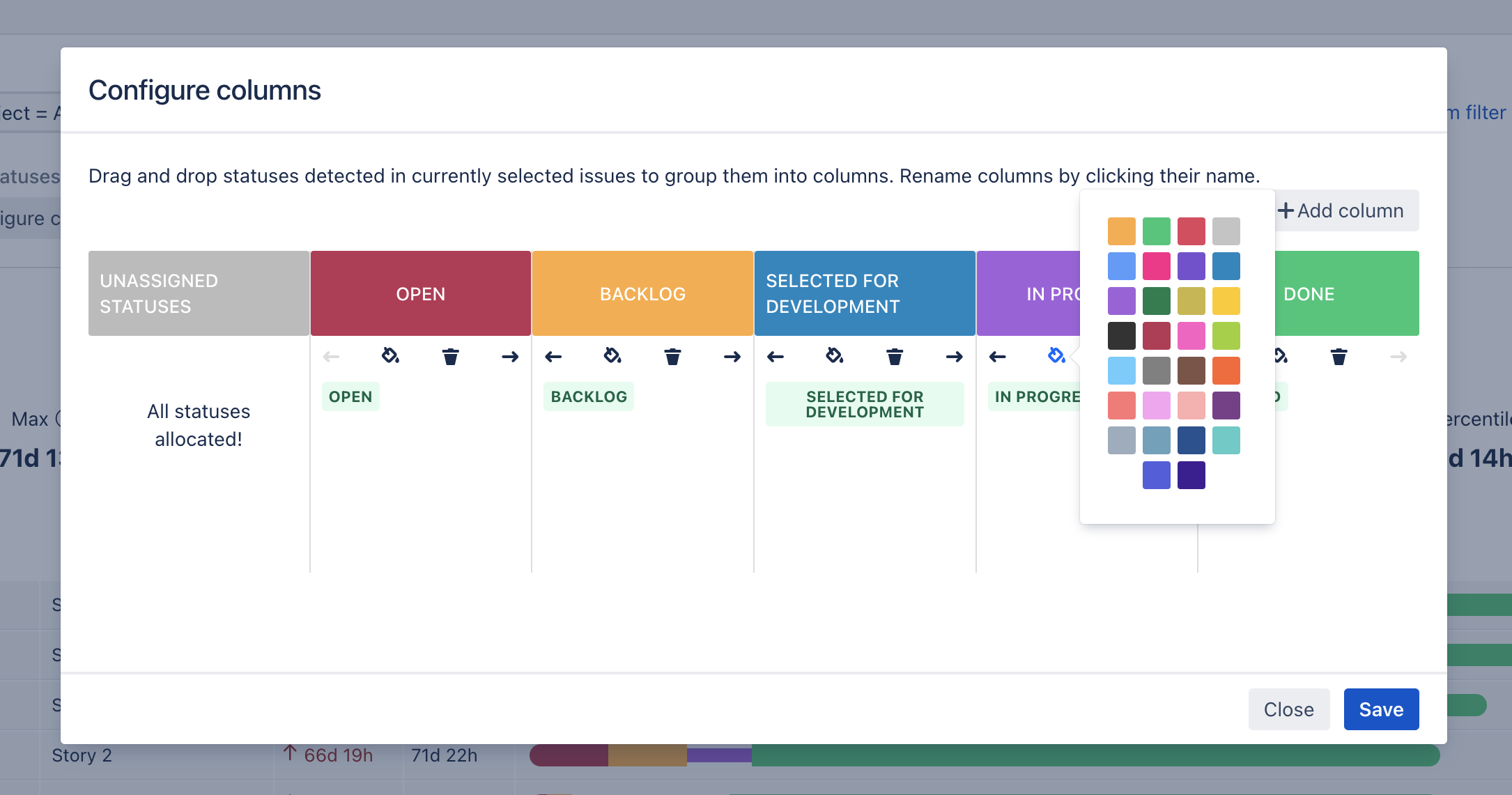
Columns are configured independently from Jira workflow. A single column can contain more that one status, so you can group statuses which:
- are similar, becaue they come from different priojects (e.g. you can have *Done* status for *Project A* and *Closed* status for ?*Project B*)
- belong the same phase of the workflow and you're interested in bigger picture (e.g. *Todo*, *Backlog*, *Selected for Development* can all belond to single column showing items *before* development has started).
## How to animate
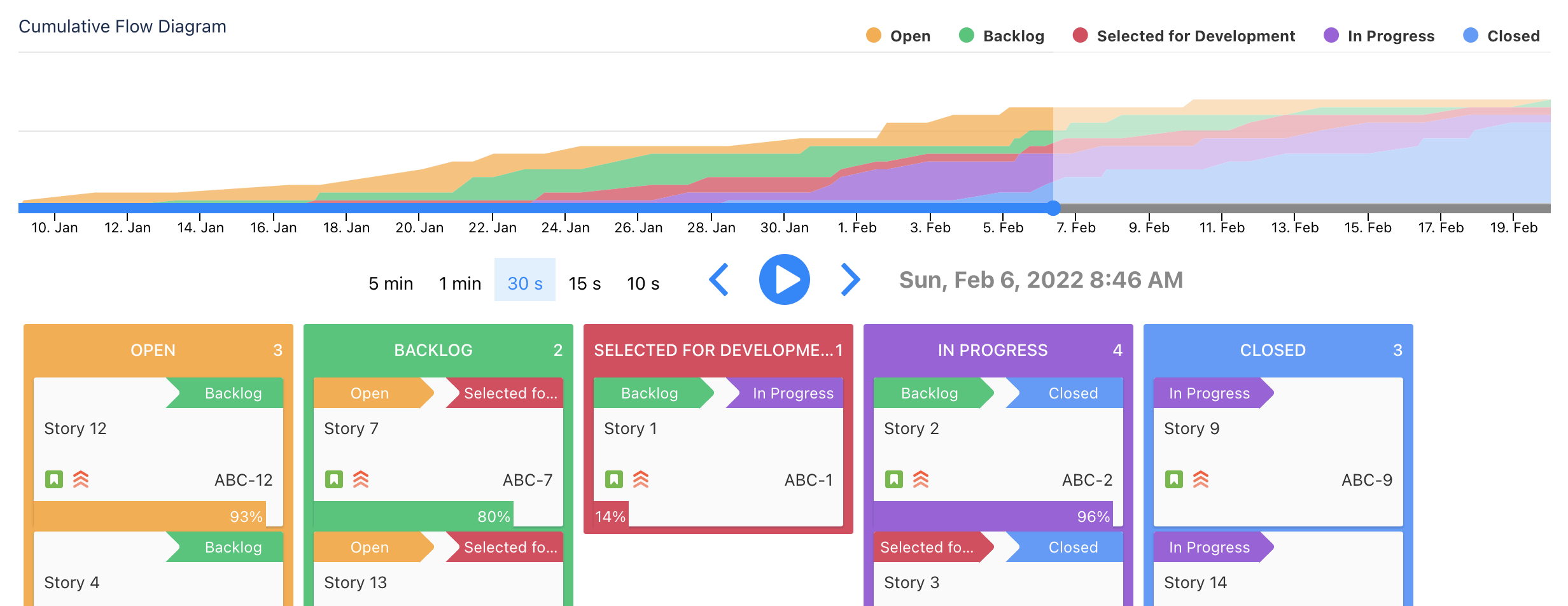
By default (i.e. when automatic times are on), animation will span from the time first issue was created to the last status change event of any issue. All you have to do is one of:
- **click anywhere in the Cumulative Flow Diagram** below Settings to navigate to that point in time. The Kanban board below will show state of the project at that time
- **press the big blue Play button** and watch the animation run. You can adjust speed of animation with the button with times (e.g. 30s will scale the animation to last 30 seconds etc.)
- **press Next/Previous event buttons** to navigate between status change events. You'll see single issues moving across columns.
## Other settings
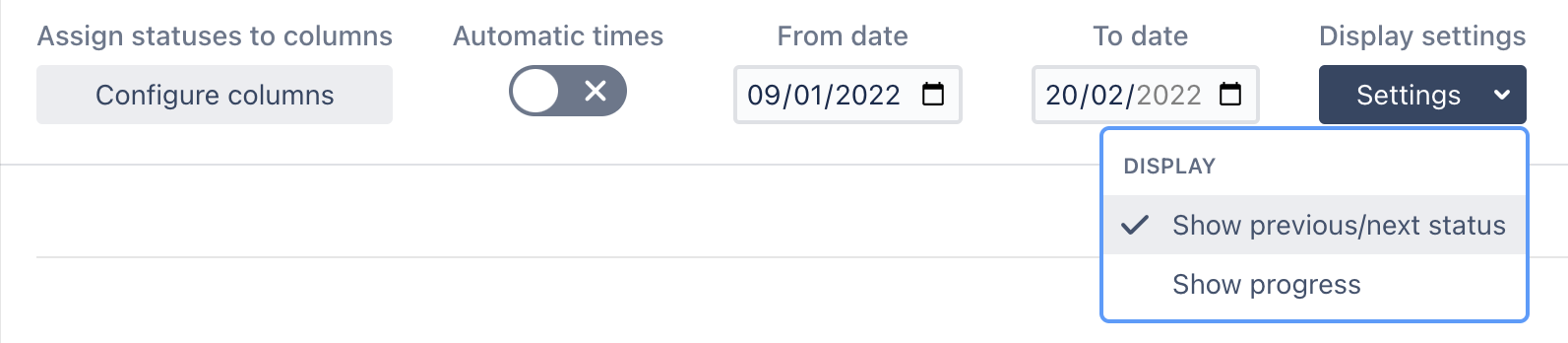
You can specify custom start and end times as well as customise the looks of the items (*Display Settings* menu in Settings area).
Issues on the board can be compact:
or contain more information:
- Where the issue moved from (field in the upper left) and where it's moving to next (field in the upper right). You can click on these fields to navigate to the time when the issue moves to/from these columns.
- Progress bar showing how much longer will the issue stay in the current column (80% and 18% in the example below).
---
# Statistics View
Source: https://docs.advancedinsights.app/atlassian/retrospective-tools/stats
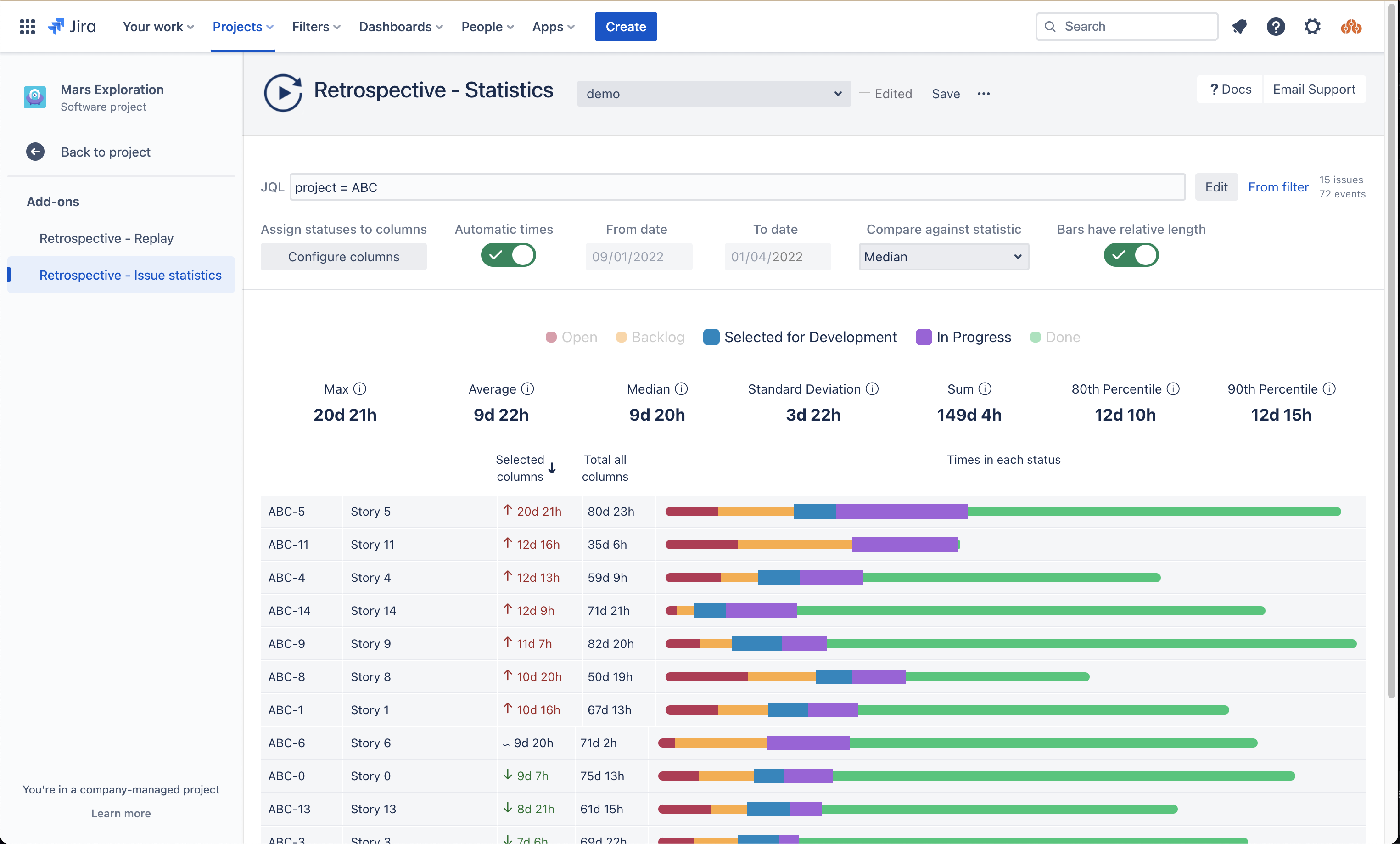
## How to select issues to analyse
Use the JQL editor or "From filter" dialog to select issues. JQL editor opens automatically when clicking on the JQL text field.

Try to limit number of your issues. If your retrospective meeting follows a sprint, use JQL filter to limit issues from the last sprint (something like `project = DEV and Sprint = "My Sprint 6"`).
Note, that the number of issues being analysed as well as number of status or assignee change events across all these issues is displayed to the right of the JQL editor.
## How to configure columns
Initially you'll be notified there are statuses not assigned to columns.

Click the *Configure Columns* button in the Settings area to open configuration dialog.

Columns are configured independently from Jira workflow. A single column can contain more that one status, so you can group statuses which:
- are similar, becaue they come from different priojects (e.g. you can have *Done* status for *Project A* and *Closed* status for ?*Project B*)
- belong the same phase of the workflow and you're interested in bigger picture (e.g. *Todo*, *Backlog*, *Selected for Development* can all belond to single column showing items *before* development has started).
## How to interpret statistics
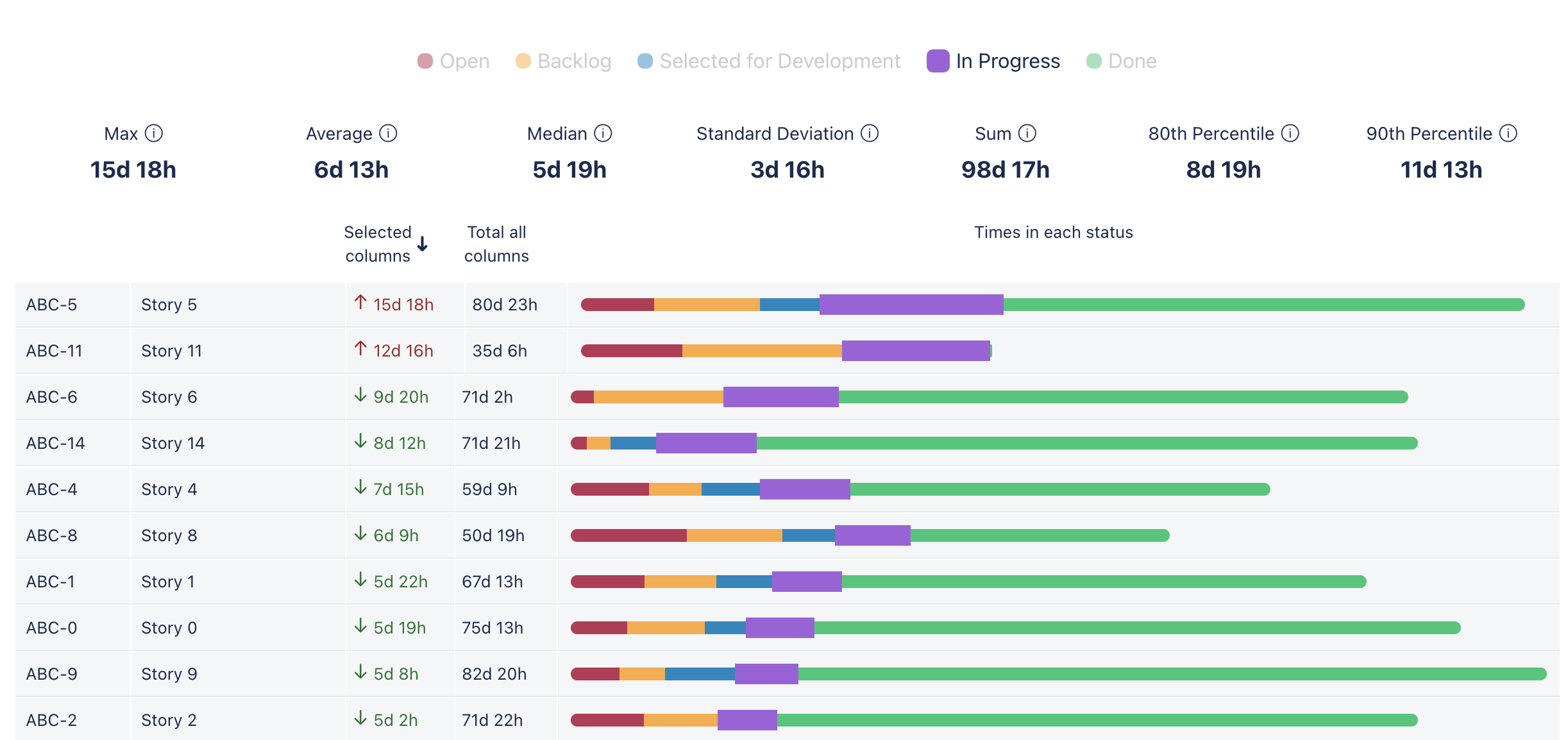
Statistics: Max, Average, Median, 80th Percentile etc. are calculated for the times issues spent in **currently selected columns**.
Select/deselect columns by clicking in their names above statistics numbers.

Colourful bars per each issue show relative time an issue spent in each column. Higher bars (blue and violet above) show time in selected columns.
In the example below we're sorting column **Selected columns** in descending order. The green and red arrows show how this time compares to the statistic selected in the Settings (**Compare against statistic** - Median in our example)
---
# Frequently Asked Questions
Source: https://docs.advancedinsights.app/atlassian/retrospective-tools/faq
## How many issues can I animate or analyse?
Retrospecitve Tools can analyse uo to 1000 issues.
To avoid going over that limit, you can make JQL more specific and filter a sprint or creation date of issues. For example:
`project = DEV and Sprint = "My Sprint 6"`
See more examples in this Atlassian Community article: [Common JQL queries for sprints in Jira Cloud](https://community.atlassian.com/t5/Jira-articles/Common-JQL-queries-for-sprints-in-Jira-Cloud/ba-p/1736456)
## How to find bottlenecks in my process/workflow
Use Cumulative Flow Diagram (CFD) to find bottlenecks and other problems in your workflow and process. For an in-depth analysis of what CFD chart can show, check [this article by Pawel Brodzinski](https://brodzinski.com/2013/07/cumulative-flow-diagram.html).
Note, that you can configure columns on the board to contain more than one status. This would allow you to merge all related statuses (for example ‘back end development’, ‘front end development’, ‘code review’) into one column to make it easier to spot bottlenecks.
## Plugin page doesn’t load. “Add-on Retrospective Tools for JIRA is not responding.”
This is likely a sign of **project** or **board permissions setup problem**.
The plugin can only access projects or boards which are visible to the special system generated user named `addon_com.sngtec.jira.cloud.kanbanalytics`. You can see this user at the following URL:
`https://YOUR_ORGANISATION.atlassian.net/admin/users/view?username=addon_com.sngtec.jira.cloud.kanbanalytics`
where `YOUR_ORGANISATION` is the relevant atlassian.net account name. This is what the user admin page looks like:
To correct permissions please make sure, that this user has read access to the projects you are trying to use it against. One of the methods to do this is:
- note groups in the `USERS` role in your project. (See Atlassian JIRA Cloud documentation for more on project roles.)
- make sure, that `addon_com.sngtec.jira.cloud.kanbanalytics` user belongs to at least one of these groups
In the above example screenshot the special user belongs to `jira-users` group, so you’d have to make sure that project you’re trying to user the plugin with has `jira-users` group listed in the `USERS` role.
## Any other problems
Send us an email: support@advancedinsights.app.
---
# Forge migration plan
Source: https://docs.advancedinsights.app/atlassian/retrospective-tools/forge-migration
> **In short:**
The migration is complete: the latest version of Retrospective Tools runs entirely on Atlassian Forge, with
no Connect components, and it will keep working after January 2027. There is no plan to
discontinue the app. Updating to it asks an administrator to approve a read-only permission, and
your saved configurations are carried across automatically.
If you administer Jira, you may have seen a message about Retrospective Tools on the **Connected apps** page
in Atlassian Administration — either a warning that
> This app may stop working after January 2027, as it's running on a platform that will be
> unsupported from that date.
or an informational notice that the app is being migrated, linking to this page.
This page explains what that message means, what has changed, and what — if anything — you need
to do.
## Why you are seeing this message
Atlassian is retiring **Atlassian Connect**, its older app platform, on **31 January 2027**. It is
replaced by **Forge**, the modern platform. To help administrators plan, Atlassian shows a notice
on every app that still uses Connect.
Retrospective Tools has now moved to Forge. Both project tabs (Replay and Statistics) run as native Forge
modules, and nothing is served through Connect any more. If you still see the notice, your site
has not yet approved the latest update — approving it removes the notice.
## The update that asks for your approval
Forge grants access through explicit, itemised permissions, so the Forge version of the app
declares its access differently from the Connect one, and Atlassian asks an administrator to
approve the update in the usual way on the **Connected apps** page.
| What the app asks for | What it is used for |
| ---------------------------------------------------- | ------------------------------------------ |
| Read Jira project and issue data (`read:jira-work`) | Replaying and measuring your boards |
It is **read-only**. The app cannot create, edit or delete anything in Jira. This is the Forge
equivalent of the read access the Connect version already had.
If you do not approve, nothing breaks: your site stays on the version it has now. The Atlassian
notice will remain, though, and the update needs to be approved before **31 January 2027**.
## What changes after the update
- **You do not need to reinstall.** The Forge version upgrades the Connect app in place, on the
same Marketplace listing and the same licence.
- **Your saved configurations come with you.** They are copied into the Forge app's storage
automatically when the update is applied, with a daily retry until the copy succeeds. They
remain shared across all projects, exactly as before.
- **Jira data is read as the signed-in user.** Each person sees replays and statistics built only from issues
they are permitted to see in Jira.
- **Your data still never leaves Atlassian.** All computation continues to happen in your browser
(see our [Data Security and Privacy Statement](/atlassian/retrospective-tools/privacy)); the Forge version
has no external backend at all.
### If your saved configurations are missing
The copy runs by itself, but a Jira administrator can check on it or start it by hand: go to
**Jira settings → Apps → Retrospective Tools** and open **Saved configuration migration**. The page shows
whether the copy has completed and lets you run it again. If it reports a problem, please
[contact our support team](/atlassian/retrospective-tools/support).
## Will the app stop working?
No. The migration was completed in September 2026, well before the January 2027 deadline. There is
no plan to sunset Retrospective Tools. It remains supported, and it continues to be available on the
[Atlassian Marketplace](https://marketplace.atlassian.com/apps/1213882/retrospective-tools-for-jira?hosting=cloud&tab=overview).
## Our timeline
| Phase | Status |
| ------------------------------------------------------------ | ----------------------------- |
| Declare our migration commitment to Atlassian | **Complete** |
| Publish this migration plan | **Complete** |
| Rebuild the Replay and Statistics views on Forge | **Complete** |
| Ship the Forge version as the successor to the Connect app | **Complete** — September 2026 |
| Remove all Connect components; Atlassian notice disappears | **Complete** — September 2026 |
The one remaining step is yours: approving the update on your site, at any point before
31 January 2027.
## Questions
If you have questions about this migration, or you need something in writing for an internal
review, please [contact our support team](/atlassian/retrospective-tools/support). We are happy to help.
## Further reading
- [Atlassian: Connect end of support timeline](https://www.atlassian.com/blog/development/getting-ready-for-connect-end-of-support)
- [Atlassian: what the Connected apps messages mean](https://developer.atlassian.com/platform/adopting-forge-from-connect/what-admins-see/)
---
# Data Security and Privacy Statement
Source: https://docs.advancedinsights.app/atlassian/retrospective-tools/privacy
This app doesn’t store any data related to users, issues or any other information from JIRA instance it’s installed on. All the computations are performed in the browser. No data from JIRA is transmitted to the server at any time.
It can store configuration (such as order of statuses in your workflow) in user browser’s local storage.
The app uses [Google Analytics](https://analytics.google.com/) to track usage statistics and [Rollbar.com](https://rollbar.com/) to track data related to crashes.
---
# Support
Source: https://docs.advancedinsights.app/atlassian/retrospective-tools/support
Send us an email: support@advancedinsights.app
SNG Technologies Ltd. aims to respond within 24 hours to new support requests and provide an update at least every 48 hours for existing support requests, although we frequently respond much faster.
With clients working across many different time zones, we try to prioritise our support requests, so that we can provide the best level of support for all our customers across several continents.
Read our [Service Level Agreement](/sla).
---
# Advanced Reports - Intro
Source: https://docs.advancedinsights.app/atlassian/advanced-reports
**Unlock powerful insights from your Jira data with custom, dynamic reports.**
**Advanced Reports** empowers you to go beyond basic dashboards and create sophisticated, tailored reports using the industry-standard **SQL query language**, directly within your browser or securely in the cloud.
**Editions**
Advanced Reports is available in two editions: **Standard** and **Advanced**.
To learn more about the differences between these two editions, check out our [Edition Comparison](./editions) page.
**Why Choose Advanced Reports?**
- 🚀 **Unleash the Power of SQL:** Move beyond JQL's constraints. Leverage the full analytical power of SQL to perform complex calculations, join data in new ways, and gain deeper insights that were previously difficult or impossible to obtain directly in Jira.
- 🔒 **Your Data Stays Secure:** The Standard Edition runs entirely in your web browser using the high-performance DuckDB engine, meaning your data is processed locally and **never leaves your browser**. The Advanced Edition uses a secure, dedicated cloud database powered by [MotherDuck](https://motherduck.com/) for processing large volumes of data with enterprise-grade security.
- 🎨 **Intuitive Report Building:** Design visually appealing and informative reports using a familiar **Confluence-style editor**. Combine text, images, tables, charts, and key metrics generated from your SQL queries.
- 🔄 **Dynamic & Flexible:**
- Reports automatically update based on the latest Jira data matching your criteria (JQL, filters, boards, sprints).
- Analyze trends over time by including work item history (changelogs).
- Enrich your analysis by uploading custom data (like team lists or holiday schedules) via CSV files.
- Reuse query logic efficiently with parameters.
- ⚡ **Get Started Quickly:** Utilize a library of pre-built query and report templates, or get assistance crafting SQL queries using our AI-friendly prompt generator.
- 📤 **Export Your Findings:** Easily export raw query results to CSV or Parquet formats for use in other tools.
- 📄 **Export & Share:** Easily export your finished reports to PDF format for sharing or archiving.
**Core Components:**
- **[Local Insights](./insights):** Define how data is extracted and transformed from Jira using SQL. Fetch data based on specific work item filters and configure which Jira fields (including history) are needed. Test, refine, and manage your queries here.
- **[Cloud Insights](./cloud-insights):** Same SQL capabilities as Local Insights, but backed by a server-side database and scoped to synced projects instead of JQL. Advanced Edition only.
- **[Database Configuration](./database-configuration):** Control which projects and fields are synced into the cloud database, set date filters to limit data volume, and trigger manual re-syncs. Advanced Edition only.
- **[Local Reports](./reports):** Combine the results of one or more Insights with text and visualizations (tables, charts, single values) to present findings clearly using a flexible editor.
Ready to build the reports you _really_ need? Let's dive in.
The database we use has been used in some [interesting projects](https://www.hey.earth/posts/duckdb-doom).
## Usage
Once the Advanced Reports app is installed, you can access the main dashboard.
Navigate to the dashboard via the **Apps** menu in Jira's main navigation menu, then select **Advanced Reports**.
[Image: Apps menu with Advanced Reports]
From the dashboard, you can create new Insights and Reports, or manage existing ones.
[Image: Dashboard]
[Read more about the dashboard](./dashboard)
## AI Explorer
> **Note:**AI Explorer is available in the **Advanced Edition** only.
The AI Explorer lets you ask natural language questions about your Jira data and get answers and charts without writing SQL. It uses the same cloud database as Cloud Insights, so results are always based on the latest synced data.
[Image: AI Explorer]
## Cloud Insights
> **Note:**Cloud Insights are available in the **Advanced Edition** only.
Cloud Insights bring the full SQL power of Local Insights to a server-side database, removing browser memory constraints. Instead of defining a JQL work item filter, you select from the projects already synced to your cloud database.
[Image: Cloud Insights SQL editor]
[Read more about Cloud Insights](./cloud-insights)
---
# 'Advanced Reports - Installation'
Source: https://docs.advancedinsights.app/atlassian/advanced-reports/installation
The app is available from the [Atlassian Marketplace](https://marketplace.atlassian.com/apps/1238166/advanced-reports-reports-and-charts-with-ai?hosting=cloud&tab=overview).
Once installed, access it from the main Jira navigation at **Apps → Advanced Reports**.
## Editions
After installation the app runs in **Standard Edition** by default, which provides full in-browser SQL Insights and Reports powered by a local DuckDB engine — no data leaves your browser.
To unlock **Advanced Edition** features — including Cloud Insights, AI Explorer, Dashboard Widgets, and Background Data Sync — you can upgrade from within the app. See [Editions](./editions) for a full comparison.
---
# Editions
Source: https://docs.advancedinsights.app/atlassian/advanced-reports/editions
This document outlines the differences between the Standard and Advanced editions of the application, focusing on data processing capabilities, scale, and available features.
> **Note:** The Advanced Edition is a superset of the Standard Edition. It includes **all** in-browser functionalities of the Standard Edition, while adding powerful server-side capabilities and advanced tools.
| Feature | Standard Edition | Advanced Edition |
| :--------------------------- | :------------------------------------------------------------- | :------------------------------------------------------------------------------------------------------ |
| **Data Processing Mode** | Local (In-Browser) | Server-Side (Cloud Database via MotherDuck) **and** Local (In-Browser) |
| **Work Item Capacity** | Limited (constrained by browser memory, fetched on every load) | High for server side (scalable processing for a large volume of work items) or Limited (for in-browser) |
| **Dashboard Widgets** | ❌ No | ✅ Yes (Powered by server-side data) |
| **Background Data Sync** | ❌ No | ✅ Yes (Scheduled and manual sync available) |
| **AI Assisted SQL Insights** | ✅ Yes | ✅ Yes |
| **AI Data Explorer** | ❌ No | ✅ Yes |
| **Cloud Insights** | ❌ No | ✅ Yes |
| **In-Browser Insights** | ✅ Yes | ✅ Yes |
| **In-Browser Reports** | ✅ Yes | ✅ Yes |
| **Database Export** | ❌ No | ✅ Yes |
### Key Differences Explained
- **Server-Side Processing:** The Advanced Edition leverages server-side resources to query and process data. This eliminates the browser constraints of the Standard version, which must fetch and process all Jira work items locally in the browser memory on every page load.
- **Scale:** Because of the server-side backend, the Advanced edition can easily handle massive Jira instances with a high volume of work items.
- **Dashboard Widgets:** The dashboard widgets rely on background data processing and are exclusively available in the Advanced Edition.
- **Cloud vs. Local Tooling:** While both editions include Local Insights and Reports, the Advanced edition unlocks "Cloud Insights" and "AI Explorer," providing advanced querying and AI capabilities directly against the synced cloud database.
---
# Advanced Reports - Dashboard
Source: https://docs.advancedinsights.app/atlassian/advanced-reports/dashboard
To access the dashboard, click on **Apps → Advanced Reports** in the Jira main navigation menu.
[Image: Advanced Reports Dashboard]
The dashboard is the central hub for the app. At the top, an **Ask about your Jira data** prompt bar lets you query your Jira data in natural language directly from the dashboard.
The main content area is split into two tabs reflecting the two [editions](./editions) of the app:
- **CLOUD** — Cloud Insights powered by a server-side database (MotherDuck). Supports large Jira instances, background data sync, and dashboard widgets. Available in the **Advanced Edition** only.
- **LOCAL** — In-browser Insights that run directly in your browser using DuckDB. Available in both **Standard** and **Advanced** editions.
Both tabs display your existing items ordered by last used, so your most recent work is always easy to find.
## Navigation
The top navigation bar provides quick access to all sections:
| Section | Description |
| :---------------------- | :--------------------------------------------------------------------------------------------------------- |
| **Dashboard** | This page — overview of your Cloud and Local Insights |
| **CLOUD → AI Explorer** | Chat-based AI interface for exploring your Jira data (Advanced Edition) |
| **CLOUD → Insights** | Create and manage [Cloud Insights](./cloud-insights) backed by the server-side database (Advanced Edition) |
| **LOCAL → Insights** | Create and manage [Local Insights](./insights) (Standard & Advanced) |
| **LOCAL → Reports** | Build rich [Local Reports](./reports) combining text, data, and charts |
---
# Advanced Reports - Local Insights
Source: https://docs.advancedinsights.app/atlassian/advanced-reports/insights
This is where you can build and refine your queries. Queries can then be used on their own or within reports. See [Local Reports](./reports) for more information.
[Image: SQL Query Editor screen]
## How does it work?
Jira Cloud itself doesn't offer direct SQL access to its data; it uses Jira Query Language (JQL) for accessing work items. Any analysis, generation of charts, reports etc. requires exporting them or using dedicated apps. This application bridges that gap.
Here's the process:
[Image: Insights Editor - the process]
1. **Data Fetching:** The app connects to your Jira instance and fetches work item data based on an **Work Item Filter** you define. This filter can be a JQL query, a saved Jira filter, or (for Jira Software projects) an Agile board or sprint. For Advanced Edition, data can also be synced automatically in the background.
2. **Database Creation:** For Local Insights, the app constructs a relational database directly within your web browser using [DuckDB](https://duckdb.org/), meaning your data remains local to your browser session. For Cloud Insights (Advanced Edition), a secure, dedicated server-side database handles larger datasets. Configure which fields to include in the database using the **Configure** modal.
3. **SQL Querying:** Once the database (local or cloud) is ready, you can query it using standard SQL. This unlocks powerful and complex analytical capabilities not easily achievable with JQL alone or without exporting data and setting up your own database infrastructure.
> **Query Execution:**
{" "}
You can write SQL queries manually in the editor, leverage pre-built templates,
or use the [AI Assistant](#using-ai-to-generate-sql-queries) feature to help generate
queries. Queries are executed securely against either your local in-browser database (Standard Edition) or your dedicated cloud database (Advanced Edition).
4. **View and export results** in various formats (CSV, Parquet) for further analysis or reporting.
**Performance:** Executing SQL queries is typically very fast. However, for Local Insights, the initial step of fetching data from Jira and building the database in the browser can take several seconds, depending on the number of work items. Cloud Insights (Advanced Edition) handle this syncing automatically in the background for instant querying.
**Parameterization:** For dynamic reports, you can parameterize your SQL queries. For example, instead of hardcoding specific status names, you could use a parameter like `$status_category` which can be set when the report runs, allowing the same query to analyze 'To Do', 'In Progress', or 'Done' work items. See the [Parameters](./parameters) section for more details.
## SQL Editor
The SQL editor provides a dedicated space for writing and testing your SQL queries. Key features include:
- **Syntax Highlighting:** Makes your SQL code easier to read and understand by color-coding keywords, functions, and other elements.
[Image: SQL Query Editor]
- **Error Display:** Highlights syntax errors and displays execution errors returned by the database after running a query.
[Image: SQL error]
- **Execution Options:**
- Click the **Execute** button.
- Enable the **Auto Refresh** toggle to automatically run the query after any modification.
- Use the keyboard shortcut: `Cmd + Enter` (macOS) or `Ctrl + Enter` (Windows/Linux).
Queries must adhere to the DuckDB SQL dialect. Refer to the [DuckDB SQL Introduction](https://duckdb.org/docs/stable/sql/introduction) for detailed documentation on the syntax and available functions.
The editor also supports query parameterization. See the [Parameters](./parameters) section for details on how to use them.
## Parameters
You can define parameters within your SQL queries to make them dynamic and reusable, especially when incorporating them into reports. Parameters are denoted using a dollar sign followed by the parameter name, like `$parameter_name`.
[Image: SQL Query Parameters]
[Image: SQL Query Parameters used in editor]
Supported parameter types include:
- `string`
- `number`
- `boolean`
- `date`
- `timestamp`
Each of these types can also be used as an array. Arrays are bound to the query either as Struct or Array(List) type in the query. The type depends on the parameter name suffix:
- If the parameter name ends with `_array` or `_list`, it is treated as an array (list).
- If the parameter name does not have these suffixes, it is treated as a struct (row type).
> **Struct and Array Parameters:**
In DuckDB:
- (x1, x2, x3) is a struct (also called a row type or record type)
- [x1, x2, x3] is an array (also called a list)
Struct is a type expected e.g. by `IN` operator, while array is a type expected by `ANY`, `UNNEST` operator.
Any array parameter with the name ending with `_array` or `_list` is treated as a DuckDB ARRAY parameter. For example, array of strings `$status_category_array` would become `ARRAY['v1', 'v2']`, while `$status_categories` would be `('v1, 'v2')`.
Parameters function similarly to [named variables in prepared statement parameters](https://duckdb.org/docs/stable/sql/query_syntax/prepared_statements.html) in standard SQL systems. When the query is executed (either directly or within a report), you provide values for these parameters, which are then safely substituted into the query before execution.
Parameterized queries are particularly useful for [Local Reports](./reports). You can reuse the same query structure multiple times within a single report, simply by providing different parameter values for each instance. For example, you could have a single query designed to calculate the median time work items spend in a particular status category. By using parameters for the status category (`$status_category`) and work item type (`$work_item_type`), you could run this query multiple times in one report to show the median time for 'Bugs' in 'In Progress', 'Tasks' in 'In Progress', 'Bugs' in 'Done', etc., without needing to write separate queries for each combination.
## Database configuration
The database is generated based on the data fetched from your Jira work items. For efficiency, the application doesn't fetch every single piece of data for every work item by default. Instead, it retrieves only the fields necessary for your analysis.
For example, if you want to calculate the time an work item spent in various statuses, the application needs to fetch the "Status" field and the work item's historical data (changelog).
You can control which fields are fetched using the **Configure** modal.
[Image: Database configuration modal]
In this modal, you can:
- Select the specific Jira fields required for your queries. (Note: While many common fields are supported, some may not be available yet. You can request support for additional fields.)
- Choose whether to include historical data (work item changelog), which is essential for time-based analysis like cycle time or time-in-status calculations.
> **Handling historical entities:**
When historical data (changelog) is included, it might contain references to
Jira entities (like statuses, work item types, projects, or versions) that are
no longer present in the work items currently fetched by your filter (e.g., an
old status that is no longer in use). In such cases, the application
automatically fetches details about these historical entities using dedicated
Jira APIs to ensure the database contains comprehensive information for
accurate analysis.
Once the fields are changed, the application may need to re-fetch the work items and rebuild the database.
Configuring the database correctly ensures that you have the necessary data for your SQL queries while optimizing the initial data fetching time.
### Database Schema
The application generates a relational database schema based on the fetched Jira data and the configured fields. The database schema is displayed next to the SQL Editor:
[Image: Database Schema]
Key Tables and Views:
- `work_items` (View): This view represents your Jira work items. Each column corresponds to a Jira field you selected in the configuration. Column names are the Jira field IDs (e.g., `status`, `assignee`, `issuetype`, `customfield_10010`). These columns might contain simple values or foreign keys referencing other tables.
- `work_items_display` (View): This is a convenience view built on top of the underlying work items table (`__internal_work_items_all`). It automatically joins common fields like status, assignee, and issuetype with their respective lookup tables (`statuses`, `users`, `issuetypes`) to display human-readable names instead of raw IDs.
- `fields` (Table): Contains metadata about all available Jira fields, including their ID (`id`), key (`key`), name (`name`), whether they are custom (`custom`), and their schema definition (`schema`). The id from this table corresponds to the column names in the work items view.
- `histories` (Table): Stores the historical changes for work item fields (if historical data is configured). Each row represents a specific value a field held for an work item over a period.
- `work_item_id`: The ID of the work item.
- `date`: The timestamp when the field changed to this value.
- `field_id`: The ID of the field that changed.
- `value`: The ID or value the field changed to.
- `seconds_in_state`: The duration (in seconds) that the work item spent with the field value specified in the same row. This is crucial for calculating time-in-status or cycle time metrics.
- Lookup Tables (`issuetypes`, `statuses`, `users`, etc.): These tables store details about specific Jira entities referenced by ID in the work items or histories tables. They typically contain an id column and a data column (often JSON) holding detailed information about the entity (e.g., name, description).
For a complete reference on how all Jira fields are stored and how to query them, please see the [SQL Field Reference](./sql-field-reference).
Understanding this schema is key to writing effective SQL queries against your Jira data.
### Custom tables
Sometimes, you might need data that isn't available directly within Jira for your analysis. This could include information like national holidays, specific team allocations, or other project-specific metadata. Custom tables allow you to incorporate this external data into your database.
You can add custom tables via the **Configure** modal, under the **Custom Tables** tab.
[Image: Custom tables in Configure database modal]
[Image: Add custom table]
The process involves:
1. **Uploading a CSV file:** Provide your custom data in a standard Comma Separated Values (CSV) format.
2. **Defining Column Types:** Specify the data type (e.g., string, number, date) for each column in your uploaded CSV to ensure it's correctly interpreted by the database.
Once defined, the data from your custom table is saved alongside your query configuration. When the database is built, this custom data is loaded into its own table, allowing you to join it with your Jira data in SQL queries.
## Writing queries
While the application provides a fully functional DuckDB instance (both in-browser and cloud-based), allowing for complex data manipulation, it's generally recommended to primarily use `SELECT` statements for querying your Jira data.
Modifying the database schema (e.g., using `CREATE TABLE`, `ALTER TABLE`, or `DROP TABLE`) within your queries can lead to unpredictable results, especially when the query is executed as part of a report alongside other queries. Such modifications might interfere with the expected database state for subsequent queries or report components.
Additionally, you can leverage the [AI Assistant](#using-ai-to-generate-sql-queries) to help generate, improve, or fix your SQL queries. See the [SQL Query Examples](./sql-query-examples) page for practical examples.
For detailed information on the SQL syntax and functions supported by DuckDB, refer to the official [DuckDB SQL Introduction](https://duckdb.org/docs/stable/sql/introduction).
### New line characters in SQL query results
Any strings containing newline characters (`\n` or `\r\n`, which can be inserted in SQL using `E'\n'`, for example `STRING_AGG(labels, E'\n')`) returned by the queries will be rendered in the preview tables as single row for performance reasons.
Cells with strings containing newline characters will show an icon indicating, that the string is multiline and hovering over it will show the full string.
[Image: New line characters in SQL query results - tooltip]
> **Exporting multiline strings:**
Exporting multiline strings to CSV or Parquet preserves the newline characters
> **Multiline strings in reports:**
Multiline strings in reports are rendered as multiple lines
## Exporting data
After running your SQL query, you can export the results for further analysis or use in other tools. The results can be downloaded in two common formats:
- **CSV (Comma Separated Values):** A simple text-based format where data is organized in rows, with values separated by commas. CSV files are highly compatible and can be easily opened and manipulated in spreadsheet software like Microsoft Excel, Google Sheets, or Apple Numbers. They are ideal for sharing smaller datasets or for quick viewing and basic analysis.
- **Parquet:** A highly efficient, columnar storage format optimized for big data processing frameworks. Parquet files store data column by column, which leads to better compression and faster query performance, especially when dealing with large datasets and selecting specific columns. This format is well-suited for data warehousing, data lakes, and analysis using tools like Apache Spark, Pandas (in Python), or other data science platforms.
Choose the format that best suits your needs based on the size of your data and how you intend to use it downstream.
## Charts
You can create visualizations based on the results of your SQL queries. Charts can be created directly in the Insights editor. To do this, click on the "Charts" button in the Results section of the Insights editor. This will allow you to manage existing charts or create new ones based on your query results.
You can store multiple charts for each Insight, allowing you to visualize different aspects of the data without needing to write separate queries for each chart.
Once saved with the query, you can then easily [embed charts into reports](./reports#charts).
See [Charts](./charts) for more information on how to create and manage charts based on SQL query results.
[Image: SQL Query Editor - Charts]
## AI Assistant
The built-in AI Assistant can help you write queries, fix errors, or improve existing SQL code.
[Image: AI Assistant in Insight Editor]
The AI model has following information about the database:
1. **Database Schema:** The structure of your database tables and columns.
2. **Current SQL Query:** Existing SQL query in the editor you want to refine or use as a starting point.
3. **Your Request:** A natural language description of what you want the SQL query to achieve (e.g., "Show me all users created in the last month").
Some queries may prompt the AI to suggest adding additional Jira fields to the database. When this happens, you can use the "Add missing fields" button or open the Database Configure modal to include the suggested fields. The AI will then regenerate the SQL query based on the updated database schema.
[Image: AI Query Generator suggesting adding missing fields]
AI Query Generator can be used to:
- **Create new queries from scratch:** Describe what you want to analyze (e.g., "Show me the average cycle time by work item type for the last quarter")
- **Fix syntax errors:** Ask the AI to identify and correct issues
- **Optimize existing queries:** Improve performance or readability of your current SQL code
- **Add new functionality:** Extend existing queries with additional calculations or filters
- **Learn SQL syntax:** Get examples of how to implement specific operations in DuckDB SQL
- **Generate complex joins:** Create queries that combine data from multiple tables (work items, histories, custom tables)
- **Build time-based analysis:** Create queries for cycle time, time-in-status, or historical trend analysis
> **AI does not access your data:**
The AI Query Generator is a powerful tool, but it has limitations:
- The AI does not have access to the actual data in your database, so it cannot provide specific results or insights based on the data itself. Instead, it generates SQL code based on the schema and your request.
- The generated SQL may require manual adjustments to fit your specific needs or to correct any inaccuracies.
---
# Advanced Reports - Cloud Insights
Source: https://docs.advancedinsights.app/atlassian/advanced-reports/cloud-insights
> **Note:**Cloud Insights are available in the **Advanced Edition** only.
Cloud Insights work the same way as [Local Insights](./insights) — you write SQL queries against your Jira data, run them, and create charts and visualisations from the results. The SQL editor, parameters, charts, database schema, and AI Assistant all work identically.
[Image: Cloud Insights SQL editor]
## Key difference: Projects selector
The main difference from Local Insights is how data is scoped:
- **Local Insights** use a **Work Item Filter** — you specify a JQL query, a saved Jira filter, or an Agile board or sprint to define which work items are loaded into the in-browser database.
- **Cloud Insights** use a **Projects selector** — instead of writing JQL, you simply select one or more of the projects that have already been synced to your cloud database. The data is always up-to-date thanks to background sync, so there is no per-session fetch delay.
This makes Cloud Insights significantly faster to run on large Jira instances, since the data is pre-synced and lives server-side.
## When to use Cloud Insights vs Local Insights
| | Cloud Insights | Local Insights |
| :--- | :--- | :--- |
| **Data scope** | Select from synced projects | JQL / filter / board / sprint |
| **Data sync** | Background (automatic) | On demand (per session) |
| **Scale** | Large instances | Browser memory limited |
| **Edition** | Advanced only | Standard & Advanced |
For everything else — writing queries, using parameters, creating charts, and embedding results in [Local Reports](./reports) — refer to the [Local Insights](./insights) documentation, as the functionality is identical.
---
# Advanced Reports - Database Configuration
Source: https://docs.advancedinsights.app/atlassian/advanced-reports/database-configuration
> **Note:**
Database Configuration is available in the **Advanced Edition** only.
The Database Settings admin page lets you control what data is synced into your cloud database. You can access it from the App Settings menu.
[Image: Database Settings — Sync & Settings overview]
The page is divided into three tabs: **Sync & Settings**, **Spaces**, and **Fields**.
## Spaces
The **Spaces** tab lets you choose which Jira projects are included in the database. Only work items from selected projects will be synced and available for querying in [Cloud Insights](./cloud-insights).
[Image: Database Settings — Spaces tab]
For each selected project you can optionally set an **"Only sync items created from"** date. This is useful for large projects where you only care about recent work — limiting the date range reduces the amount of data synced, which makes the initial sync faster and keeps the database smaller.
Leave the date blank to sync all items regardless of when they were created.
## Fields
The **Fields** tab lets you choose which Jira fields are included as columns in the database. Including only the fields you actually use in your queries keeps the database lean and speeds up sync.
[Image: Database Settings — Fields tab]
Some fields are marked **NOT SUPPORTED** — these are field types that cannot be stored in the database (for example, rich-text fields like Description and Comments).
> **Adding a new field after the initial sync:**
If you enable a new field after the database has already been populated, it
will only appear on work items that are updated going forward. To backfill the
field on all existing items, run a full re-sync using the **Re-sync All
Selected Spaces** button on the Sync & Settings tab.
## Change History
On the **Sync & Settings** tab you can toggle **Sync change history**. When enabled, every field transition for every work item is stored in a `histories` table. This is what powers time-in-status reports, cycle time analysis, and other trend-based queries.
Because change history can be large, it is off by default. Enable it only when you need historical analysis — it will increase both sync time and storage usage.
## How sync works
Once your spaces and fields are configured, the app keeps the database up to date automatically:
- **Daily automatic sync** — Once per day, the app checks for any work items that changed since the last sync and brings those changes into the database. Only the items that actually changed are processed.
- **Manual sync** — You can trigger an immediate full sync at any time using the **Re-sync All Selected Spaces** button. This re-fetches all work items from scratch for every selected project and is useful after changing your field or space configuration.
[Image: Sync status panel]
The sync status panel (accessible from the top-right badge) shows the last sync time, how many items were synced, and the per-project status so you can quickly confirm everything is up to date.
> **If a sync gets stuck:**
If the system detects that a previous sync stopped making progress for more
than 30 minutes, it will automatically restart a full sync to make sure
nothing was missed.
---
# Advanced Reports - Local Reports
Source: https://docs.advancedinsights.app/atlassian/advanced-reports/reports
Reports provide a flexible canvas to combine narrative text, images, and dynamic data visualizations derived from your Jira information. The report editor functions similarly to Confluence, allowing you to freely type text, apply formatting (like bold, italics, lists), and insert images.
[Image: Report Editor screen]
The core power of reports lies in their ability to embed live data generated by [Local Insights](./insights). You can insert data visualizations directly into your report content:
- **Tables:** Display raw query results in a structured tabular format.
- **Charts:** Visualize query results using various chart types (e.g., bar, line, pie) for easier trend analysis and comparison.
- **Single Values:** Extract specific aggregate metrics from your query results, such as averages, percentiles (P50, P85, etc.), minimums, maximums, or sums.
To incorporate dynamic data, you first select the [Local Insights](./insights) you want to use within the report. For each query instance you add, you must specify:
1. **Work Item Filter:** The set of Jira work items the query should run against (defined by JQL, a saved filter, board, or sprint).
2. **Parameters (if applicable):** If the chosen Insight uses parameters (like `$status_category` or `$work_item_type`), you provide the specific values for those parameters for this particular instance in the report.
This setup allows for great flexibility. You can reuse the same underlying Insight (and its SQL query) multiple times within a single report, each time configured with different Work Item Filters or parameter values. For example, you could display several "Cycle Time" charts in one report: one showing cycle time for 'Bugs', another for 'Tasks', and perhaps another comparing cycle times across different sprints, all powered by the same parameterized cycle time SQL query.
## Editing a report
To edit a report:
[Image: Report Editor - the process]
1. **Define Work Item Filters:** Use the filter management section to define the sets of Jira work items (using JQL, saved filters, boards, or sprints) that your report's queries will operate on. You can define multiple filters if needed.
[Image: Edit Work Items Filter]
2. **Select Insights:** Choose the pre-defined [Local Insights](./insights) you want to incorporate into your report. For each Insight you add, associate it with one of the Work Item Filters you defined and provide any necessary parameter values.
[Image: Add Insight]
3. **Compose Content and Insert Visualizations:** Use the main editor canvas to write narrative text, add images, and apply formatting. Insert dynamic data visualizations (tables, charts, single values) by selecting the configured Insights instances you added in the previous step. Arrange these elements to build your comprehensive report.
## Editing report content
The report editor allows you to freely type text, apply formatting (like bold, italics, lists), and insert images. You can also add dynamic data visualizations (tables, charts, single values) by selecting the configured Insights instances you added in the previous step.
[Image: Report editing toolbox]
### Dynamic elements
These are report elements that are generated from Insights. They can be tables, charts, or single values.
#### Charts
Uses [Vega-Lite](https://vega.github.io/vega-lite/) under the hood.
[Examples of Vega-Lite charts](https://vega.github.io/vega-lite/examples/)
Visual editor does not support all the features of vega-lite, but you can edit the chart JSON directly. To do this, click on the chart and select "Edit Chart" from the toolbar.
Use can edit JSON directly following [Top-Level Specification specification](https://vega.github.io/vega-lite/docs/spec.html#top-level)
See [Charts](./charts) for more information on how to create and manage charts based on Insights results.
[Image: Edit chart in the report]
#### Tables
[Image: Edit table in the report]
#### Values
[Image: Edit chart in the report]
You can display single value from the Insight results. This is useful for showing aggregate metrics like averages, percentiles (P50, P85, etc.), minimums, maximums, or sums.
You can display value as is or use aggregate function on selected column.
### Editing dynamic report elements
Every item in the report can be edited. When selected, a toolbar appears which contains information about the Insight and Work Items Filter used, as well as options to edit, which depends on what is selected (chart, table or single value).
[Image: Report table toolbar]
## Settings
Settings allow you to configure the report's appearance. You can access the settings at the bottom of the the left panel.
[Image: Report settings]
Options:
- **Date format** - Choose the format for displaying dates in the report. All the dates in the report will be displayed in this format.
- **Date/time format** - Choose the format for displaying date and time in the report. All the dates in the report will be displayed in this format.
- **Decimal places** - Set the number of decimal places to display for numeric values in the report. This applies to all numeric values, including those in tables and charts.
## How report generation actually works?
When you view or refresh a report, the system performs the following steps to generate the dynamic content:
1. **Identify Data Needs:** The system first scans the report to find all embedded data visualizations (tables, charts, single values) and their associated [Local Insights](./insights) and Work Item Filters.
2. **Gather Required Fields:** It determines the complete set of Jira fields needed by all the SQL queries from Insights used in the report.
3. **Fetch Jira Data:** The necessary work item data is fetched from Jira. To optimize performance, the system combines the required fields and fetches data for all unique Work Item Filters used in the report in as few API calls as possible.
4. **Prepare Data Environment:** For Local Insights, once the data is retrieved from Jira, it's loaded into a temporary in-memory database. Cloud Insights utilize the server-side database directly. A schema reflecting the structure of the fetched Jira fields is prepared.
5. **Execute Queries Sequentially:** The system then processes each data visualization instance one by one.
- **Filter for Context:** Before running the SQL query for a specific visualization, a temporary `work_items` table (or view) is created within the database. This table contains only the Jira work items that match the specific Work Item Filter and parameters defined for that particular visualization instance.
- **Run SQL:** The associated SQL query is executed against this filtered `work_items` table.
6. **Render the Report:** After all queries have been successfully executed and their results collected, the final report document is rendered, displaying the narrative text alongside the generated tables, charts, and single values.
This process ensures that each visualization displays data relevant to its specific configuration while optimizing the data fetching from Jira.
To help you get started quickly, the application also provides a library of pre-defined report templates, which come bundled with relevant SQL queries and visualizations.
---
# Advanced Reports - Charts
Source: https://docs.advancedinsights.app/atlassian/advanced-reports/charts
Advanced Reports provides a powerful way to visualize your Jira data through charts.
Both [Local Reports](./reports) and [Local Insights](./insights) editors allow you to create charts based on the SQL query results. Charts are rendered using [Vega-Lite](https://vega.github.io/vega-lite/) and [Vega](https://vega.github.io/vega/) under the hood — both specification formats are supported.
- [Examples of Vega-Lite charts](https://vega.github.io/vega-lite/examples/)
- [Examples of Vega charts](https://vega.github.io/vega/examples/)
Charts can also be **interactive** — supporting tooltips, hover highlighting, selections, zooming and panning — and can be **generated for you by AI**: by the [AI Explorer](./introduction#ai-explorer) (Advanced Edition) or by the [AI Assistant](./insights#ai-assistant) when editing Insights.
[Image: Edit chart in the report]
## Charts in Insights editor
You can create charts in the Insights editor by clicking on the "Charts" button in Results section.
From here you can access charts for the current query or create a new chart.
[Image: Manage charts in Insights editor]
## Charts in Report editor
Insert chart by selecting "Query Chart" from the toolbar.
[Image: Insert chart in the report]
The "Select data source for the chart" modal will appear, allowing you to select an existing chart or create a new one.
[Image: Insert chart in the report]
## AI-generated charts
You don't have to build charts by hand — AI can generate them for you:
- **[AI Explorer](./introduction#ai-explorer)** (Advanced Edition) — ask natural language questions about your Jira data and get answers complete with charts, without writing any SQL or chart specifications.
- **[AI Assistant](./insights#ai-assistant)** — when editing Insights, ask the assistant to create or modify a chart for your query results. It can produce both Vega-Lite and Vega specifications, including interactive features.
AI-generated charts can be further tweaked in the chart editor, just like charts created manually.
## Editing charts
### Type specific vs advanced editors
Chart editor presents different options depending on the chart type. Available chart types include:
- **Bar Chart**
- **Line Chart**
- **Area Chart**
- **Scatter Chart**
Any of the chart type specific editors can be "upgraded" to "Advanced" editor which:
- shows more options
- allows you to create multiple layers and mix and match different chart types (e.g. area, bar and line charts)
- allows you to edit the chart JSON directly
To upgrade, click on the "Advanced" button in the chart editor dialog.
[Image: Insert chart in the report]
Visual editor does not support all the features of Vega-Lite, but you can edit the chart JSON directly. To do this, click on the JSON toggle in the chart editor dialog.
You can edit JSON directly following the Vega-Lite [Top-Level Specification](https://vega.github.io/vega-lite/docs/spec.html#top-level), or provide a full [Vega specification](https://vega.github.io/vega/docs/specification/) for maximum control over the visualization.
### Vega-Lite vs Vega
- **Vega-Lite** is a concise, high-level format — ideal for most charts and the format used by the visual editors.
- **Vega** is a lower-level, more verbose format that unlocks advanced visualizations and fine-grained control over scales, signals, and interactions not expressible in Vega-Lite.
The JSON editor accepts both formats — the chart renderer detects which specification you are using automatically.
### Interactive charts
Charts are not limited to static images — specifications can include interactive behaviour such as:
- **Tooltips** showing details on hover
- **Hover highlighting** of marks
- **Selections** for filtering or emphasising data points
- **Zooming and panning** of the chart area
In Vega-Lite, interactivity is added via [parameters and selections](https://vega.github.io/vega-lite/docs/parameter.html); in Vega, via [signals and event streams](https://vega.github.io/vega/docs/signals/).
[Image: Insert chart in the report]
### Examples of charts
#### Bar Chart
[Image: Bar Chart]
#### Line Chart
[Image: Line Chart]
#### Area Chart
[Image: Area Chart]
#### Scatter Chart
[Image: Scatter Chart]
#### Advanced chart with multiple layers
The chart below consists of 3 layers:
- line chart showing 2 lines
- area chart showing totals of the two lines
- reference line showing the median value for all the values
[Image: Advanced chart with multiple layers]
---
# Advanced Reports - SQL Query Examples
Source: https://docs.advancedinsights.app/atlassian/advanced-reports/sql-query-examples
This page provides practical examples of SQL queries you can use with the Advanced Reports app, based on the database schema generated from your Jira data.
Refer to the [Local Insights](./insights#database-schema) page for a detailed description of the available tables and views like `work_items`, `work_items_display`, `histories`, `statuses`, `users`, etc.
## Basic Queries
### Count Work Items by Status
This query uses the `work_items_display` view to count how many work items exist for each status name.
**Example Result:**
| status | work_item_count |
|--------|----------------|
| In Progress | 45 |
| To Do | 32 |
| Done | 128 |
| In Review | 18 |
```sql
-- Note: Ensure the 'status' field is selected in the Database Configuration
SELECT
status,
COUNT(*) AS work_item_count
FROM work_items_display
GROUP BY status
ORDER BY work_item_count DESC;
```
### List Work Items Assigned to a Specific User
Replace `'Display Name of User'` with the actual display name.
**Example Result:**
| key | issuetype | status |
|-----|-----------|--------|
| PROJ-123 | Story | In Progress |
| PROJ-456 | Bug | To Do |
| PROJ-789 | Task | In Review |
```sql
-- Note: Ensure the 'issuetype', 'status' fields are selected in the Database Configuration
SELECT
"key",
issuetype,
status
FROM work_items_display
WHERE assignee = 'Display Name of User';
```
### Find Work Items Created in the Last 30 Days
This query uses the `created` field (assuming it's configured and available in the `work_items` view) to find recently created work items.
**Example Result:**
| key | issuetype | status | created |
|-----|-----------|--------|---------|
| PROJ-901 | Story | To Do | 2025-05-25 09:15:00 |
| PROJ-902 | Bug | In Progress | 2025-05-28 14:30:00 |
| PROJ-903 | Task | Done | 2025-06-01 11:45:00 |
```sql
-- Note: Ensure the 'created', 'issuetype', 'status' fields are selected in the Database Configuration
SELECT
"key",
issuetype,
status,
created
FROM work_items
WHERE created >= current_date - INTERVAL '30' DAY;
```
## History-Based Queries (Time in Status)
These queries require the "Include historical data (changelog)" option to be enabled in the Database Configuration.
The key to all Time in Status analysis is the `seconds_in_state` column of the `histories` table — it records how long a work item held a given field value (see the [database schema](./insights#database-schema)). Filtering on `field_id = 'status'` gives you the time spent in each status, which you can aggregate any way you like: per work item, per status, per assignee, per work item type, or as percentiles. See also the [Bottleneck Detection](#bottleneck-detection-with-statistical-significance) example further down for percentile-based analysis.
For a full guide to status-time analysis — including time in the current status, stuck-item detection, and cycle time from status categories — see the dedicated [Time in Status](./time-in-status) page.
### Calculate Average Time Spent in 'In Progress' Status (in Days)
This query uses the `histories` table and joins with `statuses` to filter by status name. It calculates the average duration work items spent in the 'In Progress' status.
**Example Result:**
| avg_days_in_progress |
|---------------------|
| 3.45 |
```sql
-- Note: Ensure the 'status' field is selected in the Database Configuration
SELECT
AVG(h.seconds_in_state) / (60*60*24.0) AS avg_days_in_progress
FROM histories h
JOIN statuses s ON h.field_id = 'status' AND h.value = s.id
WHERE s.name = 'In Progress';
```
### Total Time Spent by Each Work Item in Each Status (in Hours)
This query groups by work item key and status name to show the total time each work item spent in every status it transitioned through.
This query uses the `histories` table, so make sure "Include work item histories for selected fields" is enabled in the Database Configuration.
**Example Result:**
| work_item_key | status_name | total_hours_in_status |
|---------------|-------------|----------------------|
| PROJ-123 | In Progress | 72.5 |
| PROJ-123 | In Review | 24.0 |
| PROJ-123 | To Do | 8.5 |
| PROJ-456 | Done | 96.0 |
```sql
-- Note: Ensure the 'status' field is selected in the Database Configuration
SELECT
i."key" AS work_item_key,
s.name AS status_name,
SUM(h.seconds_in_state) / (60*60.0) AS total_hours_in_status
FROM histories h
JOIN work_items i ON h.work_item_id = i.id
JOIN statuses s ON h.field_id = 'status' AND h.value = s.id
GROUP BY i."key", s.name
ORDER BY i."key", total_hours_in_status DESC;
```
### Time in Status Report (Statuses as Columns)
A classic "Time in Status" report: one row per work item, one column per status, with the number of days spent in each. This uses DuckDB's [`PIVOT`](https://duckdb.org/docs/stable/sql/statements/pivot) statement, which creates the status columns dynamically — no need to list your statuses by hand.
**Example Result:**
| work_item_key | To Do | In Progress | In Review | Done |
|---------------|-------|-------------|-----------|------|
| PROJ-123 | 1.5 | 4.2 | 1.0 | 12.3 |
| PROJ-456 | 0.3 | 8.7 | 2.5 | 5.1 |
| PROJ-789 | 6.0 | 2.1 | 0.5 | 1.8 |
```sql
-- Note: Ensure the 'status' field is selected in the Database Configuration
PIVOT (
SELECT
i."key" AS work_item_key,
s.name AS status_name,
h.seconds_in_state / 86400.0 AS days_in_status
FROM histories h
JOIN work_items i ON h.work_item_id = i.id
JOIN statuses s ON h.field_id = 'status' AND h.value = s.id
)
ON status_name
USING ROUND(SUM(days_in_status), 1)
GROUP BY work_item_key
ORDER BY work_item_key;
```
### Average Time in Status by Work Item Type
Compare how long different work item types (Bug, Story, Task, ...) spend in each status. This is a quick way to spot, for example, that bugs linger in review far longer than stories.
**Example Result:**
| work_item_type | status_name | avg_days | median_days | items |
|----------------|-------------|----------|-------------|-------|
| Bug | In Review | 4.8 | 3.2 | 34 |
| Story | In Progress | 3.9 | 2.7 | 58 |
| Bug | In Progress | 2.6 | 1.9 | 41 |
| Story | In Review | 1.4 | 1.1 | 52 |
```sql
-- Note: Ensure the 'status' and 'issuetype' fields are selected in the Database Configuration
SELECT
it.name AS work_item_type,
s.name AS status_name,
ROUND(AVG(h.seconds_in_state) / 86400.0, 1) AS avg_days,
ROUND(PERCENTILE_CONT(0.5) WITHIN GROUP (ORDER BY h.seconds_in_state) / 86400.0, 1) AS median_days,
COUNT(DISTINCT h.work_item_id) AS items
FROM histories h
JOIN work_items i ON h.work_item_id = i.id
JOIN issuetypes it ON it.id = i.issuetype
JOIN statuses s ON h.field_id = 'status' AND h.value = s.id
GROUP BY it.name, s.name
ORDER BY avg_days DESC;
```
## Joining Tables
### List Work Items with Assignee Email
This query joins `work_items_display` with the `users` table to retrieve the email address associated with the assignee. It assumes the user email is stored within the `data` JSON field of the `users` table.
**Example Result:**
| key | status | assignee_display_name | assignee_email |
|-----|--------|----------------------|----------------|
| PROJ-123 | In Progress | John Smith | john.smith@company.com |
| PROJ-456 | To Do | Jane Doe | jane.doe@company.com |
| PROJ-789 | Done | Mike Johnson | mike.johnson@company.com |
```sql
-- Note: Ensure the 'status', 'assignee' fields are selected in the Database Configuration
SELECT
i."key",
i.status,
i.assignee AS assignee_display_name,
u.emailAddress AS assignee_email
FROM work_items_display i
LEFT JOIN users u ON i.assignee = u.displayName
LIMIT 100;
```
## Time-based Analysis
### Cycle Time Analysis by Team and Work Item Type
Show the average cycle time for work items by assignee and work item type, including median cycle time and total items.
**Required fields:** `assignee`, `issuetype`, `resolutiondate`, `created`.
**Example Result:**
| assignee | work_item_type | avg_cycle_time | median_cycle_time | total_items |
|----------|----------------|----------------|------------------|-------------|
| John Smith | Bug | 8.5 | 6.0 | 12 |
| Jane Doe | Story | 12.3 | 10.5 | 25 |
| Mike Johnson | Task | 4.2 | 3.5 | 18 |
```sql
SELECT
users.displayName as assignee,
issuetypes.name as work_item_type,
AVG(cycle_time_days) as avg_cycle_time,
PERCENTILE_CONT(0.5) WITHIN GROUP (ORDER BY cycle_time_days) as median_cycle_time,
COUNT(*) as total_items
FROM (
SELECT
wi.assignee,
wi.issuetype,
(EXTRACT(EPOCH FROM wi.resolutiondate - wi.created) / 86400) as cycle_time_days
FROM work_items wi
WHERE wi.resolutiondate IS NOT NULL
) cycle_data
LEFT JOIN users ON users.id = cycle_data.assignee
LEFT JOIN issuetypes ON issuetypes.id = cycle_data.issuetype
GROUP BY users.displayName, work_item_type
ORDER BY avg_cycle_time DESC;
```
## Historical Trend Analysis
### Sprint Velocity Trends with Predictive Insights
This query helps you understand how much work your team completes in each 'sprint' (a short work cycle). It calculates the 'velocity' for each sprint, which is the total amount of 'Story Points' from tasks that were finished and marked as resolved within that sprint.
It also compares each sprint's velocity to the one before it, showing you how much the team's speed has changed. Finally, it provides a 'rolling average' of the last three sprints' velocities, giving you a smoother picture of the team's typical performance over time, rather than just looking at individual sprints.
**Required fields:** `resolutiondate`.
**Required custom fields:** `{{sprint_customfield}}` (Sprint), `{{story_points_customfield}}` (Story Points).
Include Sprint and Story Points in the Database Configuration, and substitute the custom field IDs with the actual ones from your Jira instance (e.g. `customfield_10004` for Sprint and `customfield_10009` for Story Points).
**Example Result:**
| sprint name | velocity | prev velocity | velocity change percent | rolling avg velocity |
|-------------|----------|---------------|------------------------|---------------------|
| Sprint 15 | 42 | 38 | 10.53 | 40.0 |
| Sprint 16 | 35 | 42 | -16.67 | 38.3 |
| Sprint 17 | 48 | 35 | 37.14 | 41.7 |
| Sprint 18 | 44 | 48 | -8.33 | 42.3 |
```sql
WITH completed_sprint_items AS (
SELECT
s.id AS sprint_id,
s.name AS sprint_name,
s.startDate AS sprint_start_date,
s.endDate AS sprint_end_date,
wi.{{story_points_customfield}} AS story_points
FROM
work_items AS wi
JOIN
sprints AS s ON s.id = wi.{{sprint_customfield}}[1]
WHERE
wi.resolutiondate IS NOT NULL
AND wi.resolutiondate <= s.endDate
AND wi.{{story_points_customfield}} IS NOT NULL
AND wi.{{story_points_customfield}} > 0
),
sprint_velocity AS (
SELECT
sprint_id,
sprint_name,
sprint_start_date,
SUM(story_points) AS velocity,
COUNT(*) AS stories_completed,
LAG(SUM(story_points), 1) OVER (ORDER BY sprint_start_date) AS prev_velocity
FROM
completed_sprint_items
GROUP BY
sprint_id, sprint_name, sprint_start_date
)
SELECT
sprint_name as "sprint name",
velocity,
prev_velocity as "prev velocity",
CASE
WHEN prev_velocity IS NOT NULL AND prev_velocity > 0 THEN
ROUND(((velocity - prev_velocity) * 100.0) / prev_velocity, 2)
ELSE NULL
END AS "velocity change percent",
AVG(velocity) OVER (ORDER BY sprint_start_date ROWS BETWEEN 2 PRECEDING AND CURRENT ROW) AS "rolling avg velocity"
FROM
sprint_velocity
ORDER BY
sprint_start_date;
```
## Cross-Project Dependencies
### Blocked Items Impact Analysis
This SQL query analyzes blocking relationships between work items across different projects. It identifies instances where a work item entered a "blocked" status and then determines which work item (and its associated project) was causing the block, and which work item (and its project) was blocked.
For each blocking incident, it calculates how long the blocked work item remained in the "blocked" status. If an item is still blocked, the current time is used to calculate the duration.
The query then groups these incidents by the blocking project and the blocked project. For each pair of projects, it reports:
- The total number of times items from the first project blocked items from the second project (blocked_items).
- The average duration (in days) that these items were blocked (avg_days_blocked).
- The count of items that were blocked for more than 7 days (items_blocked_over_week).
Finally, it filters the results to only show project pairs that have had more than 5 blocking incidents and orders them by the average blocking duration in descending order, showing the longest average blocks first.
**Example Result:**
| blocker_project | blocked_project | blocked_items | avg_days_blocked | items_blocked_over_week |
|-----------------|-----------------|---------------|------------------|------------------------|
| Infrastructure | Frontend | 12 | 8.5 | 7 |
| Backend | Mobile | 8 | 6.2 | 3 |
| Platform | Analytics | 6 | 4.8 | 1 |
```sql
SELECT
blocker_project,
blocked_project,
COUNT(*) AS blocked_items,
AVG(days_blocked) AS avg_days_blocked,
SUM(CASE WHEN days_blocked > 7 THEN 1 ELSE 0 END) AS items_blocked_over_week
FROM (
SELECT
blocker.project AS blocker_project,
blocked.project AS blocked_project,
EXTRACT(EPOCH FROM COALESCE(h2.date, NOW()) - h1.date) / 86400 AS days_blocked
FROM histories h1
JOIN work_items blocked ON h1.work_item_id = blocked.id
JOIN issue_links il
ON il.source_issue_id = blocked.id OR il.target_issue_id = blocked.id
JOIN work_items blocker
ON blocker.id = CASE
WHEN il.source_issue_id = blocked.id THEN il.target_issue_id
ELSE il.source_issue_id
END
LEFT JOIN histories h2 ON h2.work_item_id = h1.work_item_id
AND h2.field_id = h1.field_id
AND h2.date > h1.date
WHERE h1.field_id = 'status'
AND h1.value = 'blocked_status_id'
) blocking_analysis
GROUP BY blocker_project, blocked_project
HAVING COUNT(*) > 5
ORDER BY avg_days_blocked DESC;
```
## Resource Allocation & Capacity Planning
### Team Capacity vs. Workload Analysis
> **Note:**
This query demonstrates use of **custom tables**. To run it, you'll need to create a custom table by uploading it from CSV file. Example file is [provided here](/files/atlassian/advanced_reports/team_capacity.csv).
For information on how to create custom tables, refer to the [Custom Tables](./insights#custom-tables) page.
**Required fields:** `assignee`, `status`.
**Required custom fields:** `{{story_points_customfield}}` (Story Points).
Include Story Points in the Database Configuration, and substitute the custom field IDs with the actual ones from your Jira instance (e.g. `customfield_10009`).
This query calculates the workload, capacity, and utilization percentage for each team. It uses predefined team capacities from the custom_team_capacity table and sums up "Story Points" for work items currently "In Progress" as the current workload. The final output shows each team's total capacity, current workload, remaining available capacity, and a utilization percentage, ordered from highest to lowest utilization.
This helps in understanding how busy each team is relative to its capacity.
**Example Result:**
| team_name | capacity_points | current_workload | available_capacity | utilization_percent |
|-----------|-----------------|------------------|-------------------|-------------------|
| Frontend Team | 40 | 38 | 2 | 95.00 |
| Backend Team | 50 | 42 | 8 | 84.00 |
| Mobile Team | 30 | 18 | 12 | 60.00 |
| QA Team | 25 | 12 | 13 | 48.00 |
```sql
WITH team_capacity AS (
SELECT team_name, capacity_points FROM custom_team_capacity
),
current_workload AS (
SELECT
users.displayName as team_name,
SUM({{story_points_customfield}}) as current_points,
COUNT(*) as active_items
FROM work_items wi
LEFT JOIN users ON users.id = wi.assignee
JOIN statuses s ON s.id = wi.status
JOIN status_categories sc ON sc.id = s.statusCategoryId
WHERE sc.name IN ('In Progress')
GROUP BY team_name
)
SELECT
tc.team_name,
tc.capacity_points,
COALESCE(cw.current_points, 0) as current_workload,
tc.capacity_points - COALESCE(cw.current_points, 0) as available_capacity,
ROUND((COALESCE(cw.current_points, 0) / tc.capacity_points::FLOAT) * 100, 2) as utilization_percent
FROM team_capacity tc
LEFT JOIN current_workload cw ON tc.team_name = cw.team_name
ORDER BY utilization_percent DESC;
```
## Quality & Technical Debt Analysis
### Bug Introduction Rate by Component
**Required fields:** `created`, `component`, `issue_links`, `issuetype`, `resolutiondate`.
This SQL query analyzes the rate at which bugs are reported after their associated parent stories are completed, broken down by software component.
It first identifies all 'Bug' work items that are linked to a 'parent story' (a larger piece of work) that has a resolution date (meaning it's completed). For each such bug, it captures its creation date and the parent story's completion date.
Then, for each software component, it calculates:
- Total Bugs: The overall count of bugs linked to completed parent stories.
- Immediate Bugs: The count of bugs that were created within 7 days of their parent story being completed.
- Month Bugs: The count of bugs created within 30 days of their parent story being completed.
- Immediate Bug Rate: The percentage of 'immediate bugs' out of the 'total bugs'.
The final result set includes components with at least 10 bugs, ordered by their immediate bug rate, from highest to lowest.
**Example Result:**
| component | total_bugs | immediate_bugs | month_bugs | immediate_bug_rate_percent |
|-----------|------------|----------------|------------|---------------------------|
| Payment System | 15 | 8 | 12 | 53.33 |
| User Authentication | 22 | 9 | 18 | 40.91 |
| Search Engine | 18 | 6 | 14 | 33.33 |
| Report Generator | 12 | 3 | 8 | 25.00 |
```sql
WITH bug_timeline AS (
SELECT
wi.id,
wi.component,
wi.created AS bug_created,
parent_story.resolutiondate AS story_completed
FROM work_items wi
JOIN issue_links il
ON il.source_issue_id = wi.id OR il.target_issue_id = wi.id
JOIN work_items parent_story
ON parent_story.id = CASE
WHEN il.source_issue_id = wi.id THEN il.target_issue_id
ELSE il.source_issue_id
END
JOIN issuetypes it ON it.id = wi.issuetype
WHERE it.name = 'Bug'
AND parent_story.resolutiondate IS NOT NULL
)
SELECT
component,
COUNT(*) AS total_bugs,
COUNT(CASE WHEN bug_created <= story_completed + INTERVAL '7 days' THEN 1 END) AS immediate_bugs,
COUNT(CASE WHEN bug_created <= story_completed + INTERVAL '30 days' THEN 1 END) AS month_bugs,
ROUND(
COUNT(CASE WHEN bug_created <= story_completed + INTERVAL '7 days' THEN 1 END) * 100.0 /
COUNT(*), 2
) AS immediate_bug_rate_percent
FROM bug_timeline
WHERE component IS NOT NULL
GROUP BY component
HAVING COUNT(*) >= 10
ORDER BY immediate_bug_rate_percent DESC;
```
## Advanced Workflow Analysis
### Bottleneck Detection with Statistical Significance
**Required fields:** `status`.
**This query uses `histories` table. To generate the table enable "Include historical data (changelog)" option in the Database Configuration.**
This query analyzes how much time work items spend in different statuses within your workflow.
It calculates the average time, the 95th percentile time (meaning 95% of items complete that status within this time), and the variability for each status. Based on these metrics, it categorizes statuses as 'High Variability Bottleneck', 'Consistent Bottleneck', or 'Normal Flow' to help identify stages where work items might be getting stuck or experiencing inconsistent delays. It only considers statuses with at least 5 historical entries for reliable analysis.
**Example Result:**
| status_name | avg_days | p95_days | bottleneck_type | coefficient_of_variation |
|-------------|----------|----------|-----------------|-------------------------|
| Waiting for Approval | 8.5 | 28.2 | High Variability Bottleneck | 1.85 |
| Code Review | 6.2 | 12.1 | Consistent Bottleneck | 0.95 |
| In Progress | 3.8 | 9.5 | Normal Flow | 1.12 |
| Testing | 2.1 | 5.8 | Normal Flow | 0.76 |
```sql
WITH status_times AS (
SELECT
work_item_id,
field_id,
value as status_id,
seconds_in_state / 86400.0 as days_in_status
FROM histories
WHERE field_id = 'status' AND seconds_in_state > 0
),
status_stats AS (
SELECT
json_extract_string(statuses."data", 'name') as status_name,
AVG(days_in_status) as avg_days,
STDDEV(days_in_status) as stddev_days,
PERCENTILE_CONT(0.95) WITHIN GROUP (ORDER BY days_in_status) as p95_days,
COUNT(*) as sample_size
FROM status_times st
LEFT JOIN statuses ON statuses.id = st.status_id
GROUP BY status_name
HAVING COUNT(*) >= 5
)
SELECT
status_name,
avg_days,
p95_days,
CASE
WHEN p95_days > avg_days * 3 THEN 'High Variability Bottleneck'
WHEN avg_days > 5 THEN 'Consistent Bottleneck'
ELSE 'Normal Flow'
END as bottleneck_type,
ROUND(stddev_days / avg_days, 2) as coefficient_of_variation
FROM status_stats
ORDER BY avg_days DESC;
```
> **Note:**
These examples provide a starting point. You can adapt and combine them to perform more complex analyses tailored to your specific needs.
---
# Advanced Reports - Time in Status
Source: https://docs.advancedinsights.app/atlassian/advanced-reports/time-in-status
How long do your work items sit in each status? Time in Status analysis answers questions like:
- Where do work items spend most of their time — and where are the bottlenecks?
- How long does review or testing really take for different work item types?
- Which items have been stuck in their current status the longest?
- Are we meeting our SLAs for response and resolution times?
Unlike dedicated single-purpose apps, Advanced Reports gives you full SQL access to the underlying status-change data. Any breakdown you can express in SQL — per status, per work item, per type, per assignee, per project, percentiles, trends over time — is a single query away, and the results can be turned into [charts](./charts) and embedded in [reports](./reports).
## How it works
When **Sync change history** is enabled in the [Database Configuration](./database-configuration), every field transition is stored in the `histories` table (see the [database schema](./insights#database-schema)):
| Column | Description |
| ------------------ | ------------------------------------------------------------------------ |
| `work_item_id` | The ID of the work item |
| `date` | When the field changed to this value |
| `field_id` | The field that changed (`'status'` for status transitions) |
| `value` | The ID of the value the field changed to |
| `seconds_in_state` | How long (in seconds) the work item held this value |
Time in Status analysis boils down to filtering this table on `field_id = 'status'` and aggregating `seconds_in_state`.
> **Time in the current status:**
`seconds_in_state` is `NULL` for the value a field holds **right now** — the
clock is still running. To include time spent so far in the current status,
use `COALESCE(seconds_in_state, EPOCH(NOW() - date))`.
## Time in each status, per work item
The fundamental query: total time each work item spent in every status, including time accrued so far in the current status.
**Example Result:**
| work_item_key | status_name | days_in_status |
|---------------|-------------|----------------|
| PROJ-123 | In Progress | 4.2 |
| PROJ-123 | In Review | 1.0 |
| PROJ-123 | To Do | 0.5 |
| PROJ-456 | In Progress | 8.7 |
```sql
-- Note: Ensure the 'status' field is selected in the Database Configuration
SELECT
i."key" AS work_item_key,
s.name AS status_name,
ROUND(SUM(COALESCE(h.seconds_in_state, EPOCH(NOW() - h.date))) / 86400.0, 1) AS days_in_status
FROM histories h
JOIN work_items i ON h.work_item_id = i.id
JOIN statuses s ON h.field_id = 'status' AND h.value = s.id
GROUP BY i."key", s.name
ORDER BY i."key", days_in_status DESC;
```
## Time in Status report (statuses as columns)
The classic Time in Status report: one row per work item, one column per status. DuckDB's [`PIVOT`](https://duckdb.org/docs/stable/sql/statements/pivot) statement creates the status columns dynamically — no need to list your statuses by hand.
**Example Result:**
| work_item_key | To Do | In Progress | In Review | Done |
|---------------|-------|-------------|-----------|------|
| PROJ-123 | 1.5 | 4.2 | 1.0 | 12.3 |
| PROJ-456 | 0.3 | 8.7 | 2.5 | 5.1 |
| PROJ-789 | 6.0 | 2.1 | 0.5 | 1.8 |
```sql
-- Note: Ensure the 'status' field is selected in the Database Configuration
PIVOT (
SELECT
i."key" AS work_item_key,
s.name AS status_name,
COALESCE(h.seconds_in_state, EPOCH(NOW() - h.date)) / 86400.0 AS days_in_status
FROM histories h
JOIN work_items i ON h.work_item_id = i.id
JOIN statuses s ON h.field_id = 'status' AND h.value = s.id
)
ON status_name
USING ROUND(SUM(days_in_status), 1)
GROUP BY work_item_key
ORDER BY work_item_key;
```
## Average and median time per status
Where does work wait the longest? Averages are easily skewed by outliers, so include the median (and add higher percentiles if you need them — see [Bottleneck Detection](./sql-query-examples#bottleneck-detection-with-statistical-significance) for a 95th-percentile variant).
**Example Result:**
| status_name | avg_days | median_days | transitions |
|-------------|----------|-------------|-------------|
| Waiting for Approval | 8.5 | 5.2 | 48 |
| In Review | 3.1 | 2.4 | 187 |
| In Progress | 2.8 | 2.1 | 203 |
| To Do | 1.9 | 0.8 | 215 |
```sql
-- Note: Ensure the 'status' field is selected in the Database Configuration
SELECT
s.name AS status_name,
ROUND(AVG(h.seconds_in_state) / 86400.0, 1) AS avg_days,
ROUND(PERCENTILE_CONT(0.5) WITHIN GROUP (ORDER BY h.seconds_in_state) / 86400.0, 1) AS median_days,
COUNT(*) AS transitions
FROM histories h
JOIN statuses s ON h.field_id = 'status' AND h.value = s.id
WHERE h.seconds_in_state IS NOT NULL
GROUP BY s.name
ORDER BY avg_days DESC;
```
## Items stuck in their current status
Find the work items that have been sitting in their current status the longest — ideal for a "needs attention" report or dashboard.
**Example Result:**
| key | status_name | days_in_current_status |
|-----|-------------|------------------------|
| PROJ-310 | Waiting for Approval | 21.4 |
| PROJ-287 | In Review | 14.8 |
| PROJ-455 | In Progress | 9.2 |
```sql
-- Note: Ensure the 'status' field is selected in the Database Configuration
SELECT
i."key",
s.name AS status_name,
ROUND(EPOCH(NOW() - h.date) / 86400.0, 1) AS days_in_current_status
FROM histories h
JOIN work_items i ON h.work_item_id = i.id
JOIN statuses s ON h.field_id = 'status' AND h.value = s.id
WHERE h.seconds_in_state IS NULL -- current status only
ORDER BY days_in_current_status DESC
LIMIT 20;
```
## Cycle time from status categories
Instead of tracking individual statuses, you can aggregate by Jira's **status categories** (To Do / In Progress / Done) via the `status_categories` lookup table. Summing the time spent in the "In Progress" category gives a robust cycle time measure even when teams use different workflow statuses.
**Example Result:**
| work_item_key | cycle_time_days |
|---------------|-----------------|
| PROJ-123 | 5.2 |
| PROJ-456 | 11.2 |
| PROJ-789 | 2.6 |
```sql
-- Note: Ensure the 'status' field is selected in the Database Configuration
SELECT
i."key" AS work_item_key,
ROUND(SUM(h.seconds_in_state) / 86400.0, 1) AS cycle_time_days
FROM histories h
JOIN work_items i ON h.work_item_id = i.id
JOIN statuses s ON h.field_id = 'status' AND h.value = s.id
JOIN status_categories sc ON sc.id = s.statusCategoryId
WHERE sc.name = 'In Progress'
AND h.seconds_in_state IS NOT NULL
GROUP BY i."key"
ORDER BY cycle_time_days DESC;
```
## Filtering and slicing
All of the queries above can be narrowed down with ordinary SQL. Common patterns:
- **By project:** add `WHERE i.project_key = 'PROJ'` (or join the `projects` table).
- **By date range:** add `WHERE i.resolutiondate >= current_date - INTERVAL '90' DAY` to analyse only recently completed items.
- **By work item type:** join `issuetypes it ON it.id = i.issuetype` and group by `it.name` — see [Average Time in Status by Work Item Type](./sql-query-examples#average-time-in-status-by-work-item-type).
- **By assignee:** join `users u ON u.id = i.assignee` and group by `u.displayName`.
## Visualizing Time in Status
Any of these queries can be turned into a [chart](./charts) — for example, a stacked bar chart of the per-work-item query, with one bar per work item segmented by status, or a bar chart of average days per status.
You can also skip the SQL entirely and ask AI to build the analysis for you — the [AI Assistant](./insights#ai-assistant) in the Insights editor or the [AI Explorer](./introduction#ai-explorer) (Advanced Edition) can generate both the query and the chart from a prompt like:
> Show me a stacked bar chart of how many days each work item in project TP spent in each status.
The AI Explorer responds with key observations, the generated chart, and the underlying SQL and chart spec — and the result can be saved as an Insight for reuse in reports.
[Image: AI Explorer generating a Time in Status stacked bar chart]
> **Note:**
For more history-based queries, including bottleneck detection with
statistical significance, see the [SQL Query
Examples](./sql-query-examples#history-based-queries-time-in-status) page.
---
# Jira Fields in SQL
Source: https://docs.advancedinsights.app/atlassian/advanced-reports/sql-field-reference
This guide explains how Jira fields appear in the SQL database so you can write reports against them.
## How your Jira data is organised
When the app syncs your Jira issues, it builds a relational database. The main table is **`work_items`** — one row per Jira issue. Other tables hold reusable lookup values (statuses, users, etc.) and child records (links, attachments, worklogs).
You write reports as SQL queries against these tables.
A few patterns to know:
### Lookup table
A reference table (e.g. **`statuses`**, **`priorities`**, **`users`**) that lists each distinct value once with extra metadata. `work_items` stores the **id** of the looked-up row. To show the human-readable name, you **join** to the lookup table.
```sql
SELECT work_items.key, statuses.name AS status_name
FROM work_items
LEFT JOIN statuses ON statuses.id = work_items.status;
```
> "Join" means: pair each row from one table with a matching row from another, using a column they share. `LEFT JOIN` keeps rows even if there's no match.
### Scalar column
A single value lives directly in `work_items` — like `summary` (text), `created` (date), or `story_points` (number). No join needed.
```sql
SELECT key, summary, created FROM work_items;
```
### Flattened scalars
Some Jira fields are small objects (e.g. _Time tracking_ has original/remaining/spent values). Instead of one column with a JSON blob, we store **several columns**, one per useful property, named with the field id as a prefix: `timetracking_original_estimate_seconds`, `timetracking_remaining_estimate_seconds`, `timetracking_time_spent_seconds`.
```sql
SELECT key, timetracking_time_spent_seconds / 3600.0 AS hours_spent
FROM work_items;
```
### Array column
Some fields hold a list of values (e.g. _Labels_, _Components_, _Fix Versions_). These live in `work_items` as a list column.
```sql
SELECT key FROM work_items WHERE array_contains(labels, 'urgent');
```
For lookup-style arrays (Components, Fix Versions) the list contains **ids**. To see the names, unnest the array and join the lookup table:
```sql
SELECT work_items.key, components.name
FROM work_items, UNNEST(components) AS t(component_id)
LEFT JOIN components ON components.id = t.component_id;
```
### Child table
Some Jira fields contain too many sub-records to fit in a column. They get their own table with a `work_item_id` linking back to `work_items`. Examples: **`issue_links`**, **`attachments`**, **`worklogs`**.
```sql
SELECT users.displayName, SUM(time_spent_seconds) / 3600.0 AS hours
FROM worklogs
LEFT JOIN users ON users.id = worklogs.author_id
GROUP BY 1
ORDER BY 2 DESC;
```
### work_items vs work_items_display
- `work_items` — the raw table. Lookup columns contain **ids**.
- `work_items_display` — same rows, but lookup columns are auto-joined to show **names**. Easier to read, slower to query.
When in doubt, start with `work_items_display` for ad-hoc exploration, switch to `work_items` for joins and aggregations.
---
## Quick reference
Conventions used in this table:
- `` — placeholder for the Jira field id. Built-in fields have stable ids like `status`, `priority`, `resolution`. Custom fields use `customfield_NNNNN`.
- The **Columns on `work_items` / Related tables** column always shows column name + SQL type on `work_items`. `TEXT` = string, `REAL` = floating-point number, `INTEGER` = whole number, `DATE` / `DATETIME` = date / timestamp, `BOOLEAN` = true/false, `TEXT[]` = list of strings.
- Lookup columns (TEXT FK) store the **id** of the row in the related table. To get human-readable names you join to that table (indicated by **Table:**) — see [Related tables](#related-tables) below the row.
| Jira field type | Where it appears (examples) | How it's stored | Columns on `work_items` / Related tables |
| ------------------------------------ | ------------------------------------------ | ---------------------- | ---------------------------------------------------------------------------------------------------------------------- |
| `string` | Summary, Description, Environment | Scalar | ` TEXT` |
| `number` | Story Points, Time Spent, Work Ratio | Scalar | ` REAL` |
| `date` | Due date, Start date | Scalar | ` DATE` |
| `datetime` | Created, Updated, Resolved, Last Viewed | Scalar | ` DATETIME` |
| `option` | Single-select custom fields | Scalar | ` TEXT` |
| `array` | Labels | Array | ` TEXT[]` |
| `array